
Navigation Instances
Show different native navigation on different pages of your app, and match pages with simple wildcard patterns.
Looking for the earlier navigation settings?Native navigation used to be set up on a separate tab for each component. See What Changed in Native Navigation for where those settings are now.
Native navigation in your app is organized into instances. An instance is a set of navigation components, together with the pages it appears on. Your app can show a top bar with a sidebar on most pages, for example, and a bottom tab bar with no sidebar in a checkout flow.
Every app has at least one instance, which is shown on All Pages. Add more instances to change the navigation on specific pages.
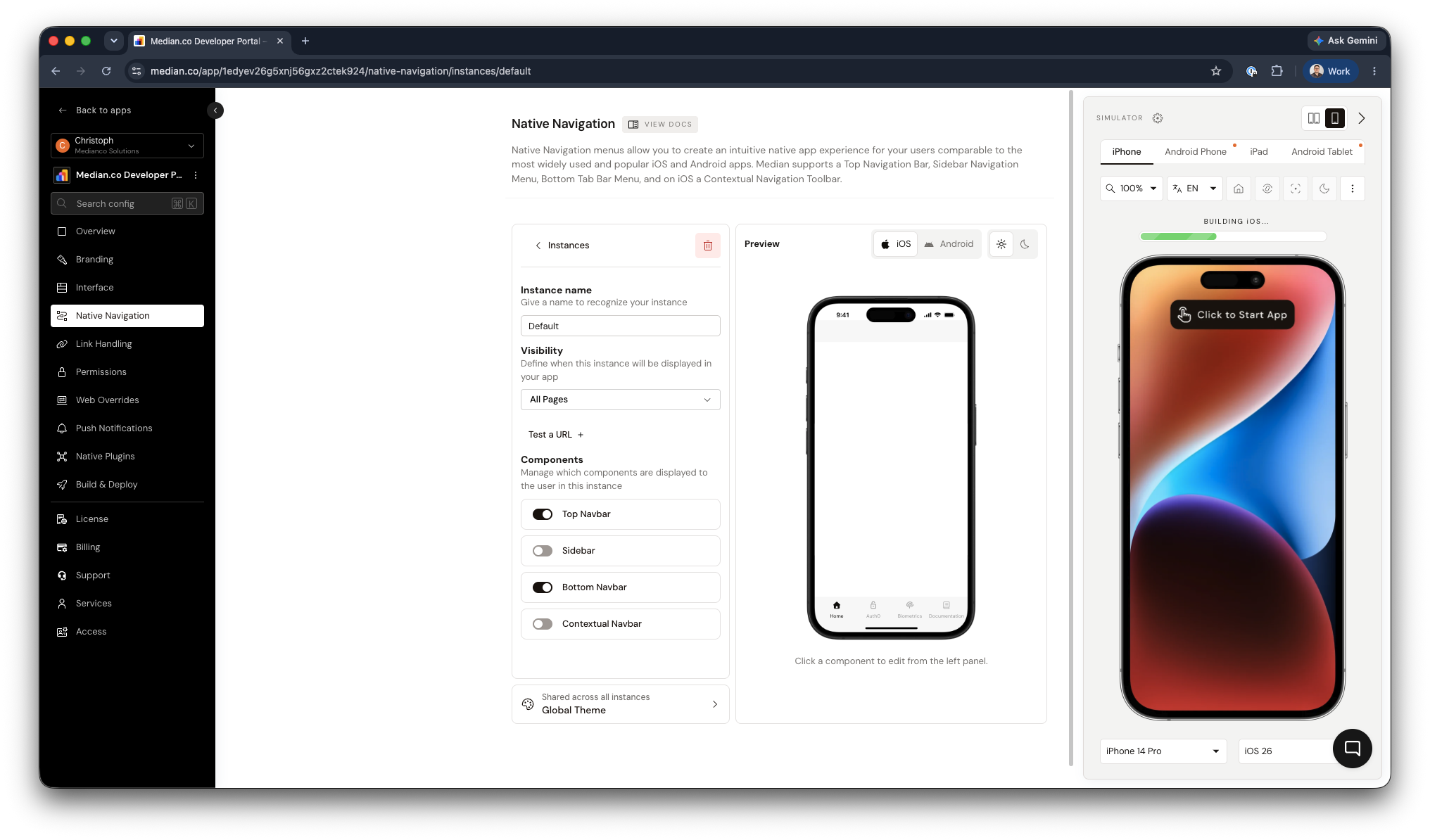
App Studio - Native Navigation
Components
Each instance can turn these components on or off and give them their own items:
| Component | What it shows |
|---|---|
| Top Navbar | The bar at the top of the screen: page title, menu button, and action buttons such as refresh, share, and custom buttons. See Top Navigation Bar. |
| Sidebar | A menu that slides in from the side, with links and groups of links. See Sidebar Navigation Menu. |
| Bottom Navbar | Tabs along the bottom of the screen for the main sections of your app. See Bottom Tab Bar. |
| Contextual Navbar | iOS only. A toolbar with back, forward, and refresh buttons. See iOS Contextual Navigation Toolbar. |
When an instance turns a component off, that component is hidden on the instance's pages.
Global Theme
Colors, fonts, and images for each component are set once in Global Theme and shared across all instances. Instances control what each component shows, and the Global Theme controls how it looks.
Creating an instance
- In App Studio, open Native Navigation and select New instance.
- Give the instance a name you'll recognize.
- Under Visibility, choose the pages that show this instance:
- All Pages: every page that no other instance matches.
- Single Page: one URL.
- Multiple Pages: every page under a URL path, such as everything under
example.com/shop.
- Turn on Include subdomains to match the same pages on subdomains, such as
shop.example.com. - Under Components, choose which components this instance shows, then add their items.
App Studio stores the pages as a URL pattern. See Matching pages for how patterns work. An instance whose pattern isn't a single page or a path is listed as Custom Pages.
How the app chooses an instance
Each time a page loads, the app checks the instances in the order they're listed in App Studio and uses the first one whose pages match. The All Pages instance is used when no other instance matches, wherever it appears in the list.
Put the most specific instances first. To change the order, select Reorder and drag the instances.
The navigation switches as the user moves between pages that belong to different instances.
Matching pages
Instances and link handling rules match pages with URL patterns, which use wildcards instead of regular expressions. A pattern works the same way on iOS and Android.
| Pattern | Matches | Doesn't match |
|---|---|---|
example.com | https://example.com (the home page) | https://example.com/about |
example.com/about | https://example.com/about | https://example.com/about/team |
example.com/shop/** | https://example.com/shop, https://example.com/shop/shoes/42 | https://example.com/blog |
example.com/shop/* | https://example.com/shop/shoes | https://example.com/shop/shoes/42 |
example.com/*/settings | https://example.com/alice/settings | https://example.com/settings |
**.example.com/** | https://example.com/a, https://www.example.com/a, https://shop.example.com/a | https://example.org/a |
*.example.com | https://shop.example.com | https://example.com, https://a.b.example.com |
https://example.com/** | https://example.com/a | http://example.com/a |
example.com/**?tab=orders | https://example.com/account?tab=orders&sort=new | https://example.com/account?tab=profile |
** | Every URL |
- Scheme: a pattern without
https://orhttp://matches both. *matches exactly one part: one segment of the path, or one part of the host name.**at the end of a path matches the path itself and everything under it.**.at the start of a host matches the domain and all of its subdomains.- Query parameters are ignored unless the pattern lists them. A pattern ending in
?key=valuematches URLs that have that parameter with that value, in any position. Use?keyor?key=*to match any value. - Trailing slashes and anything after
#are ignored.
JavaScript Bridge
The Bridge methods for changing navigation at runtime, such as median.sidebar.setItems(), median.tabNavigation.setTabs(), and median.navigationTitles.set(), change the items of the instance that matches the current page.
The change stays in place while the user navigates, including onto pages of other instances, until it's replaced by another call or the app restarts. The persist option doesn't restore these changes when the app starts again.
To keep runtime changes after a restart, apply them each time the app starts:
function median_library_ready() {
  median.sidebar.setItems({
    items: [
      { label: "Home", url: "https://example.com" },
      { label: "Orders", url: "https://example.com/account?tab=orders" }
    ]
  });
}
Updated 15 minutes ago