
Passkey Authentication (WebAuthn)
Add support for passwordless authentication via Passkeys
Overview
Median's Passkey Authentication plugin connects your website (running inside your native app) to the device's built-in biometrics. This allows your users to log into your app using native Face ID, Touch ID, or Android Fingerprint Unlock.
It's built on the FIDO/WebAuthn standard, offering a phishing-resistant, passwordless alternative that's simpler for users and more secure for your business.
Developer DemoYou can explore a sample implementation on the Passkey demo page.
Note: The WebAuthn / Passkey functionality operates entirely within your web implementation. It does not require the Median JavaScript Bridge.
Key Features
- Boost security and stop phishing: Passkeys are cryptographically secure and tied directly to your website. This technology makes it virtually impossible for users to be phished, as there's no password to steal.
- Improve user conversion: Remove the friction of forgotten passwords. Users can log in instantly with their face or fingerprint, leading to a smoother, faster experience that reduces drop-off.
- Leverage native device power: The plugin connects your web content directly to the device's secure hardware (like the Secure Enclave or Android Keystore).
How It Works
At a high level, passkey authentication replaces traditional passwords. The user's device creates and stores a unique cryptographic key. This key is split into two parts: a private key that never leaves the user's device and a public key that is sent to your server.
- A user taps the "Log In" button on your website inside the app.
- The website requests a challenge from your server.
- On Android, the plugin intercepts this call and triggers the native biometric prompt (e.g., "Sign in with Touch ID"). On iOS the native plugin is not required, but the Apple App Site Association (AASA) file needs to be configured and hosted.
- Once the user verifies, the device signs the challenge and passes it back to your website.
- Your website sends this proof to your server to complete the login.
Median bridges the gap between your web-based login flow and the native biometric hardware, making this high-security feature possible in your app.
Use Cases
- Secure e-commerce checkouts: Allow customers to authenticate quickly to complete a purchase or access their order history.
- HIPAA/Financial app logins: Provide a compliant and highly secure login method for users accessing sensitive health or financial data.
- Internal employee portals: Let employees log into internal tools using the same biometrics they use to unlock their work phones.
Implementation
Follow these steps to integrate native passkey (WebAuthn) authentication into your Median app.
Before You Start
- Median App Studio access: You need access to your app build configuration on the Median platform to add the plugin.
- A WebAuthn-compliant server: You must have a backend (Relying Party) capable of generating and verifying FIDO2/WebAuthn registration challenges and login assertions.
- Associated Domains / Asset Links: You must have Apple Associated Domains (for iOS) and Android Digital Asset Links (for Android) configured for your website. This is a non-negotiable security requirement from Apple and Google for passkeys to function.
- You have implemented
/passkey/registerand/passkey/loginendpoints to handle challenge generation and verification.
Android Setup
1. Add the Digital Certificate
Host a file at /.well-known/assetlinks.json publicly on your website. This file must contain your digital certificate information and include the permission delegate_permission/common.get_login_creds.
This file allows Android devices to associate your domain with your app during passkey authentication, enabling the passkey flow to work correctly on Android.
Example: https://median.dev/.well-known/assetlinks.json
Important - All Asset Links and Apple-App-Site-Association (AASA) files need to be publicly accessible
For non-public development environments, you can publicly expose AASA and Asset Links files by using a whitelist reverse proxy, a public static bucket/CDN, an API gateway, an edge worker, or a dedicated micro-site while keeping the rest of the environment private. An example can be found in our blog How to serve AASA and Digital Asset Links files with Cloudflare Workers
2. Configure the Expected Origin
Your server must verify the origin of each WebAuthn request (registration or authentication). On Android, the origin format is different from standard web origins and includes your app's signing certificate fingerprint.
The Android origin format is:
android:apk-key-hash:\<BASE64URL-encoded SHA-256 fingerprint of the APK's signing certificate>
Example: android:apk-key-hash:SLxaRtkJ-LAxf5rY4kusSv21KMenqeVKovFHMT-hPkI
Generate the fingerprint:
Run this command in your terminal (replace \<your-alias>, release.keystore and \<your-keystore-password> with your actual values):
keytool -exportcert -alias <your-alias> -keystore release.keystore -storepass <your-keystore-password> | \
openssl sha256 -binary | \
openssl base64 | \
tr '+/' '-_' | tr -d '='
3. Configure Authenticator Selection
When creating WebAuthn registration options for passkey enrollment, you must include both the legacy requireResidentKey field and the modern residentKey field in your authenticatorSelection object.
Why both fields? Android's WebAuthn implementation requires the legacy requireResidentKey field, even though it's deprecated in the WebAuthn specification. For maximum compatibility across all browsers and Android, include both fields.
Configuration example:
"authenticatorSelection": {
  "requireResidentKey": true | false,       // Required for Android compatibility
  "residentKey": "required",        // Modern WebAuthn field
  "userVerification": "preferred"
}
Understanding requireResidentKey:
This field determines whether the passkey is stored on the device:
- true - The passkey is saved on the device (discoverable credential). Users can authenticate without entering their username.
- false - The passkey is not saved on the device. Only your server stores the credential reference, and users must provide their username to authenticate.
4. Configure Median App Studio Plugin
After completing the website configuration steps above, configure the WebAuthn plugin in Median App Studio:
- In Median App Studio, navigate to Native Plugins > WebAuthn (Android)
- Configure the allowedUrls parameter with URL patterns (regex) that specify which domains can create passkey requests
- Save the configuration
Parameter details:
- allowedUrls - A list of URL patterns (regex) that are allowed to create passkey requests. This helps prevent unauthorized passkey creation from untrusted domains.
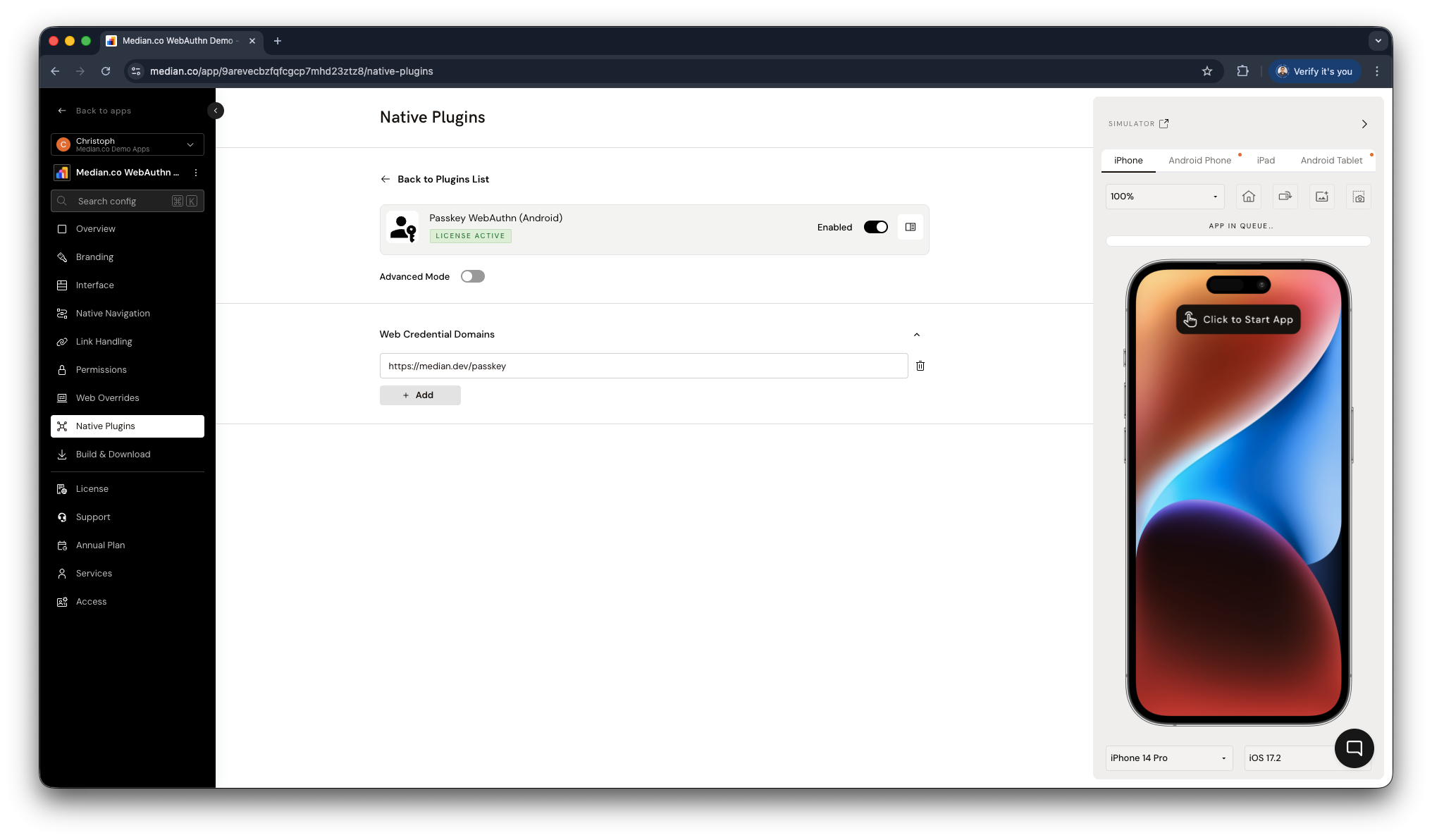
App Studio - Passkey Plugin Configuration
iOS Setup
On iOS the native plugin is not required, but the Apple App Site Association (AASA) file needs to be configured and hosted.
1. Extend your the Apple App Site Association (AASA)
For iOS, you must host an apple-app-site-associationfile that includes a webcredentials object. This file tells iOS that your app is authorized to handle credentials and authentication for your domain.
You can follow the steps in iOS Universal Links Configuration to obtain your AASA. Once you obtained your AASA you will need to add a webcredentials object as defined below.
Example AASA
/* Example - /apple-app-site-association */
{
  "applinks": {
    "apps": [],
    "details": [
      {
        "appID": "TEAMID.co.median.example",
        "paths": ["*"]
      }
    ]
  }
}
Example AASA including WebAuthn support
/* Example - /apple-app-site-association with Passkey Support */
{
  "applinks": {
    "apps": [],
    "details": [
      {
        "appID": "TEAMID.co.median.example",
        "paths": ["*"]
      }
    ]
  },
  "webcredentials": {
    "apps": ["TEAMID.co.median.example"]
  }
}
2. Host your AASA file
Deep Links and WebAuthn on iOS will not work unless a PATH is specified as part of the URL. For example, http://example.com will NOT work, but http://example.com/PATH will work.
If your site uses multiple subdomains (such as example.com, www.example.com, and support.example.com), EACH requires its own entry in the Associated Domains Entitlement, and each must serve its own /apple-app-site-association file.
You must host the /apple-app-site-association file with a Content-Type: application/json HTTP header, using https:// with a valid SSL certificate, and with a 200 HTTP Status Code with no redirects.
Updated about 1 month ago