
Bloomreach
Engage your users with Bloomreach Engagement push notifications, customer identification, and deep linking
The Bloomreach plugin enables native mobile push notifications and customer identity tracking to maximize engagement and audience insight. It integrates the official Bloomreach iOS SDK on iOS and the Bloomreach Android SDK on Android. Both integrations are built on Bloomreach's Exponea SDK core.
This guide covers Bloomreach Engagement project setup, Median App Studio configuration, Android push delivery via Firebase, deep linking, and the Median JavaScript Bridge APIs for permissions and customer identity.
Developer DemoDisplay our demo page in your app to test during development https://median.dev/bloomreach/
Why use Bloomreach?
- Push permission control: Request and check notification permission from JavaScript.
- Customer identity support: Identify and persist customer state across sessions.
- Customer logout support: Clear customer session state when needed.
- Deep linking readiness: Configure domains to route links into the app.
Prerequisites
- Access to Bloomreach plugin settings in Median App Studio (Native Plugins tab).
- Bloomreach credentials from your Bloomreach Engagement dashboard:
apiKeyprojectTokenbaseURL
- For Android push, plan Firebase Cloud Messaging (FCM) with
google-services.jsonand Bloomreach; see Android push notifications. - For deep linking, plan domains for
hostsand host platform verification files; see Deep linking setup.
Implementation guide
Bloomreach Engagement setup
Bloomreach Engagement issues one set of SDK credentials per project: a project token, an API key (public key), and a base URL. Median uses these same three values to initialize the native iOS and Android SDKs on your behalf. A manual SDK integration or initialization is not required.
Retrieve your credentials from the Bloomreach Engagement web app under Project settings > Access management > API. For background on how these credentials map to SDK initialization, see the official Configuration for iOS SDK and Configuration for Android SDK references.
App configuration
- In Median App Studio, open your Native Plugins tab.
- Find the Bloomreach plugin in your list of 'Added plugins' and activate it as shown below.
- Rebuild your app to apply the new configuration.
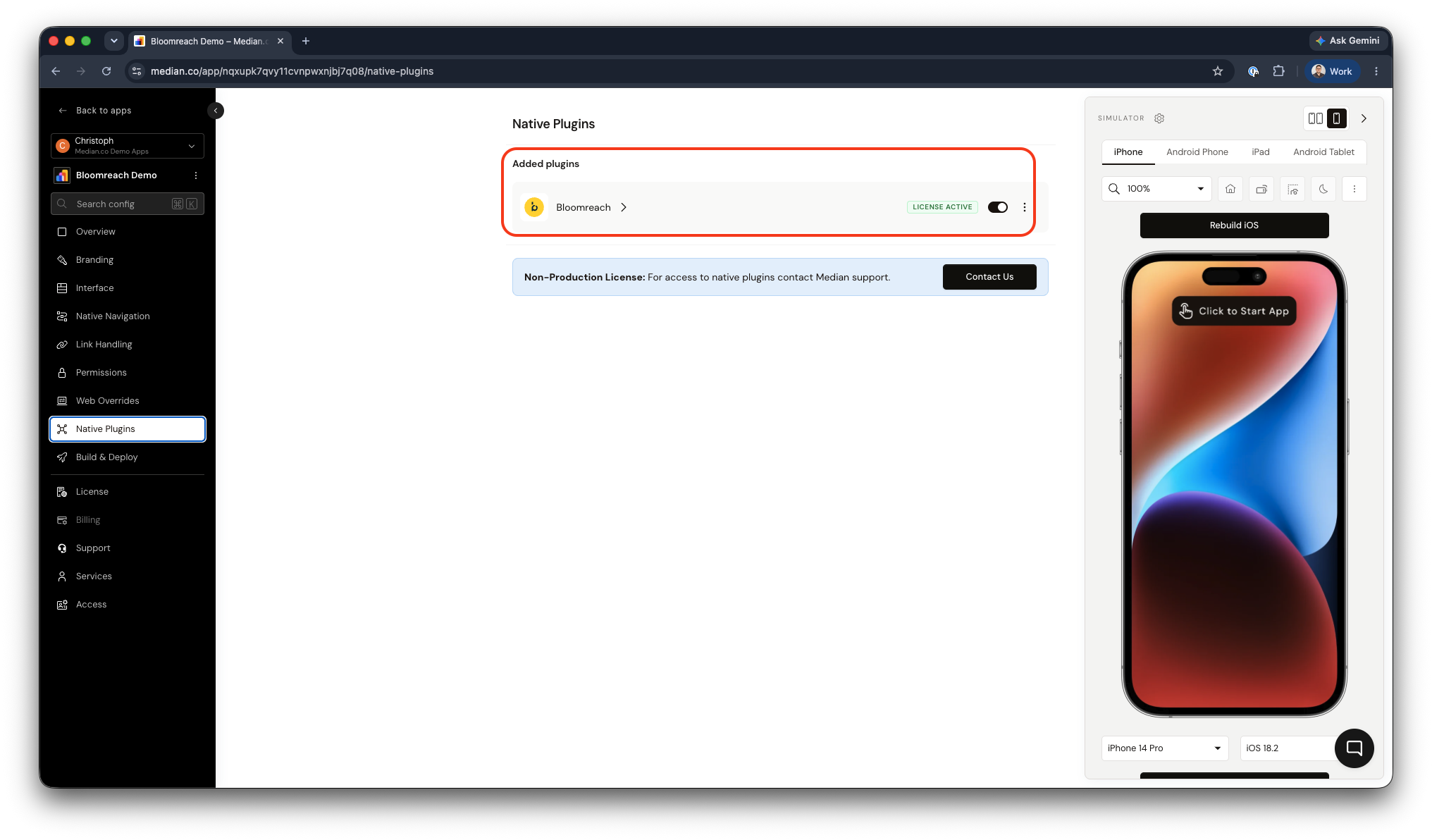
Bloomreach Plugin Activation
Plugin configuration options
After activating the plugin there are different configuration options available for your team. Below you can find a configuration reference and example.
| Setting | Required | Description |
|---|---|---|
| active | Yes | Enables or disables the plugin. Set to true for active integrations. |
| apiKey | Yes | Bloomreach Engagement API key (public key), from Project settings > Access management > API. |
| projectToken | Yes | Bloomreach Engagement project token. |
| baseURL | Yes | Your project's regional Bloomreach Engagement API base URL (for example, https://api.exponea.com or a regional endpoint such as https://api.eu1.exponea.com). |
| autoRegister | No | Automatically prompts users for push permission on app launch. Set to false if you want to control permission timing manually rather than prompt the user automatically when launching the app for the first time. |
| hosts | No | A domain allowlist for deep links. Add each domain without a scheme (https:///http://); see Deep linking setup. |
Example configuration (JSON)
{
  "active": true,
  "autoRegister": false,
  "apiKey": "your-api-key",
  "projectToken": "your-project-token",
  "baseURL": "https://api.eu1.exponea.com",
  "hosts": ["median.dev", "median.com"]
}
Replace each value with the credentials from your Bloomreach Engagement project and your app's own domains.
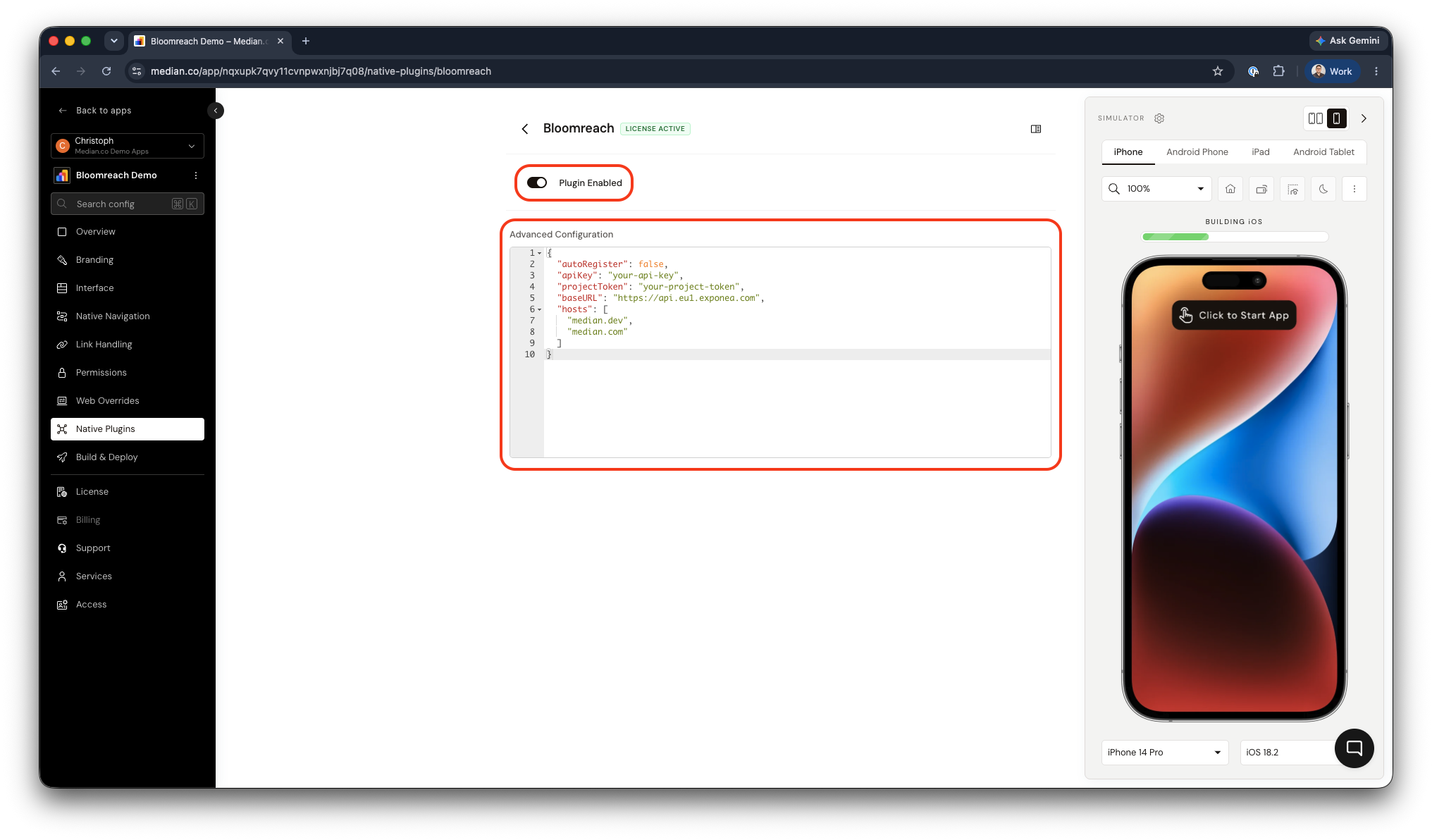
Bloomreach Plugin Example Configuration
Android push notifications
Android devices receive Bloomreach Engagement push notifications through Firebase Cloud Messaging (FCM). Complete both of the following:
google-services.json— In Median App Studio, open the Build & Deploy tab and upload your Firebase project'sgoogle-services.jsonfile so it's embedded in the app binary.- Firebase Cloud Messaging integration in Bloomreach Engagement — In the Bloomreach Engagement web app, add a Firebase Cloud Messaging integration under Data & Assets > Integrations, then enable it under Project Settings > Channels > Push notifications.
For Bloomreach-side steps (projects, keys, and campaigns), use Bloomreach’s documentation.
Deep linking setup
Deep links open URLs inside your app instead of the device browser when domains are allowlisted and platform association files are valid and reachable over HTTPS.
- Plugin configuration — Add every domain you want to open in-app to the
hostsarray. Do not includehttps://orhttp://; the plugin applies URL schemes as needed. - Hosted verification files — On each domain (and subdomain you use), serve the standard association files over HTTPS:
- Android —
/.well-known/assetlinks.json(format and examples: Deep linking). Example host file: https://median.dev/.well-known/assetlinks.json. - iOS —
/.well-known/apple-app-site-association(or/apple-app-site-association). Example: https://median.dev/.well-known/apple-app-site-association.
- Android —
Use Median.co's Deep Linking Validator to check your domain configuration, and read Deep linking for background on Universal Links, App Links, and file requirements.
Note: An incorrect deep link setup causes links to open in the mobile device browser instead of the app. Confirm your hosts list and hosted verification files before testing push-triggered links.
JavaScript Bridge functions
All methods are available on the median.bloomreach namespace and should be called after the Median JavaScript Bridge is fully initialized.
Request push notification permission
Prompt for the Push Notification permission, which displays a dialog for users to confirm permission. For Android, the dialog only displays on Android 13 and above. Android 12 and below will always be granted without user intervention.
Provide a callback function or await the returned promise.
median.bloomreach.promptNotification({ callback: function })
// Return value:
{
  "granted": true | false
}
Parameters:
| Parameter | Type | Required | Description |
|---|---|---|---|
callback | function | No | Callback that receives { granted: true | false }. |
Check push notification permission
Checks whether push permission is currently granted, without prompting the user.
median.bloomreach.notificationEnabled({'callback': function})
// Return value:
{
  "granted": true | false
}
Parameters:
| Parameter | Type | Required | Description |
|---|---|---|---|
callback | function | No | Callback that receives { granted: true | false }. |
Identify customer
Identifies a customer by a hard identifier and value, so Bloomreach Engagement can associate device activity with a known profile. State persists until logoutCustomer is called.
const params = {
  identifier: "registered",
  value: "[email protected]",
};

const result = await median.bloomreach.identifyCustomer(params);
Parameters:
| Parameter | Type | Required | Description |
|---|---|---|---|
identifier | string | Yes | Customer identifier key (example in source: registered). |
value | string | Yes | Identifier value (example: email). |
properties | object | No | Optional customer properties such as first_name, last_name, age. |
Optionally, include user properties:
const params = {
  identifier: "registered",
  value: "[email protected]",
  properties: {
    first_name: "John",
    last_name: "Doe",
    age: 25,
  },
};
Logout customer
Clears the current customer session, detaching subsequent tracking and push delivery from the previously identified profile.
median.bloomreach.logoutCustomer({callback: function})
// Return value:
{
  "success": BOOLEAN
}
Parameters:
| Parameter | Required | Type | Description |
|---|---|---|---|
callback | No | function | Callback for logout completion. |
Usage examples
Prompt for permission only if not already granted
async function ensureBloomreachPermission() {
  const status = await median.bloomreach.notificationEnabled();
  if (!status.granted) {
    const result = await median.bloomreach.promptNotification();
    console.log("Permission granted:", result.granted);
  }
}
Identify a customer, then clear the session on logout
async function setAndClearCustomer() {
  await median.bloomreach.identifyCustomer({
    identifier: "registered",
    value: "[email protected]",
    properties: {
      first_name: "John",
      last_name: "Doe",
      age: 25,
    },
  });

  await median.bloomreach.logoutCustomer();
}
Testing checklist
Use this checklist to validate your Bloomreach integration before release:
Basic Functionality
- Plugin is
activeandapiKey,projectToken, andbaseURLare all set correctly. -
promptNotificationdisplays the native permission dialog and returns a result. -
notificationEnabledaccurately reflects the device's current permission state. -
identifyCustomeris called with a valididentifier/valuepair, and the profile appears in the Bloomreach Engagement customer list. -
logoutCustomerclears the session and stops further tracking for that profile.
Configuration Testing
- Android build includes
google-services.json. - Bloomreach Engagement's Firebase Cloud Messaging integration is configured with a valid service account private key.
Deep Linking
-
hostsincludes every intended deep-link domain, without a scheme. - Association files (
assetlinks.json,apple-app-site-association) are hosted and pass Median's Deep Linking Validator. - Tapping a push notification or campaign link opens the correct screen in-app, not the browser.
Troubleshooting
Why do deep links open in the browser instead of the app?
Why do deep links open in the browser instead of the app?
This typically indicates incorrect deep linking configuration. Verify hosted association files and ensure all intended domains are listed in hosts (without https:// or http://).
Why aren't Android push notifications being delivered?
Why aren't Android push notifications being delivered?
Verify google-services.json is embedded in the app and Bloomreach push configuration includes the FCM server key.
Which identifier should I use in identifyCustomer?
Which identifier should I use in identifyCustomer?
registered is a common default hard ID, but your project's actual hard ID may differ. Check your project's customer identification configuration in the Bloomreach Engagement web app to confirm which identifier to use.
Still having trouble?For issues related to Bloomreach's own configuration, permissions, or platform-specific behavior outside Median.co's, refer to Bloomreach's integration documentation.
Updated 23 days ago