
Link Behavior
Control how links open in your Median.co app and customize link handling options
URLs in your app can be loaded in three ways:
- Internally within your app, for a seamless experience with app-optimized web content.
- Within an in-app browser window, for sites that are not ideal inside the main WebView (for example external websites). When the user closes the embedded browser, focus returns to your app, which helps session time and reduces bounce.
- Externally in the device default mobile browser or the default app registered for a deep link (for example, Safari, Chrome, Google Maps, or LinkedIn). Use this for fully external content, especially third-party destinations where you have limited control and want a clear separation between your app and the external experience. Users always leave your app when a link opens externally.
Developer DemoDisplay our demo page in your app to test during development https://median.dev/link-handling/
In-app browser (reference)
| iOS | Android | |
|---|---|---|
| Initial view | 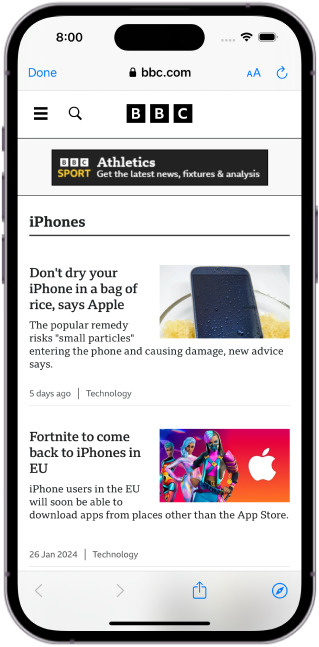 | 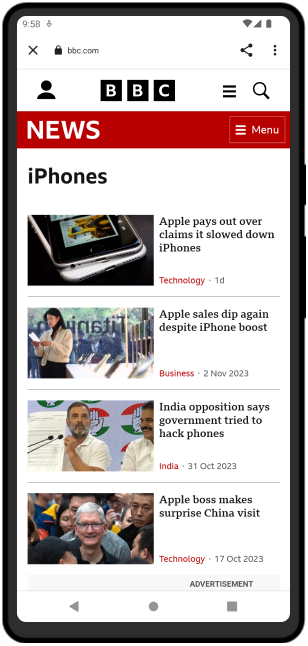 |
| After scroll / menu | 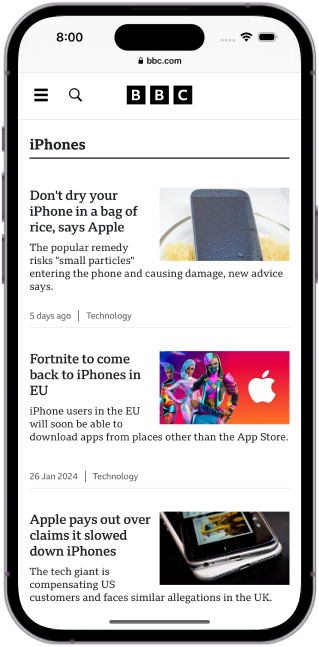 | 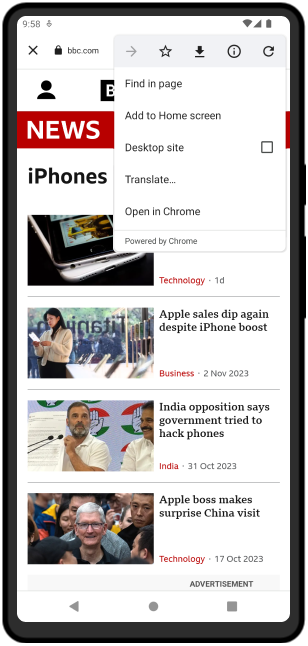 |
On iOS you can set the color of native in-app browser controls from App Studio → Branding.
In-app browser closed callback
You can detect when a user closes the in-app browser by defining median_appbrowser_closed. The app calls this function automatically when the in-app browser closes.
function median_appbrowser_closed() {
  window.alert("App browser closed!");
}
Opening links
Regular links on a page follow the link handling rules configured for your app. You can also open URLs programmatically with the JavaScript Bridge.
JavaScript Bridge: open modes
When opening a URL through the Bridge, use one of the following modes:
blank— New WebView window instance (default when mode is omitted).internal— Current WebView window instance.external— Mobile browser or the app registered for the URL’s deep link.appbrowser— In-app browser window (see screenshots above).
median.window.open(url, mode);
// mode = blank (default) | internal | external | appbrowser
Link handling rules
Regular web links open according to the rules defined in your app. The default configuration works for many apps; you can adjust the rule set as needed.
Default for “All Other Links” is App Browser
By default, links to URLs on the same domain as your Website URL open Internal in your app. Links on other domains open in the App Browser. To change that, scroll to the bottom of the Link Behavior rules, edit the All Other Links rule, and set it to Internal (everything stays in the main WebView) or External (open in the system browser or default app).
Order matters
Rule matching is evaluated top to bottom. Put the most specific rules first and the most general rules last.
Editing a rule
To edit a rule, select the Edit control on the rule. Choose how the rule should match URLs:
| Match type | Behavior |
|---|---|
| Single Page | Apply to one specific URL you enter. |
| Multiple Pages | Apply using a URL path prefix. |
| All Pages | Apply the regex across the entire app. |
| Custom | Supply your own regex pattern. |
Toggle Include Subdomains to extend the rule to subdomains of the matched domain.
To match arbitrary domains with a query flag, use a regex such as https?:\/\/.*\?external=true and link to URLs like https://anysite.com/page?external=true.
Test regular expressions
-
Regex compatibility warning
Lookahead and lookbehind expressions, including negative variants, are not supported on Android and are only available on iOS 14 and later. Rules using these patterns will silently fail to match on unsupported platforms. Use simple, positive regular expressions to ensure consistent behavior across both platforms.
Changing rules at runtime
Apply internal / external / app browser routing dynamically:
Run the following Median JavaScript Bridge command to apply new internal/external rules:
var rulesArray = [
  {
    id: 1,
    regex: "https?://maps\\.google\\.com.*",
    mode: "external",
  },
  {
    id: 2,
    regex: "https?://([-\\w]+\\.)*google\\.com/maps/search/.*",
    mode: "external",
  },
  {
    id: 3,
    regex: "https?://([-\\w]+\\.)*linkedin\\.com/.*",
    mode: "external",
  },
  {
    id: 4,
    regex: "https?://([-\\w]+\\.)*nytimes\\.com/.*",
    mode: "appbrowser",
  },
  {
    id: 5,
    regex: "https?://([-\\w]+\\.)*wsj\\.com/.*",
    mode: "appbrowser",
  },
];

median.internalExternal.set({ rules: rulesArray });
Context menu
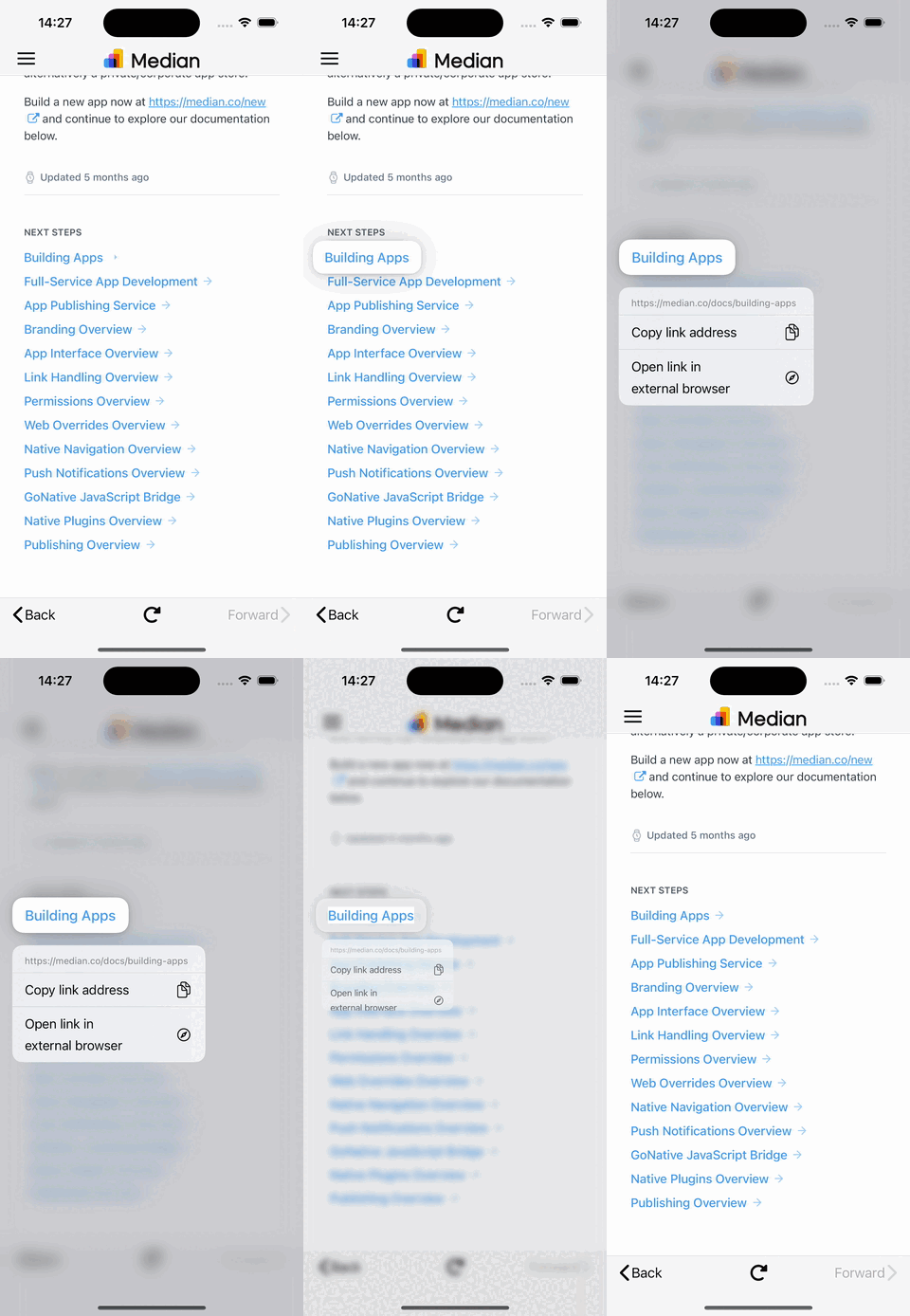
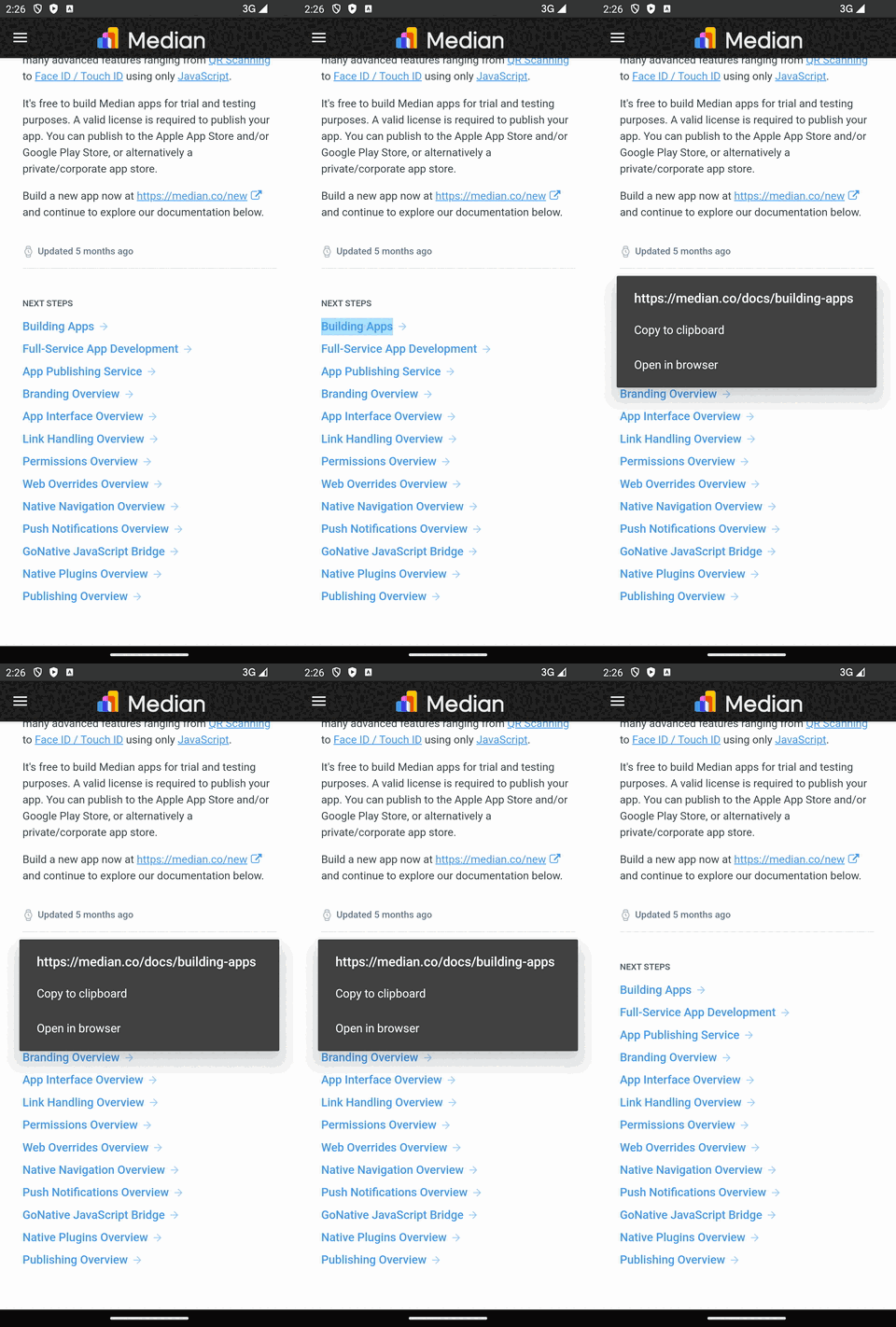
The context menu is a floating menu shown when the user long-presses a link. You can turn it on or off at runtime and choose which actions appear, using the Median JavaScript Bridge.
Developer DemoDisplay our demo page in your app to test during development https://median.dev/context-menu/
Enable or disable
median.contextMenu.setEnabled(true); // or false to disableSet available actions
// Define which actions appear in the context menu
median.contextMenu.setActions(["copyLink", "openExternal"]);
Supported actions
copyLink: Copies the selected link to the clipboard.openExternal: Opens the selected link in the device’s external browser.
UI preview
| iOS | Android |
|---|---|
 |  |
Updated about 1 month ago