
Connecting Median with App Store Connect
Automate iOS Builds with App Store Connect
To simplify the iOS build process, the Median App Studio integrates directly with your Apple Developer account through the App Store Connect API. When you configure this connection, our platform automatically generates and manages the required certificates and provisioning profiles for your app and uploads new distribution builds directly to App Store Connect.
This integration fasttracks the build and upload workflow so you can test with TestFlight and submit to the Apple App Store without Xcode, a Mac computer, or Apple Transporter. You still create the App Store Connect app record and complete the store listing in App Store Connect.
You’re always in control: you can disconnect this integration at any time from your Median settings, or revoke the API key directly from your App Store Connect account.
If you are unable to connect to App Store Connect, you can still configure certificates and provisioning profiles manually, then upload a signed IPA yourself.
Step-by-Step
Step 1: Generate an API key in App Store Connect
- Go to App Store Connect → Users and Access → Integrations → API Keys
- Click the + button to generate a new key.
- Give the key a name (for example, "Median") and assign it the App Manager role at minimum. Admin access also works, but App Manager is sufficient and follows the principle of least privilege.
- Click Generate.
Download your private key immediatelyApple lets you download the
.p8private key file exactly once. If you close this dialog before downloading it, you cannot retrieve the same key again. You'll need to revoke it in App Store Connect and generate a new one from scratch.
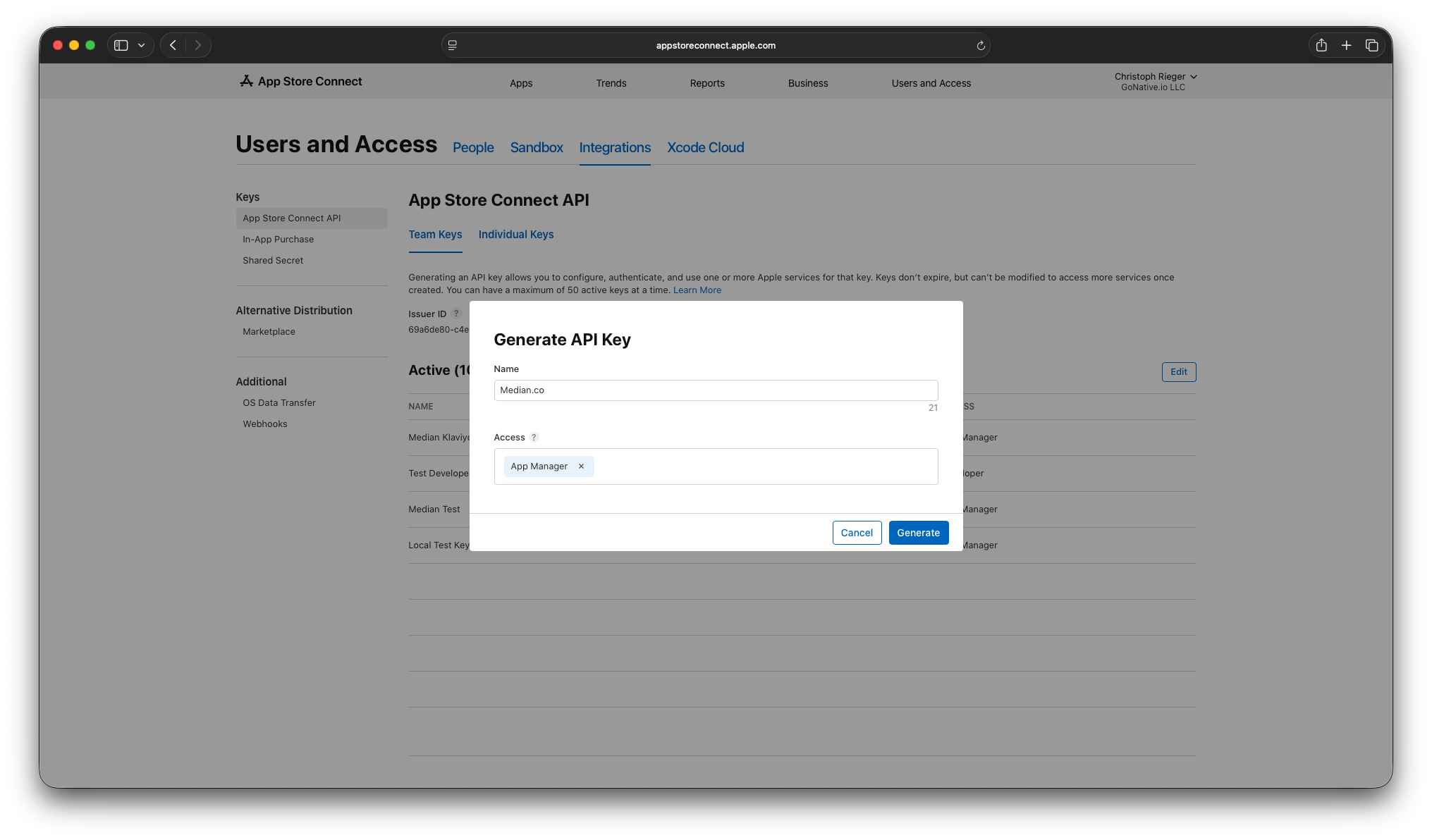
App Store Connect API Keys
You'll need three things from this step to complete Step 2:
- Issuer ID (shown at the top of the API Keys page)
- Key ID (shown in the key's row in the table)
- The downloaded
.p8private key file
Individual vs. Team keysIf your Apple Developer account belongs to an organization, generate the key from an account with Team (organization) access, not an individual/personal API key. Individual keys are scoped to a single Apple ID and can cause permission errors partway through a build or upload.
Step 2: Connect the key to Median
- In Median App Studio, open Build & Deploy tab for your app in the App Studio and click Configure in the iOS IPA section.
-
In the Apple Developer API Connection section: Enter the Issuer ID and Key ID, and upload your Private Key (.p8) file. All of those can be obtained in Step 1.
-
Click Connect.
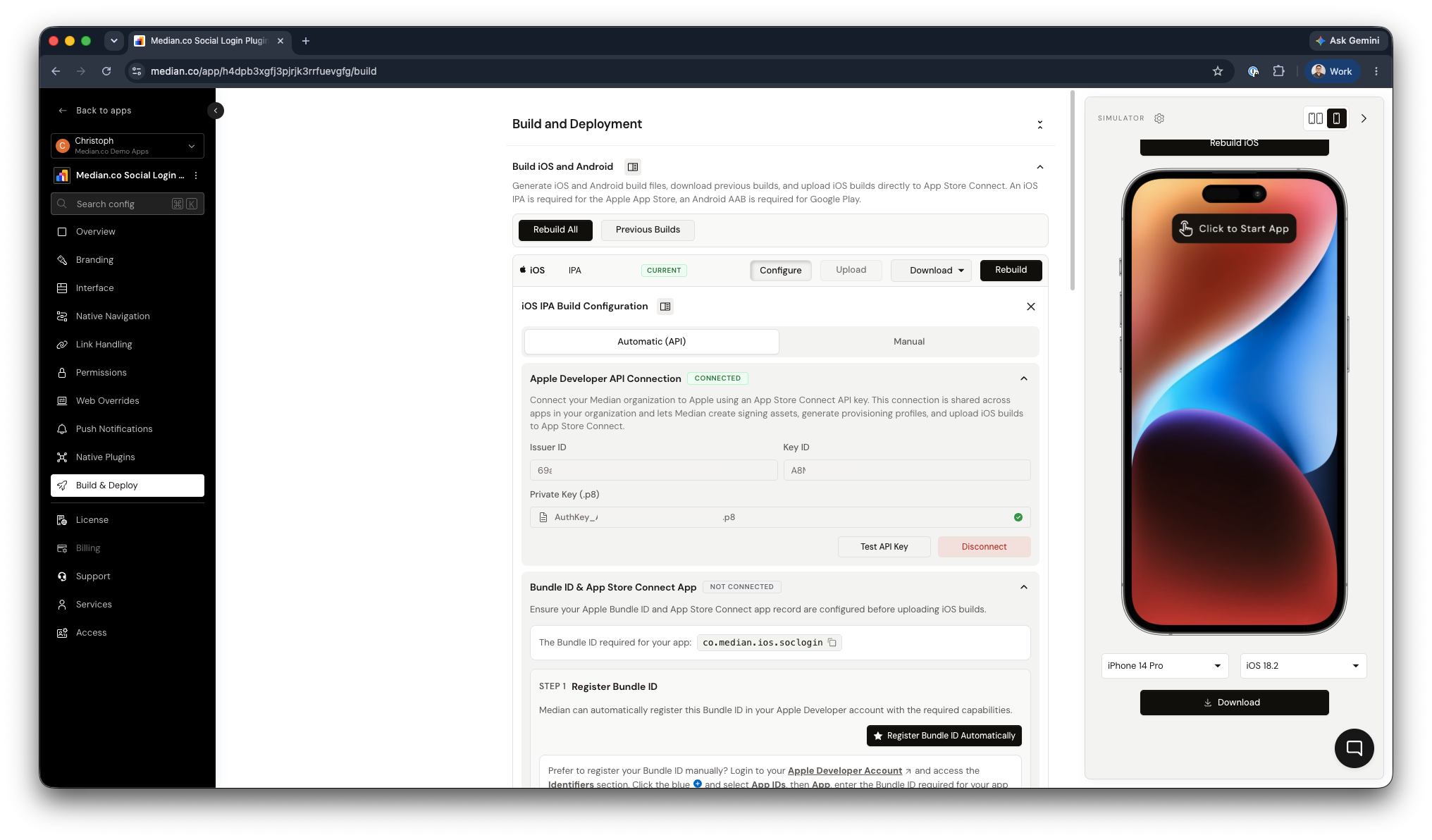
Connected Apple Developer API
Once connected, the card displays a Connected badge along with Test API Key and Disconnect actions to validate the configuration and disconnect the API connection.
- In the Bundle ID & App Store Connect App section:
- Register the Bundle ID for your app within your Apple Developer account. (We also provide an option to register your Bundle ID automatically via the API connection).
- Create an App Store Connect App Record for your app. (This step cannot be completed through the API and must be configured manually in App Store Connect).
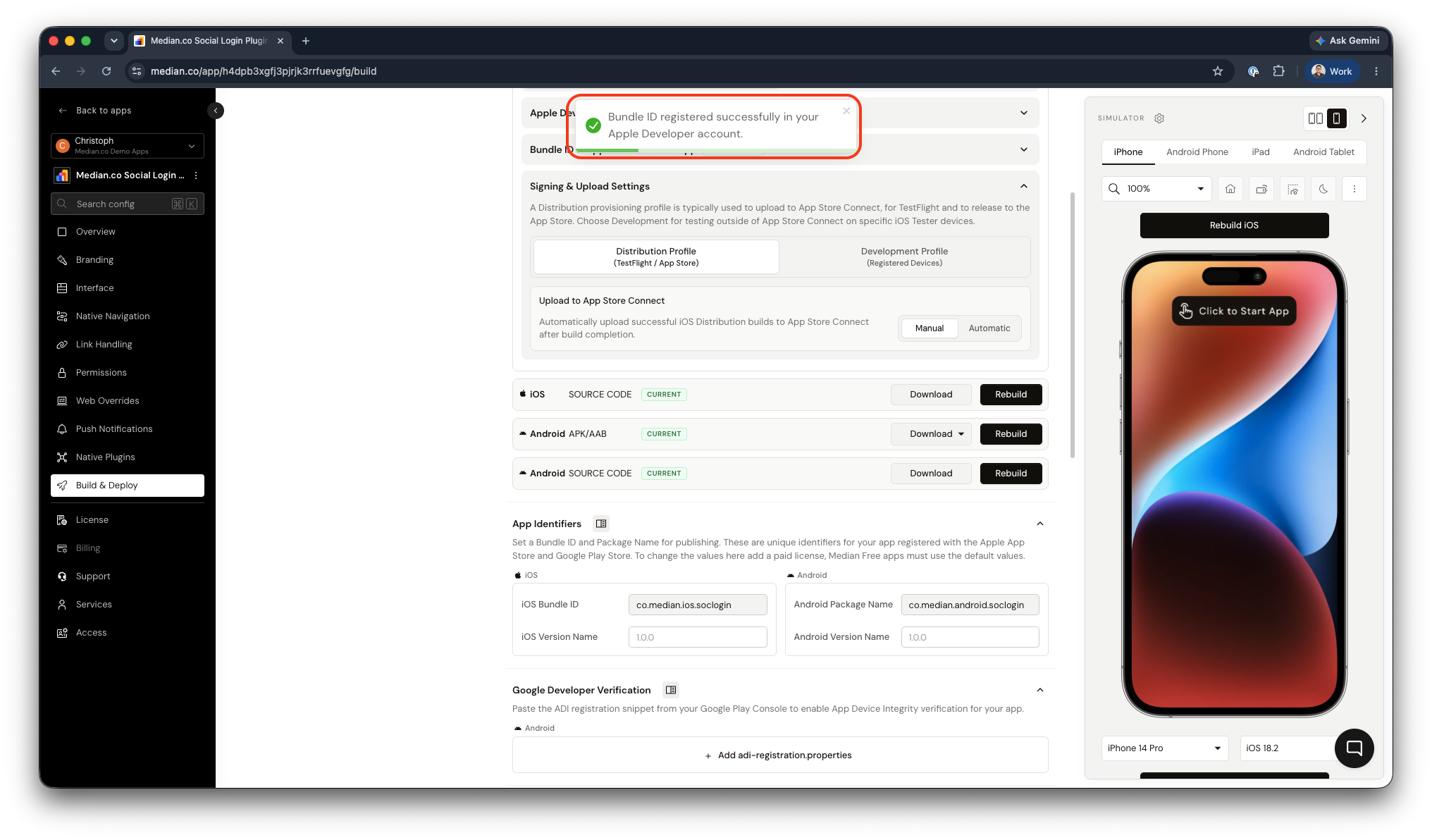
Registered Bundle ID
-
In the Signing & Upload Settings section, select Distribution Profile and set Upload to App Store Connect to Automatic. This is the recommended setting for TestFlight and App Store submission.
Profile Overview
A Development build/profile is limited to devices you've explicitly registered as testers and is meant for direct installs outside App Store Connect.
A Distribution build/profile is required for TestFlight and App Store releases. You choose between these in the Signing & Upload Settings section covered in Configure Signing for Your App.
-
Each time you build a new iOS IPA, it will be automatically uploaded. If Manual is selected, you can press the Upload button after the build completes.
Prefer not to use an API key?
If you're unable or unwilling to generate an App Store Connect API key, you can sign builds manually instead by uploading your own distribution certificate and provisioning profile. See Option 2: Upload Your Own Signing Assets in Configure Signing for Your App.
Next Step
Continue with Register Testing Devices →
Frequently Asked Questions
What's the difference between an Individual and a Team API key?
What's the difference between an Individual and a Team API key?
A Team key is scoped to your whole Apple Developer organization account and is the correct choice for most setups. An Individual key is tied to a single personal Apple ID and can cause permission errors mid-build if that person's access changes — use a Team key whenever your account is an organization account.
I closed the dialog before downloading my .p8 file — what do I do?
I closed the dialog before downloading my .p8 file — what do I do?
Apple only allows the private key to be downloaded once. Go back to Users and Access → Integrations → API Keys, revoke the key you just created, and generate a new one, making sure to download the .p8 file before closing the dialog.
Can I disconnect App Store Connect later?
Can I disconnect App Store Connect later?
Yes. Click Disconnect on the Apple Developer API Connection card in Median, or revoke the key directly from App Store Connect. Builds you've already produced aren't affected, but you'll need to reconnect before starting new automatic builds or uploads.
Does this connection apply to one app or my whole organization?
Does this connection apply to one app or my whole organization?
It's organization-wide. Once connected, every app in your Median organization can use this same key for signing and uploads and you don't need to repeat this setup per app.
Updated about 1 month ago