
Register Testing Devices
Provision your iOS devices for testing via UDID
All iPhone/iPads you want to install and test your iOS app on prior to publishing need to be registered to your Apple Developer account. The UDID (Unique Device Identifier) for each device is added to the provisioning profile for your app which permits the app to be installed on those specified devices outside of the App Store.
To register a test device enter the UDID and a device name. Once registered, the device will be included in the provisioning profile used during the build allowing the IPA to be installed and launched on that device.
Rebuild after adding devicesRegistering a new device does not retroactively update builds you've already produced. After adding one or more devices here, you must regenerate your provisioning profile and create a new build before that device can install the app.
Add iOS Testers and register their iOS devices
Go to your Median organization page > iOS Testers, then click the Add iOS Tester button to add all testers including your own devices. If a user has multiple devices, e.g. iPhone and iPad, you will need to add each separately.
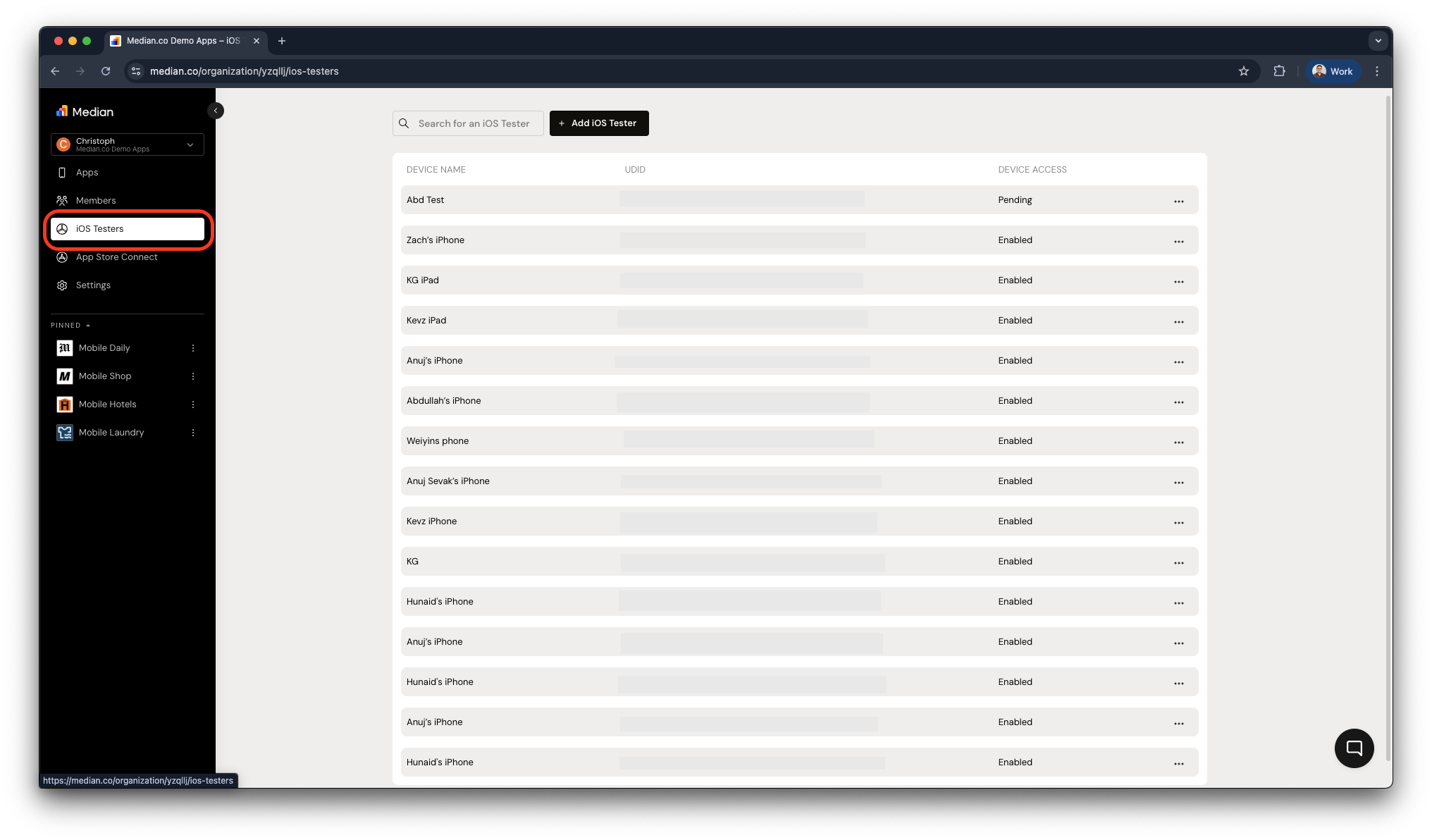
Option 1: Invite a tester by email (recommended)
This is the easiest path when someone else owns the test device as they never need to find their own UDID.
- In Median App Studio, go to iOS Testers and click Add iOS Tester.
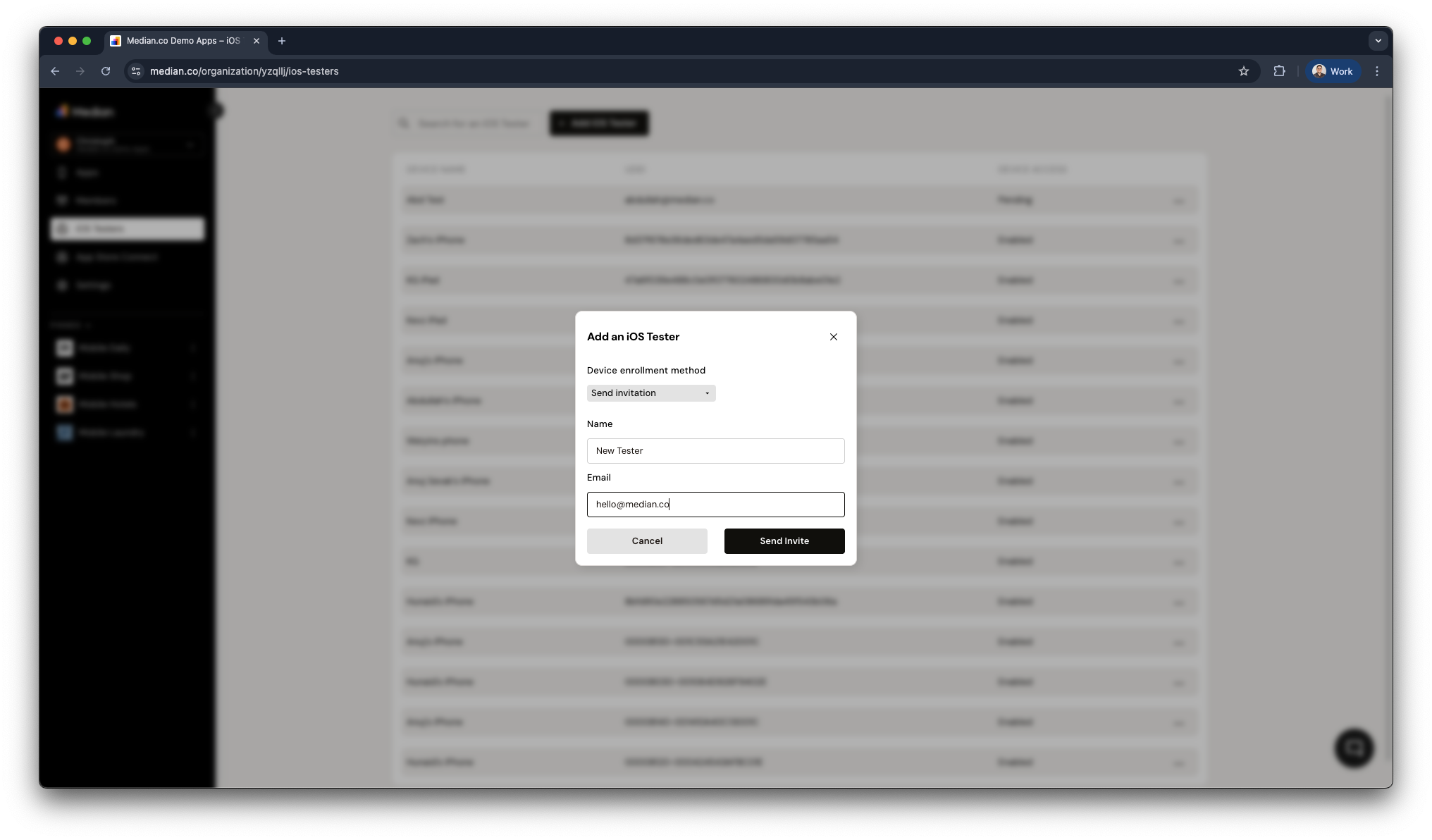
- Choose Send Invitation as the device enrollment method (default), enter the user’s name and email, then click Send Invite.
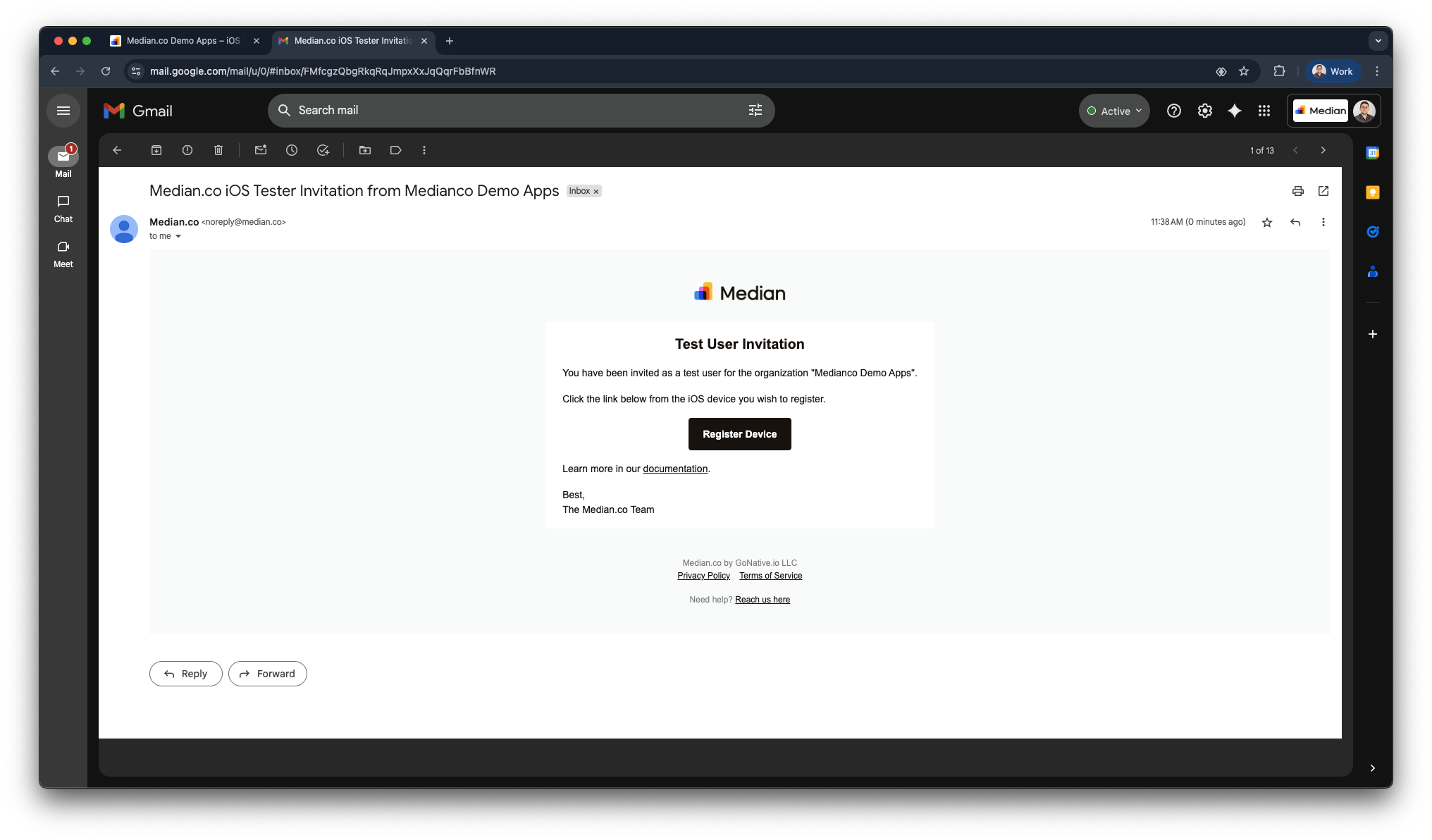
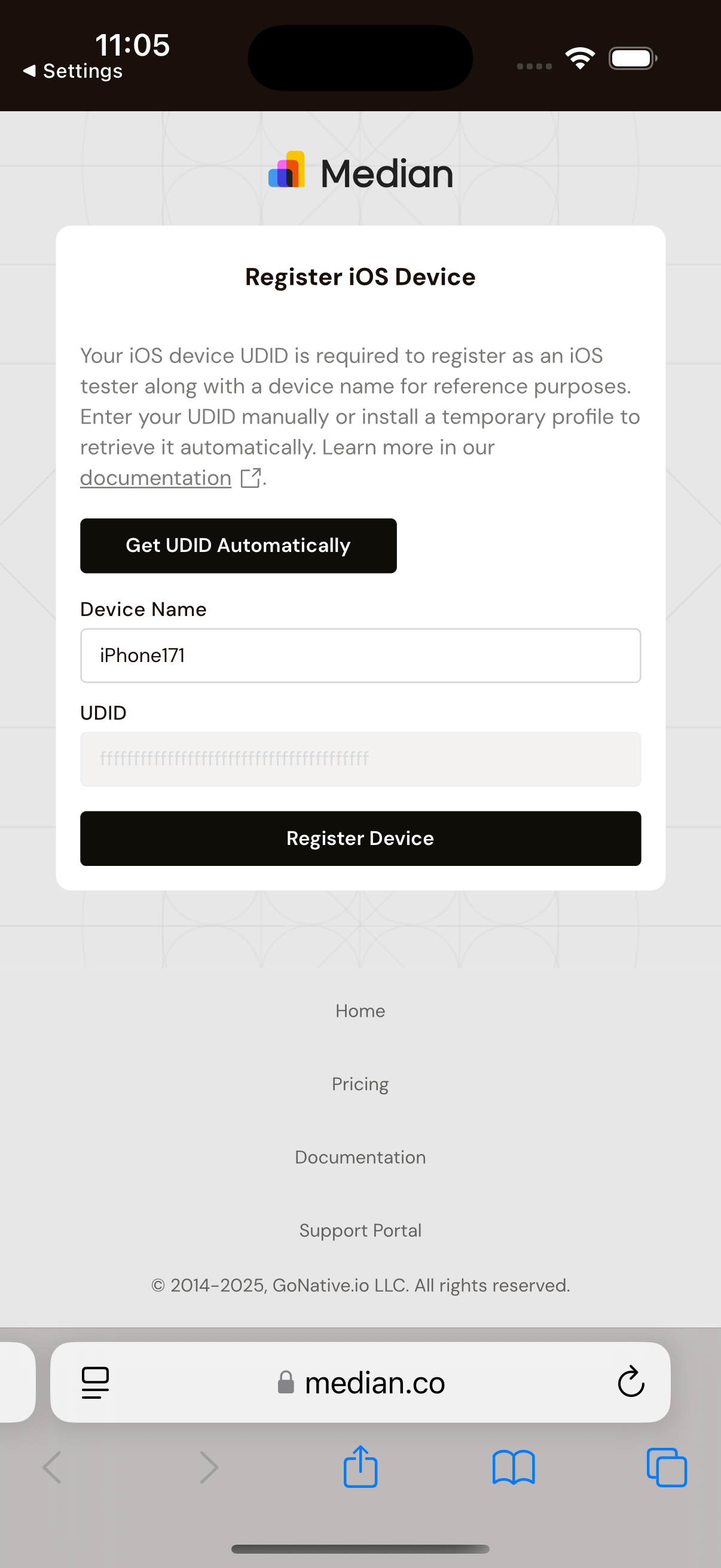
- The user should open the invitation email on their iOS device and click Register Device. This will open the Median webpage where they can enroll their device.
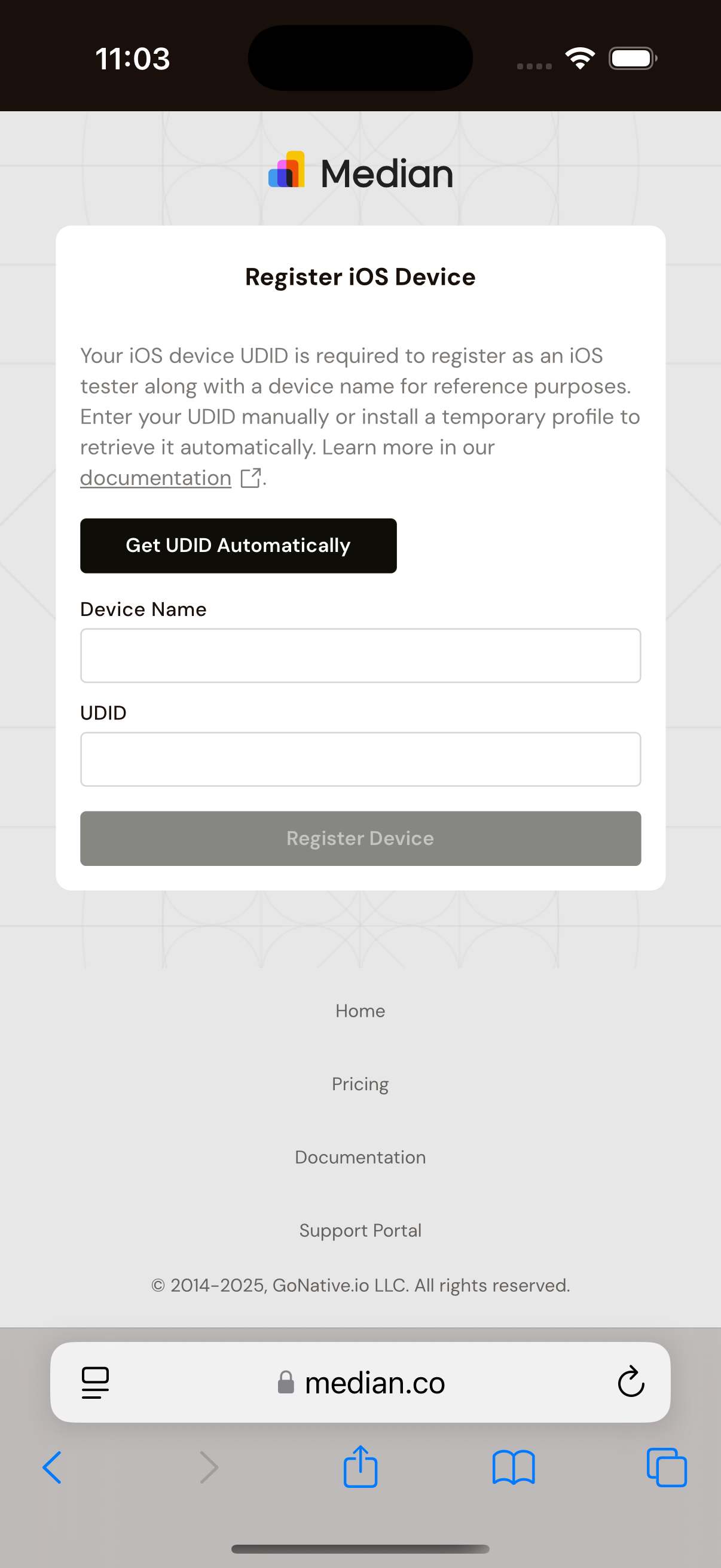
- Click Get UDID Automatically, then download the UDID device profile.
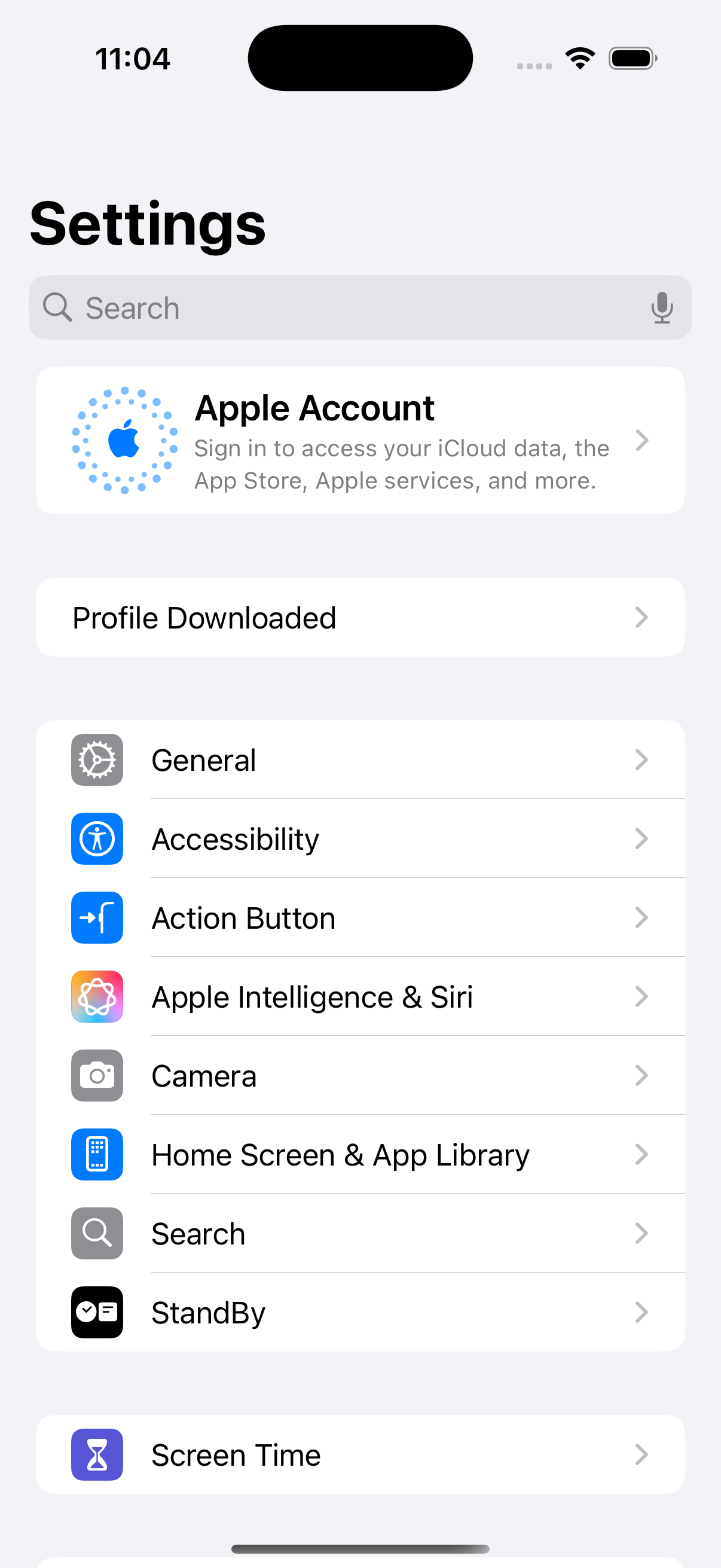
- Once downloaded, open the Settings app and tap Profile Downloaded.
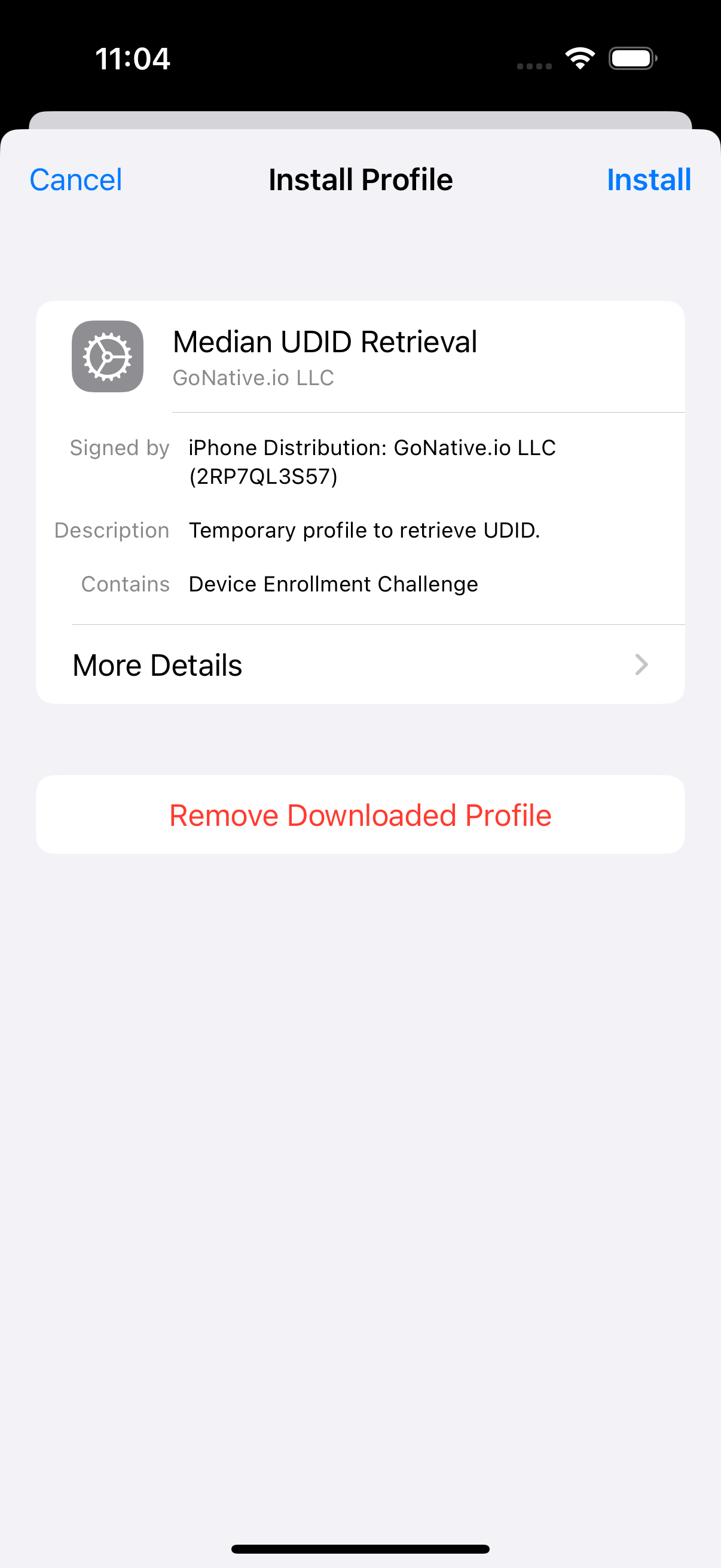
- Install the profile. Once complete, you will be redirected back to the Median website with the UDID and device name pre-filled. Click Register Device to complete the process.
Option 2: Enter a UDID manually
Use this option if you already know a device's UDID, or if you're registering your own device.
-
Request the UDID for all devices you wish to add. Median's standalone Get UDID page can be used to avoid needing to connect the iOS device to a computer via USB.
-
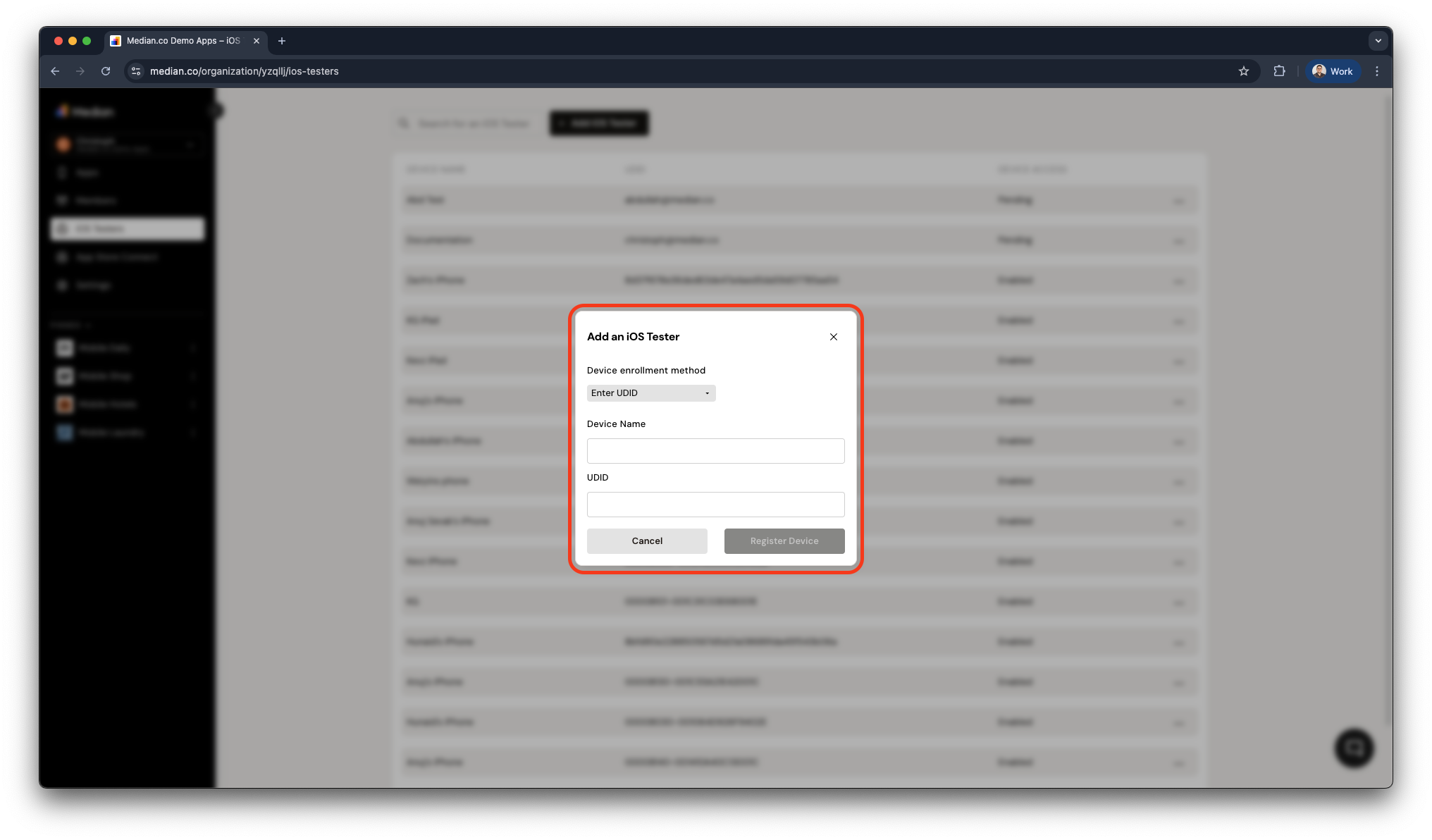
In Median App Studio, go to iOS Testers and click Add iOS Tester.
-
Enter the device's UDID and an optional label (for example, "QA - John's iPhone 17").
-
Click Register Device.
Manual Provisioning
The device now appears in your registered device list, ready to be included the next time you regenerate a provisioning profile.
Next Step
Configure Signing for Your App →
Frequently Asked Questions
Do I need to physically plug my iPhone into a computer to get its UDID?
Do I need to physically plug my iPhone into a computer to get its UDID?
No. Use the email invite flow (Option 1), or open Median's Get UDID page directly on the device (Option 2). A USB connection to a computer isn't required either way.
What happens if I add a new tester after I've already built my app?
What happens if I add a new tester after I've already built my app?
The existing build won't recognize the new device. You need to regenerate the provisioning profile and create a new build; only devices included in the profile at build time can install that build.
Can one person register both an iPhone and an iPad?
Can one person register both an iPhone and an iPad?
Yes, but each device must be registered separately as there's no bulk or multi-device entry per person. Send a separate invite, or add each UDID individually.
Is there a limit to how many test devices I can register?
Is there a limit to how many test devices I can register?
Apple's Developer Program limits registered devices to 100 per device class (iPhone, iPad, etc.) per membership year. If you're approaching that limit, plan your test group accordingly, since removed devices can't always be swapped back in until Apple's annual reset.
Updated about 1 month ago