
Install Median's GTM Tag Template
Use Median's GTM Tag template to trigger JavaScript Bridge commands using GTM tags.
Use Median's GTM Tag template to execute JavaScript Bridge commands directly from GTM tags instead of updating your website. Learn how to install your GTM container in your app and import Median's Tag template into your GTM workspace.
Prerequisites
- A Median app using the JavaScript Bridge NPM package
- Create one here if needed
- A GTM container ID. To create one:
- Create a Google Tag Manager Account and Web Container
- Make sure you select Web for the container platform
- Copy your container ID
- Create a Google Tag Manager Account and Web Container
Key Concepts
-
GTM Container ID: Identifies your Google Tag Manager instance (Web Container). You can find it in the top-right area of your GTM container workspace.
-
GTM Tag: A snippet of code that is executed on your website by GTM to avoid hardcoding it on the site.
-
GTM Tag Template: A tag that can be imported into your GTM workspace to create preconfigured tags. Median's tag template injects the Median JavaScript Bridge into your app so that other tags can execute bridge commands.
-
GTM Trigger: Rules that determine when a GTM tag is executed, such as a page view or button click.
Implementation Guide
Install your GTM container
- On line 1 of the snippet below, replace
ENTER-GTM-ID-HEREwith your GTM container ID and copy the snippet to your clipboard
var gtmId = 'ENTER-GTM-ID-HERE';
window.dataLayer = window.dataLayer || [];
window.dataLayer.push({ 'gtm.start': new Date().getTime(), event: 'gtm.js' });

var checkReady = setInterval(function () {
  if (document.body) {
    clearInterval(checkReady);
    var f = document.getElementsByTagName('script')[0];
    var j = document.createElement('script');
    j.async = true;
    j.src = 'https://www.googletagmanager.com/gtm.js?id=' + gtmId;
    f.parentNode.insertBefore(j, f);
  }
}, 50);- In the App Studio:
- Head over to the Web Overrides page
- In the Custom JavaScript section (iOS and Android), paste the snippet from your clipboard. Make sure your GTM container ID is on line 1.
- Click Save
- Head over to the Build & Deploy page and rebuild your app
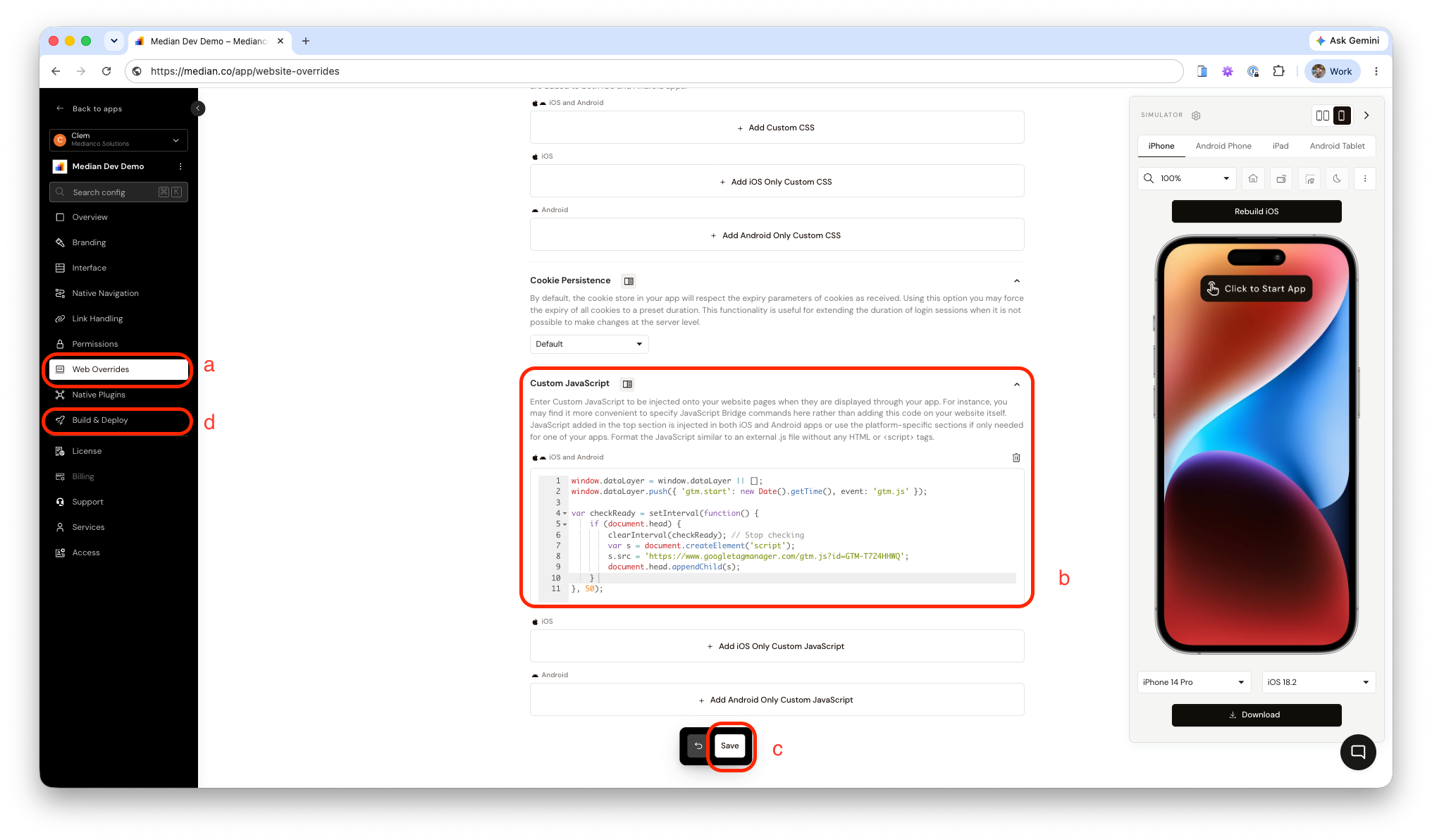
App Studio- Paste custom JavaScript Snippet
Import Median's Tag template in GTM
-
Download the template's
.tplfile from this GitHub repository -
In your Google Tag Manager Console:
a. Head over to Templates
b. Click New in the Tag Templates section
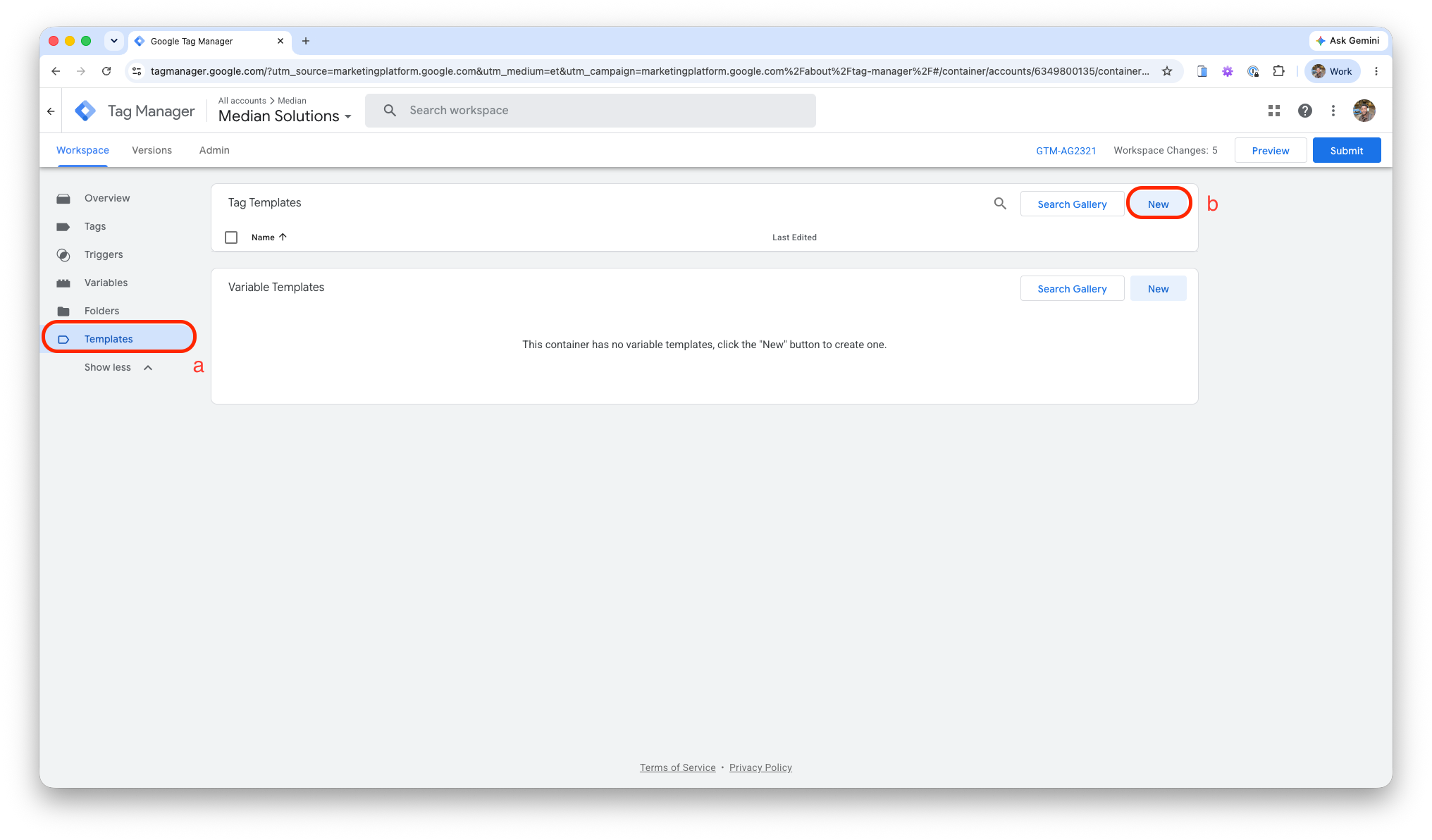
GTM Workspace- Import Template
c. Click the three-dot menu icon in the top right corner of the screen d. Click Import and upload the .tpl file e. (Optional) Add a bridge version and userAgentValue in the template's fields. See the configuration fields on the Google Tag Manager page for more information.
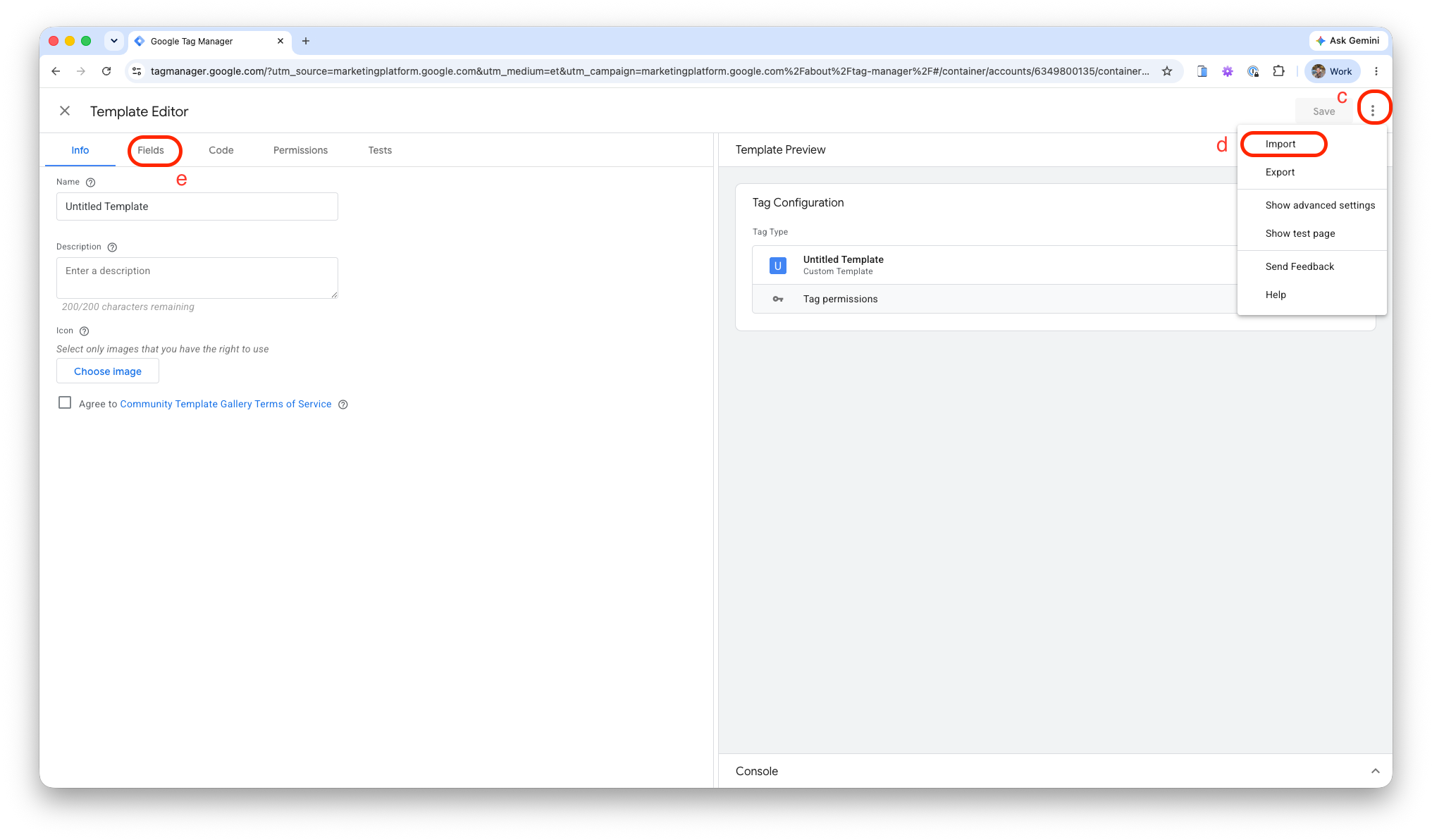
GTM Workspace- Import Template
-
Create a new tag from the template and set the trigger to fire on All Pages. This tag injects the Median JavaScript Bridge into your app so that other tags can use it.
-
Before publishing your container, you can use GTM's Preview mode to verify your configuration. Click Preview in your GTM workspace to launch the Tag Assistant, connect it to your web URL, and interact with your website to trigger the desired events. You can then check the Tag Assistant window to confirm that your tags are firing successfully.
-
Publish your GTM container
Build your own tags
You can create additional tags and triggers to call Bridge commands. For example, a tag can check median.auth.status to determine if a user's device supports Face ID or Touch ID. If it's supported, you can trigger biometric login prompts directly from GTM, without writing code into your website.
Reference documentation from Google
Setup Checklist
Use this checklist to ensure GTM is working correctly:
Basic setup
- The app is using the JavaScript Bridge NPM package
- The custom JavaScript snippet is pasted in the App Studio > Web Overrides with the correct GTM container ID
- A new app build has been generated in the App Studio
- Median's
.tplTag template is successfully imported into the GTM workspace - A tag has been created from the template and set to fire on "All Pages"
Triggers
- GTM triggers are configured correctly to fire on specific app events (e.g., page views, button clicks)
- Tags fire exactly when expected according to the defined trigger conditions
JavaScript Bridge commands
- Custom tags correctly execute Median JavaScript Bridge commands
- Executed commands trigger the intended native device features
Publishing and live testing
- The tags are firing in GTM's preview tool
- The GTM container is successfully published to the live environment
Troubleshooting
GTM Tags are not firing
GTM Tags are not firing
Verify that you replaced ENTER-GTM-ID-HERE with your actual GTM Container ID in the Custom JavaScript snippet under Web Overrides. Use GTM's Preview mode to ensure your triggers are configured correctly and firing on the expected events.
JavaScript Bridge commands are not executing
JavaScript Bridge commands are not executing
Ensure you have imported the Median Tag template (.tpl) into your GTM workspace and created the initialization tag set to fire on All Pages. Also, confirm you generated a new app build in App Studio after saving your Web Overrides.
App is not reflecting GTM changes
App is not reflecting GTM changes
Changes made within Google Tag Manager do not require a new app build, but they must be published to go live. Make sure you have clicked Submit and Publish in your GTM workspace after creating or modifying tags.
Updated about 1 month ago