
Firebase Cloud Messaging
Engage your users with native Firebase Cloud Messaging (FCM) push notifications.
The Firebase Cloud Messaging plugin enables native mobile push notifications by integrating the official Firebase Cloud Messaging SDKs directly on iOS and Android without the need for a third-party customer engagement platform.
Median handles native SDK setup, token lifecycle, notification channels, and badge/foreground behavior, and exposes it all to your web app through the Median JavaScript Bridge.
This guide covers Firebase project setup, Median App Studio configuration, and the Median JavaScript Bridge APIs used to manage permissions, tokens, topics, notification channels, and incoming push events.
Developer DemoDisplay our demo page in your app to test during development: https://median.dev/firebase-messaging
The demo also links to a standalone Test Sender. Run it on your browser (not inside the app) to send real test pushes to a device or topic using a Firebase service-account key. It supports presets for plain, deep-link, big picture/text, custom channel, badge, and silent notifications, and shows the raw FCM payload it sends.
Why use Firebase Cloud Messaging
- Direct-to-device push, no middleman: Send native push notifications straight from your own Firebase project to iOS and Android devices inside the Median shell giving you end-to-end control over the messaging pipeline.
- Bridge-first control: Manage permissions, registration tokens, topic subscriptions, notification channels, and badge counts directly from JavaScript without writing native code.
- Topic-based targeting: Subscribe and unsubscribe devices from FCM topics to broadcast messages to segments of users without maintaining a token list yourself.
- Notification channel management (Android): Create, update, and delete notification channels directly from your web app.
- Foreground notification control: Choose whether incoming pushes show a banner while the app is open, or are delivered silently to your JavaScript listeners instead.
- Deep linking: When deep linking is configured, notification taps can open the right screen in-app instead of the device browser.
Prerequisites
- A Median.co app with the JavaScript Bridge enabled.
- A Firebase project with Cloud Messaging enabled.
google-services.jsonuploaded in your Median app configuration (required for push delivery on Android).GoogleService-Info.plistuploaded in your Median app configuration, plus an APNs authentication key or certificate configured in the Firebase console (required for push delivery on iOS).
Implementation Guide
Firebase Project Setup
Create (or reuse) a Firebase project and register your Android and iOS apps to it. Median handles native SDK initialization once those configuration files and credentials are in place.
- In the Firebase console, create a project (or select an existing one) and enable Cloud Messaging.
- Add an Android app to the project using your app's package name/Application ID, then download the generated
google-services.json. - Add an iOS app to the project using your app's Bundle ID, then download the generated
GoogleService-Info.plist. - In Project settings → Cloud Messaging → Apple app configuration, upload an APNs authentication key (recommended) or certificate so Firebase can deliver to iOS devices.
App Configuration
- Open Median App Studio for your app.
- Navigate to Build & Deploy.
- Upload
google-services.json(Android) andGoogleService-Info.plist(iOS) in Google Services configuration.
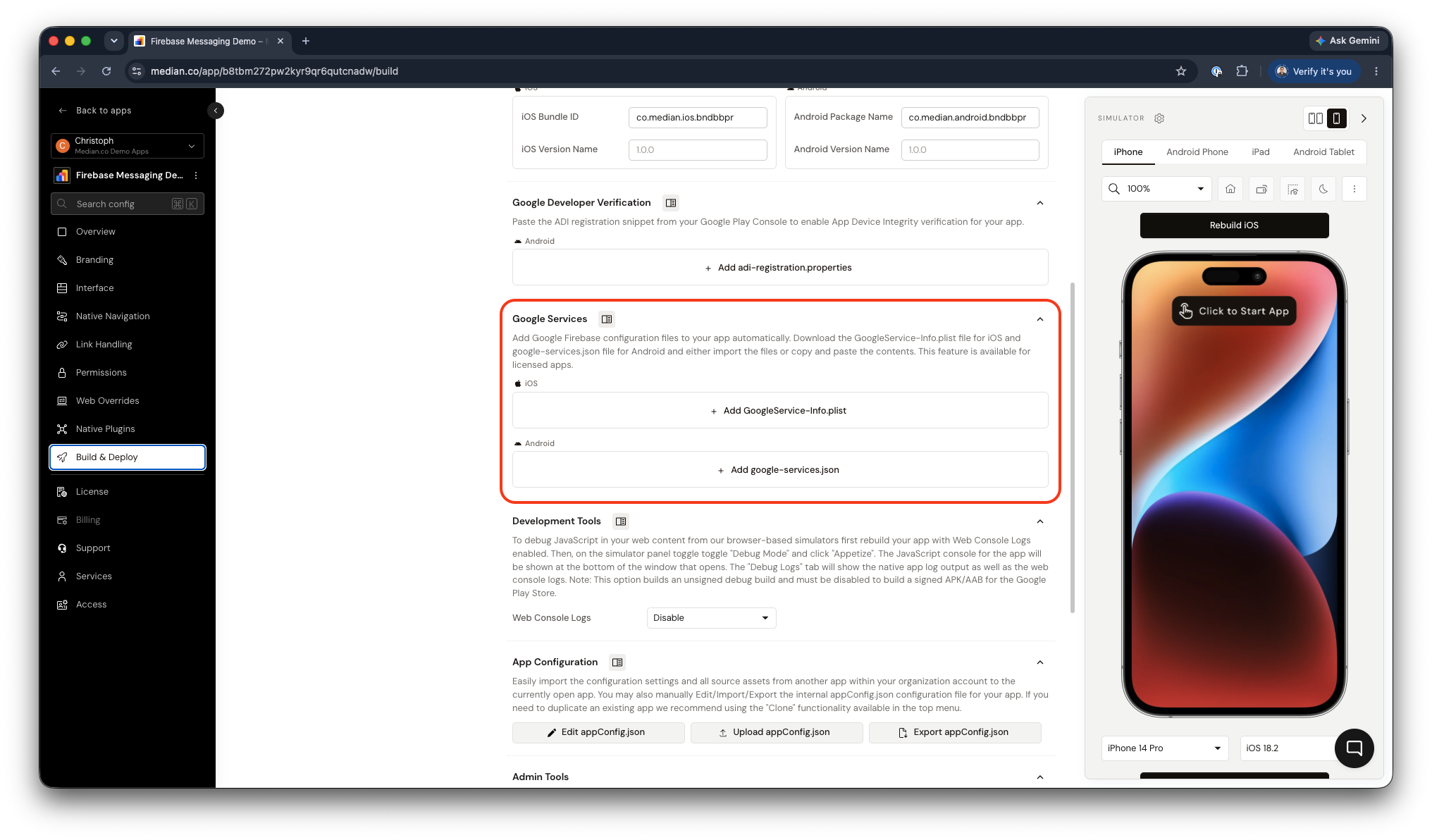
App Studio - Google Services
- Enable the Firebase Cloud Messaging native plugin.
- Configure plugin settings
- Rebuild your app to include the Firebase Cloud Messaging SDKs and your settings.
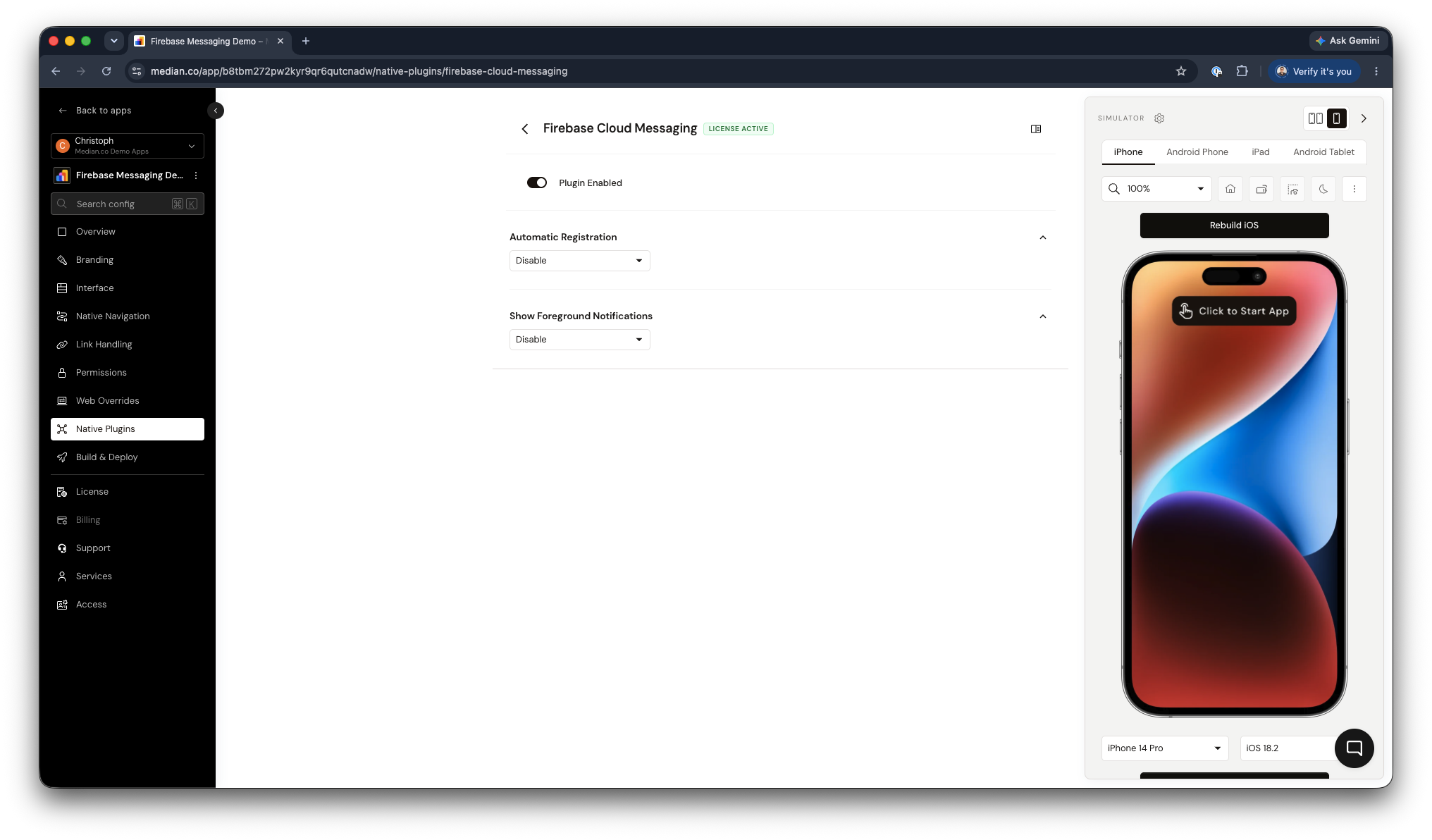
App Studio - Firebase Cloud Messaging Configuration
Plugin Configuration options
| Setting | Required | Description |
|---|---|---|
| Automatic Registration | No | Controls whether a device token is requested automatically on launch, or only after requestPermission() is called explicitly. |
| Show Foreground Notifications | No | By default, push notifications are suppressed when your app is open and in focus. This is useful for sensitive and urgent notifications such as chat messages and delivery notifications. |
Rebuild after ConfigurationPlugin settings take effect only in new builds. After changing credentials or uploading new Firebase configuration files, rebuild your app and test on a real device or simulator before releasing.
Deep linking (Optional)
The Firebase Cloud Messaging plugin integrates with Median deep linking. When deep links are configured, users who tap a push notification are routed to the correct screen inside the app rather than to the mobile browser. The Test Sender's Deep link preset lets you validate this by sending a push with a target URL.
To enable this:
- Configure URL schemes, Universal Links (iOS), and App Links (Android) in Median App Studio.
- Ensure the target URL sent in your FCM payload matches the routes handled inside your app.
JavaScript bridge functions
All methods are available on the median.firebaseMessaging namespace and must be called after the Median JavaScript Bridge is fully initialized.
Push Notification Permissions
Request permission
Triggers the native OS permission prompt. Maps to the demo's Request Permission button. For best results, defer this call to a point in the user journey where the value of notifications is clear — contextual prompts have significantly higher opt-in rates.
On Android 12 and below, notification permission may be granted automatically depending on device OS version and policy.
median.firebaseMessaging.requestPermission({
  callback: function (result) {
    console.log("Permission granted status:", result.granted); // true or false
  }
});
Check permission status
Returns whether the user has currently granted or denied notification permission at the OS level. Maps to the demo's Check Permission button.
median.firebaseMessaging.checkPermission({
  callback: function (result) {
    console.log("Are notifications enabled?", result.granted); // true or false
  }
});
Token Management
Register
Registers the device with FCM if no token exists yet.
median.firebaseMessaging.register({
  callback: function (result) {
    console.log("Registered, token:", result.token);
  }
});
Get token
Returns the current FCM registration token for the device, if one has been generated. Maps to the demo's Get Token button.
median.firebaseMessaging.getToken({
  callback: function (result) {
    console.log("FCM token:", result.token);
  }
});
Delete token
Deletes the current FCM registration token, e.g. on logout, to stop notifications from being delivered to a device that is no longer associated with the signed-in user.
median.firebaseMessaging.deleteToken({
  callback: function (result) {
    console.log("Token deleted:", result.success);
  }
});
Topics
Subscribe or unsubscribe a device from FCM topics to target groups of users without maintaining your own list of device tokens.
Subscribe to a topic
median.firebaseMessaging.subscribeToTopic({
  topic: "breaking_news",
  callback: function (result) {
    console.log("Subscribed:", result.success);
  }
});
Unsubscribe from a topic
median.firebaseMessaging.unsubscribeFromTopic({
  topic: "breaking_news",
  callback: function (result) {
    console.log("Unsubscribed:", result.success);
  }
});
List subscribed topics
median.firebaseMessaging.getSubscribedTopics({
  callback: function (result) {
    console.log("Subscribed topics:", result.topics); // e.g. ["breaking_news"]
  }
});
Notification Channels (Android)
Android groups notifications into channels that control importance, sound, and visual treatment. Once a channel is created, only its name and description can be changed. The channel ID and importance are fixed for the life of the channel.
Create or update a channel
median.firebaseMessaging.createChannel({
  channelId: "order_updates",
  channelName: "Order Updates",
  importance: "high", // "high" | "default" | "low" | "min"
  callback: function (result) {
    console.log("Channel created/updated:", result.success);
  }
});
Delete a channel
median.firebaseMessaging.deleteChannel({
  channelId: "order_updates",
  callback: function (result) {
    console.log("Channel deleted:", result.success);
  }
});
List channels
median.firebaseMessaging.getChannels({
  callback: function (result) {
    console.log("Channels:", result.channels);
  }
});
Notification Badges
Sets the app icon badge count. This is best-effort: it works on launchers that support badges (e.g. Samsung, Xiaomi, and similar), and does nothing on stock Android launchers that don't support badge counts.
Set badge
median.firebaseMessaging.setBadge({
  count: 4,
  callback: function (result) {
    console.log("Badge set:", result.success);
  }
});
Clear badge
median.firebaseMessaging.clearBadge({
  callback: function (result) {
    console.log("Badge cleared:", result.success);
  }
});
Foreground Notifications
Controls whether an incoming push shows a visible banner while the app is in the foreground. Turn banners off if you'd rather handle the incoming event yourself (e.g. show an in-app toast) without the OS notification also appearing.
// Show a native banner for pushes received while the app is open
median.firebaseMessaging.enableForegroundBanners();

// Suppress the native banner; the notificationReceived listener still fires
median.firebaseMessaging.disableForegroundBanners();
Listeners
Register listeners to respond when notifications are received in the foreground or tapped by the user. Multiple listeners can be registered for the same event. Each listener fires independently until it's removed.
// Triggers when a push notification is delivered while the app is active
const receivedListenerId = median.firebaseMessaging.notificationReceived.addListener((data) => {
  console.log("Notification received:", data);
});

// Triggers when a push notification is tapped by the user
const clickedListenerId = median.firebaseMessaging.notificationClicked.addListener((data) => {
  console.log("Notification tapped:", data);
});

// Remove a listener when it's no longer needed
median.firebaseMessaging.notificationReceived.removeListener(receivedListenerId);
Testing checklist
Use this checklist, together with the demo page and test sender, to confirm Firebase Cloud Messaging is working correctly in your app:
- Configuration files present:
google-services.jsonandGoogleService-Info.plistare uploaded in Median App Studio and the app has been rebuilt. - Permission flow:
requestPermission()prompts the OS dialog andcheckPermission()reflects the resulting status. - Token generated:
getToken()returns a non-empty token on a real device. - Test push received: Using the Test Sender with your service account key, send a push to the copied token and confirm it's received and, if tapped, opens the app.
- Topics: Subscribe to a test topic, send a push to that topic from the Test Sender, and confirm delivery; then unsubscribe and confirm it stops.
- Channels (Android): Create a custom channel, send a push targeting that
channelIdfrom the Test Sender, and confirm it uses the expected importance/behavior. - Badge: Set and clear a badge count and confirm it's reflected on supported launchers.
- Foreground banners: Toggle banners off and confirm the app still receives the
notificationReceivedevent without showing a native banner while foregrounded. - Deep linking: Send a push using the Deep link preset and confirm the tap opens the correct in-app screen rather than the device browser.
Troubleshooting
Firebase Cloud Messaging requires Google Services configuration files which can be added to your app on the Build tab. Your app may not function correctly until these are added
Firebase Cloud Messaging requires Google Services configuration files which can be added to your app on the Build tab. Your app may not function correctly until these are added
You will need to configure Google Services in order to user FCM. Please follow the steps in our Google Services Guide.
Deep links open in the browser instead of the app
Deep links open in the browser instead of the app
Configure Median deep linking (URL scheme, Universal Links, App Links) so the target URL used in your FCM payload matches routes handled inside the app.
Test push from the sender isn't arriving
Test push from the sender isn't arriving
Confirm the Firebase project ID in the Test Sender matches the project tied to your app's google-services.json/GoogleService-Info.plist, that the service account key belongs to the same project, and that the destination token/topic is current (tokens can rotate — re-copy the token from the demo page if it's been a while).
Badge count isn't showing
Badge count isn't showing
Badge counts are best-effort and depend on launcher support. They work on Samsung, Xiaomi, and similar launchers, but do nothing on stock Android (AOSP/Pixel-style) launchers. This is a platform limitation, not a bug in your integration.
Updated 2 days ago