
OneSignal
Engage your users with OneSignal Push Notifications and In-App Messages
OneSignal is a powerful push notification platform that scales from early-stage startups to enterprises. Median.co's integration connects it directly to your iOS and Android apps via the Median JavaScript Bridge. This guide walks you through everything you need to get set up: what to prepare, how to configure each platform, and where to go next.
Median connects your web app to OneSignal's native iOS and Android SDKs through the JavaScript Bridge. This means you can trigger and manage push notifications, in-app messages, user targeting, and consent flows entirely from your website's JavaScript. The integration runs on OneSignal SDK v5+ by default, which uses a user-centric data model. If your app was built before Median.co adopted v5, see Legacy Mode before proceeding.
Why use OneSignal with Median.co
- Web-first control: Drive push, in-app messaging, user identity, segments, and consent from your site's JavaScript through the JavaScript Bridge.
- Consistent cross-platform setup: One Median.co plugin surface for iOS and Android after you complete each platform's credential steps (APNs and FCM).
- Full OneSignal toolkit: Use dashboard campaigns, programmatic delivery, user targeting, and in-app messages from the same integration.
- Modern SDK defaults: Runs on OneSignal SDK v5+ with a user-centric model; older apps should confirm behavior against Legacy Mode.
Prerequisites
Make sure you have the following before starting. Missing any one of these will block your setup.
All apps
- A Median.co app with JavaScript Bridge enabled
- A OneSignal account — free to create
- Your OneSignal App ID (found in your OneSignal dashboard under Settings > Keys & IDs)
iOS apps
- An Apple Push Notification service (APNs) credential — either a .p8 token key (recommended) or a .p12 certificate, generated from your Apple Developer account
- Push Notifications and Background Modes (Remote notifications) capabilities included in your iOS signing setup
- App Groups capability included if you use badge counts, rich notification images, or confirmed delivery analytics
Android apps
- A Google Firebase project with Cloud Messaging (FCM) enabled
- A Firebase Service Account JSON credentials file — downloaded from your Firebase project settings
Already have a OneSignal account connected to Median.co?Head straight to Managing Permissions & Consent to control how and when users are prompted.
When to use this plugin
Median's OneSignal integration is especially useful when you need to:
| Use case | Example |
|---|---|
| Transactional and lifecycle messages | Send order updates, booking reminders, or account alerts as push notifications. |
| Re-engagement | Re-engage users with new content, limited-time offers, or abandoned-journey follow-ups. |
| Segmented or identified audiences | Target logged-in users, tags, or segments defined in OneSignal from the dashboard or API. |
| In-app messaging | Show prompts, or announcements inside the app, including flows that don't require push permission first. |
| Consent and timing | Control when the OS permission dialog appears or wait until privacy consent before initializing OneSignal. See Managing Permissions & Consent. |
| Server-triggered push | Send notifications from your backend using OneSignal's REST API |
What you'll do
Use this section as a fast navigation map into the full setup path:
- Gather credentials: Complete the items in Prerequisites, including your OneSignal App ID, REST API Key, and platform credentials.
- Configure iOS (if applicable): Follow the iOS setup to generate your APNs credential and confirm the required iOS capabilities.
- Configure Android (if applicable): Follow the Android setup to create a Firebase project and upload FCM credentials to OneSignal.
- Enable the plugin in Median: Go to Plugin setup and connect OneSignal to your app in Median App Studio.
- Verify delivery: Complete the Testing checklist and review Troubleshooting if a test notification doesn't arrive.
Android and iOS configuration
Android setup
Step 1: Create a Firebase project
If you don't already have one:
- Go to the Firebase Console.
- Click Add project and follow the prompts.
- Register your Android app using your app's package name.
Step 2: Enable Cloud Messaging
In your Firebase project:
- Go to Project Settings > Cloud Messaging.
- Confirm that Firebase Cloud Messaging (FCM) API is enabled.
Step 3: Download your Service Account credentials
- Go to Project Settings > Service accounts.
- Click Generate new private key.
- Download the JSON file — this is your FCM Service Account credentials file.
Step 4: Upload credentials to OneSignal
In your OneSignal dashboard:
- Go to Settings > Push & In-App > Google Android (FCM).
- Upload the Service Account JSON file you downloaded in Step 3.
iOS setup
Step 1: Generate your APNs credential
Apple requires an APNs credential to authorize push notifications for your app. OneSignal supports two methods — pick one:
- .p8 token key (recommended) — doesn't expire, works across all apps in your Apple Developer account. Follow OneSignal's p8 token-based guide.
- .p12 certificate (alternative) — app-specific, expires after one year and must be renewed. Follow OneSignal's p12 certificate guide.
Upload the credential to your OneSignal dashboard under Settings > Push & In-App > Apple iOS (APNs).
Step 2: Confirm Push Notifications and Background Modes
For App Studio builds using the App Store Connect API workflow, Median can register the Bundle ID with the required capabilities and generate the provisioning profiles used by your build. If you manually manage Apple identifiers/provisioning profiles or build from downloaded source, confirm these capabilities in your Apple Developer account and Xcode project:
-
Select your Main App Target.
-
Go to Signing & Capabilities.
-
Click + Capability and add Push Notifications.
-
Click + Capability again and add Background Modes, then enable Remote notifications.
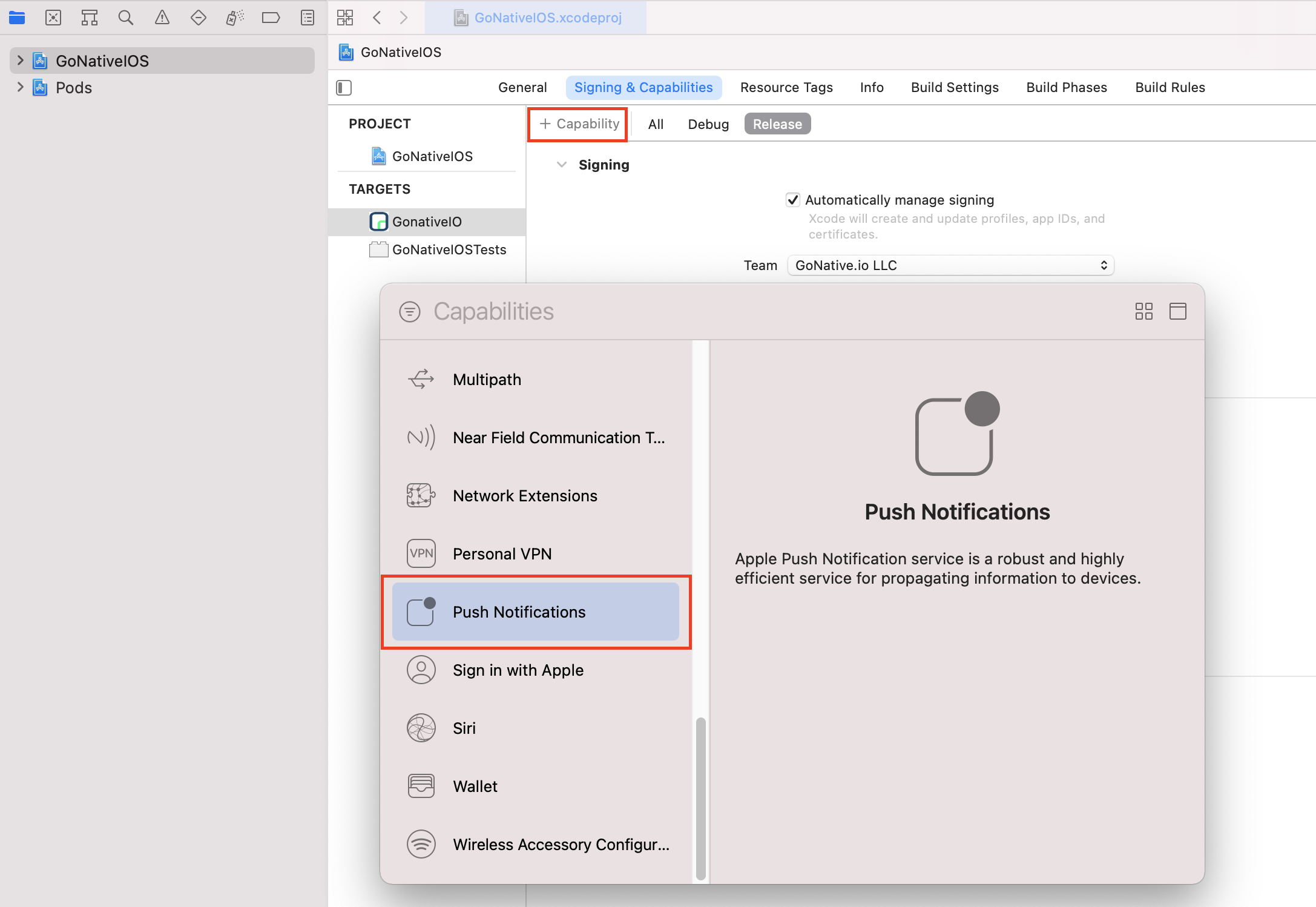
Median's build process requires both capabilities to be present. Without them, push notifications won't be delivered on iOS — even if your OneSignal configuration is otherwise correct.
Step 3 (optional): Enable App Groups
App Groups are required to support badge counts, rich notification images, and OneSignal's confirmed delivery analytics. App Studio signing includes a OneSignal Notification Service Extension provisioning profile when the plugin requires it. If you manually manage Apple identifiers/provisioning profiles or build from downloaded source, add App Groups to two targets.
Main App Target:
- In Signing & Capabilities, click + Capability and add App Groups
- Add a group with the identifier:
group.YOUR_BUNDLE_IDENTIFIER.onesignal
OneSignalNotificationServiceExtension Target:
- Select the extension target in Xcode.
- Repeat the same steps and use the same App Group identifier.
Replace YOUR_BUNDLE_IDENTIFIER with your app's actual Bundle Identifier (for example, com.yourcompany.yourapp).
Confirmed delivery requires an eligible OneSignal plan — it's not available on free plans. Enabling App Groups alone won't produce confirmed-delivery analytics without the plan upgrade. See OneSignal's pricing.
Plugin setup
Enable the plugin
With your platform credentials in place, connect OneSignal to your app in Median App Studio:
- Open your app in App Studio.
- Navigate to Native Plugins > OneSignal.
- Enter your OneSignal App ID.
- Save and rebuild your app.
Your app will now initialize OneSignal on launch and — by default — prompt users for push notification permission on first open.
Want to control when the permission prompt appears? See Managing Permissions & Consent to delay the prompt or require privacy consent before OneSignal initializes.
Find your OneSignal App ID and REST API Key
You'll need these for both the App Studio setup and any server-side or programmatic notifications.
- Log in to your OneSignal dashboard.
- Select your app.
- Go to Settings > Keys & IDs.
| Key | Where it's used |
|---|---|
| App ID | App Studio setup, REST API calls |
| REST API Key | Server-side programmatic notifications |
Keep your REST API Key private, it authorizes notification delivery on your behalf.
Testing checklist
Use this checklist to verify OneSignal is working correctly in your app:
Basic Functionality
Basic Functionality
- The App installs and launches on a physical device (push notifications don't work on most simulators)
- The Push permission prompt appears and can be accepted on first launch
- Push notifications sent from OneSignal are delivered to the device
- There are no JavaScript errors in the console
Platform Testing
Platform Testing
- Push notifications are delivered to Android devices
- Push notifications are delivered to iOS devices
- Users who denied the push permission prompt do not receive push notifications
Configuration Testing
Configuration Testing
- In App Studio, the OneSignal App ID is entered in Native Plugins > OneSignal
- In the OneSignal dashboard, the iOS APNs credential (.p8 key or .p12 certificate) is uploaded under Settings > Push & In-App > Apple iOS (APNs)
- In the OneSignal dashboard, the Android FCM Service Account JSON is uploaded under Settings > Push & In-App > Google Android (FCM)
- The iOS Push Notifications and Background Modes (Remote notifications) capabilities are included in your App Studio signing setup, or enabled on the main app target if building from source
- (iOS, if using badges/rich media/confirmed delivery) App Groups capability with
group.YOUR_BUNDLE_IDENTIFIER.onesignalis included in your App Studio signing setup, or enabled on both the main app and OneSignalNotificationServiceExtension targets if building from source
User Experience
User Experience
- Permission prompt appears at the appropriate time (or is deferred using Managing Permissions & Consent)
- Notifications display on the device as expected
Troubleshooting
Test notification doesn't arrive on iOS
Test notification doesn't arrive on iOS
Confirm four things:
- Your APNs credential (.p8 key or .p12 certificate) is uploaded in OneSignal under Settings > Push & In-App > Apple iOS (APNs).
- The Push Notifications capability is included in your iOS signing setup.
- The Background Modes capability is enabled with Remote notifications for your main app target.
- The device accepted the push permission prompt — denied permissions won't receive notifications.
Test notification doesn't arrive on Android
Test notification doesn't arrive on Android
Confirm two things:
- Your FCM Service Account JSON is uploaded in OneSignal under Settings > Push & In-App > Google Android (FCM).
- You rebuilt the app after entering the OneSignal App ID in Median App Studio.
Notifications don't appear on a simulator
Notifications don't appear on a simulator
Install the app on a physical device. Push notifications don't work on most simulators. Accept the push permission prompt when it appears.
Badge counts, rich images, or confirmed delivery aren't working on iOS
Badge counts, rich images, or confirmed delivery aren't working on iOS
Enable the App Groups capability on both your main app target and the OneSignalNotificationServiceExtension target using the same identifier: group.YOUR_BUNDLE_IDENTIFIER.onesignal. Without App Groups on both targets, badge counts won't sync, rich notification images won't render, and confirmed delivery analytics won't report.
Confirmed delivery analytics also require an eligible OneSignal plan — they're not available on free plans, even with App Groups configured correctly.
App was built before Median adopted OneSignal SDK v5
App was built before Median adopted OneSignal SDK v5
Median's integration runs on OneSignal SDK v5+ by default and uses a user-centric data model. Apps built before Median adopted v5 should confirm behavior against Legacy Mode before proceeding.
Still having trouble?For issues related to OneSignal's own configuration, permissions, or platform-specific behaviour, refer to OneSignal's integration documentation.
For issues related to the App Studio, please get in touch with the Median Support Team
Updated about 1 month ago