
Social Login
Enable Facebook Login, Google Sign-in and Sign in with Apple
Overview
Enable secure, native login experiences for your app users with Facebook Login, Google Sign-In, and Sign In with Apple. Median's Social Login plugin uses native SDKs for a secure experience that allows users who are already authenticated on their devices to log in automatically.
Before you start
Make sure you have:
- Developer accounts for each provider (Facebook, Google, Apple)
- Your app's Bundle ID (iOS) and Package Name (Android)
- Access to your website's codebase
- Basic understanding of OAuth authentication
Complete setup process
Setting up Social Login involves the following four steps:
Step 1: Configure identity providers
Configure each provider in their respective developer portals:
Configure Facebook Login
Set up your Facebook App and add iOS/Android platforms. Requires: Bundle ID, Package Name, Key Hash
Configure Google Sign-In
Create OAuth clients for all platforms in Google Cloud. Requires: Bundle ID, Package Name, SHA-1 Certificate
Configure Sign In with Apple
Register Service ID and set up web authentication. Requires: Bundle ID, website domains, redirect URLs
2. Add credentials to the Median App Studio
Enter the credentials from Step 1 into your Social Login configuration in Median App Studio.
You'll need these credentials based on the Providers you want to enable:
| Provider | Parameters |
|---|---|
| App ID, Display Name, Client Token | |
| iOS Client ID, Android Client ID | |
| Apple | iOS Bundle ID |
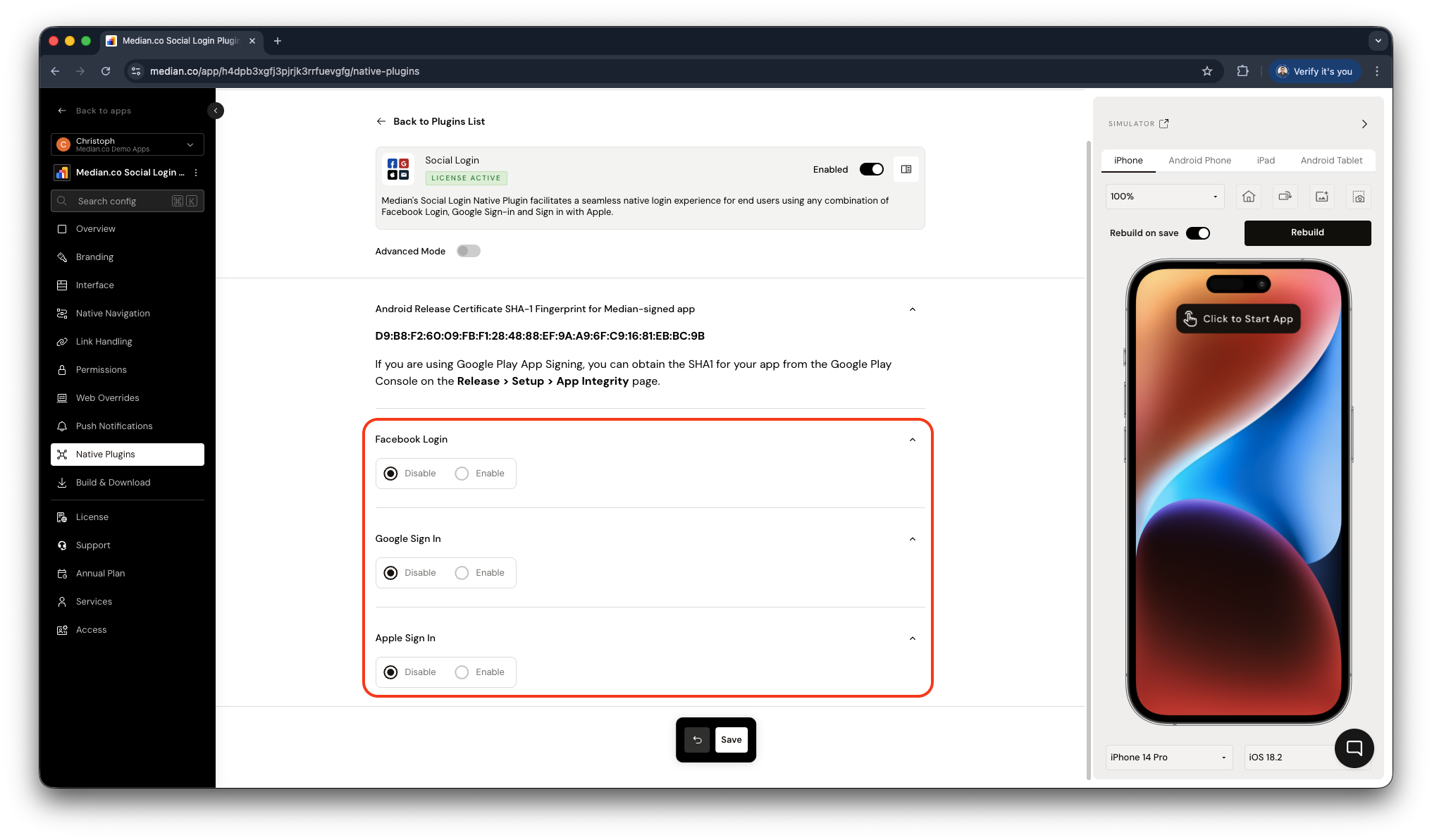
Social Login Plugin Configuration
3. Update your website for native social login
Integrate the Median JavaScript Bridge so your website can trigger native login flows.
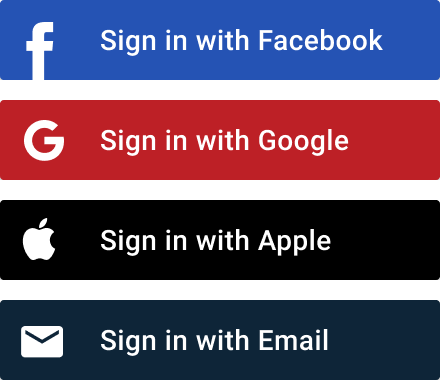
The Social Login plugin includes a set of images you may use as buttons to trigger the JavaScript Bridge functions that launch each of the native SDKs. (SVG and high resolution @2x, @3x PNG formats available). Website Integration Guide →
Step 4: Rebuild your app & test
After configuration, rebuild your app and perform login tests for each identity provider.
Preview Social Login functionality in your app during development:
🔗 Load our demo page
This demo page includes test buttons for all three providers so you can verify your configuration works before integrating with your website.
Implementation guides
Update your website and server configuration to integrate with the Social Login Native Plugin:
Website Configuration
Implement JavaScript Bridge functions in your website to trigger native authentication flows from your mobile app.
Server-Side Redirects
Configure server-side redirect handling to properly manage authentication callbacks and token exchanges.
JavaScript Callbacks
Handle authentication responses and user data returned from native SDKs through JavaScript callback functions.
Updated 3 months ago