
Intercom
Engage your users by enabling Intercom push notifications
The Intercom Plugin enables mobile push notifications, and event tracking in your Median-powered app to increase user engagement. It integrates directly with the official Intercom SDK for Android and Intercom SDK for iOS.
Why use Intercom?
- Mobile Push Notifications: Send targeted push notifications to engage users and drive app retention
- Event Tracking: Log custom events to track user behavior and create personalized experiences
- Deep Linking Support: The Intercom Plugin supports Deep Linking. When deep links are configured, tapping on a push notification will open the corresponding screen in your app rather than the mobile device browser.
- Official SDK Integration: Built on Intercom's official Android and iOS SDKs for reliability and feature completeness
When to use this plugin
Intercom is essential for apps that need to:
| Use Case | Example |
|---|---|
| User Engagement | Send push notifications to re-engage inactive users |
| Customer Support | Provide in-app messaging and support through Intercom messenger |
| User Onboarding | Display mobile carousels to guide new users through features |
| Event Tracking | Log custom events to understand user behavior patterns |
| Targeted Messaging | Send personalized messages based on user attributes and actions |
Prerequisites
- A Median.co app with JavaScript Bridge enabled
- Intercom workspace with App ID and API keys configured
- Access to your App Identifiers for iOS and Android setup
- Apple Developer Account details (for iOS push notifications)
- Google Service Account details (for Android push notifications)
Developer DemoDisplay our demo page in your app to test during development https://median.dev/intercom/
Implementation Guide
Use the tabs below to navigate Intercom Setup, App Configuration, and JavaScript Bridge Functions.
Intercom Setup
Follow the first step of Intercom's official Android and iOS mobile installation guides. Median.co automatically injects the required native SDK code, so you only need to complete the configuration steps in Intercom.
Before configuring the plugin in Median, complete the following steps in your Intercom workspace:
- Add your iOS app and Android app to Intercom
- Retrieve your Intercom App ID
- Retrieve your Intercom iOS API Key and Android API Key
Add Your iOS and Android Apps
Follow Step 1 of Intercom's official mobile installation guides. Median automatically injects the required native SDK code, so you only need to complete the configuration steps in Intercom.
During the setup you will need access to your App Identifiers, as well as details for your Apple Developer Account and Google Service Account.
As an example, please reference the screenshots below to setup your Android and iOS apps within Intercom.
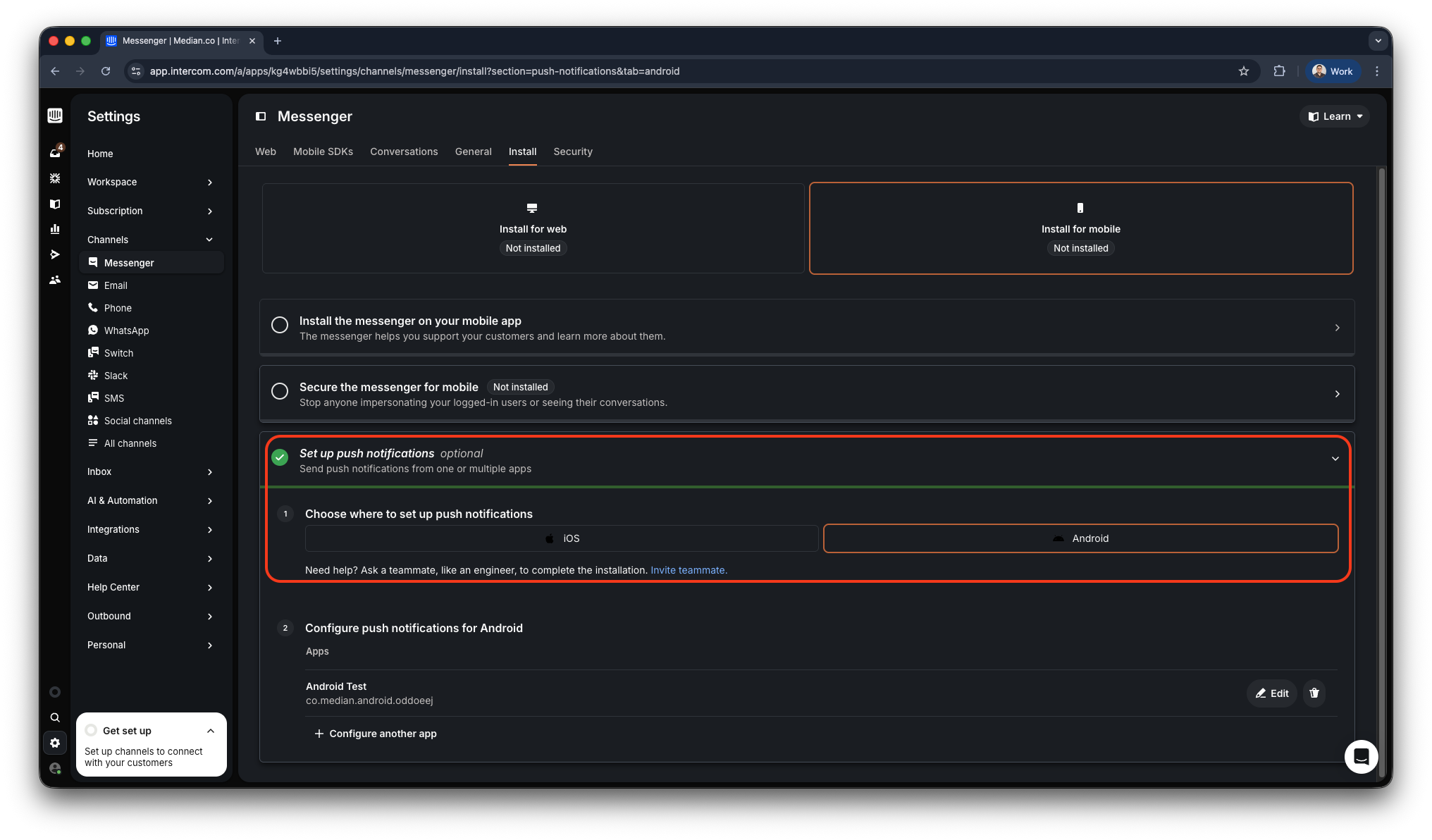
Intercom - Setup the Messanger for Mobile Push
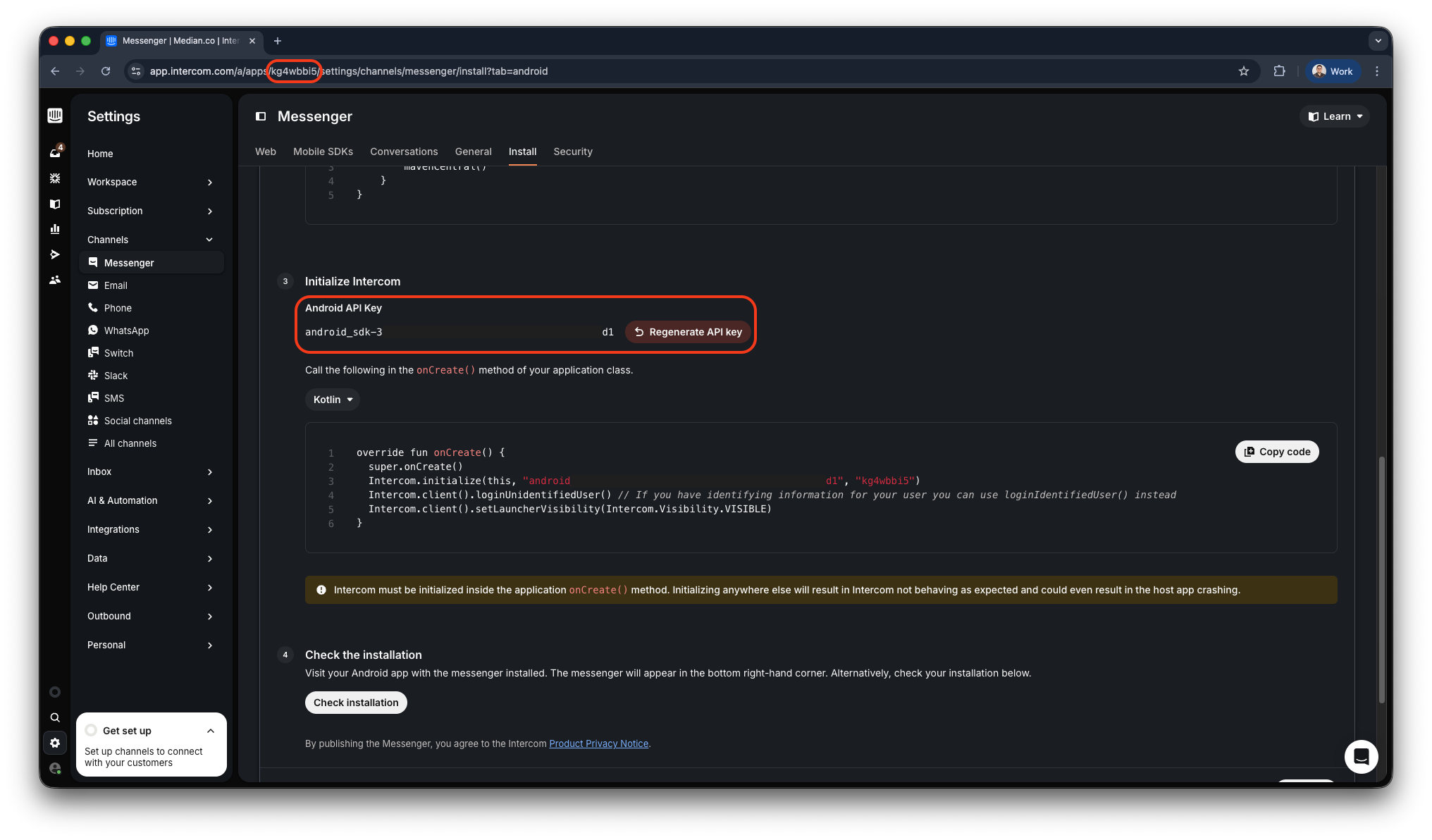
Intercom - Retrieve your App ID and API keys
App Configuration
Plugin Setup
Once your app is set up in Intercom, configure the Intercom plugin in the Median App Studio and upload the required Google Services or iOS files.
Enable the Plugin
- Navigate to Native Plugins: In your Median dashboard, go to Native Plugins > Intercom.
- Enable Intercom: Toggle the plugin to enabled status.
- Configure Settings: Enter your Intercom App ID, iOS API Key, and Android API Key.
Configuration Options
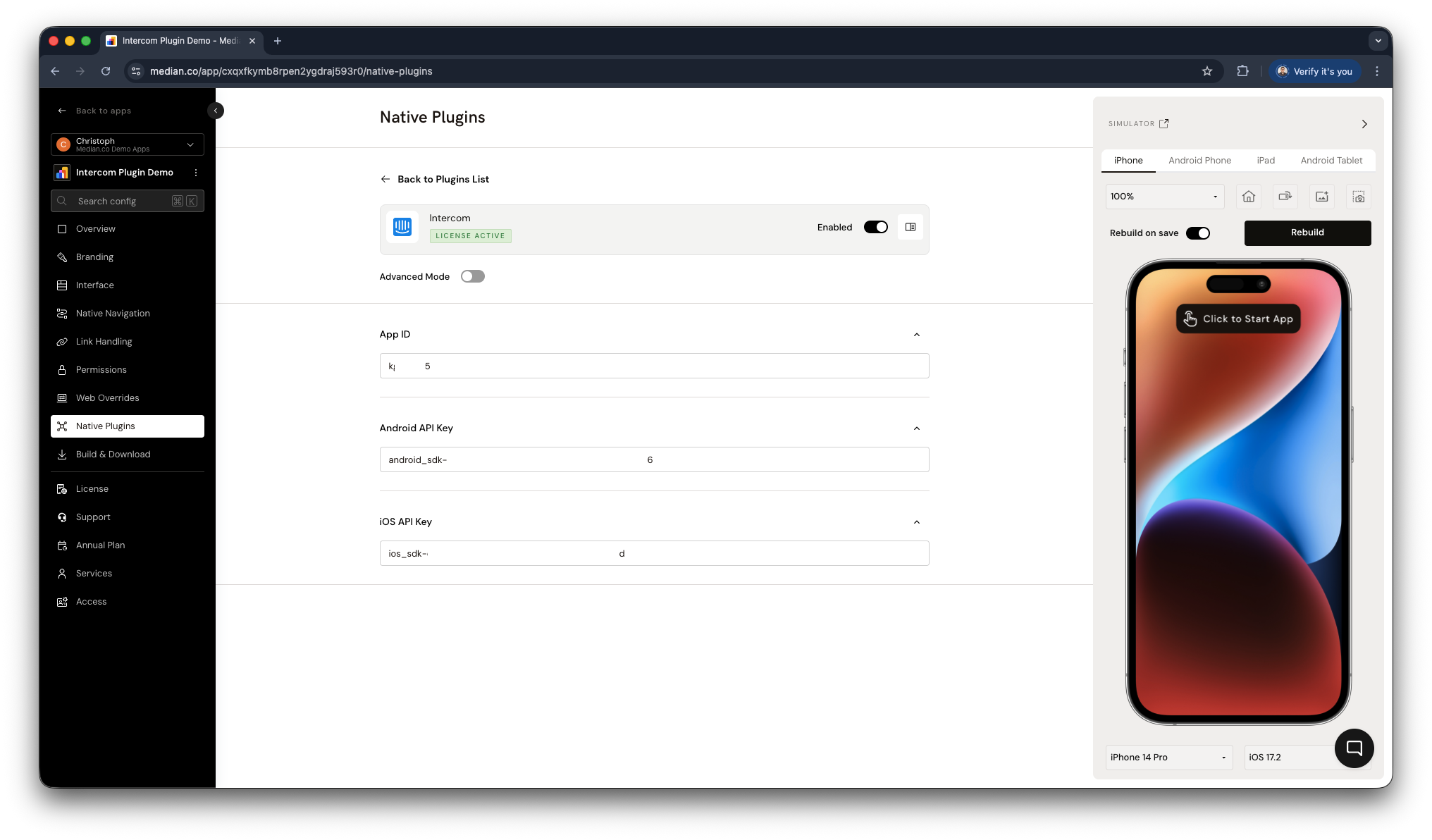
Intercom Plugin Configuration
| Setting | Description | Default | Recommended |
|---|---|---|---|
| App ID | Your Intercom App ID from workspace settings | None | Use your Intercom App ID |
| iOS API Key | iOS SDK API key from Intercom | None | Use your iOS-specific key |
| Android API Key | Android SDK API key from Intercom | None | Use your Android-specific key |
Example Plugin Configuration
You can reference this JSON snippet as an example, but you'll need to replace the parameters with your own Intercom App ID and API keys.
{
  "androidApiKey": "android_sdk-xxxd6",
  "iosApiKey": "ios_sdk-xxxad",
  "appId": "kg4wbbi5"
}
Javascript Bridge Functions
The Intercom Plugin exposes several methods via the Median JavaScript Bridge, allowing you to interact with Intercom from your web code.
Register Push
Request push notification permission, which will show a dialog for users to confirm permission. For Android, the dialog is only shown on Android 13 and above. On Android 12 and below, permission will always be granted without user intervention.
median.intercom.registerPush({'callback': function});
// Return value:
{
  "granted": true | false
}
Parameters:
| Parameter | Type | Required | Description |
|---|---|---|---|
callback | function | No | Callback function to handle the result |
Update User
Creates or updates a user in Intercom using arbitrary key/value pairs such as name, email, or custom attributes.
// Example usage
median.intercom.updateUser({
  name: "Bob",
  email: "[email protected]",
});
Parameters:
| Parameter | Type | Required | Description |
|---|---|---|---|
userAttributes | object | Yes | Object containing user attributes to update |
Log Event
Logs a custom event in Intercom for tracking user behavior.
// Example usage
median.intercom.logEvent({
  eventName: "completed_purchase",
});
Parameters:
| Parameter | Type | Required | Description |
|---|---|---|---|
eventName | string | Yes | Name of the event to log |
Present Carousel
Displays an Intercom Mobile Carousel using its carouselID from your Intercom workspace.
// Example usage
median.intercom.presentCarousel({
  carouselID: "your-carousel-id",
});
Parameters:
| Parameter | Type | Required | Description |
|---|---|---|---|
carouselID | string | Yes | The ID of the carousel to display |
Sending Push Notifications and Mobile Carousels
Intercom push notifications and mobile carousels are created and sent through the Intercom Dashboard.
To manually create your messages, navigate to Outbound > Messages and create a new message using the + New message button.
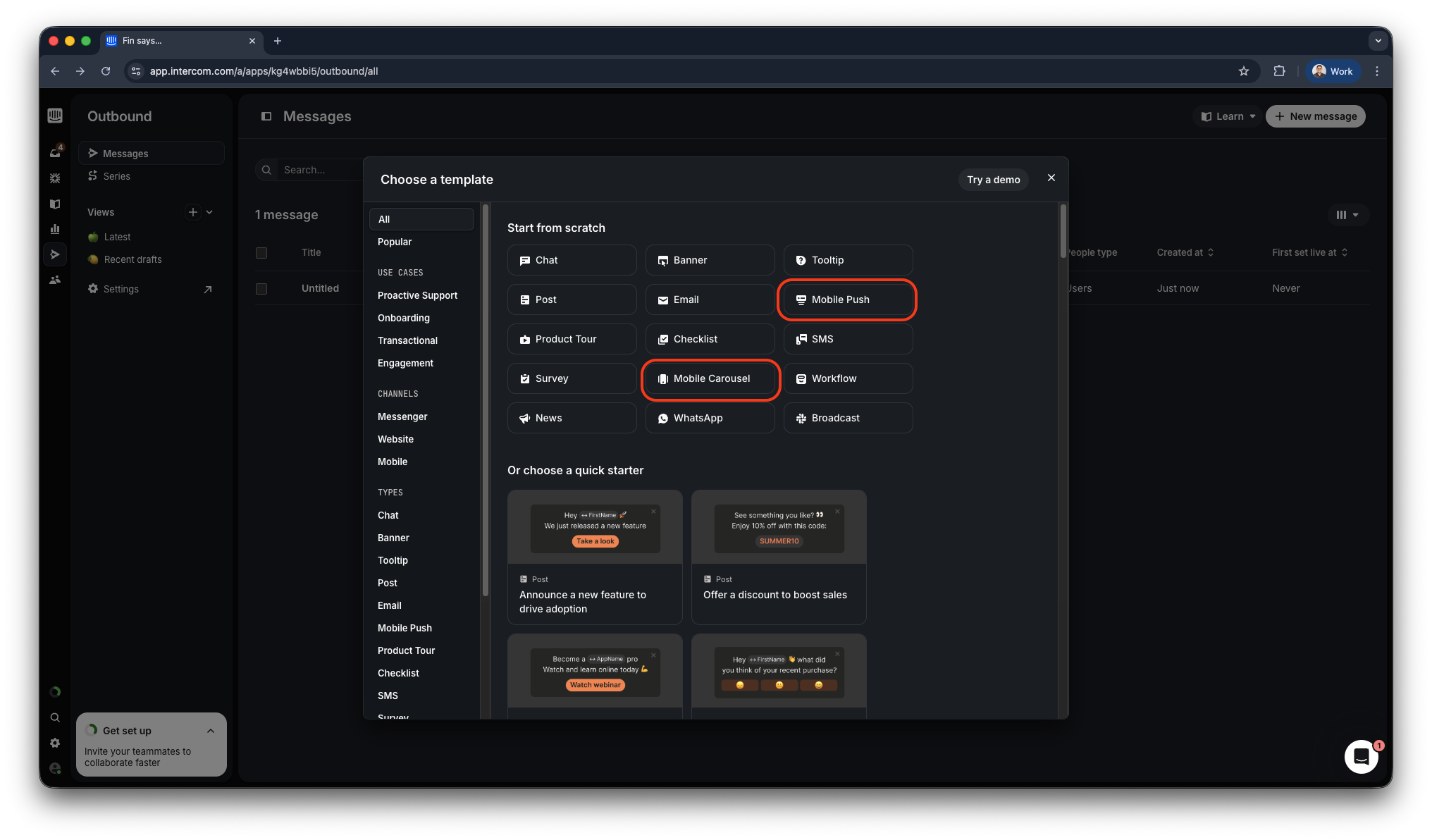
Intercom Outbound Messages
For detailed guidance, refer to Intercom's official documentation:
Programmatic Push Notifications
Sending push notifications programmatically via the Intercom API is not supported. This limitation is confirmed in Intercom’s official documentation.
Intercom - Can I send push notifications through the API?
Testing Checklist
Use this checklist to ensure Intercom is working correctly in your app:
Basic Functionality
Basic Functionality
- Push notification registration works as expected
- User information updates successfully in the Intercom dashboard
- Custom events appear in Intercom event tracking
- Mobile carousels display correctly when triggered
Platform Testing
Platform Testing
- Push notifications work on Android devices
- Push notifications work on iOS devices
- Permission dialog appears correctly on Android 13+
- Deep linking works from notification taps
Configuration Testing
Configuration Testing
- App ID is correctly configured in plugin settings
- iOS API key is valid and working
- Android API key is valid and working
- Google Services files are properly uploaded
User Experience
User Experience
- Push permission request appears at the appropriate time
- Notification content displays correctly
- Mobile carousels are visually appealing and functional
- User data appears correctly in the Intercom dashboard
Still having trouble?For issues related to Intercom's own configuration, permissions, or platform-specific behavior outside of Median.co, refer to Intercom's integration documentation.
Updated about 1 month ago