
Google Sign-in Configuration
This guide walks you through setting up Google Sign-In for your app. You'll create a Google Cloud Project, configure OAuth clients for iOS and Android, and gather the credentials needed for Median App Studio.
Overview
This guide walks you through setting up Google Sign-In for your app. You'll create a Google Cloud Project, configure OAuth clients for iOS and Android, and gather the credentials needed for Median App Studio.
Before you start
Make sure you have:
- A Google Cloud account (create one here)
- Your app's iOS Bundle ID (example:
co.median.ios.soclogin) - Your app's Android Package Name (example:
co.median.android.soclogin) - Your app's Android SHA-1 certificate fingerprint (get from the Median.co team if we're signing your app)
- Admin access to Google Cloud Console
Step 1: Create a Google Cloud project
Existing Google Cloud Project
If you already have a Google Cloud Project for your website, you can use it. Skip to Step 2 to create your OAuth clients.
1.1 Create new project
- Log in to Google Cloud Console.
- Click New Project.
- Enter a Project name (example:
MySocialLoginApp). - Click Create.
Step 2: Configure the OAuth consent screen
Before creating OAuth clients, you need to configure the OAuth consent screen that users will see during sign-in.
2.1 Access OAuth consent screen
- In Google Cloud Console, go to APIs & Services → OAuth consent screen.
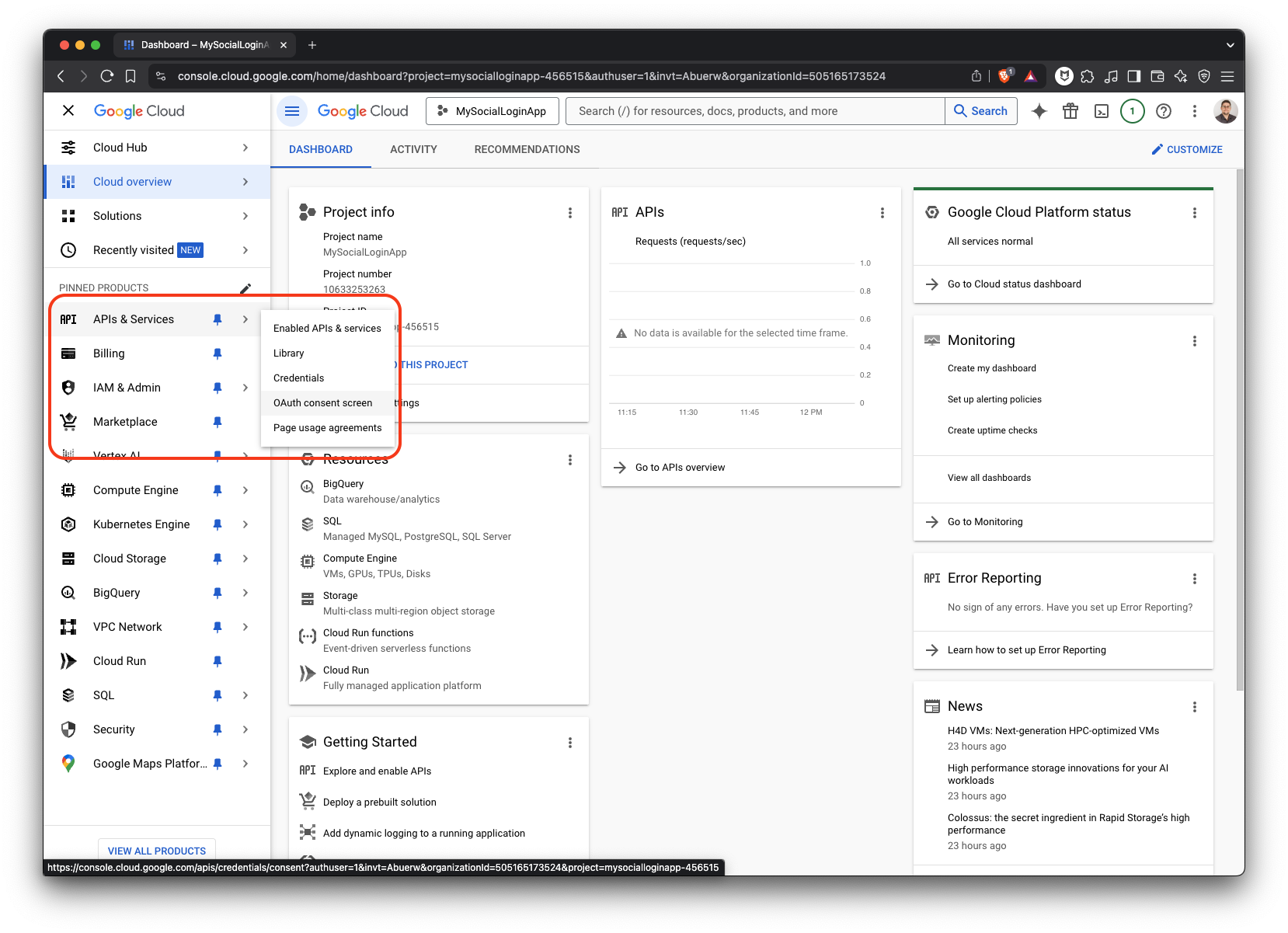
2.2 Configure the consent screen
- User Type: Select your audience type.
- Click Create.
- Fill in App Information:
- App name: Your app's name (shown to users)
- User support email: Valid support email
- App logo: Optional app logo
- Add Developer contact information.
- Review and acknowledge Google API Services: User Data Policy.
- Click Save and Continue.
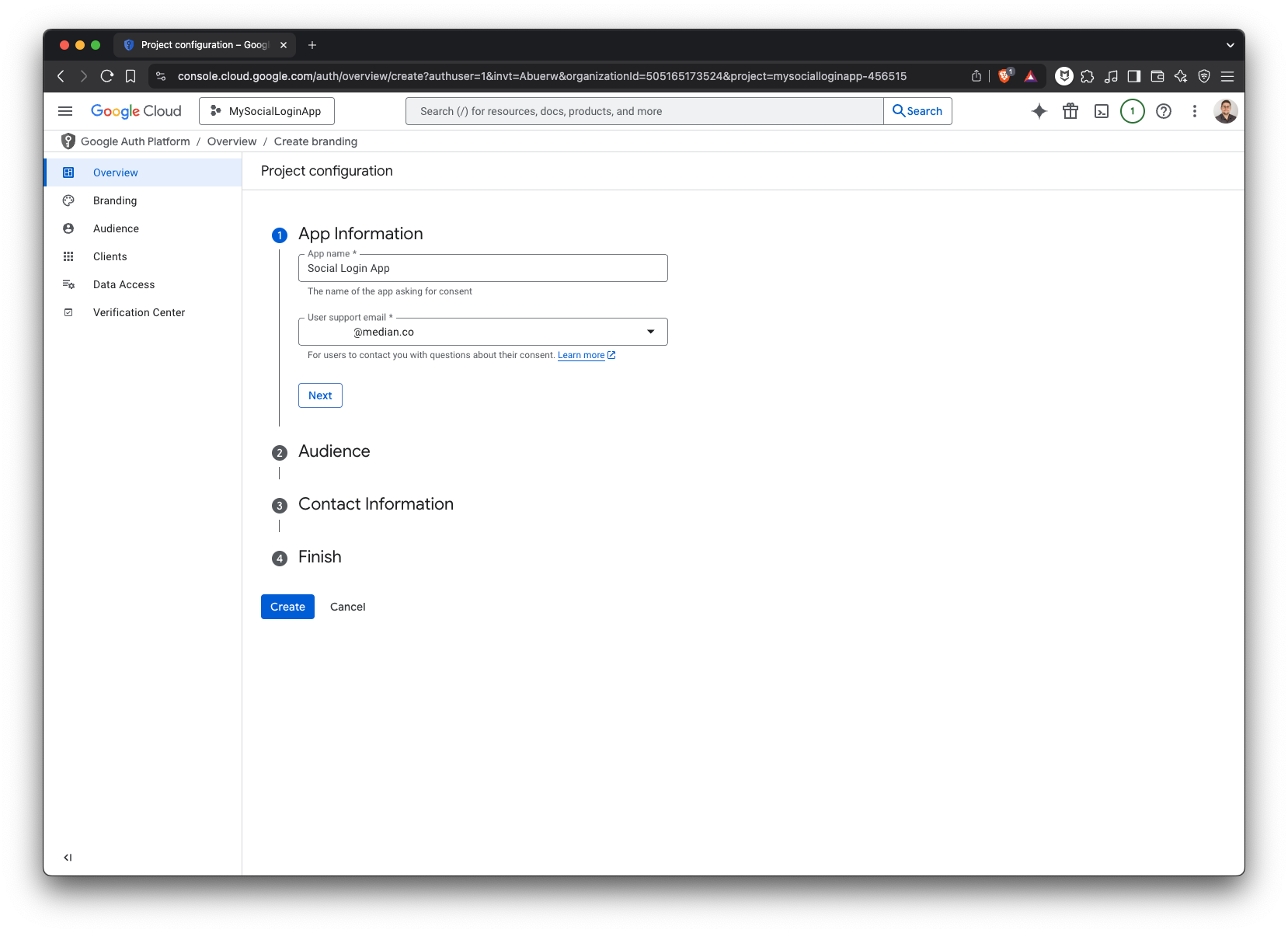
OAuth Consent - App Information
Firebase Users
If you use Firebase Console, make sure to configure the Support Email in Firebase Console → Settings → General → Public Settings → Support Email
Step 3: Create OAuth clients
You need to create three separate OAuth clients: one for iOS, one (or more) for Android, and one for web.
- Navigate to APIs & Services → Credentials.
- Click Create Credentials → Select OAuth client ID.
- For Application type, select iOS.
- Enter a descriptive Name for your iOS app.
- Enter your iOS Bundle ID (example:
co.median.ios.soclogin) - Click Create.
- Save your iOS Client ID.
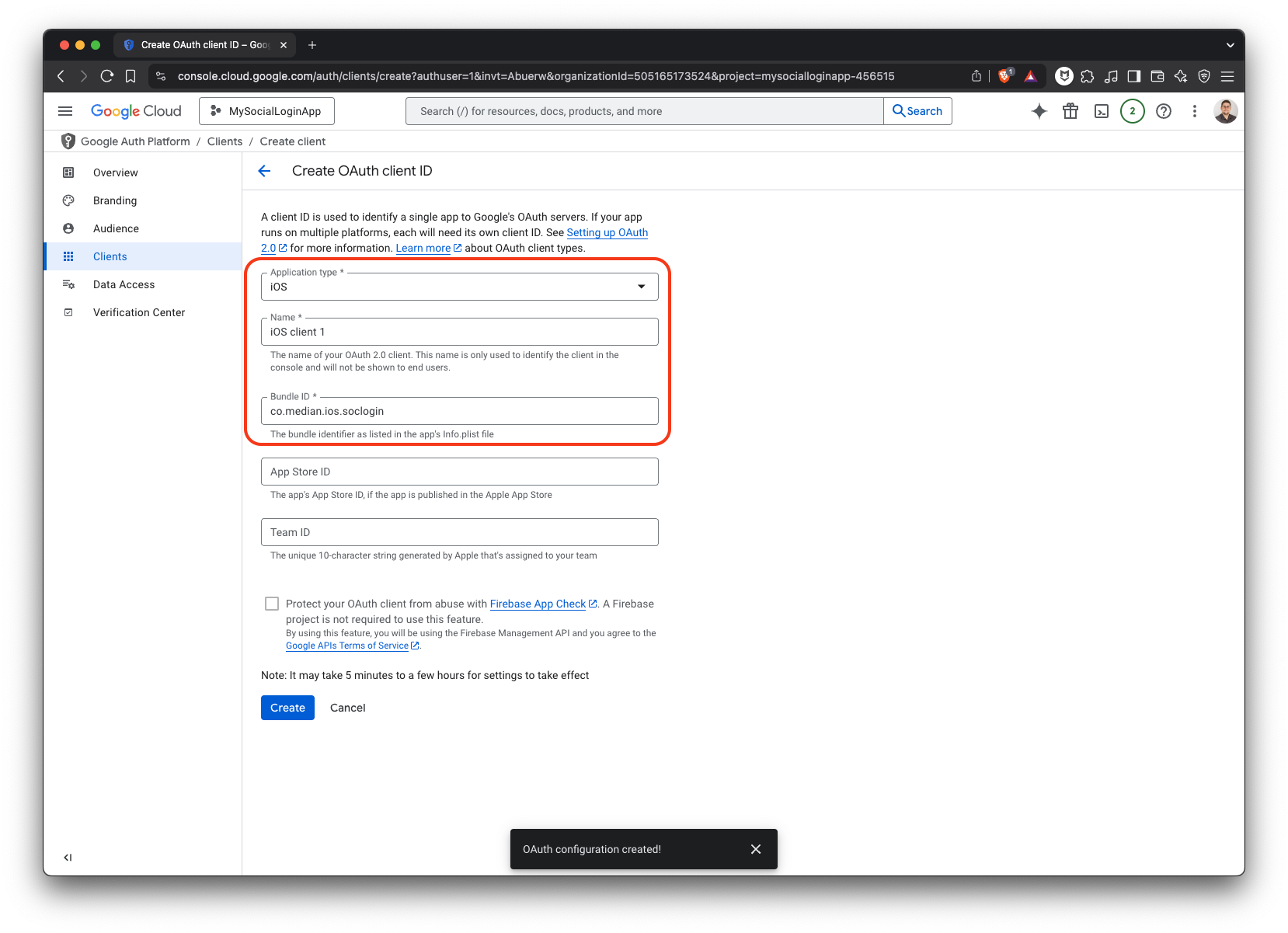
- Navigate to APIs & Services → Credentials.
- Click Create Credentials → Select OAuth client ID.
- For Application type select Android.
- Enter a descriptive Name for your Android app.
- Enter your Android Package Name (example:
co.median.android.soclogin). - Enter your SHA-1 certificate fingerprint:
- If Median is signing your app: Find your Android Release Certificate SHA-1 Fingerprint in the App Studio
- If using Google Play App Signing: Available from Google Play Console → Release → Setup → App Integrity page
- Click Create.
- Save your Android Client ID.
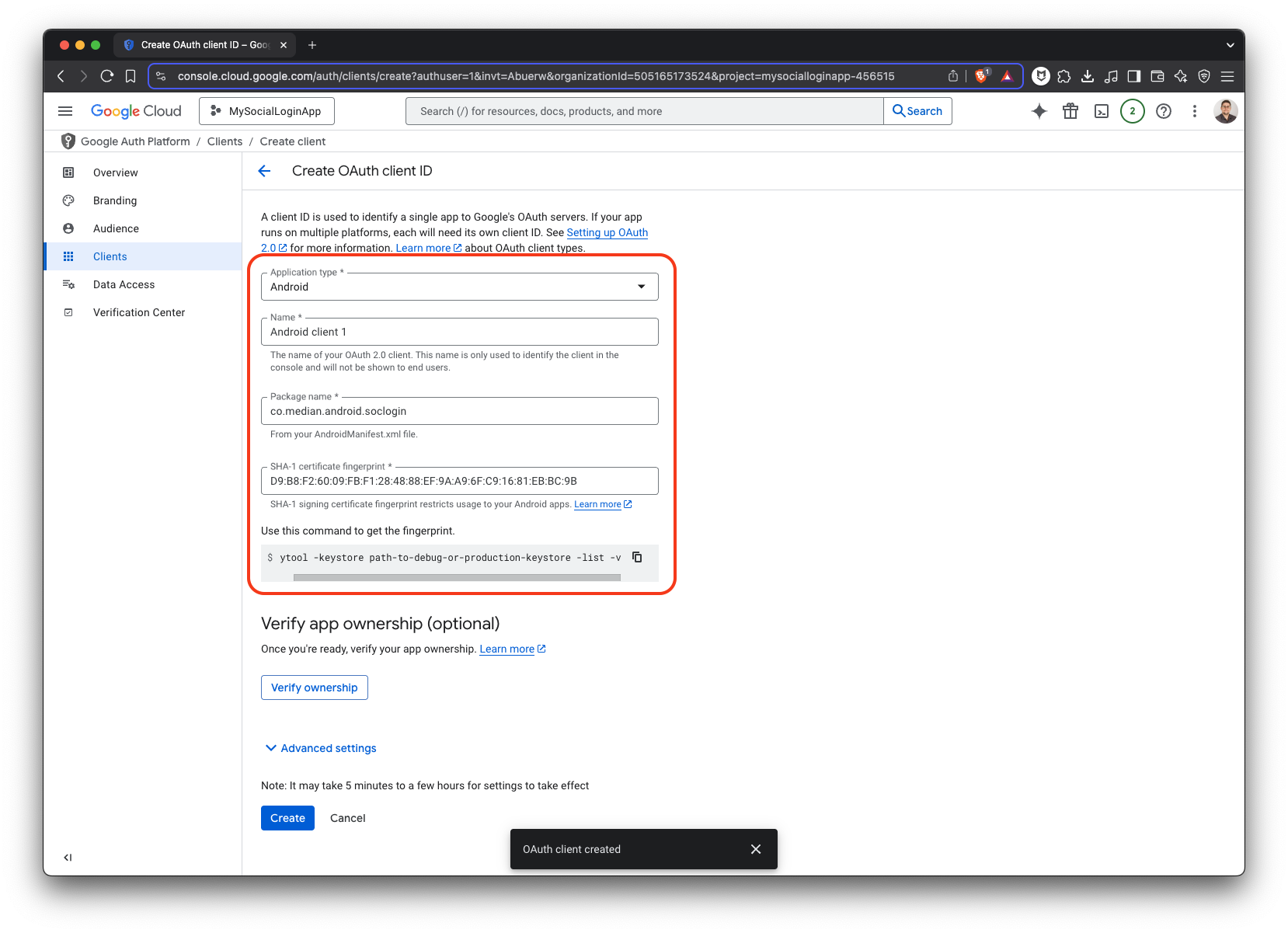
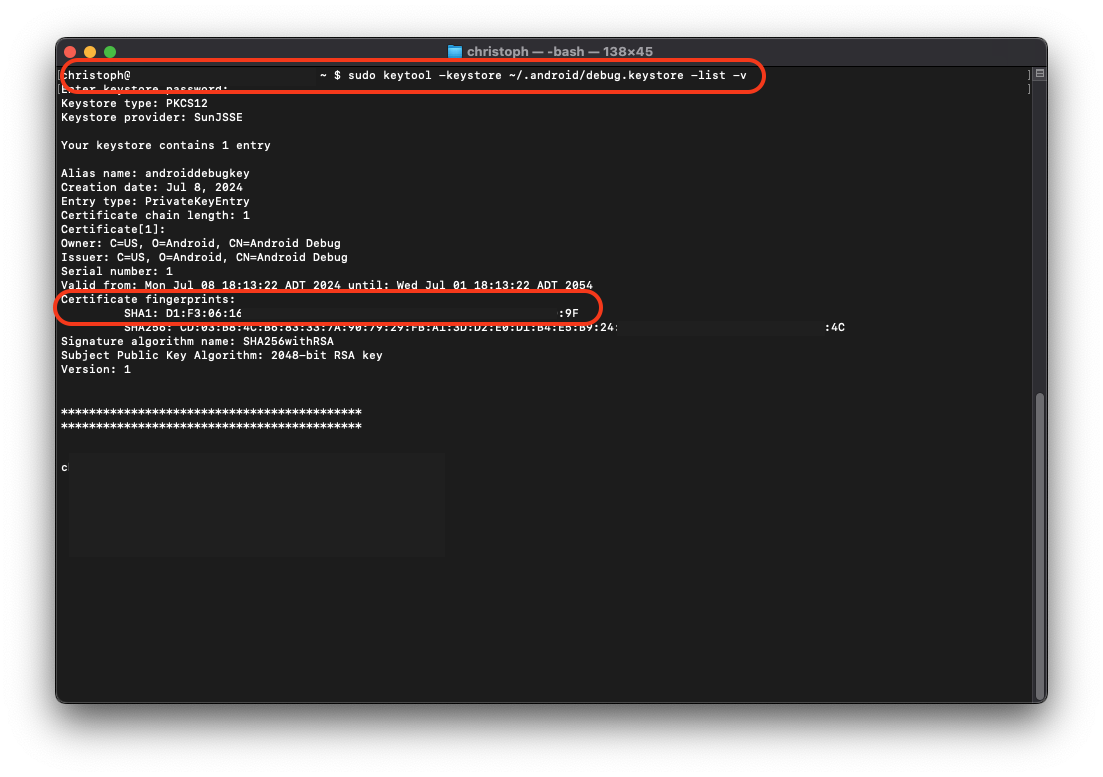
For local debugging:
You will need to create additional OAuth clients for each development machine using the local SHA-1 certificate fingerprint.
To obtain your local fingerprint:
keytool -keystore path-to-debug-or-production-keystore -list -vEnter the keystore password (default for debug keystore is android).
For debug builds: The package name should append .debug (example: co.median.android.soclogin.debug)
Create a separate OAuth client for each developer machine with a descriptive name.
- Navigate to APIs & Services → Credentials.
- Click Create Credentials → Select OAuth client ID.
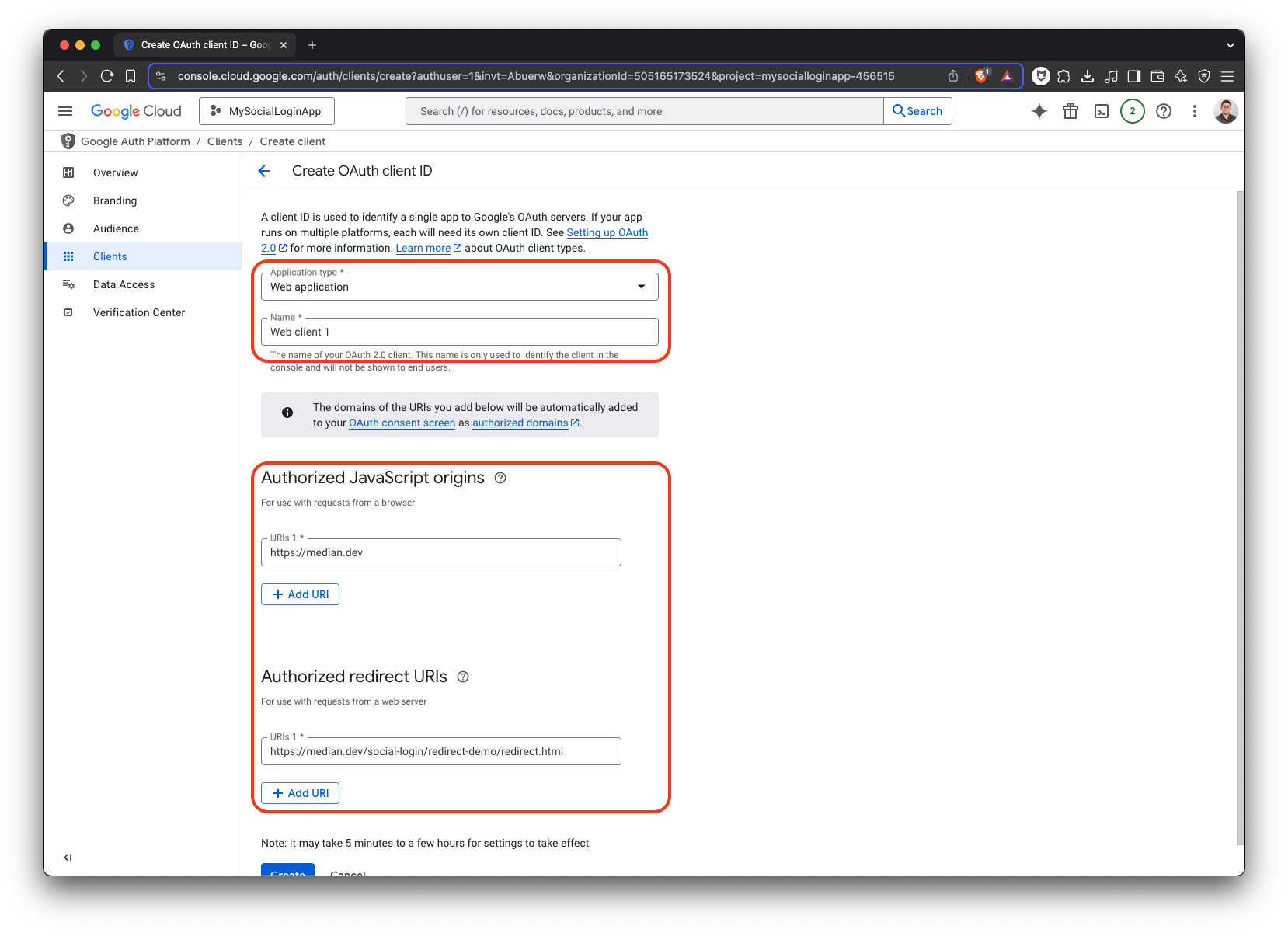
- For Application type select Web application.
- Enter a descriptive Name.
- Optional: Add Authorized JavaScript origins and Authorized redirect URIs if using Server-Side Redirects. Leave blank if using JavaScript Callbacks.
- Click Create.
- Save your Web Client ID for the Median.co configuration.
Step 4: Verify the OAuth client dashboard
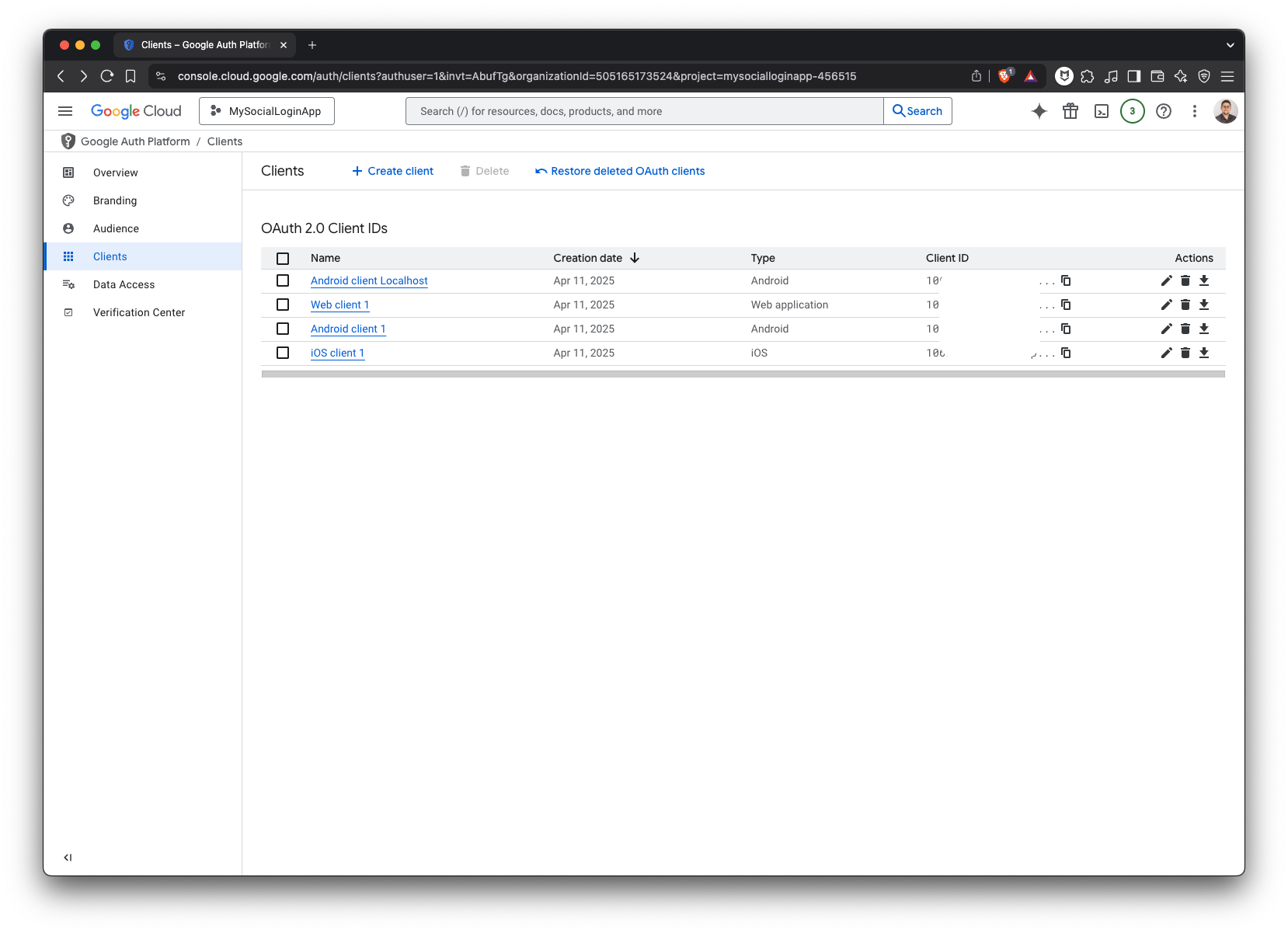
Your Google Cloud Credentials dashboard should now show:
- iOS Client ID
- Android Client ID (one or more if including debug clients)
- Web Client ID
Complete Google Cloud Project Setup
Configuration Complete
You've successfully configured Google Cloud. Next, add these credentials to the Median App Studio.
Step 5: Add credentials to the Median App Studio
Now that your Google Cloud OAuth clients are configured, add these credentials to the Median App Studio:
- Log in to the Median App Studio.
- Navigate to: Native Plugins → Social Login → Settings.
- Enter your Google Sign-In Configuration:
| Median App Studio | Value from Google Cloud | Where You Found It |
|---|---|---|
| iOS Client ID | Your iOS Client ID | Credentials dashboard (Step 3.2) |
| Web Client ID | Your Web Client ID | Credentials dashboard (Step 3.8) |
Multiple Android Clients
If you created multiple Android OAuth clients (production + debug), use your production Android Client ID in the Median App Studio.
- Click Confirm and Save.
- Rebuild your app for the changes to take effect.
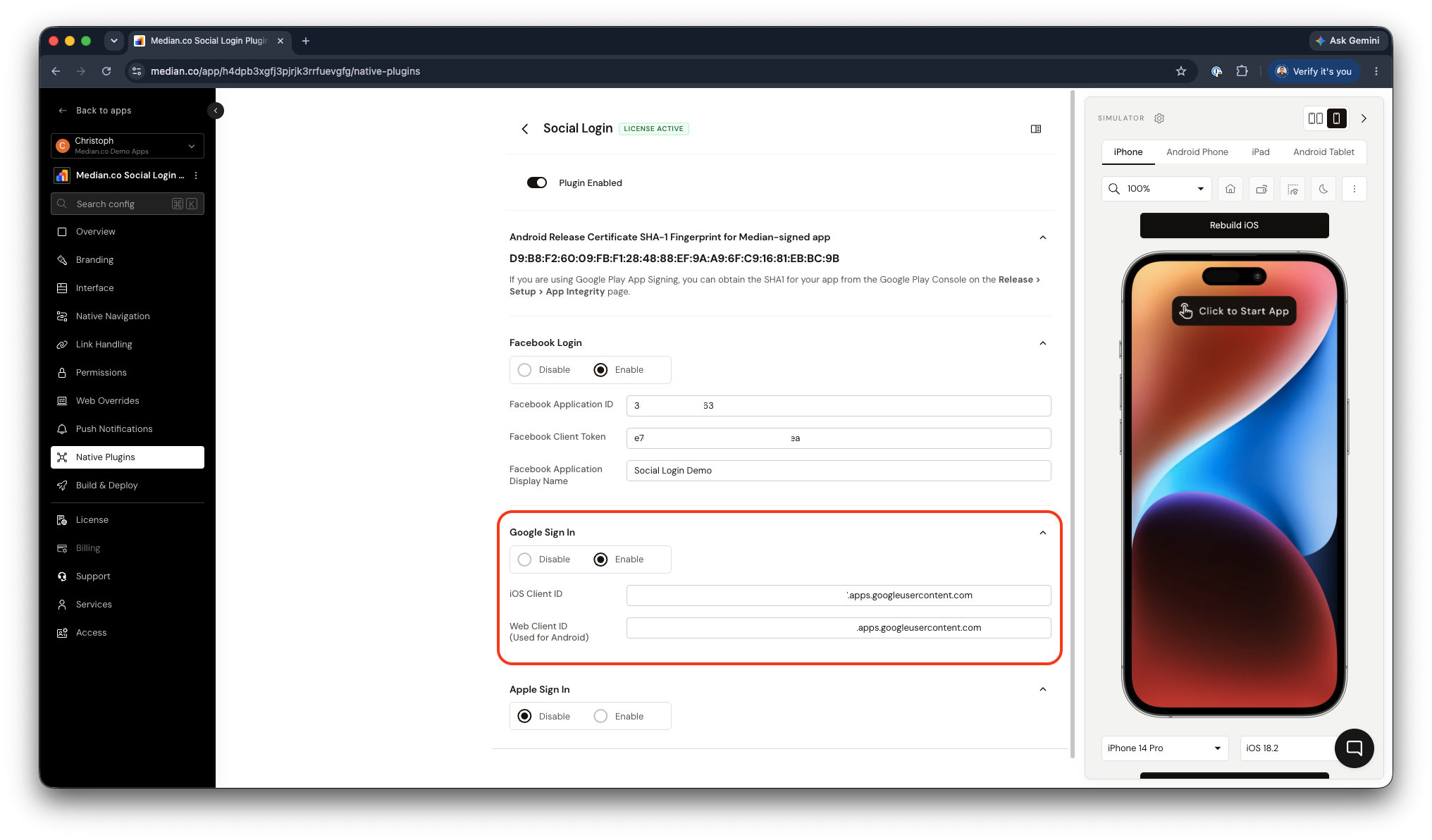
Example Social Login Plugin Configuration
Frequently Asked Questions
Android App doesn't display the prompt to select the account.
Android App doesn't display the prompt to select the account.
My Android app does not display the prompt to select the account. What can I do to resolve this issue?
If your Google Sign-In button is not launching the overlay to select your google account it typically manifests as a No credentials available issue in the debug console. The full stack trace typically shows as follows:
I/CredManProvService( 8276): GetCredentialResponse error returned from framework
E/a       ( 8276): signIn:
E/a       ( 8276): H.p: No credentials available
E/a       ( 8276): 	at G.M.c(SourceFile:33)
E/a       ( 8276): 	at G.M$e.a(SourceFile:17)
E/a       ( 8276): 	at G.M$e.onError(SourceFile:5)
E/a       ( 8276): 	at android.credentials.CredentialManager$GetCredentialTransport.lambda$onError$2(CredentialManager.java:694)
E/a       ( 8276): 	at android.credentials.CredentialManager$GetCredentialTransport.$r8$lambda$nlbYav9mLBoE6Yh1vFKCvITF3ks(Unknown Source:0)
E/a       ( 8276): 	at android.credentials.CredentialManager$GetCredentialTransport$$ExternalSyntheticLambda2.run(Unknown Source:6)
E/a       ( 8276): 	at G.i.execute(SourceFile:1)
E/a       ( 8276): 	at android.credentials.CredentialManager$GetCredentialTransport.onError(CredentialManager.java:693)
E/a       ( 8276): 	at android.credentials.IGetCredentialCallback$Stub.onTransact(IGetCredentialCallback.java:123)
E/a       ( 8276): 	at android.os.Binder.execTransactInternal(Binder.java:1344)
E/a       ( 8276): 	at android.os.Binder.execTransact(Binder.java:1275)
To resolve the issue, please follow the three troubleshooting steps below to confirm your Cloud Project Configuration, Google User account, and Android Device Simulator settings.
- The most common case of this issue is a misconfiguration on the Android OAuth client. Please confirm the SHA-1 you're using for your Android OAuth client and/or set up a second Android OAuth client for local testing using your debug SHA-1 value.
- If you have confirmed your OAuth client configuration, please confirm the user configuration on your test device.
- Log in to a Google Account on the test or simulator device you are using
- Ensure that the logged-in user allows Google Sign-In prompts. This configuration can be reviewed in your Google Account Settings.
- If you observe the issue occasionally in your simulators only, it could be that you are using a simulator with an API level below 35. Please update the API level of your simulators in Android Studio.
How to find your Android package name and iOS Bundle ID?
How to find your Android package name and iOS Bundle ID?
How to find your Android package name and iOS Bundle ID?
For applications in development, the required parameters can be found in the App Identifiers section of the App Studio.
For live or published apps, use the deviceInfo() JavaScript bridge command to retrieve the corresponding value, which is stored under the appId key.
Updated about 1 month ago