
Salesforce LWC Component Deployment and Reference
Median Lightning Web Components for Salesforce Experience Cloud
This guide covers deploying the open-source median-salesforce-components library into your Salesforce org and provides a full API reference for each component. It also includes the recommended patterns for building your own custom components that call the Median JavaScript bridge.
This is part four of a four-part series:
- Getting Started with Salesforce Experience Cloud
- Lightning Web Components and the Median JavaScript Bridge
- Deep Linking for Salesforce Experience Cloud
- Component Deployment and Reference (this page)
Step 8: Deploy the Open-Source Component Library
The median-salesforce-components repository provides ready-to-deploy reference LWC components covering common Median integration patterns for Salesforce. All components have been tested on physical iOS and Android devices inside a Median-wrapped Experience Cloud app.
Deploy All Components
git clone https://github.com/gonativeio/median-salesforce-components.git
cd median-salesforce-components
sf org login web --alias my-org
sf project deploy start --source-dir force-app --target-org my-org
Deploy a Single Component
sf project deploy start --source-dir force-app/main/default/lwc/oneSignal --target-org my-orgAdd Components to an Experience Builder Page
After deployment, open Experience Builder and drag the component from the component panel onto your page. All four components support the following targets:
lightningCommunity__PagelightningCommunity__Defaultlightning__AppPagelightning__RecordPage
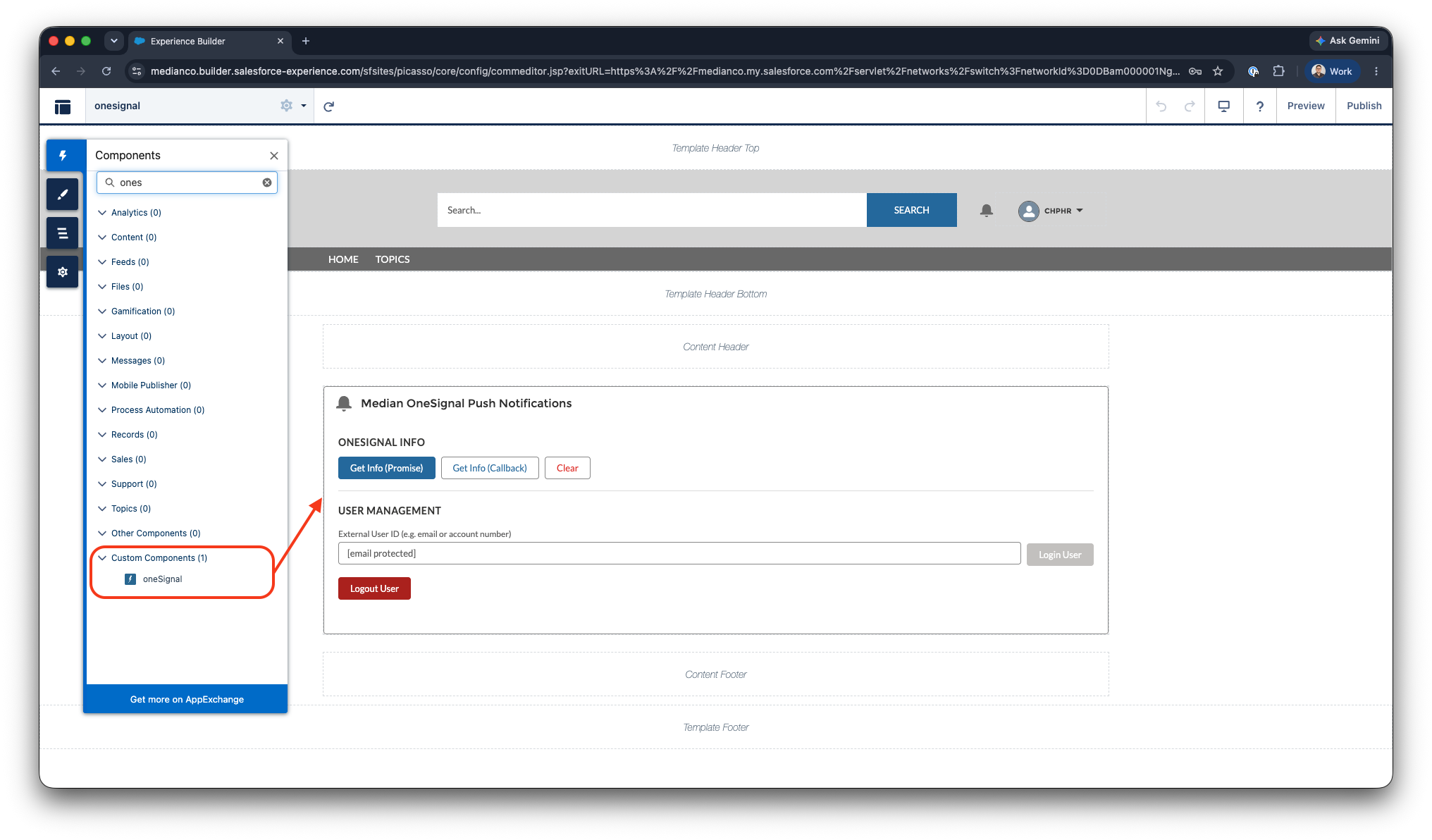
Experience Builder - Custom Components
Building a Custom Component
If you are building your own LWC that calls the Median bridge, follow these conventions for production-ready code. The patterns below are consistent with the open-source library and ensure correct behaviour across Lightning Web Security, multiple Median SDK versions, and both in-app and out-of-app contexts.
import { LightningElement } from 'lwc';

export default class MyMedianComponent extends LightningElement {

    // Normalise both casing conventions across Median SDK injection methods (NPM or app-injected)
    get _median() {
        return window.median || window.Median || null;
    }

    // Always guard before calling the bridge
    get isInMedianApp() {
        return !!this._median;
    }

    // Example: call an async bridge method with error handling
    async exampleBridgeCall() {
        if (!this._median) {
            // Component is running outside the Median app - degrade gracefully
            return;
        }
        try {
            const result = await this._median.someFeature.someMethod();
            // Handle result
        } catch (e) {
            console.error('[MyMedianComponent] exampleBridgeCall error:', e);
        }
    }
}
Component Reference
oneSignal: Push Notifications
| Source | force-app/main/default/lwc/oneSignal |
| Median plugin required | OneSignal (enabled in Median App Studio under Plugins) |
| Apex required | No |
Integrates the Median OneSignal plugin to manage push notification subscriptions. Provides the ability to retrieve device subscription info, associate a device with a Salesforce user via an external ID, and remove that association on logout.
Relevant for: customer communities where personalised push notifications are sent based on CRM data, such as case status updates, appointment reminders, or order confirmations.
Features:
- Get OneSignal device info via Promise or global callback
- Login a user by external ID (e.g. Salesforce Contact email or Account ID)
- Logout the current user and remove the external ID association
- Graceful degradation with warning banner outside the Median app
Median API methods used:
median.onesignal.info()                          // Promise
median.onesignal.info({ callback: 'fnName' })    // Callback
median.onesignal.login(externalUserId)           // Promise
median.onesignal.logout()                        // Promise
Usage note: The external user ID is typically a Salesforce Contact ID, email address, or another identifier that your push notification service can use to target a specific user. Logout removes the external ID association but does not unsubscribe the device from push notifications entirely.
This component does only implement a subset of all JavaScript Bridge methods available. Please review our OneSignal documentation for a full JavaScript Bridge Reference.
biometricAuth: Biometric Authentication
| Source | force-app/main/default/lwc/biometricAuth |
| Median plugin required | Face ID and Touch ID / Android Biometric, enabled in Median App Studio under Plugins |
| Apex required | No |
Saves and retrieves credentials using the device's native biometric hardware (Face ID on iOS, Fingerprint or Face Unlock on Android). Secrets are stored in the iOS Keychain or Android Keystore and are never written to Salesforce fields or browser storage.
Relevant for: field service, healthcare, and financial services applications where users authenticate repeatedly throughout the day and friction at login measurably reduces adoption.
Features:
- Check whether the device supports biometrics and whether a secret is already stored
- Save a username and password as a JSON-encoded secret (no biometric prompt required to save)
- Retrieve a stored secret via a native biometric prompt, rendered in a read-only output field without navigating away from the page
- Delete the stored secret from the device keychain or keystore
Median API methods used:
median.auth.status()                                    // Promise → { hasTouchId, hasSecret }
median.auth.save({ secret, minimumAndroidBiometric })   // Promise
median.auth.get({ callbackFunction: 'fnName' })         // Callback → { success, secret, error }
median.auth.delete()                                    // Promise
Usage note: minimumAndroidBiometric is set to 'strong' by default, which requires Class 3 (hardware-backed) biometrics on Android. Change this value in medianAuth.js if your target device fleet uses Class 2 biometrics. Secrets are encoded as a JSON string in the format { "username": "...", "password": "..." }. Modify the saveSecret() method if you need to store a different data shape.
qrScannerNative: QR Code and Barcode Scanning
| Source | force-app/main/default/lwc/qrScannerNative |
| Median plugin required | QR / Barcode Scanner (enabled in Median App Studio under Plugins) |
| Apex required | No |
Launches the device camera for QR code and barcode scanning. Returns the scanned value directly into the LWC component's reactive state without navigating away from the page. Supports both Promise and global callback invocation patterns.
Relevant for: inventory management, asset tracking, event check-in, and field inspection workflows where users need to scan physical identifiers and match them to Salesforce records.
Features:
- Set a custom prompt message displayed inside the native scanner UI
- Scan via Promise (simpler code, recommended for most use cases)
- Scan via global callback (required for some Median SDK versions or where Promise is not available)
- Full raw JSON output in a resizable read-only textarea
- Structured result card showing scanned code and barcode type
- Loading spinner shown while the native scanner UI is open
- Graceful handling of user cancellation
Median API methods used:
median.barcode.setPrompt(promptText)             // Synchronous
median.barcode.scan()                            // Promise
median.barcode.scan({ callback: 'fnName' })      // Callback
Scan result shape:
{
  "success": true,
  "code": "https://example.com/asset/12345",
  "type": "QR_CODE"
}
On cancellation, the scanner returns { "success": false, "error": "cancelled" }. This is handled gracefully with a status badge rather than an error state.
pdfViewer: Native PDF Handling
| Source | force-app/main/default/lwc/pdfViewer |
| Median plugin required | No |
| Apex required | No |
Opens and downloads PDF files using the device's native PDF viewer. Configure a default PDF URL via a constant at the top of pdfViewer.js, and optionally override it at runtime via the URL input field.
Relevant for: portals that serve policy documents, contracts, inspection reports, field manuals, or any other PDF that users need to view, annotate, or share from their device.
Features:
- Hardcoded default PDF URL (set
DEFAULT_PDF_URLinpdfViewer.js) - Editable URL input field for runtime testing without redeployment
- Read-only URL display textbox showing the active URL before triggering an action
- Open PDF using
window.location.href, which the Median native layer intercepts and renders in PDFKit (iOS) or PDFViewer (Android) without leaving the page - Download PDF to the device via
median.share.downloadFile()(Android: Downloads folder; iOS: native Share / Save to Files sheet)
Configuration:
Open pdfViewer.js and update the constant at the top of the file:
// Line 4 of medianPdfViewer.js
const DEFAULT_PDF_URL = 'https://your-domain.com/your-document.pdf';
The URL must be publicly accessible, or must be a URL that the Median webview session can reach using the existing Salesforce authentication cookie.
Median API methods used:
window.location.href = url;                        // Open — no bridge call required
median.share.downloadFile({ url, open: false })    // Download
Button behaviour by context:
| Button | Inside Median app | Desktop browser |
|---|---|---|
| Open PDF in App | Opens native PDF viewer | Navigates browser to the PDF URL |
| Download PDF | Downloads to device | Disabled (bridge not present) |
Additional Resources
- JavaScript Bridge Overview - Full Median bridge API reference
- OneSignal Push Notifications - Push notification plugin reference
- Face ID and Touch ID - Biometric authentication plugin reference
- QR / Barcode Scanner - Scanner plugin reference
- Enterprise Security Plugin - Jailbreak detection, certificate pinning, and MDM support
- Median Support - Get help from the Median team
Updated 3 months ago