
Sign In with Apple Configuration
This guide walks you through configuring Sign In with Apple for your Median app. You'll register a Service ID in Apple Developer Portal, configure web authentication, and confirm the required iOS capability.
Overview
This guide walks you through configuring Sign In with Apple for your Median app. You'll register a Service ID in Apple Developer Portal, configure web authentication, and confirm the required iOS capability.
Before you start
Make sure you have:
- An Apple Developer account (create one here)
- Your app's iOS Bundle ID (example:
co.median.ios.soclogin) - Your website domain (example:
yourdomain.com) - Your return URLs for authentication callbacks
- Admin or Account Holder role in Apple Developer account
Not sure where to find these? Check our App Identifiers Guide
Sign In with Apple is iOS Only
Sign In with Apple is only available for iOS apps. Android does not support this authentication method.
Step 1: Register a new Service ID
1.1 Access identifiers
- Log in to your Apple Developer Account.
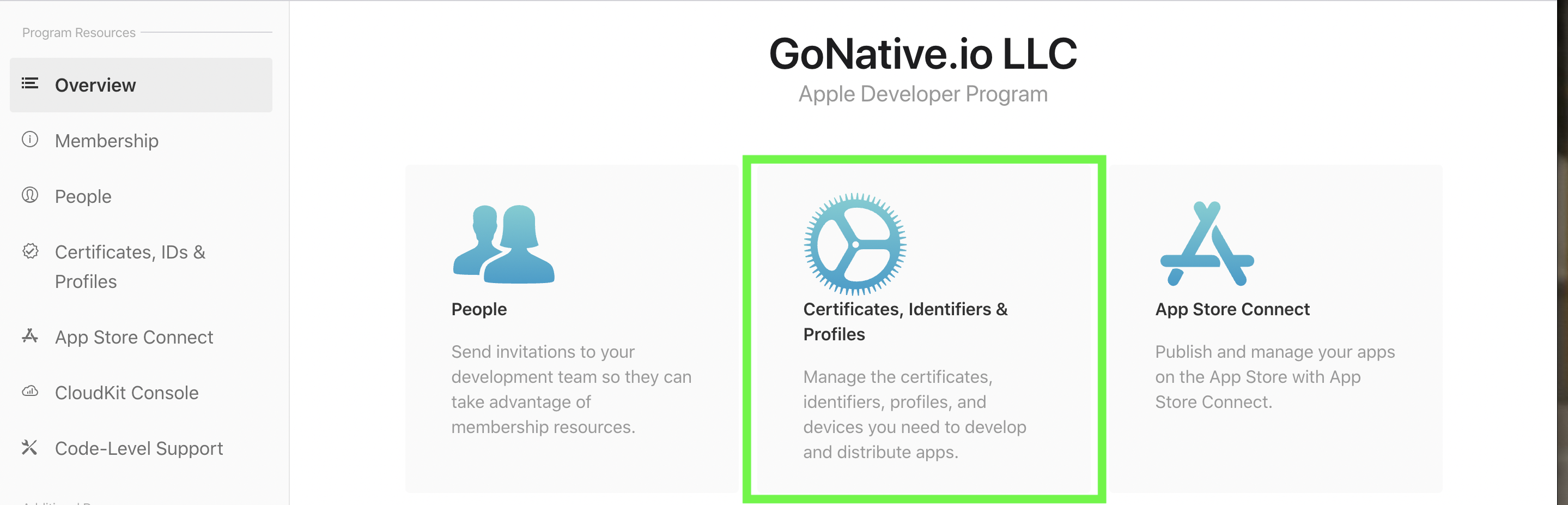
- Click Certificates, Identifiers & Profiles.
1.2 Create new identifier
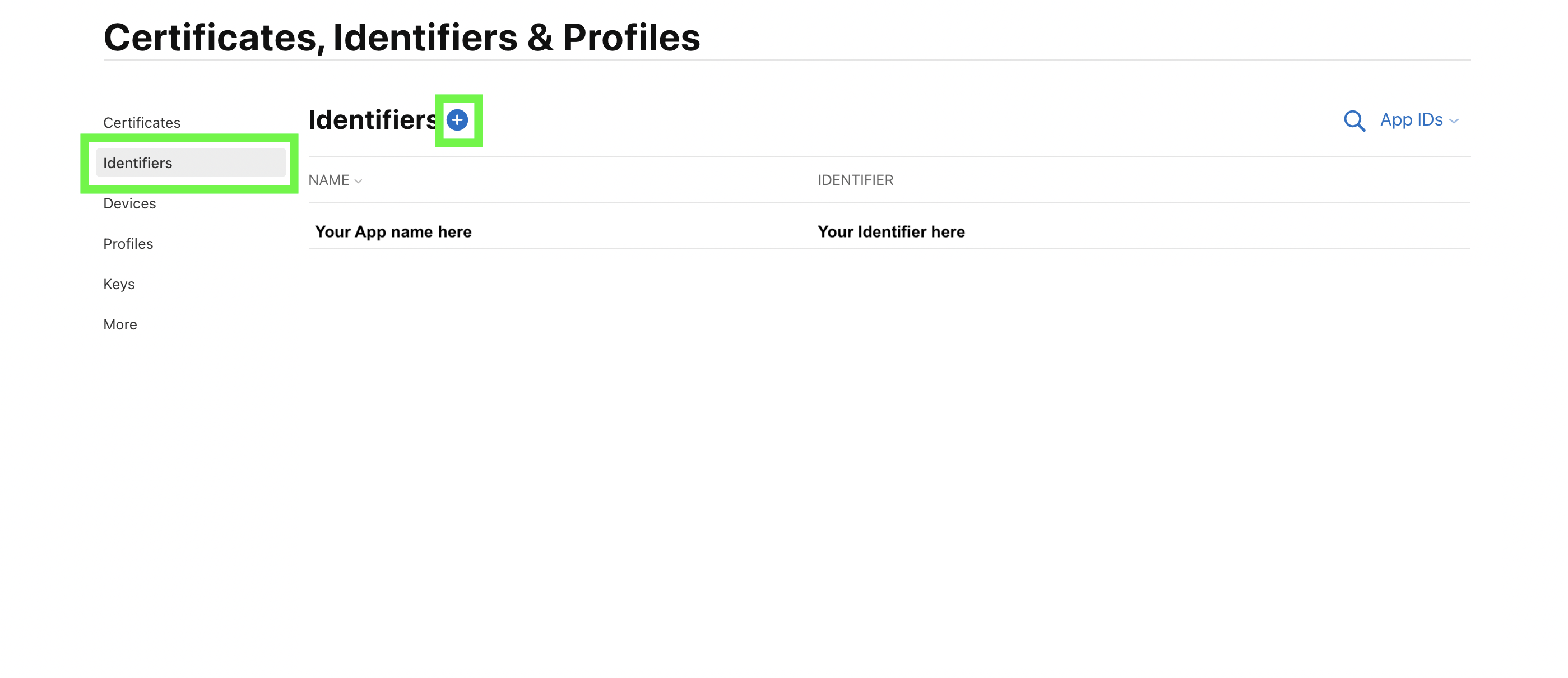
- In the left navigation, click Identifiers.
- Click the + button to create a new identifier.
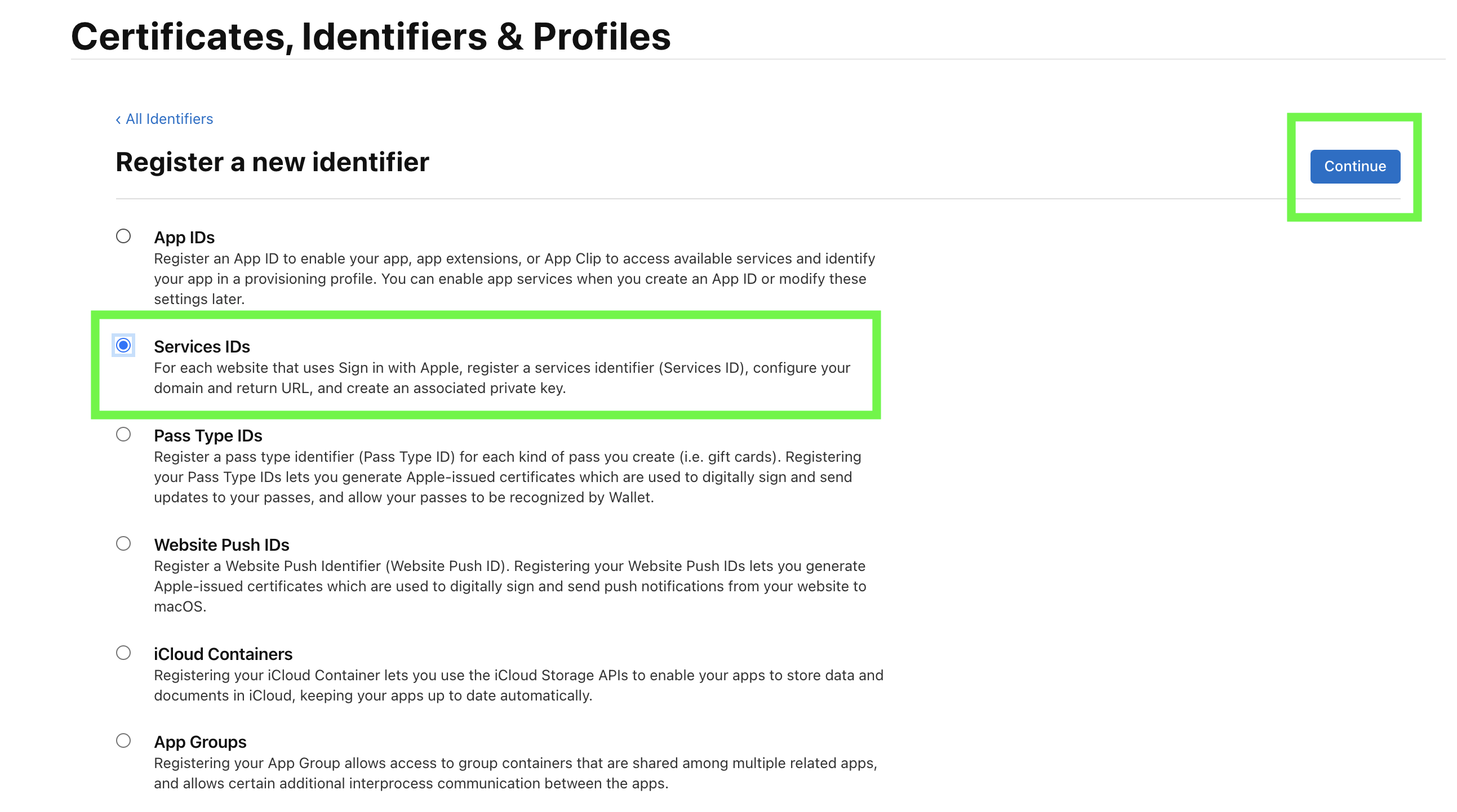
- Select Services IDs.
- Click Continue.
Step 2: Configure Service ID
2.1 Add Service ID details
- Description: Add a user-friendly description of your app.
- Identifier: Enter your app identifier (this will be your Client ID).
- Example:
co.median.ios.soclogin.signin.
- Example:
- Click Continue.
- Click Register.
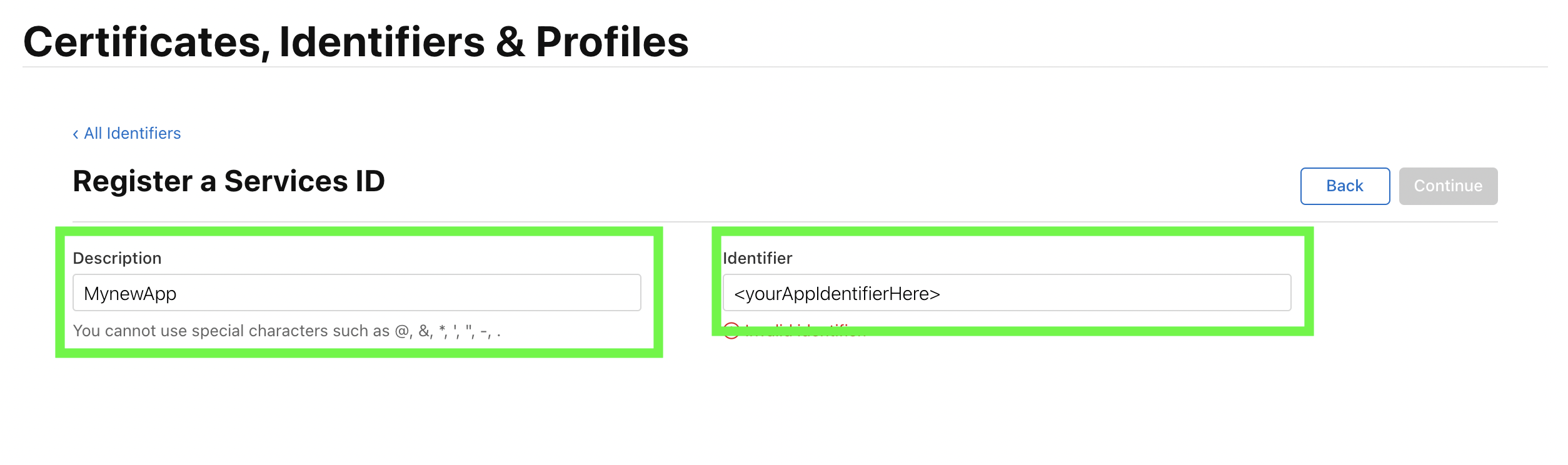
Save your Identifier - This is your Client ID for Sign In with Apple (though no additional parameters are required in Median App Studio, as it uses your Bundle ID automatically).
Step 3: Configure web authentication
3.1 Select your Service ID
- In the Identifiers list, click the Service ID you just created.
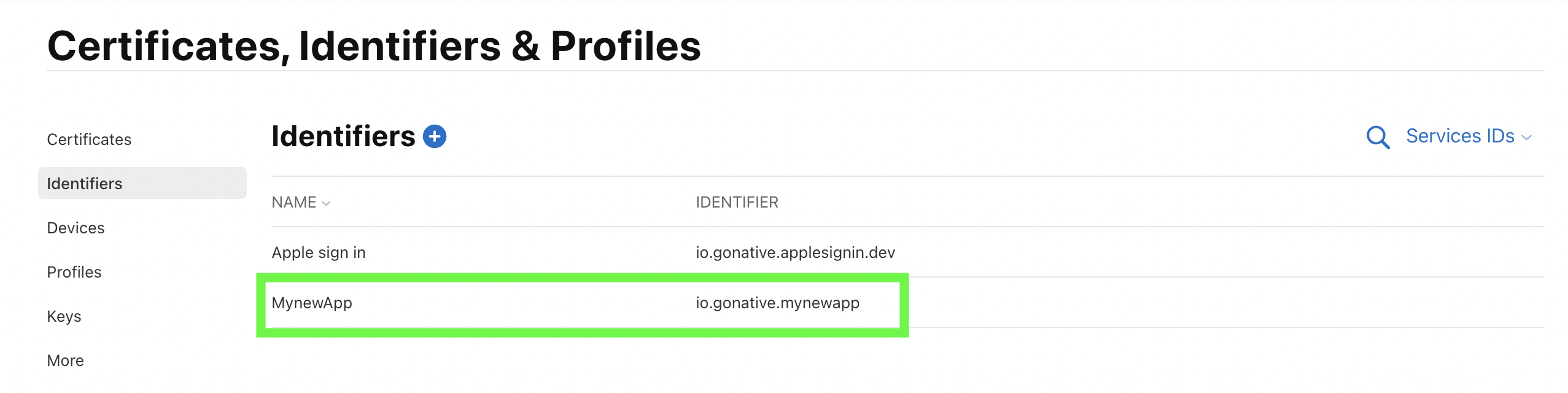
Click your identifier
- Check the box next to "Sign in with Apple".
- Click Configure.
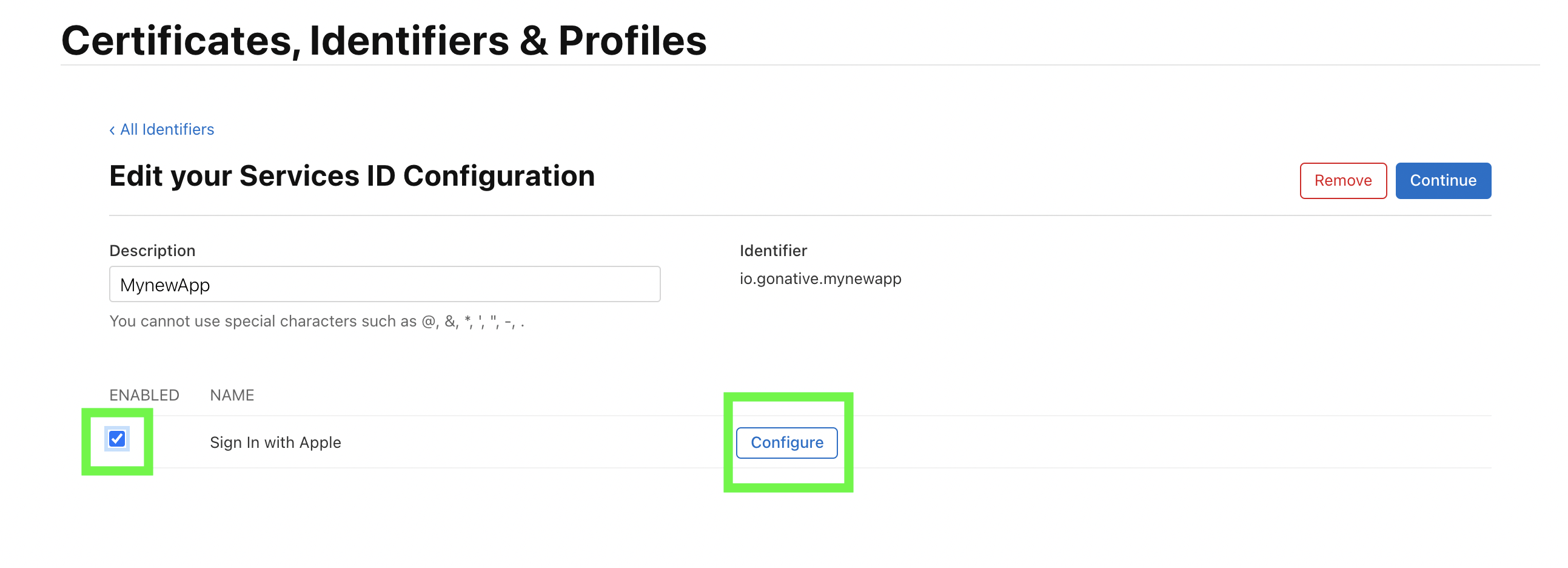
Check the box and click "Configure"
3.2 Add domains and return URLs
- Primary App ID: Select your app's primary identifier from the dropdown.
- Domains and Subdomains: Add your website domains.
- Return URLs: Add your authentication callback URLs/
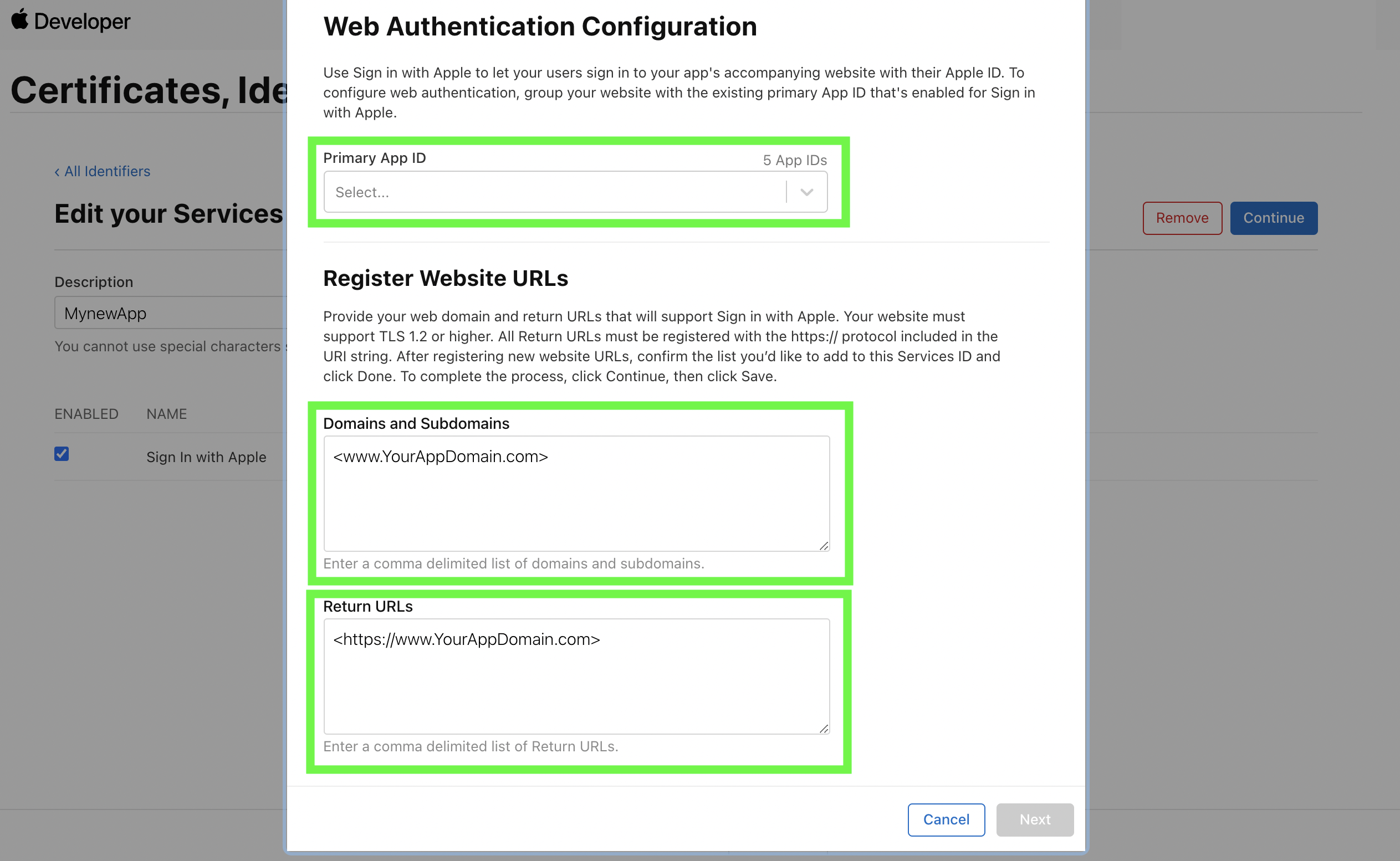
Select a primary ID and add Domains and Return URLs.
Important formatting rules:
- Domains should not start with
https:// - Domains should not include a trailing
/ - Correct:
subdomain.yoursite.com - Incorrect:
https://subdomain.yoursite.com/
Example configuration:
- Primary App ID:
co.median.ios.soclogin - Domains and Subdomains:
yourdomain.com - Return URLs:
https://yourdomain.com/auth/apple/callback
- Click Done.
- Click Continue.
- Click Save.
Step 4: Confirm Sign In with Apple Capability
4.1 Add capability
For App Studio builds using the App Store Connect API workflow, Median can register the Bundle ID with the Sign in with Apple capability and generate the provisioning profiles used by your build. If you manually manage Apple identifiers/provisioning profiles or build from downloaded source, add the capability in Xcode:
- Open your project in Xcode.
- Select your app target.
- Click the Signing & Capabilities tab.
- Click + Capability
- Search for and add Sign in with Apple
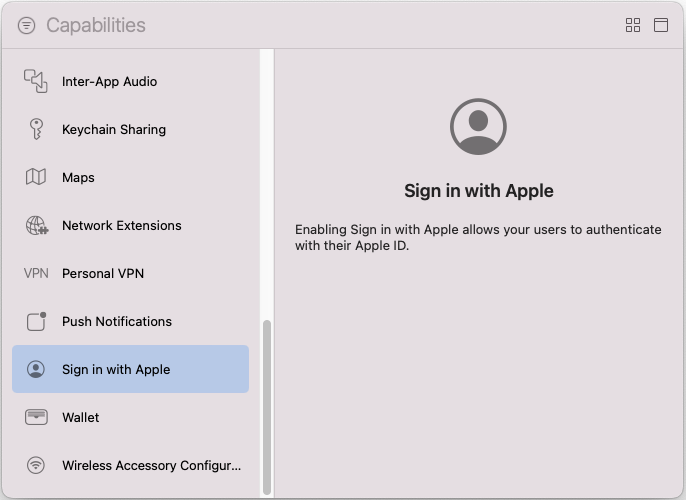
Required for iOS
Failing to include the Sign in with Apple capability will result in Error Code 1000:
Error Domain=com.apple.AuthenticationServices.AuthorizationError Code=1000 "(null)"
Step 5: Enable the plugin in the Median App Studio
Sign In with Apple requires minimal configuration in Median App Studio.
- Log in to Median App Studio.
- Navigate to: Native Plugins → Social Login → Settings.
- Enable Sign In with Apple.
Configuration:
- No additional parameters required
- Sign In with Apple uses your app's Bundle ID automatically
- The Service ID you created is for web authentication only
- Click Confirm and Save.
- Rebuild your app for the changes to take effect.
Step 6: Testing
If email: null is received, then reset the Sign In with Apple session.
Apple only returns the complete user profile for the first initial login by a user. Subsequent logins to your app using Sign In with Apple from the same Apple ID will only return idToken and email will be null.
During testing, you may reset the login session for your test account to simulate an initial login and return the complete user profile. To do this log in to your Apple account at https://appleid.apple.com/account/manage and go to "Sign in and Security" > "Sign in With Apple". In the window that opens click your app and then select "Stop using Sign in With Apple".
When you now use the Sign In with Apple in your app again, it will create a new session, and return the complete user profile for you to process and save.
Updated about 1 month ago