
Lightning Web Components and the Median JavaScript Bridge
Learn how to access the Median JavaScript bridge safely inside Lightning Web Components
Lightning Web Components (LWC) run inside a sandboxed JavaScript environment that can prevent access to globally injected objects like window.median. This guide explains how the sandbox works, how to work around its constraints reliably, and how to configure your Salesforce org and Median app for correct mobile rendering.
This is part two of a four-part series:
- Getting Started with Salesforce Experience Cloud
- Lightning Web Components and the JavaScript Bridge (this page)
- Deep Linking for Salesforce Experience Cloud
- Salesforce LWC Component Deployment and Reference
Step 4: Resolve Lightning Web Security Sandbox Constraints
Lightning Web Components run inside a sandboxed JavaScript environment called Lightning Web Security (LWS), or its predecessor Lightning Locker. This sandbox prevents components from accessing global variables outside their own namespace.
The practical effect for Median integrations is that a naive call to window.median inside an LWC will return undefined, even when the bridge has been injected correctly by the native shell.
Recommended Pattern for Bridge Access
Always access the bridge through the top-level window reference rather than the component's local window reference:
get _median() {
    return window.median || window.Median || null;
}
Both window.median and window.Median are included to handle casing differences across Median SDK versions.
Checking for LWS vs Legacy Locker
LWS provides broader support for cross-window communication than the legacy Locker Service and is the preferred sandbox for new orgs. To confirm which sandbox your org is using, navigate to Setup > Session Settings and look for the Lightning Web Security toggle. Enable LWS if it is not already active and your org supports it.
Detecting Whether the Page is Running Inside the Median App
Always guard bridge calls with a presence check before invoking any native feature. This ensures the component degrades gracefully when loaded in a desktop browser, Experience Builder preview, or any context outside the Median native shell.
get isInMedianApp() {
    return !!this._median;
}
Use this getter to disable bridge-dependent UI controls and display an informational banner in non-app contexts. Reference implementations are available in the open-source component library.
Troubleshooting: window.median Is Undefined Inside an LWC
window.median Is Undefined Inside an LWCIf the bridge is not reachable after applying the pattern above, verify the following:
- LWS is enabled in Setup > Session Settings.
- The CSP is set to Relaxed in Experience Builder > Settings > Security and Privacy (see Getting Started with Salesforce Experience Cloud).
- You are accessing the bridge via
window.medianusing theget _median()accessor pattern, not a localwindowreference. - You are testing on a physical device inside the Median app, not in Experience Builder preview, which does not inject the bridge.
Step 5: Configure a Mobile-Aware User Agent
Salesforce detects the browser type from the User Agent string to determine which resources to serve. If the Median app sends a generic WebView User Agent, Salesforce may serve the desktop layout of your Experience Cloud site, which produces a degraded mobile experience.
To configure a custom User Agent in Median App Studio:
- In your app settings, navigate to Web Overrides > User Agent.
- Append a custom identifier such as
medianto the existing User Agent string. Do not replace the full User Agent string, as Salesforce uses parts of it to identify the browser engine.
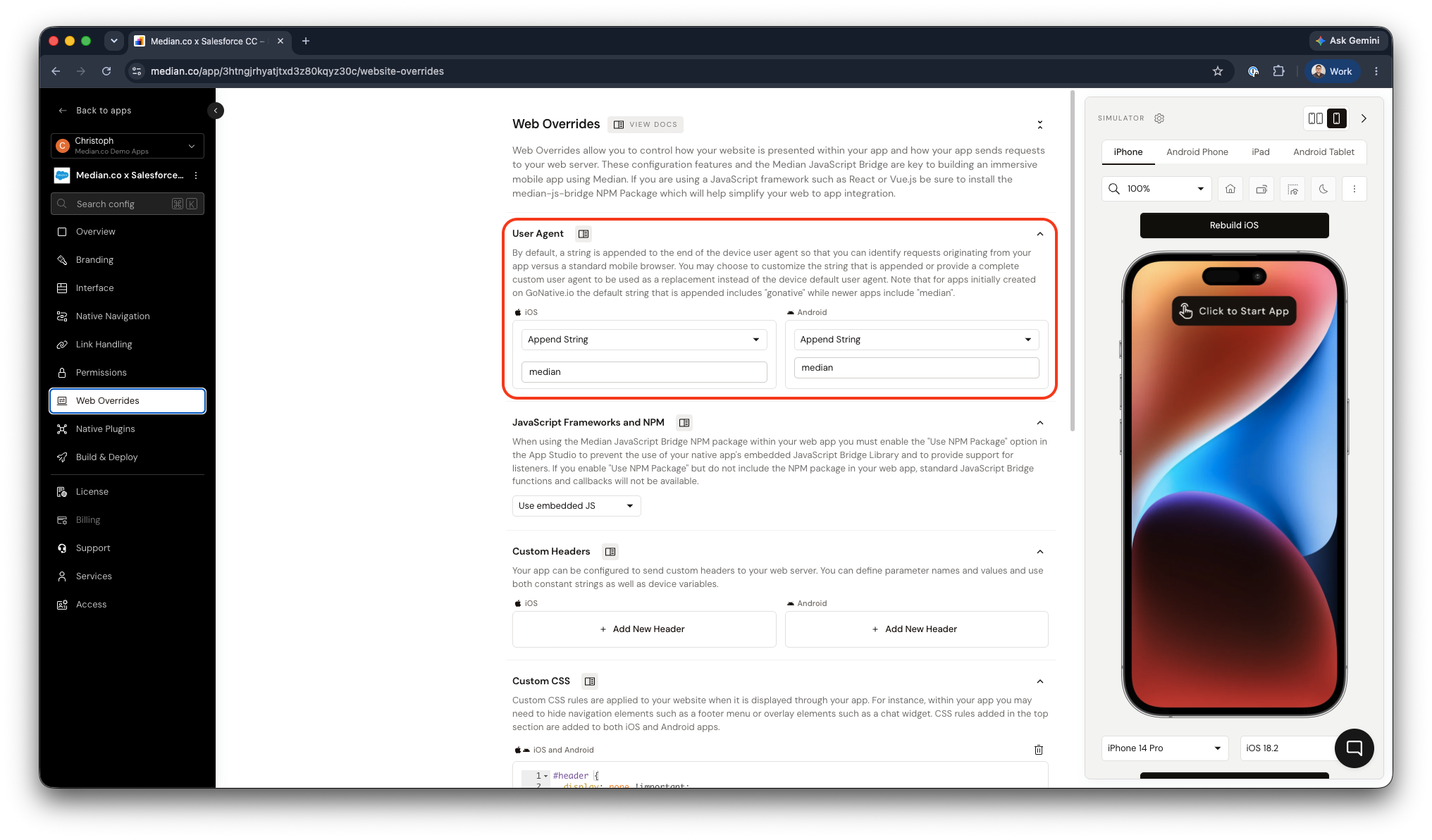
App Studio - User Agent Configuration
To apply mobile-specific overrides in Salesforce based on the User Agent:
Once the custom string is in place, you can target it with Custom CSS in Median App Studio or with conditional logic in your components:
// Detect the Median app from the User Agent in JavaScript
const isMedianApp = navigator.userAgent.includes('median');
This technique is useful for hiding elements that are not relevant on mobile, adjusting layout, or showing mobile-specific calls to action.
Troubleshooting: The Site Loads in Desktop Layout Inside the App
If your site renders the desktop layout inside the Median app, the User Agent string is not being recognised as a mobile browser. Append a mobile identifier to the User Agent in Median App Studio as described above, and verify that your Experience Cloud site has responsive templates or mobile-specific page variants configured.
Step 6: Choose Your Experience Cloud Runtime
When building or migrating your Experience Cloud site, prefer LWR (Lightning Web Runtime) over the legacy Aura framework where possible.
LWR is built on web standards and delivers significantly faster page load times inside a mobile WebView. Faster initial load is particularly important for native app experiences because users have a higher expectation of performance compared to a mobile browser tab.
If your site currently runs on Aura and a full migration is not feasible, Median works with both runtimes. However, initial load performance and JavaScript execution behaviour differ between them, so test thoroughly on physical devices rather than relying solely on desktop browser previews.
Updated about 1 month ago