
Identifying & Targeting Users
Learn how to associate users with identifiers, retrieve user data, and segment users with data tags.
With OneSignal's user-centric model, you have the flexibility to reach the right users on the right devices. This guide covers how to associate users with identifiers, retrieve the data you need for backend targeting, and segment users with data tags.
How the OneSignal user model works
OneSignal assigns every user a unique internal ID (oneSignalId) the first time they launch your app. This ID is tied to the user, not the device, meaning if the same user installs your app on a second phone and you associate them with the same identifier, OneSignal links both devices to a single user record.
This is the foundation of targeted notifications. Without associating your own user identifiers, OneSignal can only target users by device, which breaks down the moment a user reinstalls the app or logs in on a new device.
View diagram
View diagram
flowchart TD
    A[User opens app on Phone A] --> B[OneSignal assigns oneSignalId]
    B --> C[You call login with externalId]
    C --> D[OneSignal links externalId to Phone A]
    E[Same user opens app on Phone B] --> F[OneSignal assigns new oneSignalId]
    F --> G[You call login with same externalId]
    G --> H[OneSignal links both devices to one user]
    D --> I[Send notification to externalId]
    H --> I
    I --> J[Delivered to Phone A and Phone B]
Logging users in and out
Associate a user with your own identifier, using their email address, account ID, or any unique string, by calling login() after they authenticate in your app:
median.onesignal.login("[email protected]");OneSignal will link that identifier to the user's oneSignalId and maintain the association across reinstalls and devices. You can then target that user by their externalId from your server.
External ID LimitsOneSignal rejects the values below as External IDs to prevent accidental User merges, since teams commonly use them as placeholders or fallbacks. Submitting one of these values fails the assignment and leaves the User in its previous state. Use stable identifiers from your auth or billing system instead.
NA,NULL,null,none,not set,unknown,undefined0,1,-1,NaN00000000-0000-0000-0000-000000000000-,ok,all,123ABCUNQUALIFIED,INVALID_USERAdditionally, External IDs have a maximum length of 128 characters.
When a user logs out of your app, call logout() to disassociate them from their OneSignal user record:
median.onesignal.logout();After logout, notifications sent to that externalId won't reach the device until login() is called again. This prevents users from receiving each other's notifications on a shared device.
When to call login():
Call it as soon as your user authenticates — on your login confirmation page or immediately after a successful session check. Don't wait for a user action.
Retrieving user & device identifiers
Your website can access a oneSignalInfo object through the Median JavaScript Bridge. This object contains the identifiers and subscription status you need for backend targeting, analytics, and consent management.
Data structure (SDK v5+)
| Field | Description |
|---|---|
oneSignalId | OneSignal's internal user identifier |
externalId | Your identifier, assigned via login() |
subscription.id | Device-level push subscription identifier |
subscription.token | Push token for the device |
subscription.optedIn | true if the user has opted into push notifications |
requiresUserPrivacyConsent | true if consent hasn't been granted yet |
Retrieval method 1: Automatic callback
Define a function named median_onesignal_info on your page. The app calls it automatically after the page loads, passing the oneSignalInfo object as the argument:
function median_onesignal_info(data) {
    console.log(data.oneSignalId);
    console.log(data.subscription.id);
}Important:
This function must be defined synchronously at page load time. It can't be loaded asynchronously or deferred. If you need to retrieve
oneSignalInfoon a page that loads JavaScript dynamically, use method 2 or 3 instead.
Retrieval method 2: Manual invocation
Call median.onesignal.info() directly to trigger the callback on demand. Useful for single-page applications where the callback function may not be present at initial load:
median.onesignal.info({ callback: "median_onesignal_info" });Retrieval method 3: Promise-based
If you can't guarantee the callback function will be defined at page load, use the promise approach:
median.onesignal.onesignalInfo().then(function(data) {
    console.log(data.oneSignalId);
    console.log(data.subscription.id);
});

// Or with async/await:
const data = await median.onesignal.onesignalInfo();
This is the most flexible approach for modern single-page applications.
Save identifiers to your backend
If you send notifications from your own server or need to correlate OneSignal data with your user records,
- Save the identifiers after login
- Call
median.onesignal.info()ormedian.onesignal.onesignalInfo()(after the user has logged in) - POST the result to your backend and store it keyed by your app's user ID.
Example: login page — associate OneSignal IDs with your user
/* Login Page Sample Code */

async function loginUserAndPostOSId() {
  await median.onesignal.login("[email protected]");

  const osInfo = await median.onesignal.info();

  $.ajax({
    url: updateUserRecord,
    type: "POST",
    data: {
      yourAppUserId: userId,
      oneSignalUserId: osInfo.oneSignalId, // user-specific and will change after login
      oneSignalExternalId: osInfo.externalId, // will be the same as userId
      oneSignalSubscriptionId: osInfo.subscription.id // device-specific will not change after login
    },
    contentType: "application/json"
  });
}
Use your own endpoint for updateUserRecord and set userId from your auth system. Your backend can then use oneSignalExternalId (or oneSignalUserId) when calling the OneSignal API to target that user; subscription.id is useful for targeting a specific device. The same pattern works with native fetch() or any HTTP client.
Developer DemoThe results of the
median_onesignal_info()callback and other OneSignal functions can be tested on our demo site. Open this page within your app to view and test: https://median.dev/onesignal/
When to use each identifier
| Identifier | Use it when... |
|---|---|
oneSignalId | You want to target a user across all their devices and don't have your own identifier system |
externalId | You've called login() and want to target by your own user ID (email, account number, etc.). OneSignal manages the user-device mapping |
subscription.id | You want to target one specific device; this ID persists across logins and is stable per device install |
For most apps, externalId is the right choice for personalized notifications since it maps naturally to your existing user database without any additional device tracking.
Segmenting with data tags
Data tags are name-value string pairs you assign to users. They let you group users into segments for targeted broadcasts, "users who prefer sports content," "users on a free plan," and "users who haven't opened the app in 30 days."
You can set tags from the OneSignal dashboard or API; for subscription management on the device, you can use either a native UI driven by a hosted JSON file, or your own web UI in the WebView plus the JavaScript Bridge (setTags, getTags, deleteTags). Use whichever fits your UX — many apps combine both (e.g., a full preferences page using one method and in-context toggles using the other).
Method 1: Native UI
OneSignal provides a native subscription preference screen — no custom HTML required. You host a JSON file that defines sections and tag identifiers, point Median at that URL, and call showTagsUI() when you want to present it.
- Create a JSON file defining the tag categories and items you want to offer. Host it at a publicly accessible URL. See the example
tags.jsonfor the JSON structure Median expects. - In App Studio, go to Native Plugins > OneSignal and set the Data Tags Native UI JSON URL to your hosted file.
- Trigger the UI from anywhere in your app:
median.onesignal.showTagsUI();The native UI renders as a system-style preference screen, grouped into the sections and items defined in your JSON file.
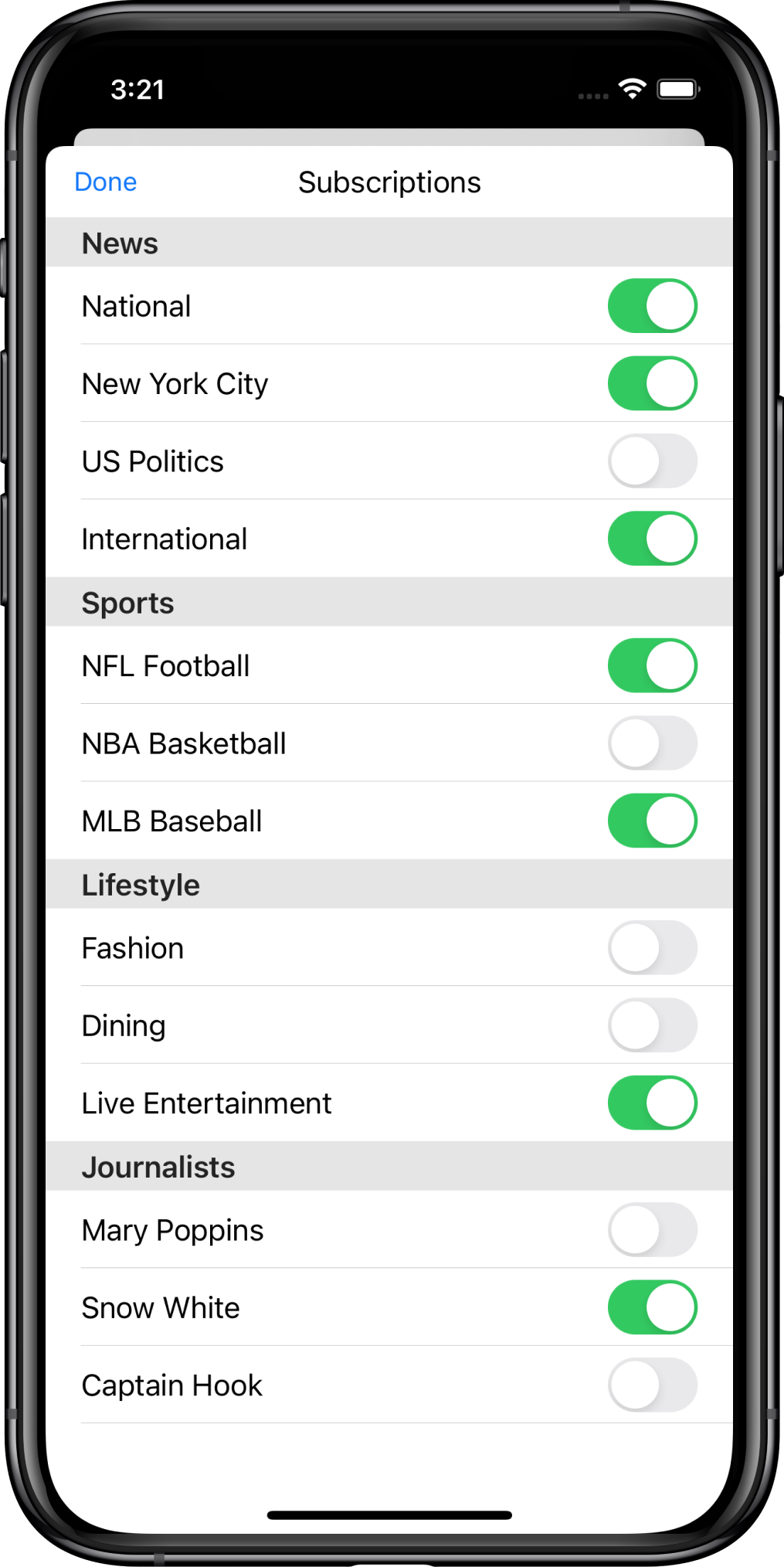
Subscription Management Native UI
Method 2: Web UI and JavaScript
Build subscription controls in your web layer — anything you render in the WebView: a full-screen list of topics (similar in spirit to the native UI), toggles beside related content, or mixed flows. Wire buttons and switches to the Median JavaScript Bridge so tag changes sync to OneSignal on the device.
OneSignal concepts: For how data tags work in OneSignal generally (dashboard, segments). The snippets below are the Median JavaScript Bridge reference for setTags, getTags, and deleteTags (promise and callback patterns).
Set tags
var onesignalTags = {
  tags: {
    category: "sports",
    plan: "free",
    lastSeen: "2024-01-15"
  }
};

// Promise-based
median.onesignal.tags.setTags(onesignalTags).then(function (tagResult) {
  console.log(tagResult); // { success: true }
});

// Or with an optional callback
function tagSetCallbackFunction(tagResult) {
  console.log(tagResult);
}
median.onesignal.tags.setTags({
  tags: onesignalTags.tags,
  callback: tagSetCallbackFunction
});
Get tags
median.onesignal.tags.getTags().then(function (tagResult) {
  console.log(tagResult); // { success: true, tags: { ... } }
});

function tagGetCallbackFunction(tagResult) {
  console.log(tagResult);
}
median.onesignal.tags.getTags({ callback: tagGetCallbackFunction });
Delete tags
// Specific keys (promise)
median.onesignal.tags.deleteTags({ tags: ["category", "lastSeen"] }).then(function (tagResult) {
  console.log(tagResult); // { success: true }
});

// All tags (promise)
median.onesignal.tags.deleteTags().then(function (tagResult) {
  console.log(tagResult); // { success: true }
});
All of these return { success: true } (and getTags includes a tags object). They support both promise-based and callback patterns.
A web UI can present the same structure as the native screen including a full list of subscription categories a user can toggle on or off:
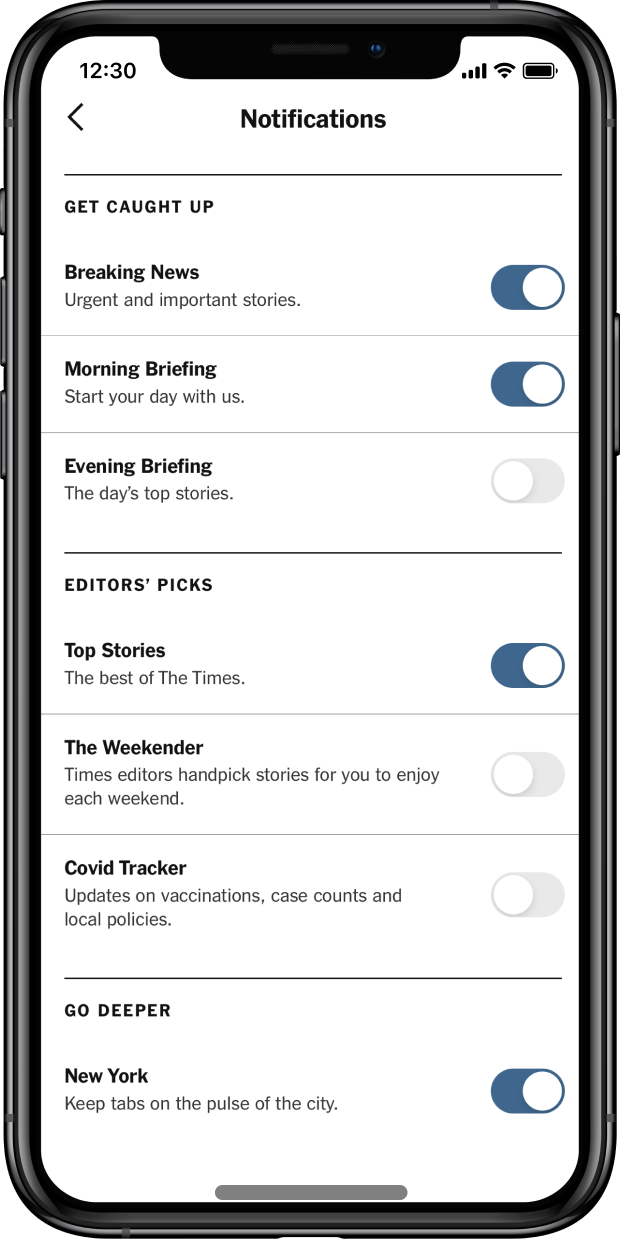
Example Web UI - full subscription list
Or you can surface individual tags in context, such as a single "Follow this Topic" toggle embedded next to related content on a page:
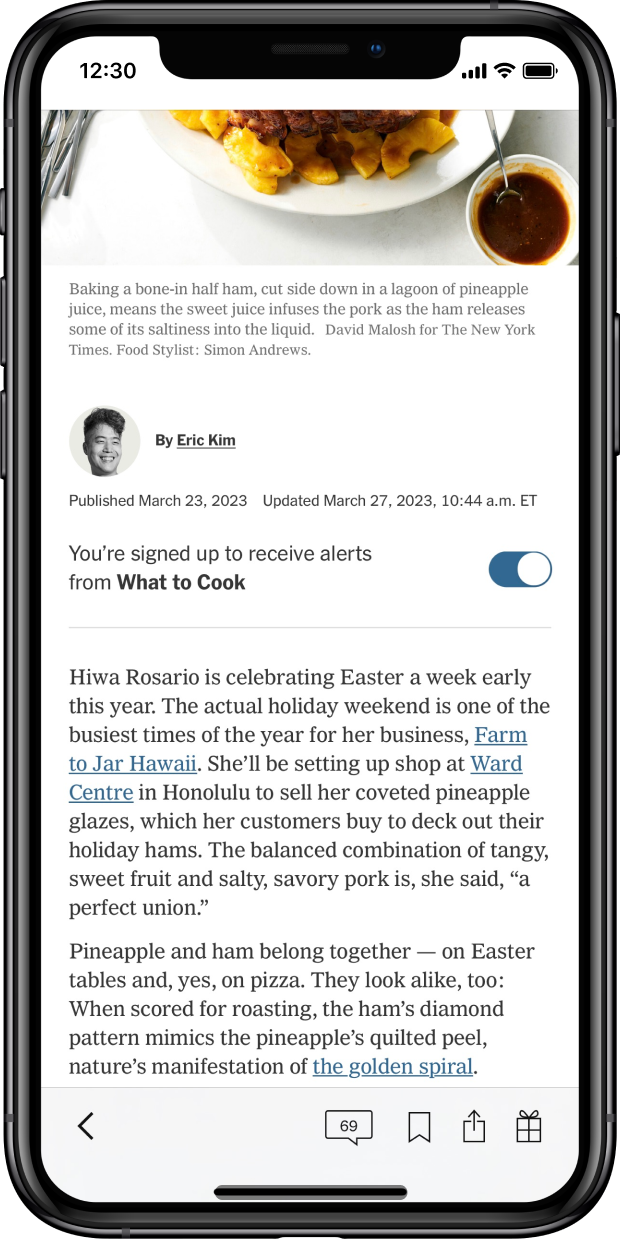
Example Web UI - Subscribing in-context
When to use each on-device approach
| Approach | Best for |
|---|---|
Native UI (showTagsUI) | Fast deployment of a dedicated, platform-standard notification settings menu. Layout updates require editing only your hosted JSON configuration file. |
Web UI + JavaScript (setTags / getTags / deleteTags) | Completely custom designs, inline contextual buttons (e.g., a "Follow this Topic" switch on an article page), or flows that need to match your web app's style. |
Updated 18 days ago