
JW Player
Integrate JW Player into your Median app for native video playback on iOS and Android
JW Player is a powerful video platform for delivering high-quality playback experiences. Median's JW Player Native Plugin integrates the JW Player iOS SDK and Android SDK into your app to provide native video playback with support for single videos, playlists, and adaptive streaming.
Developer DemoDisplay our demo page in your app to test during development: https://median.dev/jwplayer
Why Use JW Player?
- Native SDK playback: The plugin uses JW Player's native iOS and Android SDKs to deliver smooth, high-quality video playback.
- Flexible input formats: Play a single video file, an array of video files as a playlist, or load a playlist directly from a JW Player playlist URL.
- Cross-platform support: One JS Bridge API works across iOS and Android with platform-appropriate behavior.
- Chromecast on iOS: When you configure an App ID, Chromecast initializes automatically at app launch on iOS.
Prerequisites
Before you begin, ensure you have the following:
- A Median app with the JS Bridge enabled.
- A valid JW Player license key (
licenseKeyis a required configuration field). - Access to App Studio to configure the plugin in the Native Plugins section.
Implementation Guide
App Configuration
- Open App Studio and navigate to the Native Plugins section.
- Locate the JW Player plugin and enable it.
- Enter your JW Player Android and iOS License Keys.
- If you want to enable Chromecast on iOS, enter your Google Cast App ID in the
appIdfield. - Save your configuration.
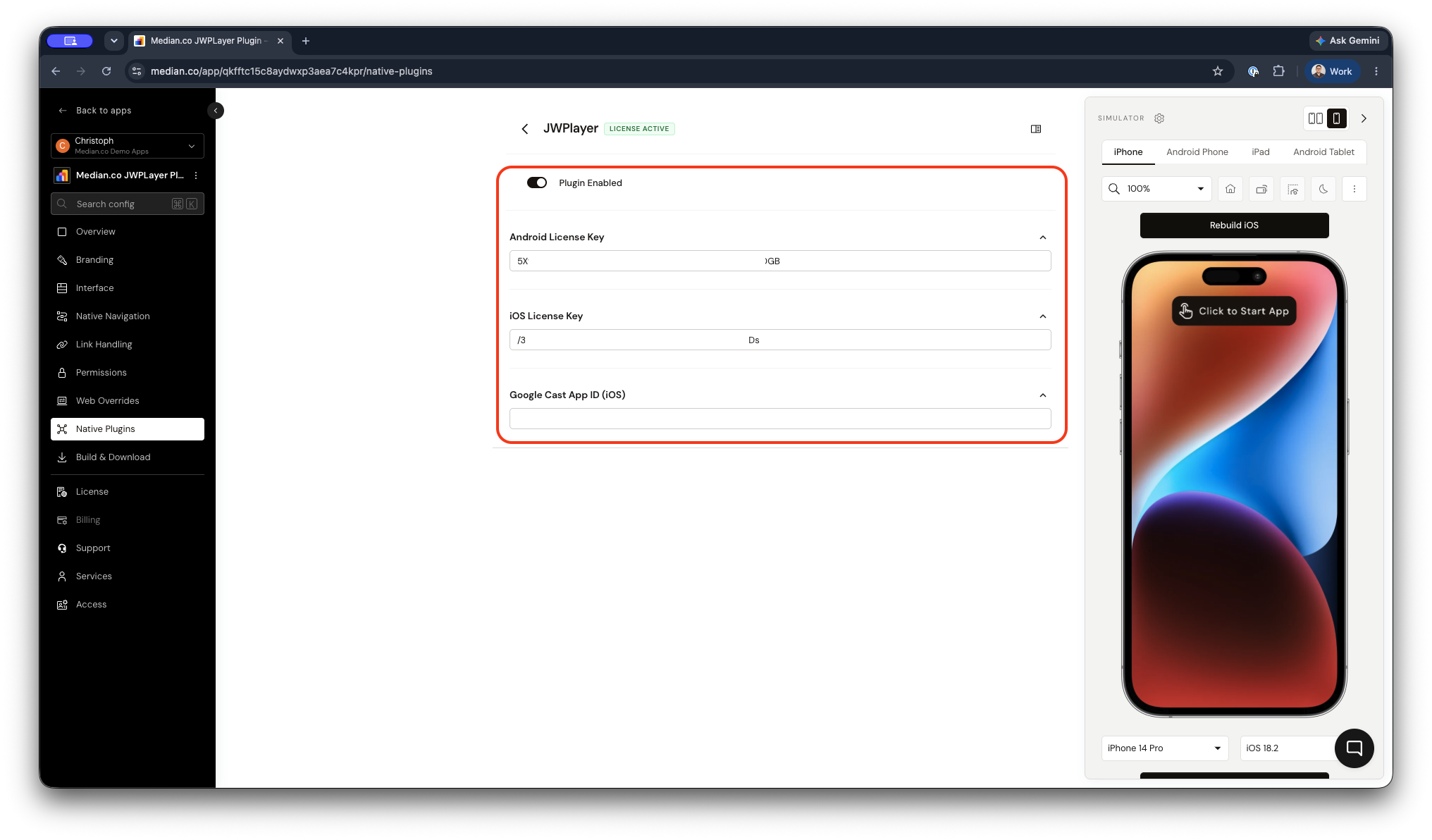
JWPlayer Plugin Configuration
Plugin Configuration options
| Setting | Description | Required |
|---|---|---|
| Android License Key | The license key connects your Android app to your JWPlayer account. To obtain your key follow these steps in your JWPlayer Dashboard: 1. On the Properties page, click the name of a property. 2. Under Network & setup files, click Player setup files. 3. Under Android SDK, copy the License key. | Yes, for Android support |
| iOS License Key | The license key connects your iOS app to your JWPlayer account. To obtain your key follow these steps in your JWPlayer Dashboard: 1. On the Properties page, click the name of a property. 2. Under Network & setup files, click Player setup files. 3. Under iOS SDK, copy the License key. | Yes, for iOS support |
| Google Cast App ID (iOS) | This key enables your iOS app to cast media to Google Chrome Cast compatible devices. You can obtain this key in your Google Cast SDK Developer Console. | Optional |
Rebuild after ConfigurationPlugin settings take effect only in new builds. After changing credentials or uploading new Firebase configuration files, rebuild your app and test on a real device or simulator before releasing.
JavaScript bridge functions
Initialize the JW Player SDK
Auto-InitializationOn iOS and Android, the JW Player plugin auto-initializes at runtime using the license key uploaded in the app configuration. Alternatively, you can manually initialize the sdk using the
median.jwplayer.initialize()command
const result = await median.jwplayer.initialize({
  licenseKey: 'YOUR_JW_PLAYER_LICENSE_KEY'
});

// result object
{
  success: true | false,
  error: {                // present on failure only
    code: "NOT_INITIALIZED",
    message: "Invalid license key"
  }
}
Parameters
| Parameter | Type | Description |
|---|---|---|
| licenseKey | string | Required. Your JW Player license key. |
Play a Video
Present a full-screen native player and begin video playback. You can provide a single video file, an array of video files (playlist), or a JW Player playlist URL.
To play a video:
// Play a single video
const result = await median.jwplayer.play({
  file: 'https://example.com/video.mp4',
  startTime: 30             // optional: start at 30 seconds
});

// Play a playlist
const result = await median.jwplayer.play({
  files: [
    'https://example.com/video1.mp4',
    'https://example.com/video2.mp4'
  ]
});

// Play from a JW Player playlist URL
const result = await median.jwplayer.play({
  playlistUrl: 'https://cdn.jwplayer.com/v2/playlists/abc123'
});
>
// Callback example
median.jwplayer.play({
  file: 'https://example.com/video.mp4',
  callback: function(result) {
    if (result.success) {
      console.log('Playback started');
    }
  }
});
Optional Parameters
| Parameter | Type | Description |
|---|---|---|
| file | string | URL of a single video file. Takes priority over files. |
| files | string[] | Array of video URLs played as a playlist. |
| playlistUrl | string | URL to a JW Player JSON playlist feed. |
| startTime | number | Starting position in seconds (default: 0). |
**At least one of file, files, or playlistUrl must be provided**
Return Values
The callback data differs between platforms:
iOS returns when the player has been configured:
{
  success: true
}
Android returns when the player is closed, including playback state:
{
  success: true,
  position: 120,            // playback position in seconds at close time
  state: "playing",         // player state: "playing" | "paused" | "idle" | "complete"
  file: "https://...",      // URL of the current playlist item
  isMute: false,            // whether the player was muted
  currentQuality: {},       // current video quality
  currentAudioTrack: {},    // current audio track
  currentCaptions: {}       // current captions track
}
Error Response
{
  success: false,
  error: {
    code: "NOT_INITIALIZED" | "INTERNAL_ERROR",
    message: "..."
  }
}
Chromecast Support (iOS)
On iOS, Chromecast support is automatically initialized at app launch when the appId is configured in the server configuration. No additional JavaScript calls are required.
To enable Chromecast, add your Google Cast application ID to the JW Player configuration in the App Studio as shown in the App Configuration section above.
Testing Checklist
Use this checklist to ensure JW Player is working correctly in your iOS or Android app:
-
The SDK auto-initializes or manually initializes using
median.jwplayer.initialize() -
Using
median.jwplayer.play()launches the player -
Chromecast works using an iOS appID or Android Google Cast application ID.
Troubleshooting
JW Player bridge functions do nothing or throw errors
JW Player bridge functions do nothing or throw errors
Ensure the JavaScript Bridge is enabled in Median App Studio. Manually initialize the sdk or enter license keys in the plugin configuration of the App Studio`.
initialize() returns NOT_INITIALIZED or INTERNAL_ERROR?
initialize() returns NOT_INITIALIZED or INTERNAL_ERROR?
Check that the licenseKey value in your plugin configuration is valid and matches the key from JW Player.
Updated about 1 month ago