
App Studio Accounts
Manage your organization, team members, and apps in one place
The Median App Studio is a comprehensive platform for creating and managing mobile apps. It simplifies app development and centralizes app management, enabling collaboration across teams and organizations.
This guide covers everything you need to get started and keep your organization running smoothly:
- Getting Started - create your account and bring existing apps under it
- User & Access Management - invite teammates and control what they can do
- Security - SSO and two-factor authentication (2FA)
- App Management - tags, groups, and pinning to manage large app portfolios
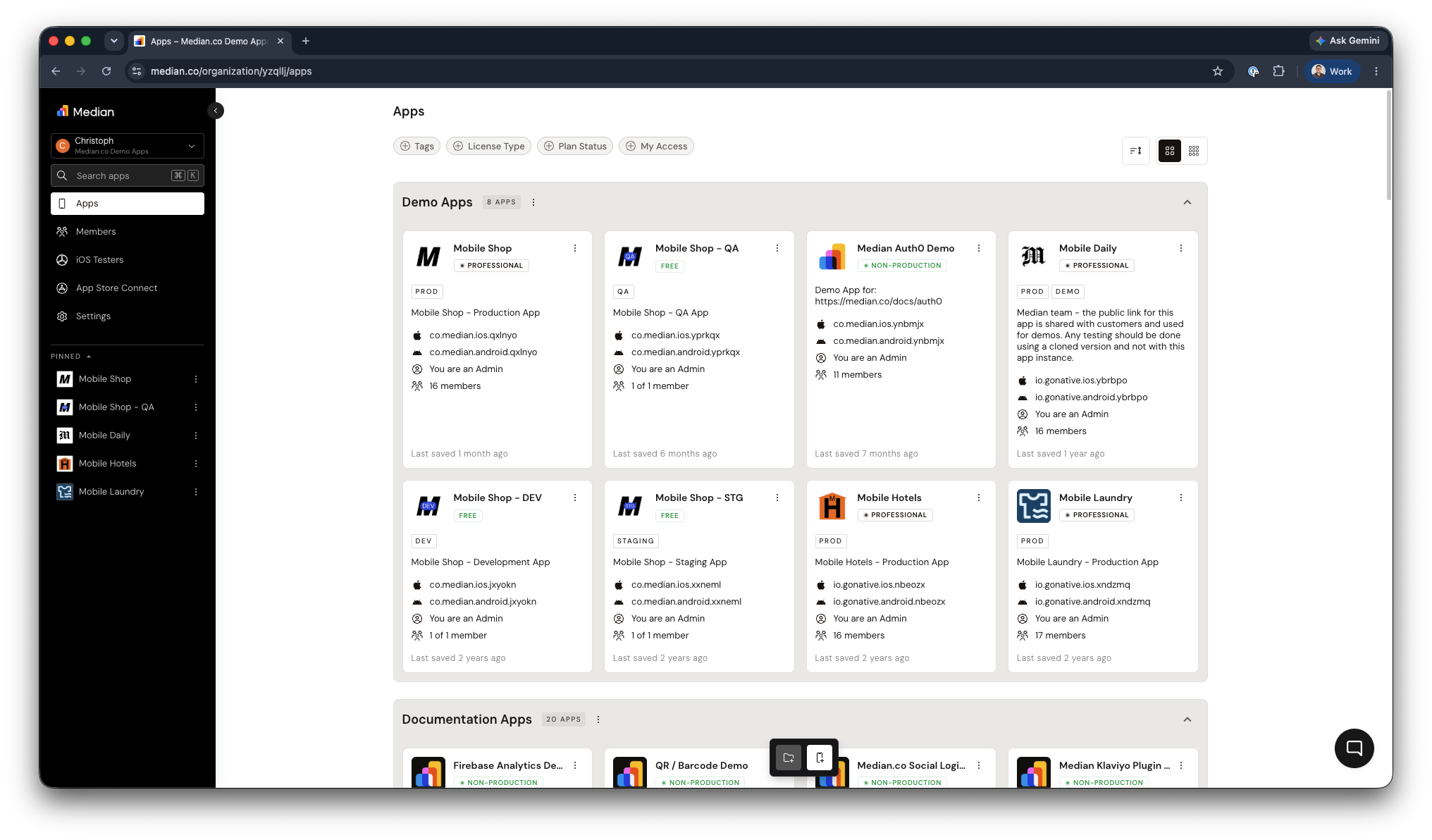
Median App Studio - Organization Overview
Getting Started
Create an Account
Getting started with Median App Studio is quick and easy. Follow these simple steps:
- Visit https://median.co/login or click "Sign In" in the navigation bar.
- Click "Sign up here" and complete the registration form.
- By signing up, you agree to Median's Online Terms and Privacy Policy.
- Confirm your account using the verification email you receive.
- An organization account is created automatically as part of the account creation. You can rename it to match your company or team name at any time.
Add an Existing App to Your Account
Add any apps you've created outside of your account using the "Add to Account" process.
- Open the App Management page for your app via your Private Management Link.
- Click "Add to Account" in the top announcement bar.
- Select the appropriate Organization/Team (if you're part of multiple organizations).
- Repeat the process to add additional apps.
User & Access Management
Median App Studio uses two layers of permissions: an organization role that applies account-wide, and an app access level that applies per app. Understanding both helps you fine-tine the access permissions for your teammates and satisfy least-privilege access requirements.
Invite Team Members
Collaboration is made simple within Median App Studio. Invite your colleagues or team members to your organization account:
- Open the "Members" tab in the sidebar.
- Click "Invite Member" at the bottom of the member list and and enter their name, email address, and configure their access level.
- Click "Send Invite". The recipient receives an invitation link by email.
Organization Roles
Every team member holds one of two organization-wide roles:
| Role | Permissions |
|---|---|
| Owner | Full administrative access, including managing roles and permissions for all team members. |
| Collaborator | Access to specific apps within the organization, with adjustable permission levels. |
App Access Levels
Members in your organization account can have varying access levels for each app in your organization.
| Access Level | Permissions |
|---|---|
| Admin | Complete control over app management: add members, adjust access levels, and view, edit, save, rebuild, and download app sources. |
| Developer | View, edit, save, rebuild, and download app sources, but cannot manage team members. |
| Viewer | Read-only access; cannot make any modifications to the app. |
Security
Median App Studio provides multiple layers of account and organization-level security, from enterprise identity federation to two-factor authentication.
Identity Management & SSO
Median App Studio supports SSO via OIDC, which means user authentication and lifecycle (updates, disablement) are managed directly through your chosen Identity Provider (e.g.: Microsoft Entra, Azure AD, AWS Cognito, Okta).
When a user is updated, or disabled in your Identity Provider (IdP), those changes flow into Median automatically at login time. Median does maintain its own separate user directory for SSO-enabled tenants, but SSO-enabled organizations force users to log in via IdP.
At this time, Median does not expose SCIM or a separate web service API for user lifecycle management, since this is handled by your IdP. The entire integration is driven by your tenant configuration
Please contact our team to enable SSO for your organization.
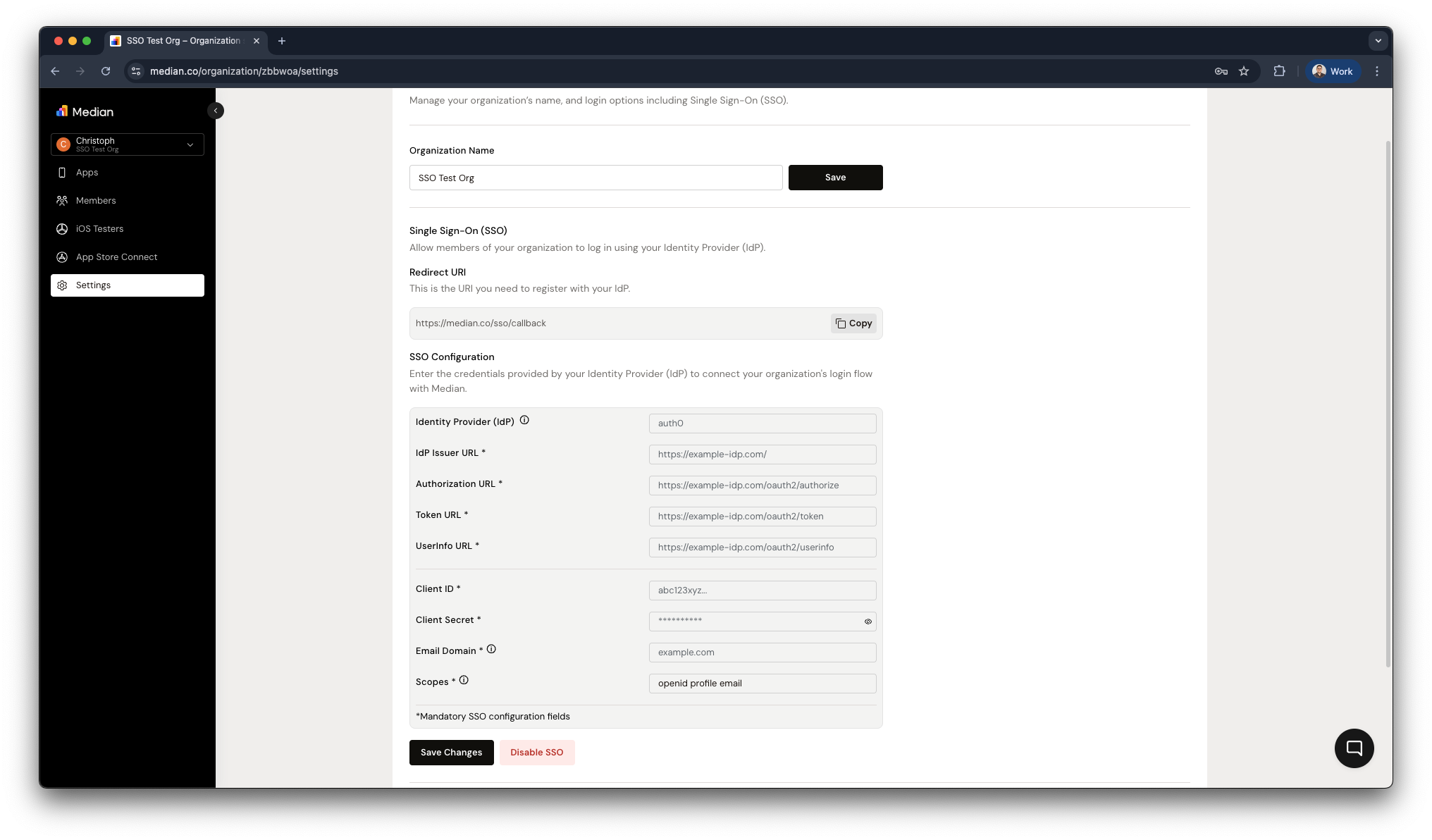
Two-Factor Authentication (2FA)
Median App Studio supports two-factor authentication (2FA) to add an extra layer of protection beyond a password.
- Per-user 2FA: Any team member can enable 2FA on their own account to protect their individual login.
- Organization-wide enforcement: Organization Owners can require all members to have 2FA enabled before they can access the organization, ensuring consistent security across the whole team rather than relying on individual opt-in.
Note that 2FA and SSO are independent security controls and organizations using SSO manage authentication (including MFA) through their Identity Provider.
Per-user 2FA
Any team member can enable 2FA on their own account:
- Click "My Account" in the sidebar.
- In your account settings, enable "Two-Factor Authentication".
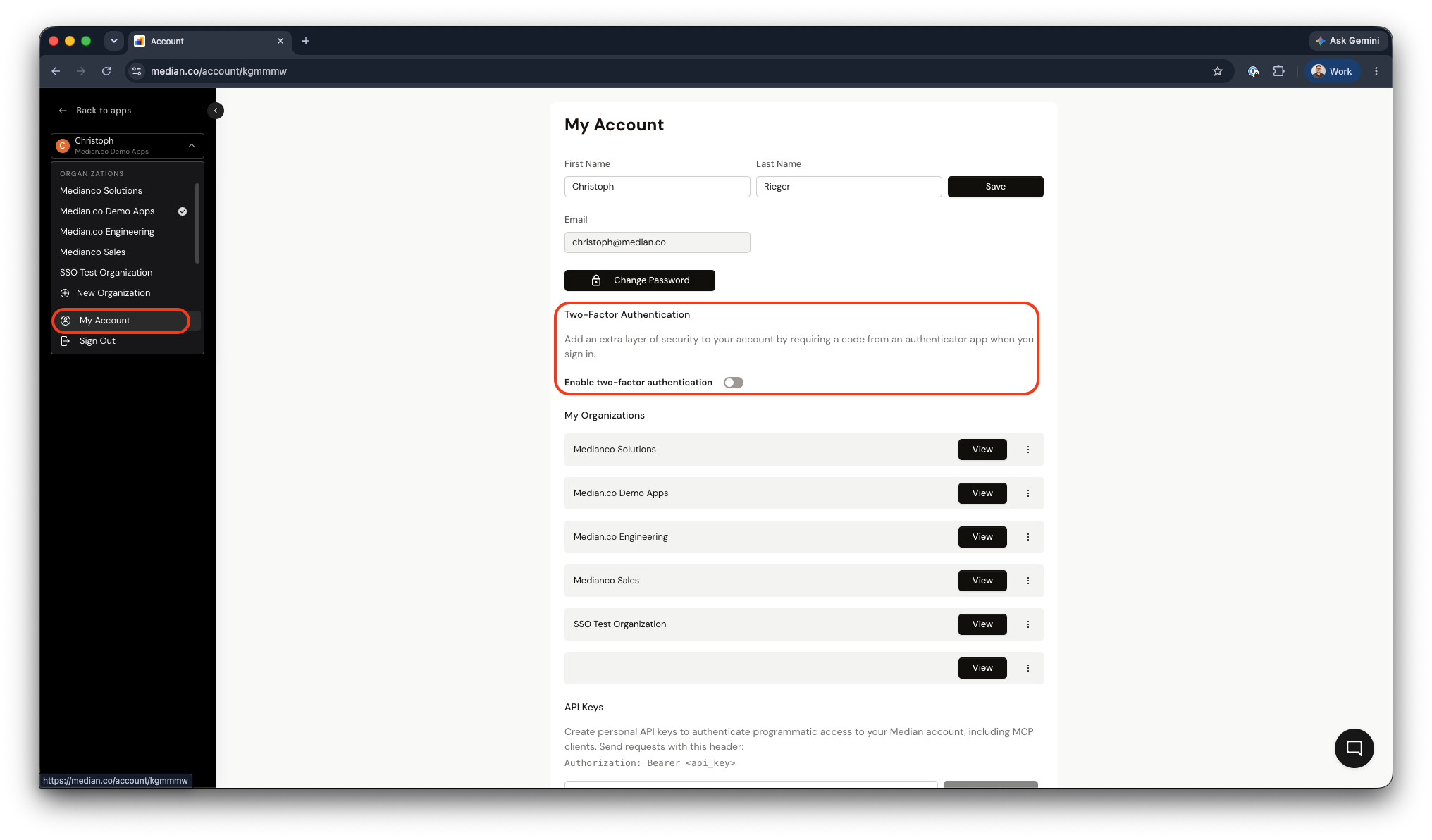
App Studio - My Account
Organization-wide enforcement
Organizations on a Business or Enterprise license can require all members to use 2FA, rather than leaving it to individual opt-in:
- Select the "Settings" tab in the sidebar.
- Enable "Require two-factor authentication for all members".
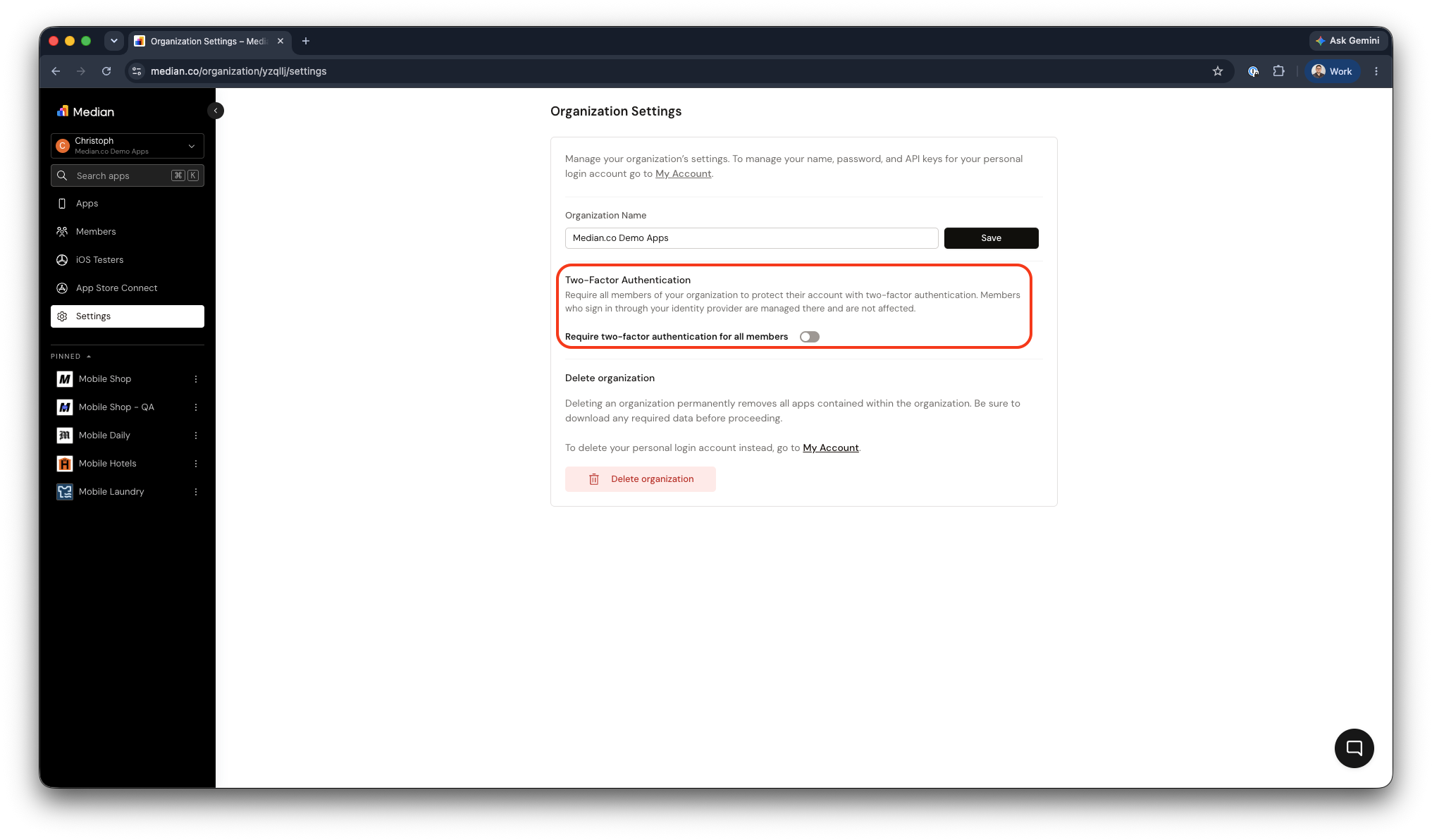
App Studio - Organization-wide 2FA enforcement
App Management
If you manage multiple apps within your account, the Median App Studio offers helpful tools to keep everything organized. Key features include:
- App Tags: Tag apps across different groups to make filtering easier. Each app can have multiple tags, allowing for flexible organization and quick access to related apps.
- App Groups: Organizing apps into a group can help you group different app environments (eg Development, Staging, QA and Production). This helps you to track changes more easily and compare details like the latest updates or App Identifiers
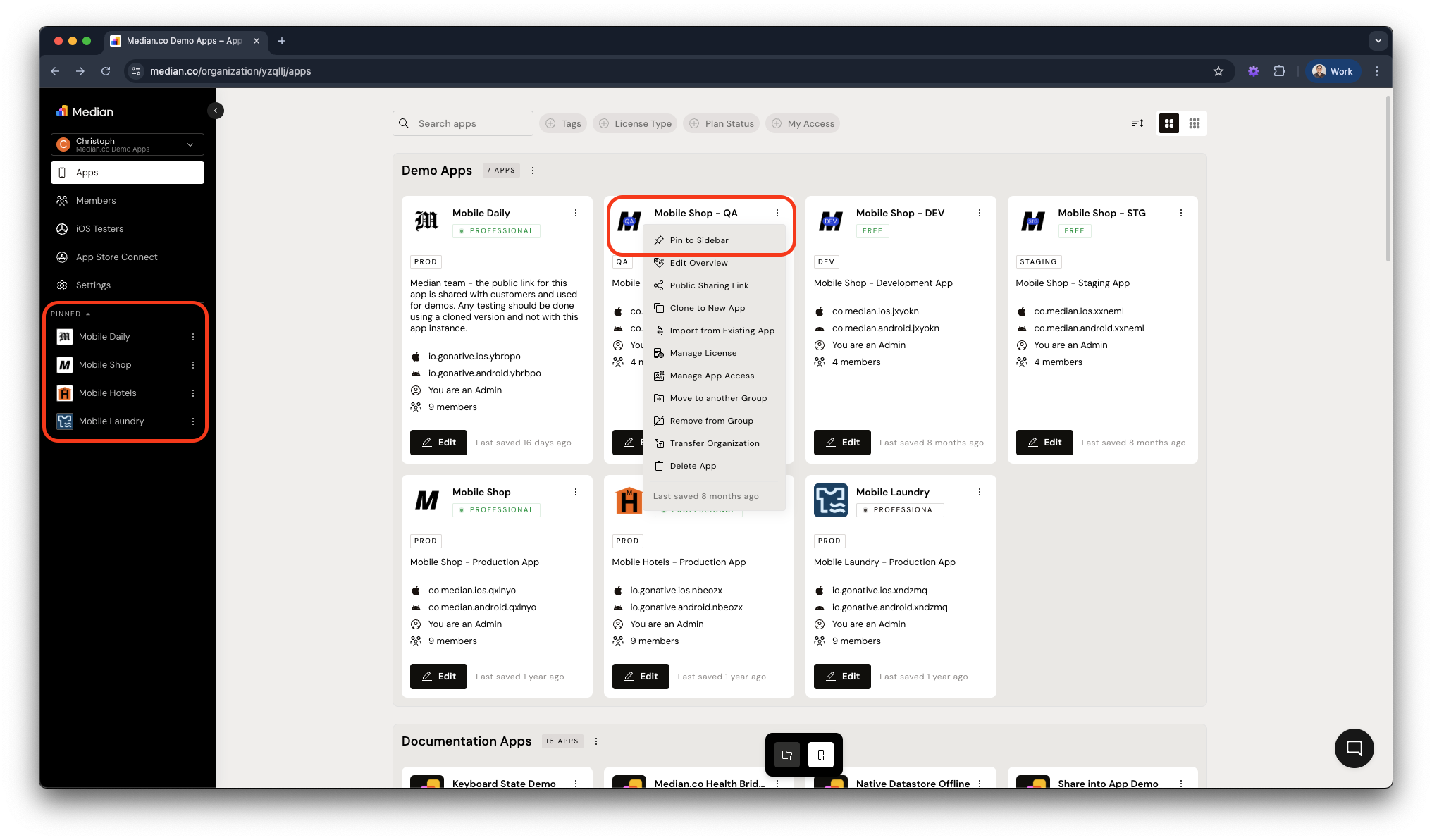
- App Pinning: Pin frequently used apps to the sidebar for quick access, eliminating the need to search for the ones you're currently working on.
App Tags
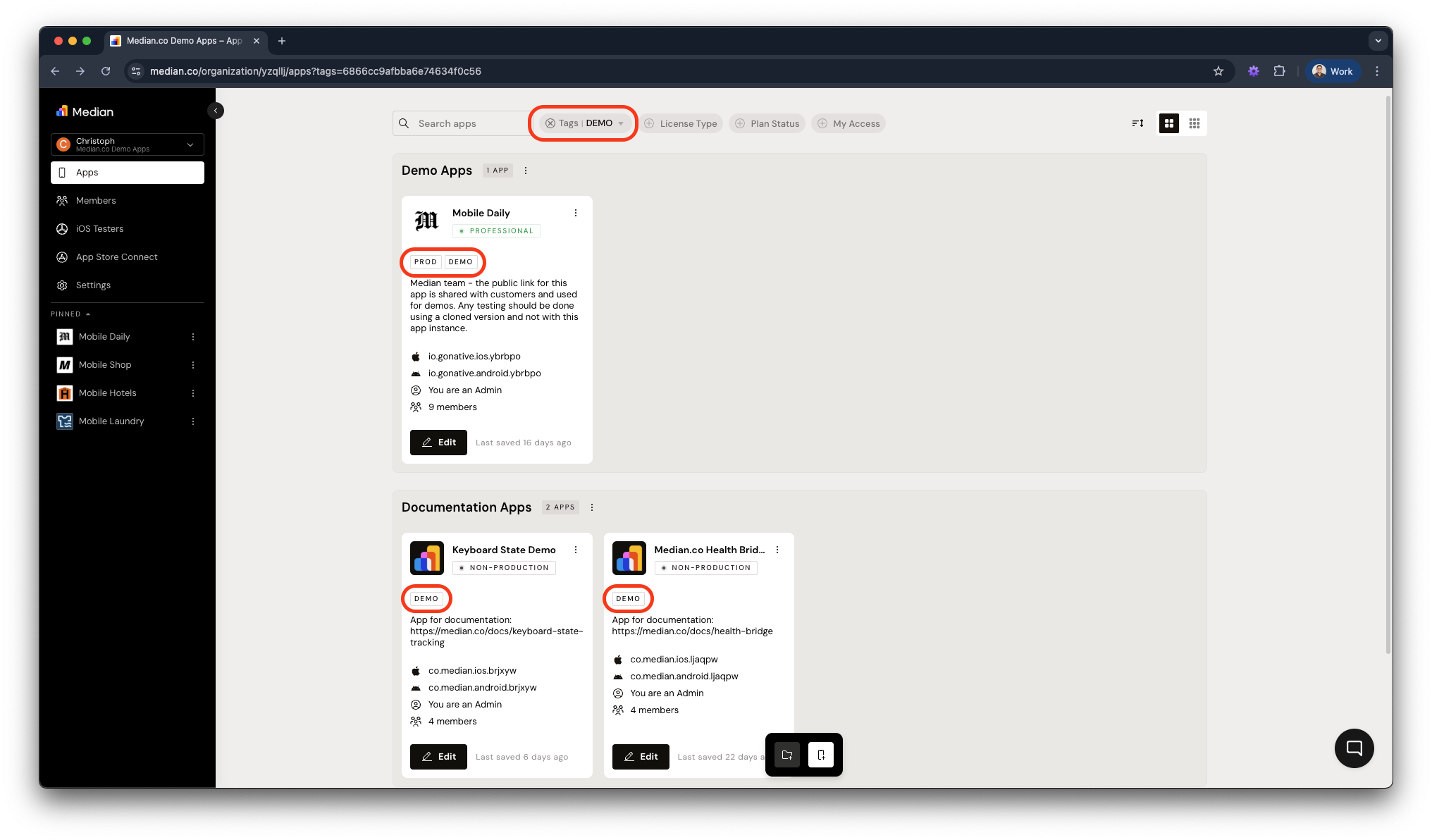
Tagging apps across different groups makes filtering and finding them easier. Since each app can have multiple tags, you can organize them flexibly and access related apps quickly.
The example below shows how tags can be used to filter apps, no matter which group they belong to.
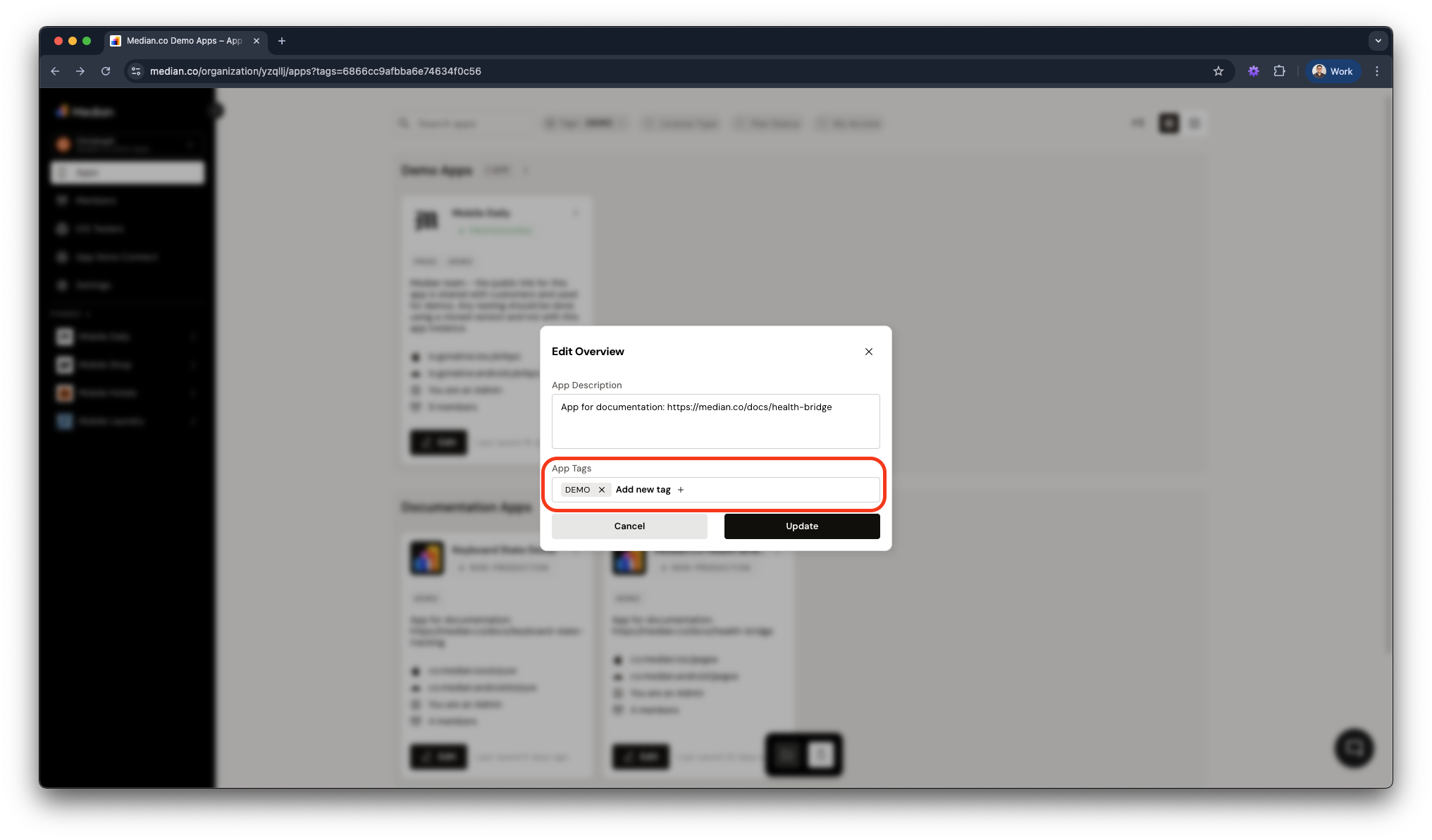
To manage the tags associated with an app, click the hamburger menu (☰) next to the app name and select "Edit Overview".
App Groups
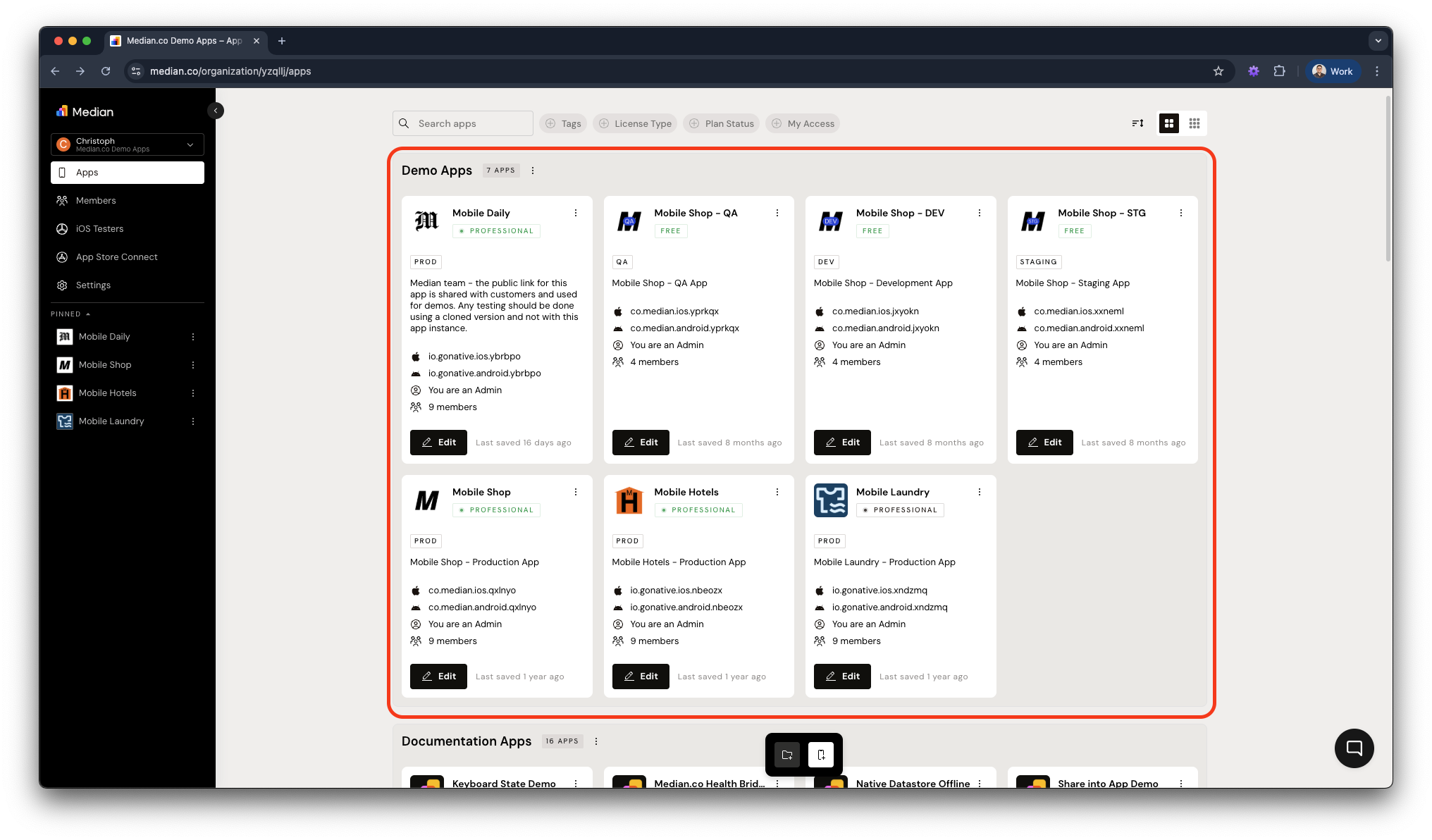
App Groups help you organize related apps into a single group. You can group apps by environment (like development and production), by theme, customer, system, or any structure that suits your needs.
You can create and rename App Groups at any time to match your preferences.
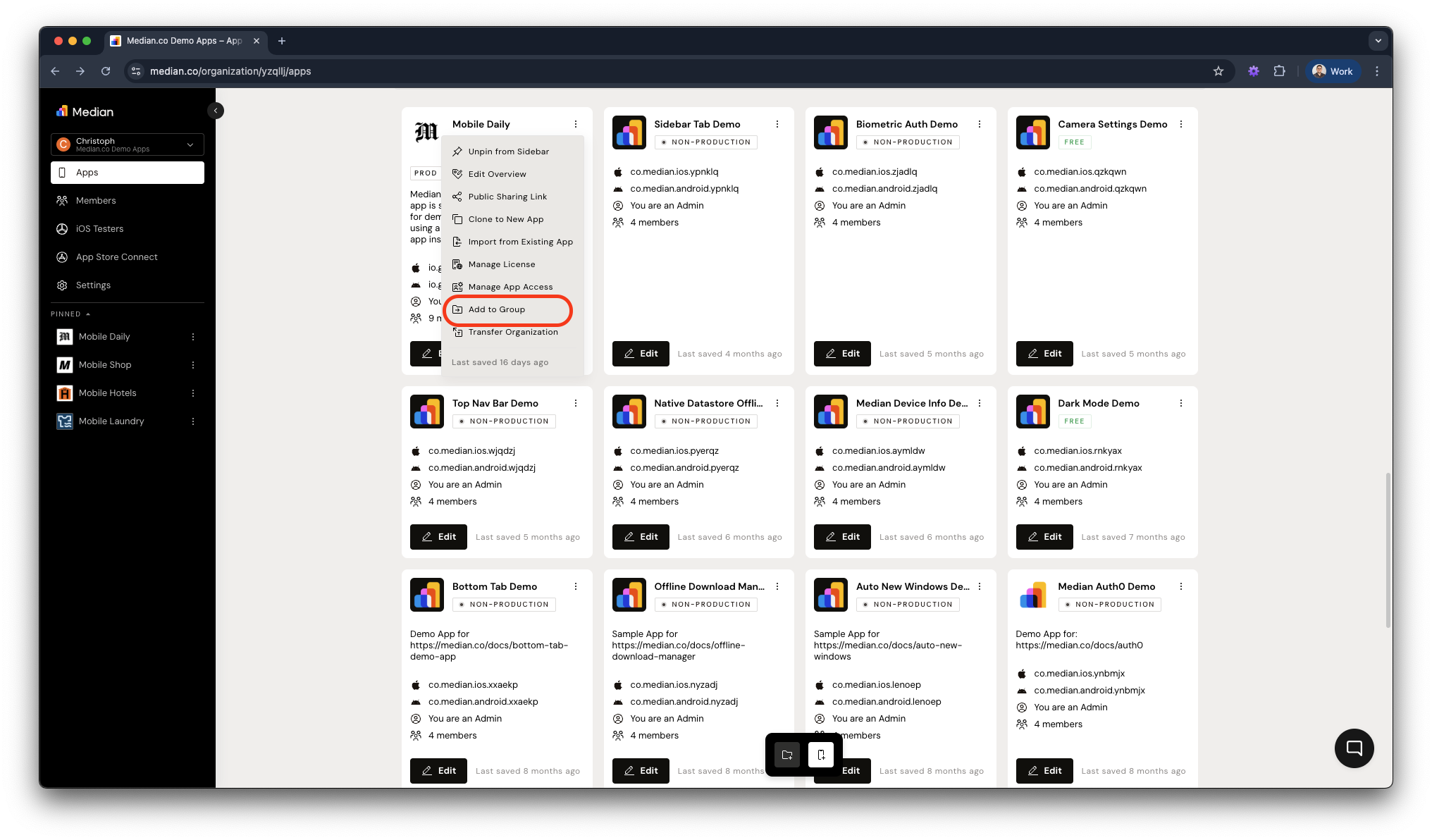
To add an app to a group, click the hamburger menu (☰) next to the app name and select "Add to Group". To remove it from a group, click the same menu and choose "Remove from Group".
App Pinning
To pin an app to the sidebar, click the hamburger menu (☰) next to the app name and select "Pin to Sidebar". To unpin it, follow the same steps and choose "Unpin from Sidebar".
Updated about 1 month ago