
Deep Linking for Salesforce Experience Cloud
Configure deep linking for a Salesforce Experience Cloud
Deep linking allows URLs to your Experience Cloud site to open the native Median app rather than the mobile browser. This guide covers the Salesforce-specific challenge of hosting the required domain verification files on a managed platform, and provides working Apex and Visualforce code for both iOS and Android.
This is part three of a four-part series:
- Getting Started with Salesforce Experience Cloud
- Lightning Web Components and the JavaScript Bridge
- Deep Linking (this page)
- Salesforce LWC Component Deployment and Reference
How Deep Linking Works
Apple (iOS) and Google (Android) each require you to prove ownership of your domain before they allow URLs to that domain to open a native app. Proof of ownership is established by hosting a JSON file at a specific well-known path on your domain:
| Platform | Required path |
|---|---|
| iOS | /.well-known/apple-app-site-association |
| Android | /.well-known/assetlinks.json |
The challenge with Salesforce Experience Cloud is that it is a managed platform. You cannot place arbitrary files in the web root of your domain the way you would with a traditional web server. Both files must instead be served through the Salesforce platform itself.
Before starting: For production apps, configure your custom domain in Salesforce Setup before setting up deep linking. Deep linking must be configured against the domain end users will see. The Salesforce-generated .my.site.com domain may not work correctly with App Store or Play Store universal link verification.
Step 7a: iOS - Apple App Site Association (AASA)
Create the Apex Controller
Create a public Apex class that returns the AASA JSON payload. Replace TEAMID with your Apple Developer Team ID and update the bundle identifier to match your app:
public class AASAController {
    public String getJson() {
        return '{"applinks":{"apps":[],"details":[{"appID":"TEAMID.com.yourorg.appname","paths":["*"]}]}}';
    }
}
Your Apple Developer Team ID is available in the Apple Developer portal under Membership Details.
Create the Visualforce Page
Create a Visualforce page that serves the JSON with the correct content type. The page must be publicly accessible without authentication:
<apex:page
    controller="AASAController"
    contentType="application/json"
    showHeader="false"
    sidebar="false"
    standardStylesheets="false"
>{!json}</apex:page>
In Salesforce Setup, navigate to Sites and confirm the Visualforce page is listed under the public pages for your site.
Configure the URL Rewrite
Map the well-known path to the Visualforce page using one of two approaches:
Option A: Custom URL Redirects (simpler)
In Salesforce Setup, navigate to Sites > [Your Site] > Custom URLs and create a redirect from /.well-known/apple-app-site-association to the Visualforce page URL.
Option B: Site URL Rewriter Class (more control)
Implement the Site.UrlRewriter interface in an Apex class and register it under Sites > [Your Site] > Site URL Rewriter. This approach gives you programmatic control over the mapping and is preferred for orgs that already use a URL rewriter for other purposes.
Verify the File
Before submitting your app to the App Store, verify that the file is reachable and valid:
- Visit
https://yourdomain.com/.well-known/apple-app-site-associationin a browser and confirm it returns JSON without requiring a login. - Use the Median.co Deep Linking Validator to check the payload format.
- Confirm the
appIDvalue matches your app's bundle identifier and Team ID exactly. A mismatch here is the most common cause of deep linking failures.
Step 7b: Android - Asset Links
Create the Apex Controller
Create a separate Apex class for the Android Asset Links payload. Replace the package name and certificate SHA-256 fingerprint with the values from your app:
public class AssetLinksController {
    public String getJson() {
        return '[{"relation":["delegate_permission/common.handle_all_urls"],"target":{"namespace":"android_app","package_name":"com.yourorg.appname","sha256_cert_fingerprints":["YOUR_CERT_SHA256_FINGERPRINT"]}}]';
    }
}
Your SHA-256 certificate fingerprint is available in the App Studio (Link Handling > Universal Links / Deep Links), in the Google Play Console under Setup > App Integrity, or from your keystore using keytool -list -v -keystore your.keystore.
Create the Visualforce Page
<apex:page
    controller="AssetLinksController"
    contentType="application/json"
    showHeader="false"
    sidebar="false"
    standardStylesheets="false"
>{!json}</apex:page>
Configure the URL Rewrite
Map /.well-known/assetlinks.json to the Visualforce page using the same approach as for the AASA file above.
Verify the File
- Visit
https://yourdomain.com/.well-known/assetlinks.jsonin a browser and confirm it returns JSON without requiring a login. - Use the Median.co Deep Linking Validator to validate the payload.
Step 7c: Configure Deep Linking in Median App Studio
Once both verification files are in place:
- In Median App Studio, navigate to Link Handling > Universal Links / Deep Links.
- Add your custom domain.
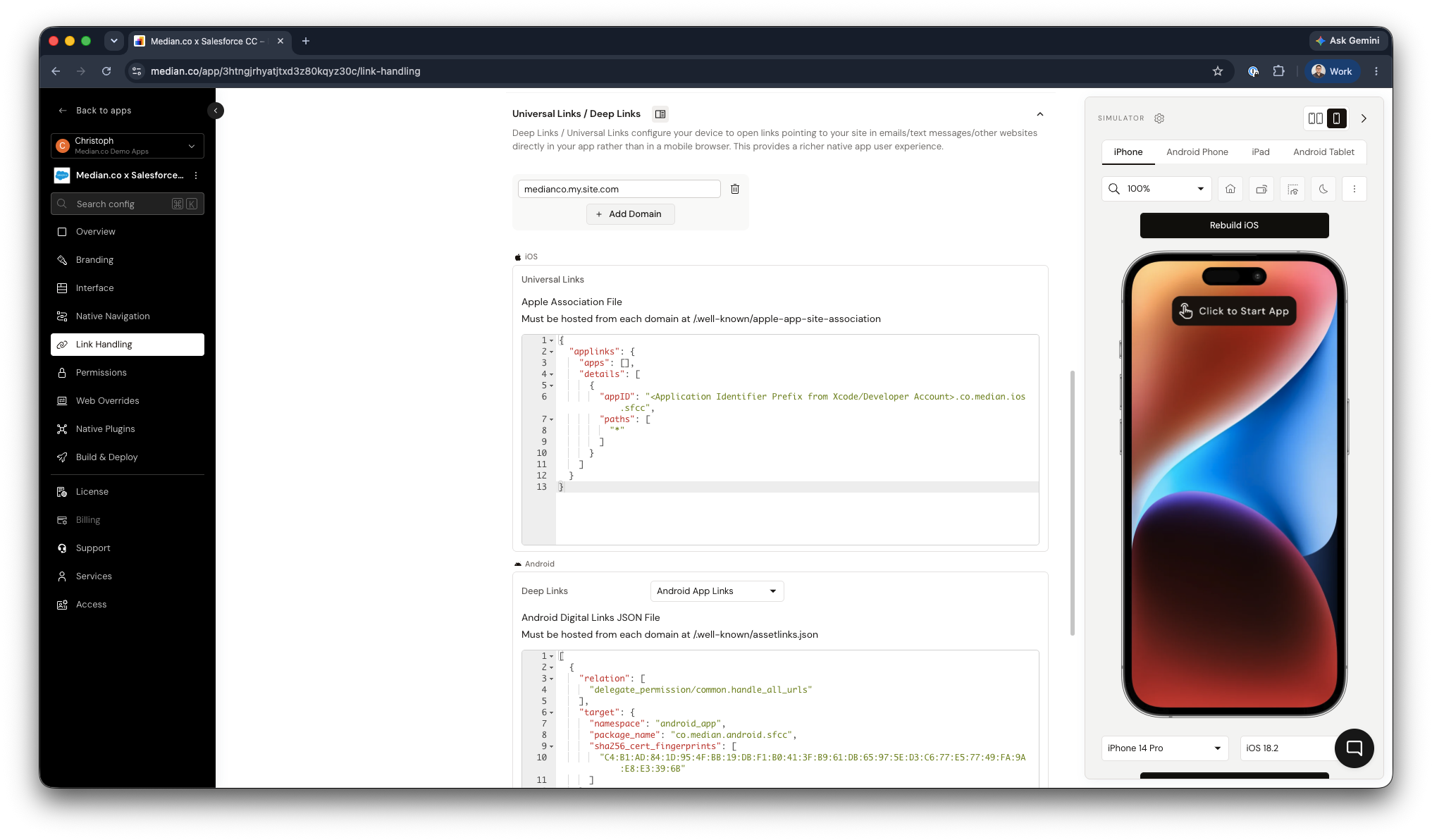
App Studio - Deep Link Configuration
Troubleshooting: Deep Links Open the Browser Instead of the App
If tapping a link opens the mobile browser rather than the app, work through the following checks in order:
- File accessibility. Visit both well-known URLs in a browser while logged out of Salesforce. If you are redirected to a login page, the Visualforce page is not marked as publicly accessible. Check the Guest User profile permissions for the page under Sites > [Your Site] > Public Access Settings.
- JSON validity. A single character error in the JSON payload causes silent verification failure. Use the validators linked above to confirm both files parse correctly.
- Domain mismatch. Confirm the domain in your Median deep linking configuration matches the domain where the verification files are hosted. Deep linking is domain-specific; a redirect from
.my.site.comto a custom domain will not carry the verification through. - App Store / Play Store propagation. Apple and Google cache AASA and Asset Links verification at app install time. If you updated the files after the app was installed on a test device, uninstall and reinstall the app to force a fresh verification check.
Updated 3 months ago