
Google Services
Add Google Services Configurations to iOS and Android Apps to user Firebase
Overview
If your app relies on Firebase-powered features like Firebase Cloud Messaging push notifications, Firebase Analytics, or Firebase Crashlytics reporting it needs two configuration files from the Firebase Console:
GoogleService-Info.plistfor iOSgoogle-services.jsonfor Android
Median lets you upload these files directly in App Studio, so Firebase is wired into your native mobile app builds without touching source code. This guide walks through generating both files in the Firebase Console and uploading them to your Median app.
Prerequisites
Before you start, make sure you have:
- A Google Firebase account with owner or editor access to the target project
- Your app's Bundle ID (iOS) and Package Name (Android), found in App Studio under Build & Deploy > App Identifiers see App Identifiers if you haven't set these yet.
- A licensed Median app (required to access the Google Services upload setting)
This guide uses a demo app with the following identifiers, which you'll need to replace with your own:
| Platform | Identifier | Example |
|---|---|---|
| iOS | Bundle ID | co.median.ios.firebase |
| Android | Package Name | co.median.android.firebase |
Google's Console UI changes from time to time. If any screen in this guide doesn't match what you see, defer to Google's own documentation:
Google Services Walkthrough
Step 1: Create or Open a Firebase Project
If you do not have an active Google Firebase project, you may need to create a new project after signing into your Google Firebase Account.
Once your project is setup you can start the integration by choosing the iOS or Android logo in your Project Overview screen. Both integrations can be set up under one Project.
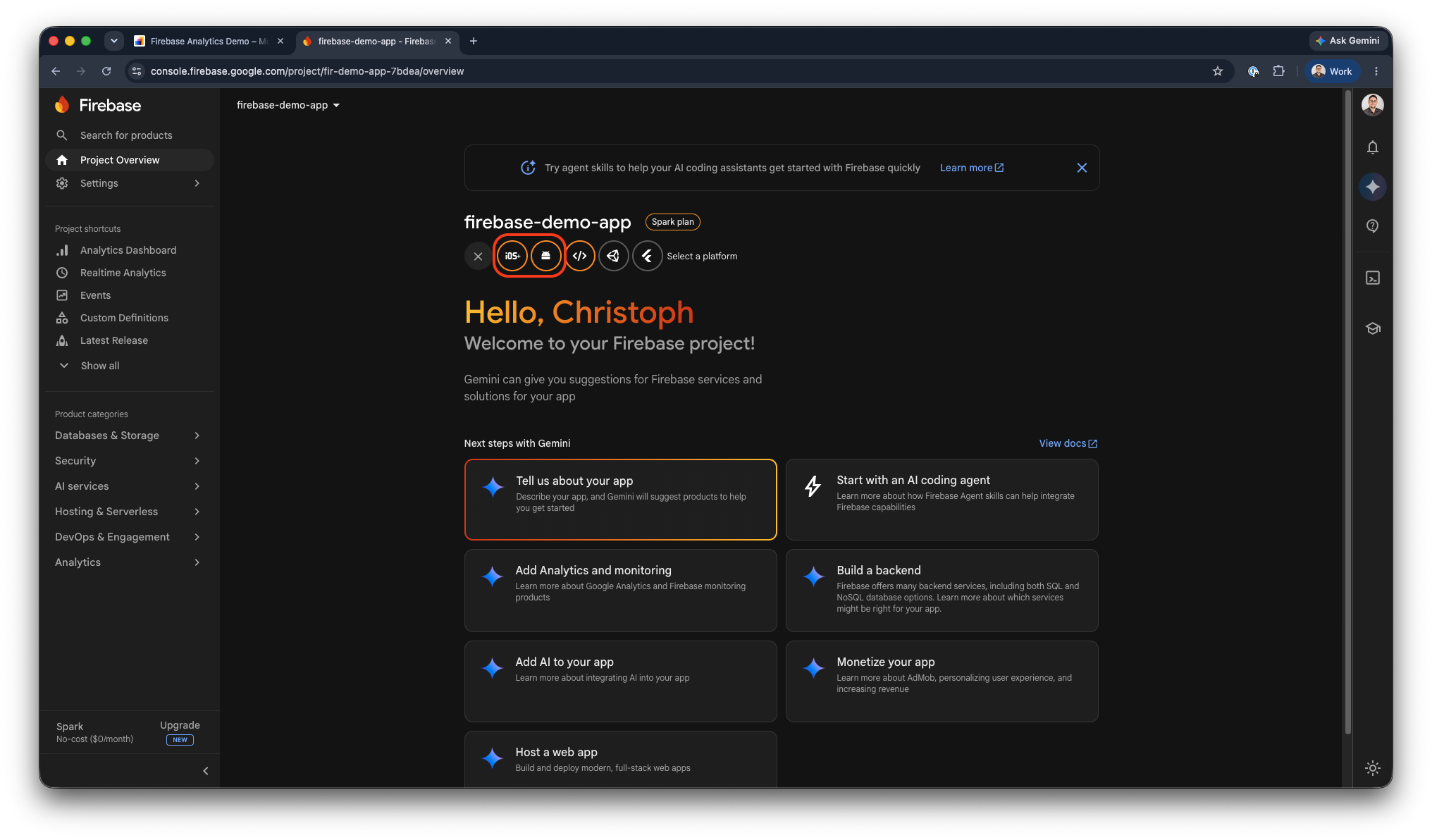
Google Firebase - Project Overview
Step 2: Register Your iOS App and Download the Config File
You can register your app in Firebase by providing the Apple Bundle ID. The Apple Bundle ID of your app can be found and configured in the App Studio under the Build & Deploy > App Identifiers section. You can learn more about your Bundle ID in the App Identifiers documentation.
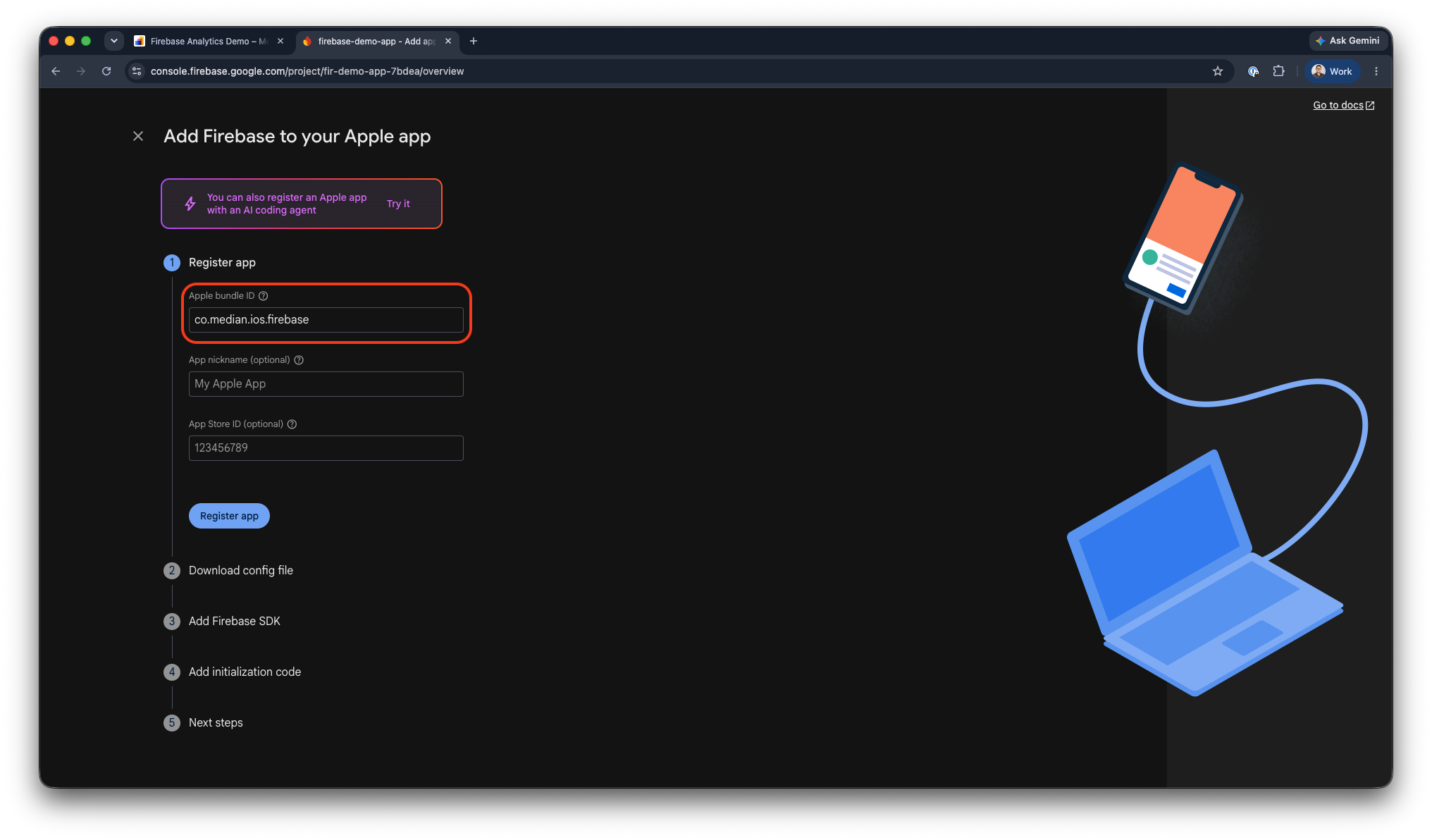
Google Firebase - Register iOS App
Once registered, download your generated GoogleService-Info.plist file.
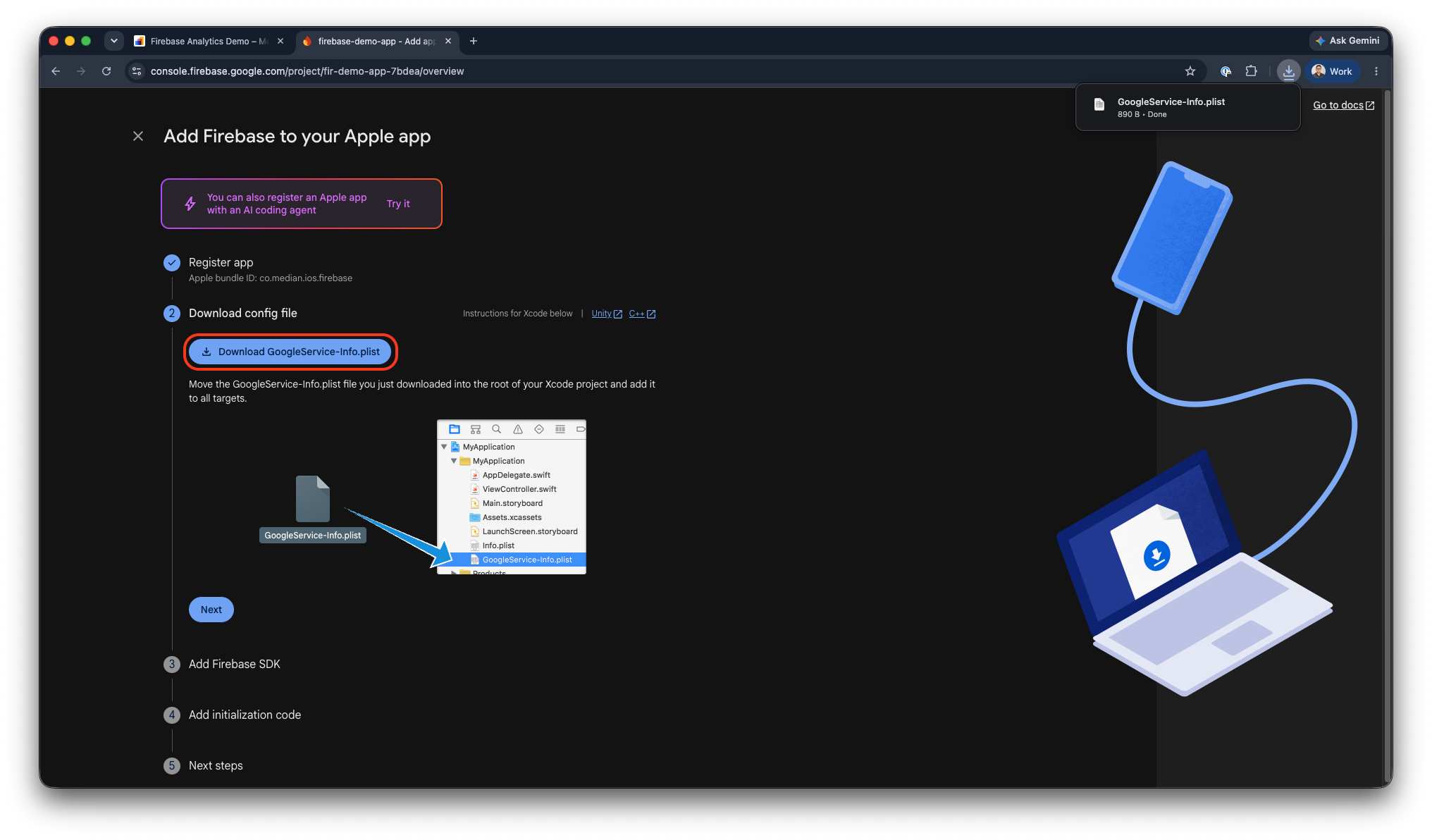
Google Firebase - GoogleServices-Info download
That's it for iOS. You don't need to complete Firebase's SDK installation steps, since Median handles that natively once you upload this file (see Step 4).
Step 3: Register Your Android App and Download the Config File
You can register your app in Firebase by providing the Android Package Name. The Android Package Name of your app can be found and configured in the App Studio under the Build & Deploy > App Identifiers section. You can learn more about your package name in the App Identifiers documentation.
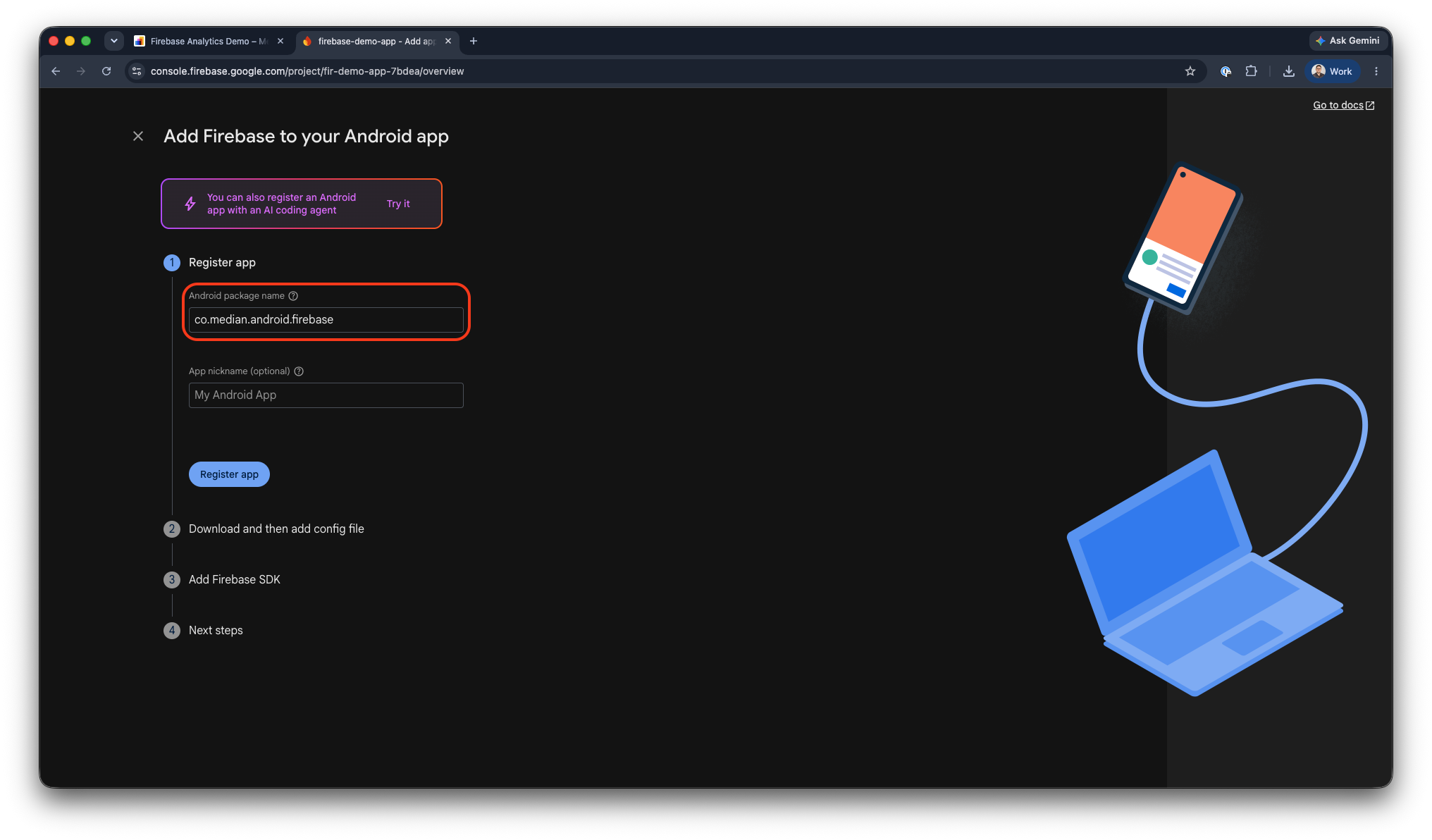
Google Firebase - Register Android App
Once your app is registered you can download your google-services.json file.
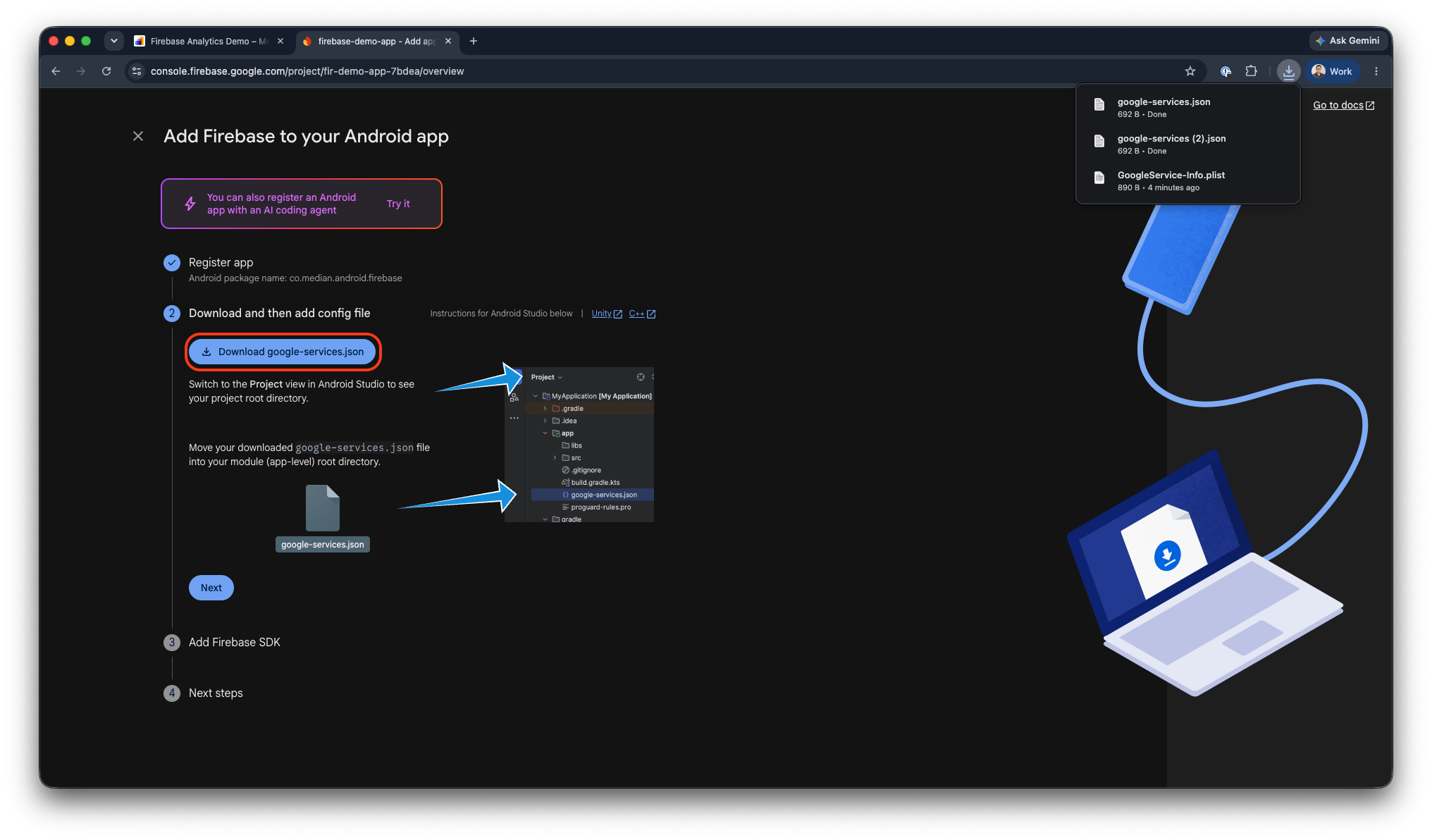
Google Firebase - Download google-services.json
Once you download the configuration file the Google Firebase setup for Android is complete.
Android Debug Builds & Product Flavors
If your app uses multiple Android product flavors or a separate debug package (for example, com.yourpackagename.dev), generate a separate google-services.json for each package name and place it in the matching source folder. For example, a dev flavor build expects its file at:
/app/src/dev/google-services.jsonStep 4: Upload Both Files to Median App Studio
In App Studio, go to Build & Deploy > Google Services and upload both files:
GoogleService-Info.plist(iOS)google-services.json(Android)
You can either upload the files directly or open each one in a text editor and paste its contents into App Studio.
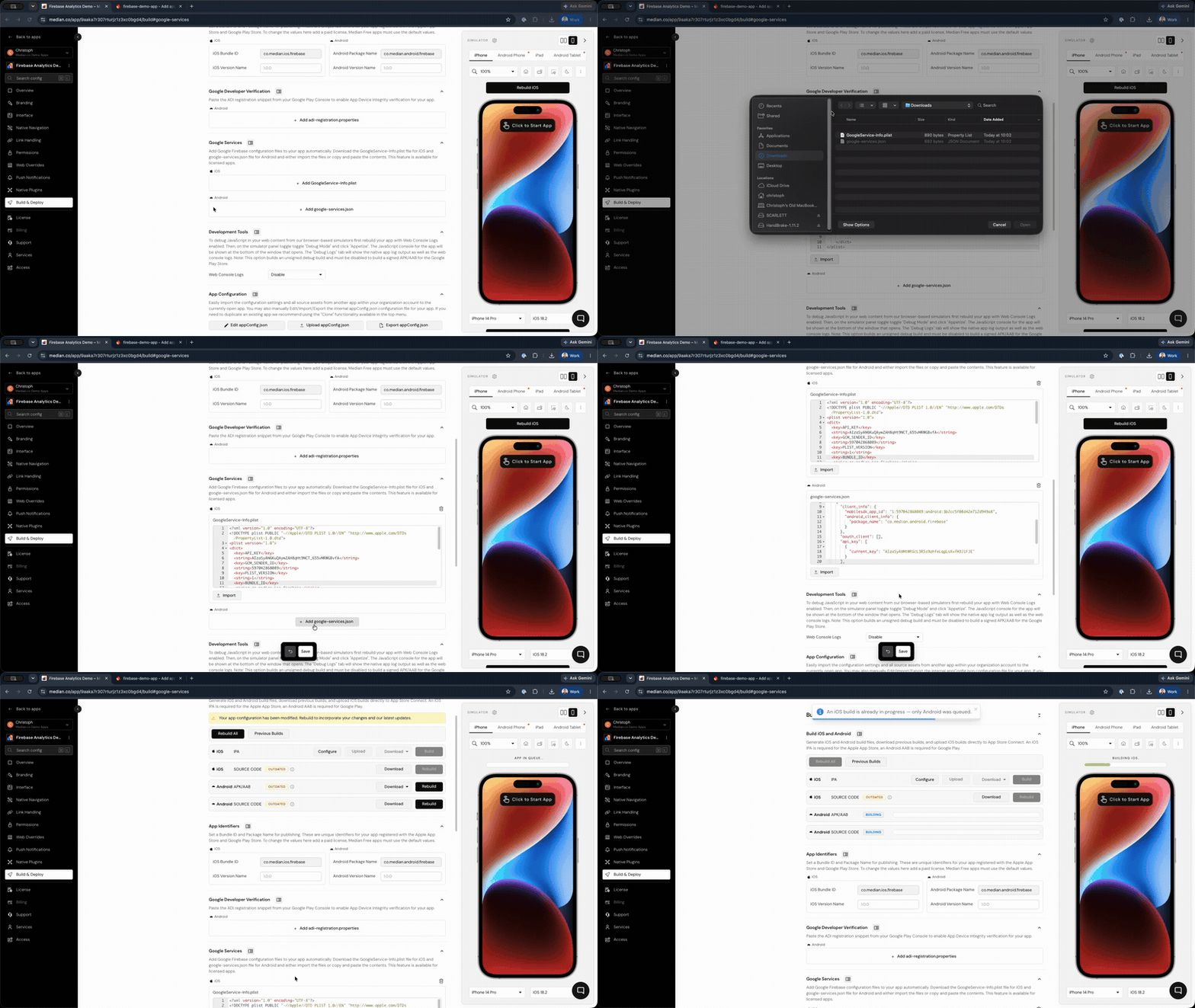
App Studio - Google Services File Upload
Save your changes and rebuild your app. Firebase services are now configured for both platforms.
Troubleshooting
Firebase features work on one platform but not the other
Confirm both files were uploaded. Check Build & Deploy > Google Services in App Studio to verify both GoogleService-Info.plist and google-services.json are present.
Config uploaded, but Firebase still isn't initializing
Double check that the Bundle ID / Package Name registered in Firebase exactly matches the identifiers in App Studio under App Identifiers. A mismatch is the most common root cause and Firebase silently fails to initialize if the identifiers don't match.
Frequently Asked Questions
Do I need separate Firebase projects for iOS and Android?
Do I need separate Firebase projects for iOS and Android?
No. Both platforms can be registered under a single Firebase project.
Is this feature available on all Median apps?
Is this feature available on all Median apps?
No, Google Services configuration requires a licensed app.
What if I change my app's Bundle ID or Package Name later?
What if I change my app's Bundle ID or Package Name later?
You'll need to re-register your mobile app in Firebase with the new identifier and upload a fresh configuration file, since the file is tied to the identifier.
Updated about 1 month ago