
Build a Vault app with Replit and Median.co
Build the web app in Replit and convert it to a mobile app with Median following this guide.
Follow this guide to build a mobile Password Vault app with Replit and Median.co. Unlock the vault with a 4-digit code or use Face ID / Touch ID. Receive haptic feedback when you unlock the vault and copy a password to your clipboard.
This guide includes an optional Replit prompt you can paste as-is or modify.
Developer DemoUse our Demo of the Vault app in the simulator or clone it into your App Studio Organization.
Disclaimer: The demo app is for proof-of-concept purposes only. Passwords are stored in unencrypted local storage (UserDefaults/SharedPreferences). Do not use this app to store real passwords.
Build the Vault app in Replit
Replit creditsBuilding apps in Replit costs credits.
On Replit's Free plan you get daily agent credits, which reset every day. See Replit's credits and usage for more information.
Prompt Replit
-
Go to replit.com and create an account.
-
Follow the prompts to finish the account setup.
-
Prompt your Replit Agent to build the app. Here's a prompt you can use or modify:
Build a mobile-first password vault app named "Vault" with React, Vite, Tailwind CSS, and shadcn/ui. This web app will later be converted to a mobile app using Median.co to enable Face ID / Touch ID, Copy to Clipboard, Haptic Feedback. The vault will be unlocked using a 4 digit code or Face ID / Touch ID. Do not add Sign up / Sign in, email, social login, or recovery email. ## On the user's first session 1. Two onboarding pages (no kickers): - Title: Your Vault. Body: Securely access your passwords. - Title: Simple and secure access. Body: Unlock the vault with your 4-digit code or using Face ID / Touch ID. 2. Enter your code: 4-digit number pad; confirm title "One more time". No Continue button — advance when user enters 4th digit. Code must exist before biometric enrollment. 3. Biometrics page — Enable and Not now only (no Open my vault): - Title: Unlock with [Face ID|Touch ID|Biometrics] from biometryType. Body: You can set this up later in the vault settings. - Enable: auth.status + auth.save({ secret: code }) then enter the empty vault (no Face ID sheet on save). - Not now: enter the empty vault with code-only unlock. 4. Land on an empty vault list. User can enable biometrics later in Settings. Do not ask again. ## Return visits - Lock screen: If biometrics are enabled, primary button Unlock with [Face ID|Touch ID|Biometrics]; secondary Unlock with code. Do NOT auto-prompt on load. - Code pad appears after Unlock with code (or biometric failure). Submit on the 4th digit. - Forgot code → Settings → Reset demo. ## Vault list - Header: Lock + Settings (gear). No marketing hero. - Empty state: "Add your first password" CTA only. - Each row: site, username, masked password, Reveal, Copy. - Reveal toggles the mask with NO re-auth. Copy uses Median clipboard + haptic + toast, NO re-auth. ## Add / Edit - Full-page single-column form (no nested card): Domain, username, password, notes (optional, max 200). Confirm before delete. ## Settings - Enable / disable biometrics (label from biometryType) - Change code (verify current code, then set a new 4-digit code) - Theme: System / Light / Dark - Reset demo: confirm, wipe vault data + biometric secret, go to onboarding page 1 ## Browser (not inside Median) - Top banner: open in the Median app for Face ID, clipboard, and on-device vault. - Disable native actions. Show three read-only samples: GitHub / [email protected], Wi-Fi / home-network, Bank / ****1234. - User can still add passwords and copy passwords to clipboard - Do not fake successful Face ID. ## Median JavaScript Bridge (required) - Install median-js-bridge and import: import Median from 'median-js-bridge'. - See official median docs for usage https://docs.median.co/docs/npm-package - Detect native with Median.isNativeApp() ONLY. Never use the user agent. Poll isNativeApp() (or Median.onReady) up to ~3 seconds before the first native call. - Fire-and-forget (return undefined): clipboard.set, haptics.trigger. A resolved await is not success. - Callback-backed (return a promise that never rejects): auth.status, auth.save, auth.get, auth.delete. Timeout them (~5s; ~60s for auth.get). - Auth status: available if result.hasTouchId === true. Use result.biometryType for labels (faceId / touchId / else Biometrics). - Auth save: await Median.auth.save({ secret: String }) — no biometric UI. - Auth get (button tap only): await Median.auth.get({ prompt: 'Unlock Vault', callbackOnCancel: 1 }). Success if result.success && result.secret. - Auth delete on disable Face ID or Reset demo. - Clipboard: Median.clipboard.set({ data: passwordString }). - Haptics: Median.haptics.trigger({ style: 'notificationSuccess' }) on unlock and copy only. - If the Median shell is present but isNativeApp() never becomes true, show: "Median JavaScript Bridge not detected — enable JavaScript Bridge / NPM in App Studio, then rebuild." -
Your Replit Agent will build the app and display a preview in the browser.
Testing Native FeaturesFace ID / Touch ID and Clipboard copying can be tested on a physical device or in browser-based simulators. Haptic feedback will only work on a physical device.
Review the Replit app
- Go through the onboarding pages, create a 4-digit code and choose Not now on the biometrics page.
- On the Vault page, add a password.
- Review the rest of the app pages, prompt the agent to make any necessary changes.
- Click the Publish button in the top-right corner to open the publishing panel and publish your app.
- Copy the public URL. It ends in .replit.app.
- Test your Replit URL in an incognito tab to ensure it's reachable. If you can't reach your web app, share the details of the page you are seeing with your Replit Agent to troubleshoot.
Create your app in the App Studio
-
Enter your Replit public URL below and click Build Now.
-
Follow the prompts to create the app.
-
Click on the simulator to open your app.
Optional: Follow this Quickstart guide to configure and customize your app.
Configure the Median JavaScript Bridge and enable app plugins
The Median JavaScript Bridge is an API that connects your website (Replit app) to your mobile app. In this guide, the Replit app uses it to trigger Face ID / Touch ID, Clipboard, and Haptic Feedback.
Update the JavaScript Frameworks and NPM setting
- In App Studio, head over to Web Overrides.
- Under JavaScript Frameworks and NPM, select Use NPM Package.
- Save your changes.
See NPM Package for details.
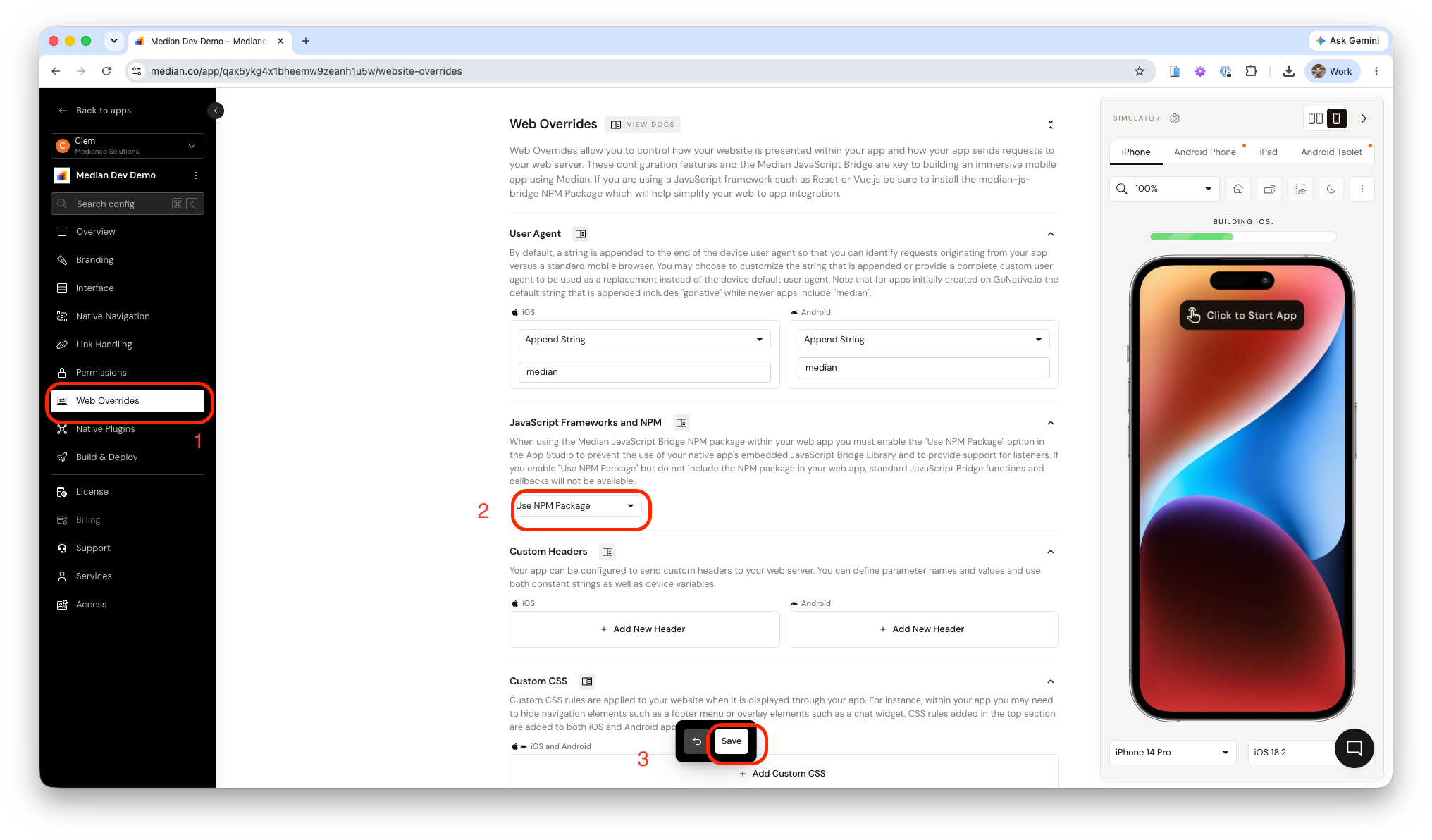
App Studio - JavaScript Frameworks and NPM
Enable native plugins
- Go to the Native Plugins page.
- Add and enable these plugins:
- Face ID / Touch ID / Android Biometrics
- Clipboard
- Haptic Feedback
- Go to the Build & Deploy page.
- Click Rebuild all so the new plugins and NPM setting are included in the app build.
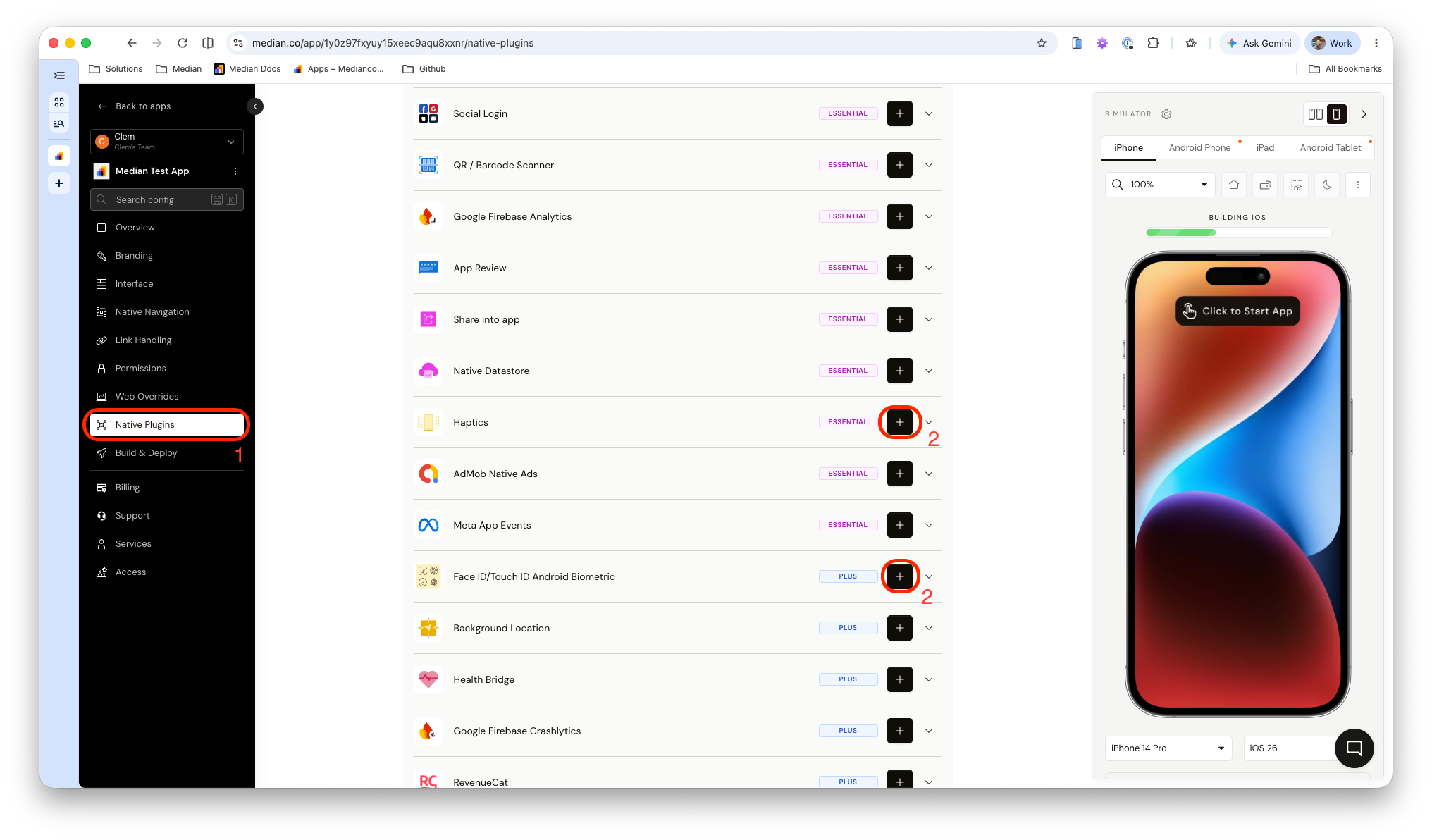
App Studio - Add Native Plugins
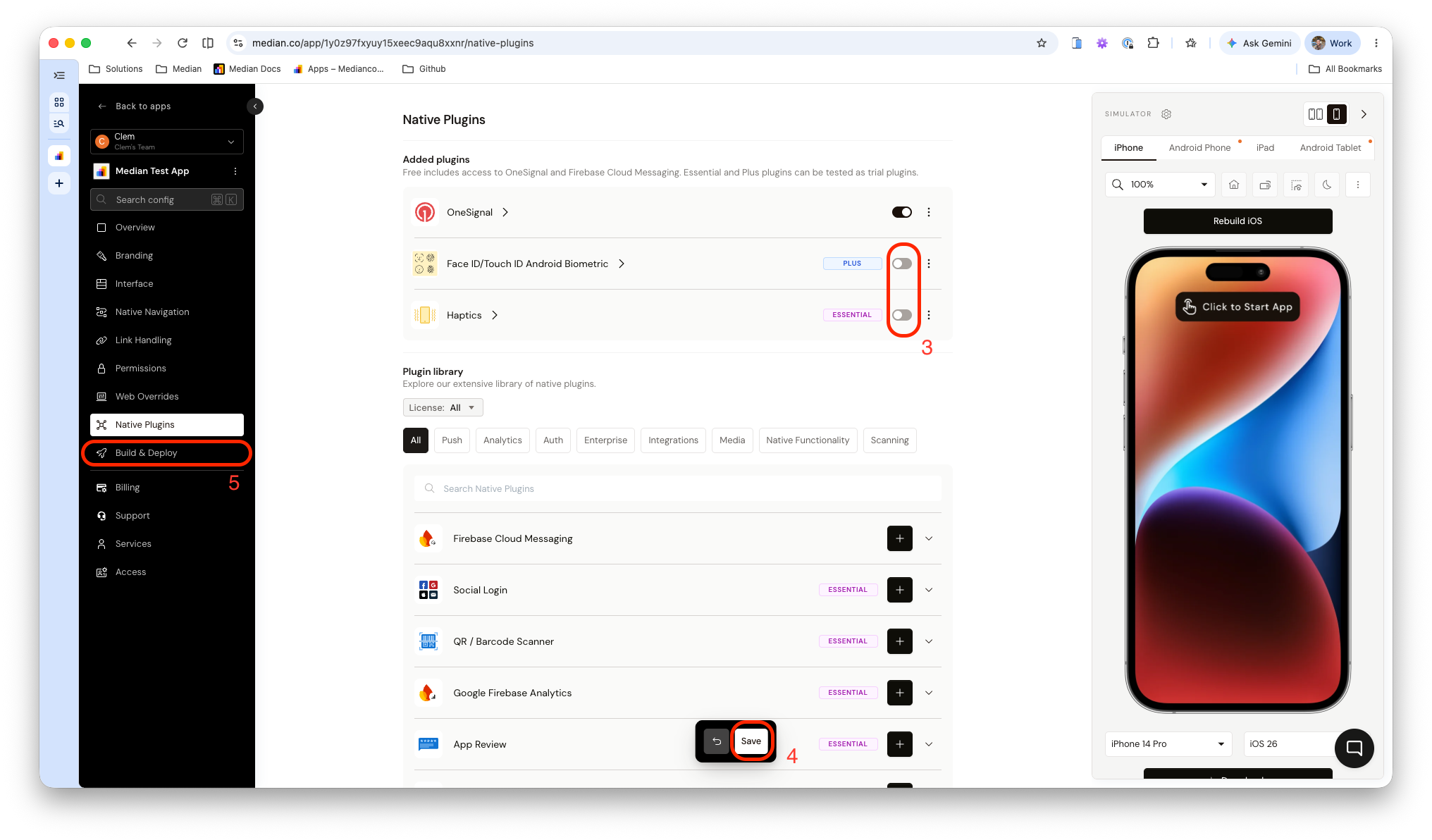
App Studio - Enable plugins and save changes
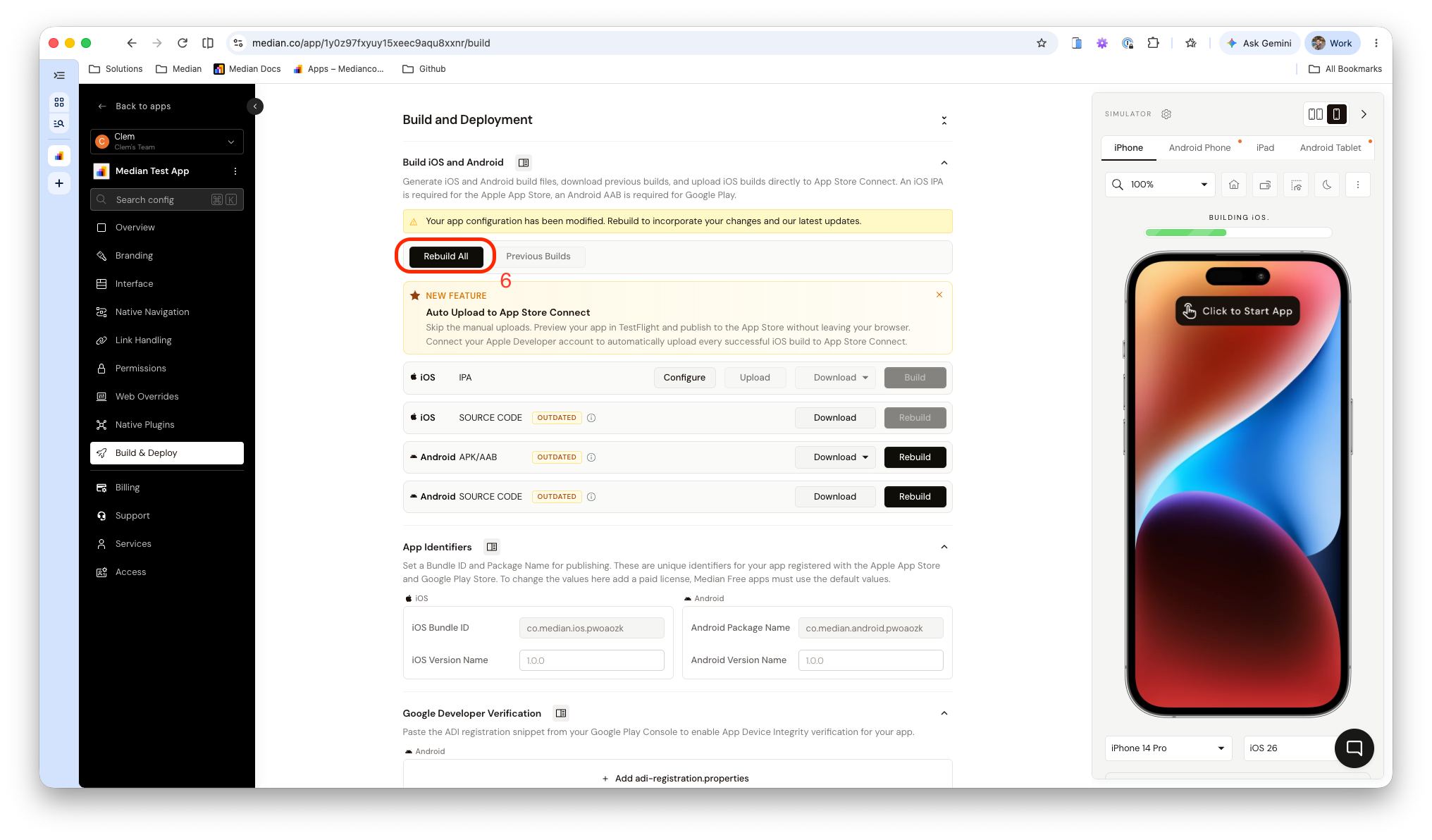
App Studio - Rebuild all
Build and test on a device
Follow the documentation below to install the mobile app on a physical device and test the native features. For iOS testing, you can automatically upload your app build to your Apple Developer account and register a test device in the App Studio.
- iOS
- Android
What success looks like
- You can enable biometric authentication
- You can add a 4-digit code and reach the vault
- You can hide and reveal passwords
- You can copy passwords to your clipboard and receive haptic feedback
Development checklist
App creation
- You’ve created the web app in Replit
- You’ve created a Median app using your Replit public URL
App configuration
- In App Studio, Web Overrides → JavaScript Frameworks and NPM is set to Use NPM Package
- The Replit app imports
median-js-bridge - Face ID / Touch ID / Android Biometrics, Clipboard, and Haptic Feedback are enabled
- The Median app has been rebuilt after enabling the plugins and uses the latest build version
Mobile app testing
- You can install the mobile app on a physical device
- In the app, you can enable biometric authentication in the onboarding
- You can lock the vault, and unlock with Face ID / Touch ID or the code pad
- The app provides haptic feedback after copying a password
- You can add, edit, and delete a password entry
When you’re ready to publish, see App Store Publishing.
Troubleshooting
Face ID / Touch ID is unavailable or never prompts
Face ID / Touch ID is unavailable or never prompts
In the App Studio, ensure the plugin is enabled, and you are using the latest app build version. In Replit, ask your agent to confirm the right bridge commands are being used. Reference Face ID / Touch ID.
Median JavaScript Bridge is not detected
Median JavaScript Bridge is not detected
Confirm the Replit Agent installed median-js-bridge, and in App Studio go to Web Overrides → JavaScript Frameworks and NPM and set it to Use NPM Package, then rebuild the app. For more information on the NPM package, see NPM Package.
There is an Expo test screen when I launch my mobile app
There is an Expo test screen when I launch my mobile app
This is a publishing issue in Replit. Ensure that the URL you've added in Median is the public URL of your Replit web app, not a Replit Expo app. Confirm with your Replit Agent that your project is a web app, not a native app.
I get prompted for Face ID / Touch ID when I tap the Not now button.
I get prompted for Face ID / Touch ID when I tap the Not now button.
Tapping the Not now button should skip biometric enrollment and open the vault using the code. The user can turn biometrics on later on the Settings page. There shouldn't be a second prompt once the user completes the app onboarding.
Haptic feedback does not trigger
Haptic feedback does not trigger
Verify the Haptic Feedback plugin is enabled and confirm you are testing on the latest build. Trigger haptics only after a user unlocks the vault or copies a password, using Median.haptics.trigger({ style: 'notificationSuccess' }), and only when Median.isNativeApp() is true. Haptics cannot be tested in a desktop browser or the App Studio simulator, only on a physical device. For more information on the Haptics plugin, see Haptics.
Copy does not write to the clipboard
Copy does not write to the clipboard
The Replit app should call Median.clipboard.set({ data: passwordString }) when Median.isNativeApp() is true. For more information on the Clipboard commands, see Clipboard.
Updated 24 days ago
Next Steps
After building and customizing your app, check out our resources on how to improve and publish your app.