
Google Firebase Crashlytics
Firebase Crashlytics is a real-time crash reporter that helps developers track, prioritize, and fix stability issues in their apps
Firebase Crashlytics is a real-time crash reporting solution that helps you identify, prioritize, and resolve the most critical issues affecting your app users. This plugin integrates the iOS and Android Firebase Crashlytics SDKs into your app and supports logging of native crashes, WebView console errors, and (on Android) toast errors.
Why use Google Firebase Crashlytics
- App crash events: Native crash reporting.
- WebView console errors: WebView console errors logged to Crashlytics.
- Android toast errors: Android-only (e.g. SSL certificate warnings).
- Runtime control: Enable/disable log collection and set user IDs via the Median JavaScript Bridge.
Prerequisites
- A Median.co app with JavaScript Bridge enabled
- Firebase project with Crashlytics enabled
-
GoogleService-Info.plist(iOS) andgoogle-services.json(Android) from Firebase Console - Plugin purchased and enabled in Median App Studio
Developer DemoDisplay our demo page in your app to test during development https://median.dev/crashlytics
When to use this plugin
Firebase Crashlytics is essential for apps that need to:
| Use Case | Example |
|---|---|
| Crash reporting | Track and fix native app crashes in real time |
| WebView errors | Log WebView console errors to Crashlytics |
| Android toast errors | Capture Android toast errors (e.g. SSL warnings) |
| Per-user tracking | Set a custom user ID to track crash logs per user |
| Privacy compliance | Request user opt-in before collecting logs |
What You'll Do
Use this section as a fast navigation map into the full setup and implementation details:
- Enable the plugin in App Studio: Go to Plugin Setup and complete Enable the Plugin.
- Configure log collection behavior: Review Configuration Options to set
requestOptIn,toastErrorLogsEnabled, andwebErrorLogsEnabled. - Control logging at runtime: Use JavaScript Bridge Functions, especially enable, webErrorLogsEnabled, and toastErrorLogsEnabled.
- Attach logs to specific users: Implement setUserId and unsetUserId in JavaScript Bridge Functions.
- Add consent when required: Configure Optional: Request User Consent for Log Collection.
Plugin Setup
Enable the Plugin
- Navigate to Native Plugins: Open your app in Median's App Studio and go to the Native Plugins section.
- Enable Firebase Crashlytics: Select Google Firebase Crashlytics from your list of purchased plugins and enable it.
- Configure log collection: Use the options below to customize which logs are collected.
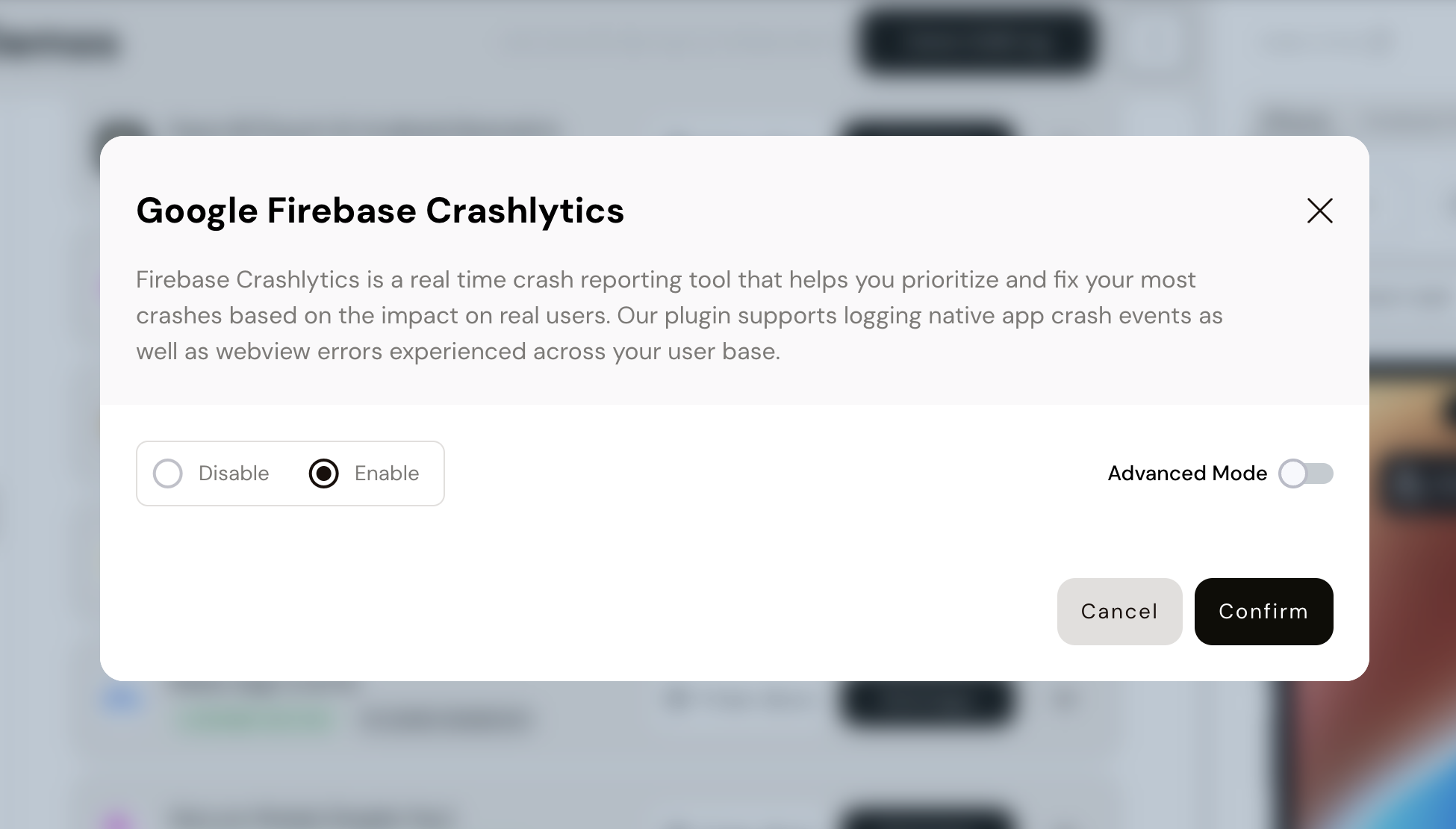
Enable Firebase Crashlytics in App Studio
Configuration Options
| Setting | Description | Recommended |
|---|---|---|
| requestOptIn | Enable/disable consent prompt for log collection | Set to true if you need user consent before collecting logs |
| toastErrorLogsEnabled | Enable/disable Android toast error collection | Per your needs (Android only) |
| webErrorLogsEnabled | Enable/disable WebView console error collection | Per your needs |
Toggle the options as needed, then click Advanced Mode for further configuration.
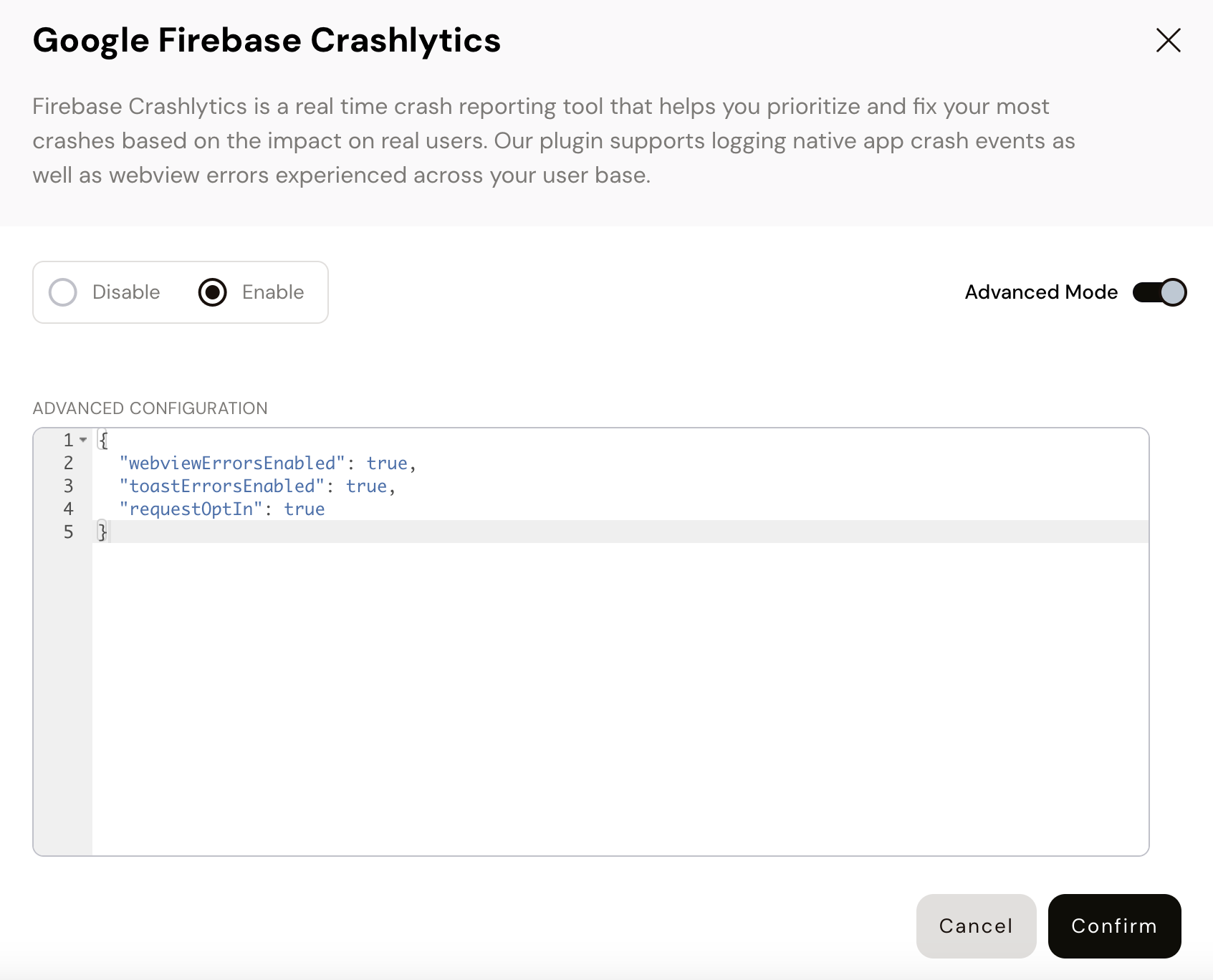
Enable or disable specific log types
App Configuration
- Register your app in the Firebase Console.
- Download the configuration files:
- Android:
google-services.json - iOS:
GoogleService-Info.plist
- Android:
- Upload GoogleService-Info.plist (iOS) and google-services.json (Android) in the Median App Studio under Build & Deploy > Google Services. You can upload the files from Firebase or copy and paste their contents into App Studio.
For full instructions, refer to the official Firebase setup guides:
Finalizing the App Build
Once the configuration files are uploaded, save the changes and rebuild your app.
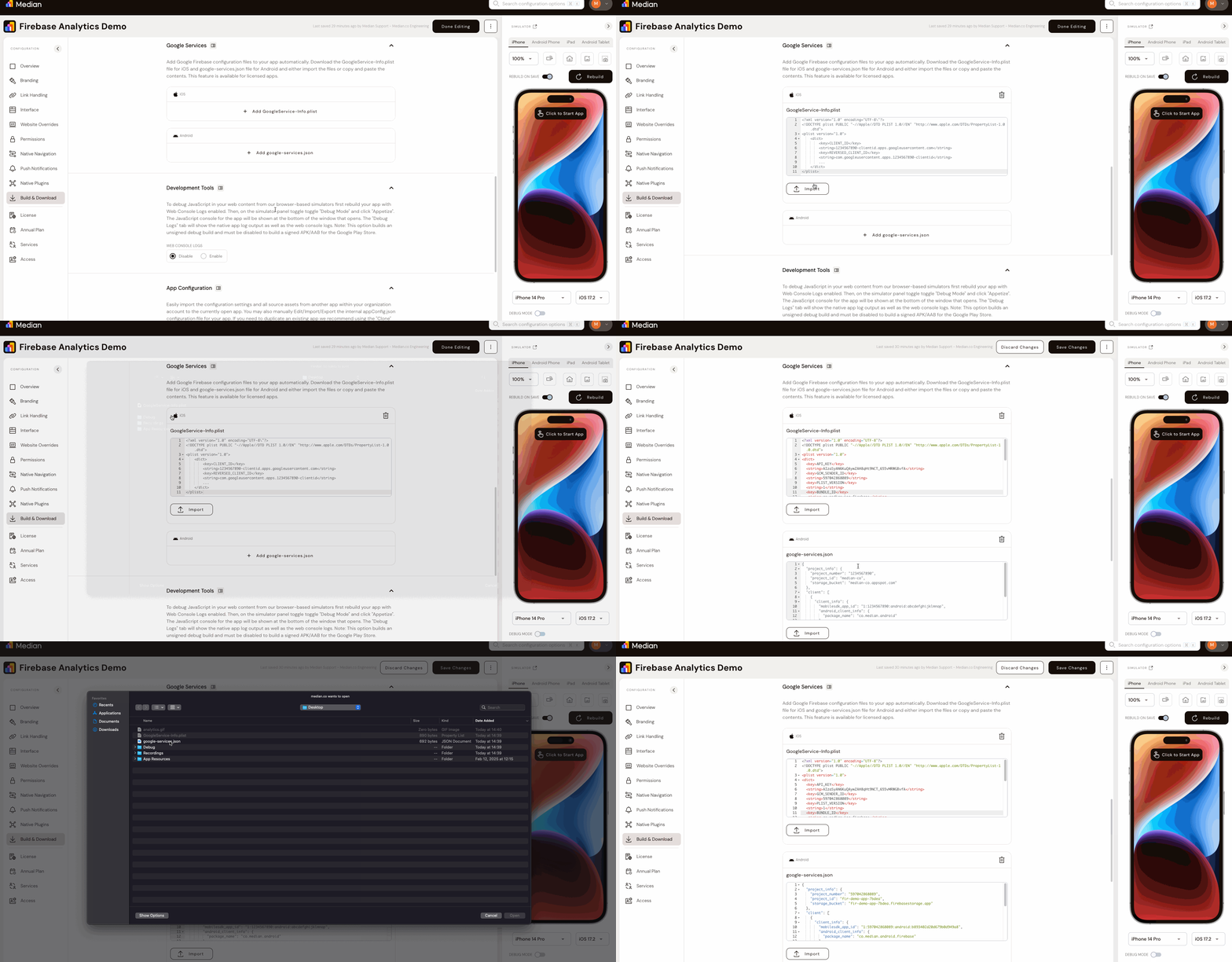
Upload your GoogleService-Info.plist and google-services.json configurations
Implementation Guide
JavaScript Bridge Functions
The Median JavaScript Bridge allows you to control Crashlytics at runtime.
Enable/Disable logs collection
Enable or disable Crashlytics log collection at runtime.
// Enable/disable Crashlytics
median.firebaseCrashlytics.enable(true);
median.firebaseCrashlytics.enable(false);

// WebView error logging
median.firebaseCrashlytics.webErrorLogsEnabled(true);
median.firebaseCrashlytics.webErrorLogsEnabled(false);

// Toast error logging (Android only)
median.firebaseCrashlytics.toastErrorLogsEnabled(true);
median.firebaseCrashlytics.toastErrorLogsEnabled(false);
Parameters:
| Parameter | Type | Required | Description |
|---|---|---|---|
enabled | boolean | Yes | true to enable, false to disable |
Set user id
Assign a custom user ID to track crash logs per user in Firebase. Persists between app launches; cleared on uninstall/reinstall.
median.firebaseCrashlytics.setUserId("user_123");| Parameter | Type | Required | Description |
|---|---|---|---|
| User ID | string | Yes | Your user identifier |
Unset user id
Remove the previously set user ID.
median.firebaseCrashlytics.unsetUserId();Optional: Request user consent for log collection
To comply with privacy policies or regulations, you can ask users for permission before collecting logs. Enable the permission prompt by setting requestOptIn to true in the plugin configuration. Users will see a permission dialog on first app launch after installation.
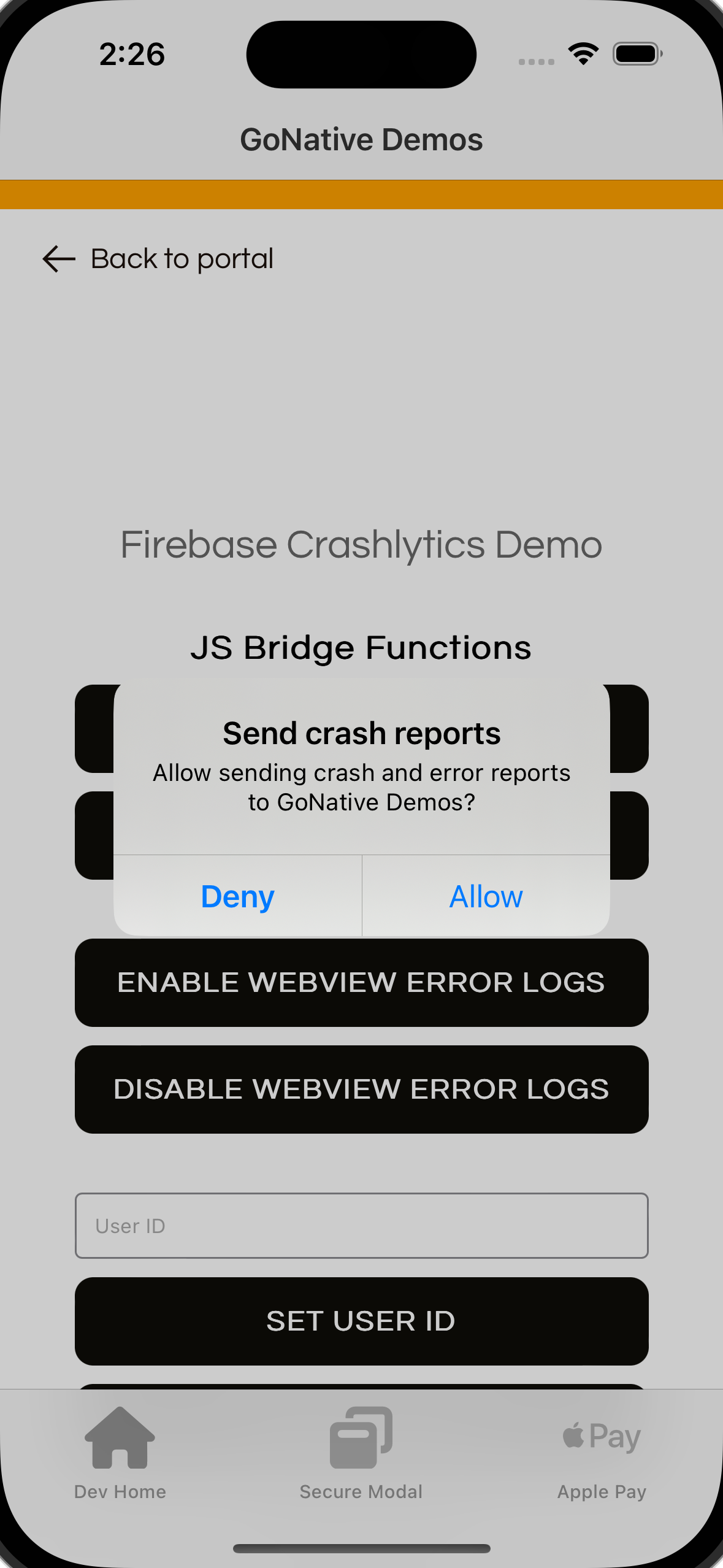
Request user opt-in for log collection
Testing checklist
Use this checklist to verify Crashlytics is configured and logging as expected:
Basic Functionality
Basic Functionality
- Firebase Crashlytics plugin is enabled in App Studio
-
GoogleService-Info.plist(iOS) andgoogle-services.json(Android) are uploaded in Build & Deploy > Google Services - App is rebuilt after saving configuration changes
-
median.firebaseCrashlytics.enable(true)enables log collection at runtime
Platform Testing
Platform Testing
-
median.firebaseCrashlytics.webErrorLogsEnabled(true/false)updates WebView error logging behavior -
median.firebaseCrashlytics.toastErrorLogsEnabled(true/false)updates Android toast error logging behavior
Configuration Testing
Configuration Testing
-
median.firebaseCrashlytics.setUserId('user_123')sets a user identifier for crash logs -
median.firebaseCrashlytics.unsetUserId()removes the user identifier - If
requestOptInis enabled, the permission prompt appears on first app launch after install
User Experience
User Experience
- Open https://median.dev/crashlytics inside your app and confirm logs/events are received in Firebase Crashlytics
- Consent prompt (if used) appears at an appropriate time and copy matches your policy
Troubleshooting
Crashlytics functions are undefined or not working
Crashlytics functions are undefined or not working
Ensure the JavaScript Bridge is enabled in your Median dashboard and that
you call functions after the deviceready event. Verify the plugin is
enabled and GoogleService-Info.plist (iOS) and google-services.json
(Android) are uploaded in Build & Deploy > Google Services.
Logs do not appear in Firebase Crashlytics
Logs do not appear in Firebase Crashlytics
Confirm the app was rebuilt after uploading Google services files and saving
plugin settings. Also verify log collection is enabled with
median.firebaseCrashlytics.enable(true) and that the correct Firebase
project files were uploaded for each platform.
WebView errors are not being captured
WebView errors are not being captured
Check that webErrorLogsEnabled is enabled in plugin settings (and at
runtime if you manage it dynamically).
Android toast errors are not being captured
Android toast errors are not being captured
toastErrorLogsEnabled applies to Android only. Ensure it is enabled in
settings and test on an Android build.
User consent prompt does not appear
User consent prompt does not appear
The prompt only appears when requestOptIn is enabled and is shown on first
launch post-installation. Reinstall the app to retest first-launch behavior.
Still having trouble?For Firebase Crashlytics outside Median.co refer to Firebase Crashlytics documentation.
Updated about 1 month ago