
Getting Started with Base44
This guide walks you through building a mobile-first todo list application in Base44 from scratch, then converting it to a native mobile app with Median.co
We'll build the complete app using Base44, then add native mobile features like push notifications and haptic feedback. We provide example prompts at every step so you can follow along or adapt them for your own projects.
What we'll build:
- A responsive to-do list web app using Base44
- Push notifications when tasks are assigned or due
- Haptic feedback when completing or deleting tasks
- A native iOS and Android app powered by Median.co
Why a to-do list?
It's simple enough to build quickly but complex enough to showcase real native features. The patterns you learn apply to any mobile app, from productivity tools to social networks. By the end, you'll have a working example and the confidence to build your own mobile apps using the same approach.
Build your own app instead
The prompts and patterns in this guide work for any mobile app; just adapt them to your project. We use a to-do list here because it's a simple example that lets us walk through the complete process quickly. Feel free to substitute your own app idea and customize the prompts accordingly.
Step 1: Build your to-do app
Let's start by building your to-do list app in Base44. Open a new Base44 project and use the Builder chat to create your mobile-first to-do application.
Build a mobile-first web application to-do list. Add authentication for signup and sign in using username and password (Base44's current authentication system). Add a backend using Base44's integrated database that stores user data along with their to-dos. The to-do app should have functions to add, edit and remove to-dos and each to-do needs to have a title, description, priority (high, med, low) and a deadline (time). Make sure the interface is responsive and optimized for mobile devices.What this prompt does:
- Creates a mobile-responsive to-do list interface
- Sets up user authentication with username/password (Base44's supported method)
- Configures Base44's integrated backend to store user data and to-dos
- Implements CRUD operations (create, read, update, delete) for to-dos
- Adds to-do properties: title, description, priority levels, and deadlines
After running the prompt:
Base44's AI will generate your complete to-do app with authentication and database setup. You should see:
- A login/signup page with username/password authentication
- A main to-do list view
- Forms to add and edit to-dos
- To-do items displaying title, description, priority, and deadline
- Delete functionality for to-dos
Important: Remember to publish your app in Base44 once it's built, as changes don't take effect until published.
Next: Once your app is built and published, you're ready to convert it to a native mobile app with Median.
Step 2: Get your Base44 app URL
The first step in your mobile app journey is simple: we need to tell Median.co where to find your web application. This requires your Base44 app's public URL, the link that allows anyone on the internet to view your app.
- Deploy your app: Make sure your Base44 app is published. Use Base44's publish feature to make your app live.
- Locate the live URL: Look for your app's public URL. In Base44, you can find this in the share menu — it will look like
https://app.base44.com/...or your custom domain if you've set one up. - Copy the URL: Save this URL; you'll paste it into the Median App Studio in the next step to begin the conversion process.
Important requirementsYour Base44 app must be published and publicly accessible for Median.co to analyze and convert it. Make sure your app is published using Base44's publishing workflow and the URL loads without requiring authentication to view the main interface.
Quick check: Test your URL by opening it in a private/incognito browser window. If you can see your app's login page without issues, you're ready to proceed.
Note: Base44 apps require publishing for changes to take effect. For production apps, consider Base44's hosting options and custom domain setup for a professional appearance.
Step 3: Create your app in Median App Studio
- Access the Studio: Visit https://median.co/login or click Sign In via the navigation bar.
- Initialize your project: Click the Create a New App button to start your mobile app project.
- Connect your Base44 app: Paste the Base44 app URL you copied in the previous step. This tells us where to find your web application.
Once you hit enter, Median.co automatically analyzes your site's structure, detecting mobile compatibility features, and generating a real-time preview across multiple device simulators. You'll instantly see how your Base44 app will look and behave on actual iOS and Android devices.
Step 4: Configure basic app settings
You can completely customize your app. In the App Studio, navigate through the sidebar tabs:
- App name: Set the name that will appear under your app icon.
- Branding: Upload your app icon (what users see on their home screen) and splash screen (what users see when the app opens).
- Navigation: Configure native UI elements like a top navigation bar or a tab menu. These complement your web content and make your app feel truly native.
Step 5: Add the JavaScript Bridge
To add native mobile features like push notifications and haptic feedback, you'll need the Median JavaScript Bridge. This powerful API connects your web app to native device features.
Why this matters
While your web app will work perfectly fine with our conversion, adding native features creates an experience that rivals apps built specifically for mobile platforms. Think haptic feedback when users complete tasks, access to the device camera for profile photos, or push notifications that remind users about upcoming deadlines.
Installing the JavaScript Bridge
- Open your Base44 project: Navigate to the project you want to enhance with native features.
- Access the Builder chat: Open Base44's AI chat interface.
- Install the JavaScript Bridge: Use this simple prompt to add the Median JavaScript library to your project:
Note: Remember that this may require a paid Base44 plan for npm package installation.
Please add the Median JavaScript library to this project. I plan to use Median.co to convert this web app into iOS and Android Mobile Apps. Install the median-js-bridge npm package and import it properly in the appropriate files for JavaScript Bridge functionality.Base44's AI will install the median-js-bridge package and add the necessary imports to your code. You can verify this by checking if the package appears in your project's dependencies.
Base44 important notes:
- Publishing required: Remember to publish your app after the AI installs the package, as changes don't take effect until published.
- Plan requirements: Installing npm packages may require a paid Base44 plan.
- Manual fixes: Base44's AI may occasionally make import errors that require manual correction.
Step 6: Configure npm package settings in App Studio
After Base44 installs the median-js-bridge package, you must update your settings in Median App Studio to prevent conflicts.
Why this matters: By default, Median App Studio automatically injects the JavaScript Bridge into your app. However, since you've now added it as an npm package in your Base44 project, the bridge will be included in your web app's code. Having both would cause conflicts.
What to do:
- Log in to the Median App Studio.
- Navigate to your app and click Web Overrides.
- Navigate to the JavaScript Frameworks and NPM section and select Enable from the dropdown list.
- Save your changes.
This tells Median: "Don't inject the JavaScript Bridge, my web app already includes it via NPM."
For detailed configuration instructions, see our NPM Package Documentation.
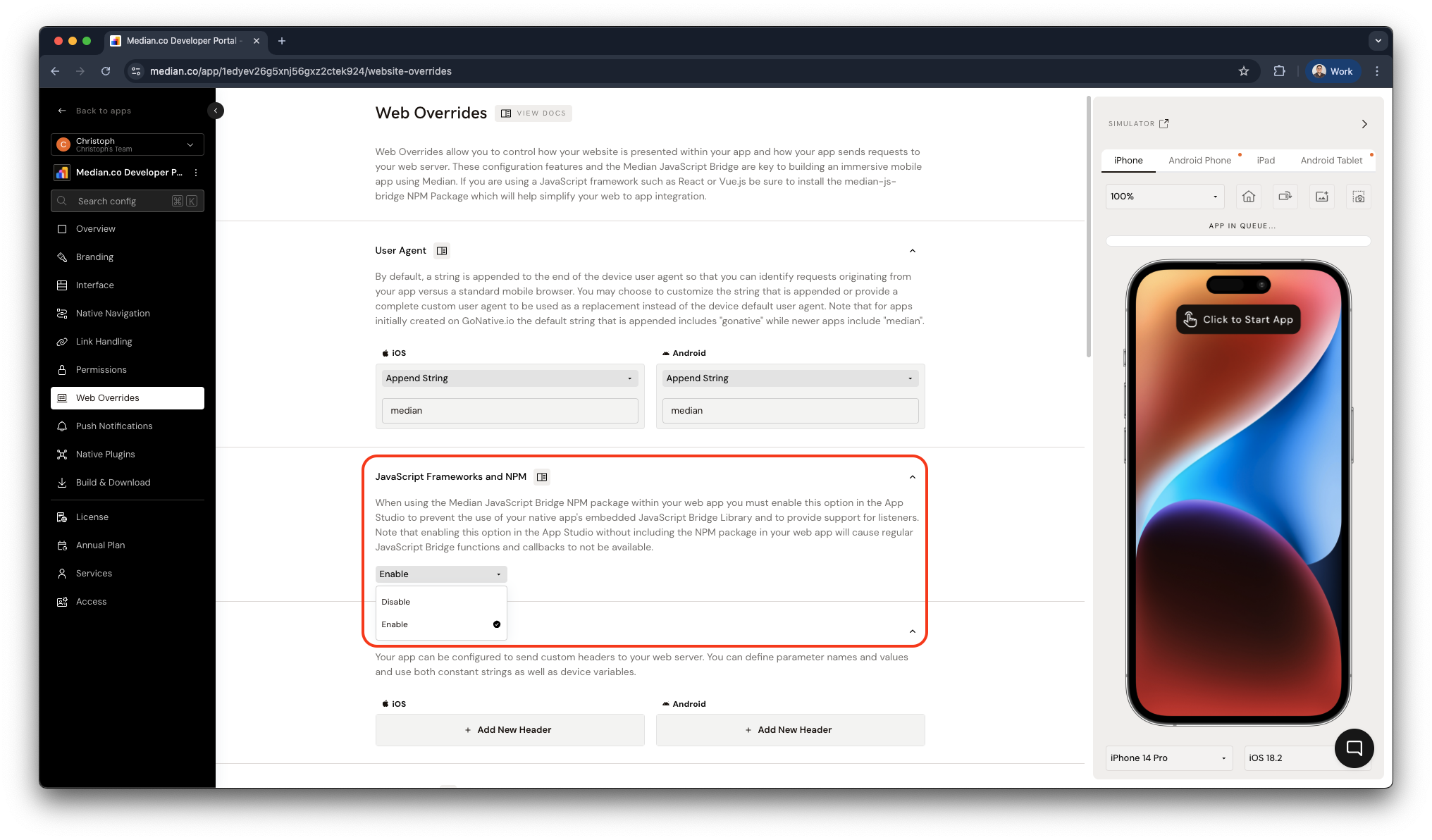
Median App Studio - JavaScript Frameworks and NPM
Once Base44's AI installs the library, you'll have access to dozens of native mobile features. In the following guides, we'll show you exactly which prompts to use to add specific functionality like push notifications and haptic feedback.
Step 7: Detect mobile app usage
Before adding any native feature, your app must know when it's running inside the native mobile app versus a standard web browser.
Why detection matters
Native features only work inside of your mobile app. If you (or Base44's AI) try to call a native feature like median.camera.takePicture() in a web browser, it will fail and likely crash your app. Detection lets you safely:
- Show or hide mobile-only buttons and features
- Provide different experiences for web users (like a standard file upload)
- Call our native APIs without errors
Adding detection
To get started, open Base44's Builder chat. Use the following prompt, which specifically requests the officially recommended detection method.
I am using Median.co to turn this web app into a native mobile app. Please create a global JavaScript helper variable or function named `isMedianApp`. This helper should check if `navigator.userAgent.indexOf('median') > -1`. I will use this variable to conditionally show mobile-only features. Remember to publish changes after implementation.Base44's AI will add detection code that looks similar to this:
// Detect if running in Median mobile app (official method)
const isMedianApp = navigator.userAgent.indexOf('median') > -1;

// You can now use this variable throughout your app
if (isMedianApp) {
  // Show mobile-only features
  // Call Median JavaScript Bridge APIs
  alert('Running inside a Median native app!');
} else {
  // Show web-only features
  // Use web APIs instead
  alert('Running in a web browser.');
}
Base44 debugging note: Use alert() instead of console.log() for debugging feedback, as console output may not be visible in mobile apps built from Base44.
Test your detection
- Publish your Base44 app: Use Base44's publish feature to make your changes live.
- Open your Base44 app in your normal desktop web browser. You should see the alert: "Running in a web browser."
- Build a test version of your app in the Median App Studio.
- Open your app in the Median simulator or on your mobile device. You should see the alert: "Running inside a Median native app!"
Base44 troubleshooting:
- If detection doesn't work, ensure you published your changes in Base44.
- Check that the JavaScript Bridge was installed correctly.
- Use alerts for debugging instead of console logs.
- If you encounter import errors, manually check and fix the JavaScript Bridge import.
Once detection works, you're ready to add other native features.
Updated 16 days ago
Next Steps
Congratulations! You've built your to-do app, set it up in the Median App Studio, and installed the JavaScript Bridge. Now you're ready to add powerful native mobile features.