
Sendbird
Leverage Sendbird to add real-time messaging and push notifications in your app
The Sendbird plugin simplifies integrating in-app messaging and push notifications by leveraging Sendbird’s UI kit and SDKs for iOS and Android. It provides a straightforward way to build modern messenger experiences and send real-time push notifications.
Why use Sendbird?
- Messaging interface and system: Use Sendbird’s chat interface and features instead of building yours from scratch.
- Real-time push: Deliver push notifications to Android and iOS devices using Sendbird.
- JavaScript Bridge API: Initialize the SDK, manage users, channels, permissions, and UI from your web layer.
When to use this plugin
| Use Case | Example |
|---|---|
| In-app messaging | Let users chat in group channels using Sendbird’s native messaging UI. |
| Push notifications | Deliver Sendbird push notifications via APNs (iOS) and FCM (Android). |
| User sessions | Log users in with userId, update profile info, disconnect or log out as needed. |
| Channel creation | Create group channels programmatically and open them in the Sendbird UI. |
| Demo-driven development | Load the developer demo in your app to test integration during development |
What you'll do
Use this section as a fast navigation map into the full setup and implementation details:
- Configure Sendbird and push: Complete Plugin Platform Setup—retrieve your Application ID, gather APNs (iOS) and FCM (Android) credentials, and enable push with those credentials in the Sendbird dashboard.
- Enable and configure in Median: In Median App Studio Configuration, complete Enable the Plugin, review Configuration Options (including optional Advanced Configuration), and for Android upload
google-services.jsonas described under Android —google-services.jsonin that section. - Implement the bridge: Use Website Configuration (JavaScript Bridge) for SDK initialization, push permission, users, channels, and Sendbird UI (
showUI/showChannelUI/ close callback). - Validate your flow: Use Example Code Implementation—especially Recipe: Create a channel and open it—to confirm end-to-end behavior.
- Test and resolve issues: Work through Testing Scenarios and Troubleshooting (FAQ).
Developer DemoDisplay our demo page in your app to test during development https://median.dev/sendbird/
Prerequisites
- A Median.co app with the JavaScript Bridge enabled
- A Sendbird application and its Application ID (from the Sendbird dashboard)
- For Apple Push Notification service (iOS): App Bundle ID (see Median iOS Bundle ID),
.p8or.p12authentication token (Register iOS app with APNs), Key ID, Team ID, and SSL certificate type - For Firebase Cloud Messaging (Android): FCM service account key (HTTP v1) (generate a new private key under Project settings → Service accounts in the Firebase console)
- For Android push:
google-services.jsonuploaded in Median App Studio (Build & Deploy), and the FCM server key configured in the Sendbird dashboard (see setup steps below)
Key Concepts
The following terms will help you implement Sendbird effectively:
Sendbird Application ID (appId): Identifies your Sendbird application. The SDK needs it to initialize; it is shown in your Sendbird dashboard (see Sendbird setup).
Push credentials (APNs / FCM): Values you add in the Sendbird dashboard under Settings → Push Notifications so Sendbird can send pushes to your iOS and Android apps.
Group channel: A channel where multiple users chat. Creating one returns a channelUrl you can use to open the channel in the UI.
Distinct channel (isDistinct): When true, if a matching channel already exists, that channel is reused instead of creating a duplicate.
Important considerations
- If you need help locating push or Firebase values, contact Median support.
- Android FCM requires
google-services.jsonin the app and FCM configuration in the Sendbird dashboard (including the FCM server key).
Integration Guide
Plugin Platform Setup
Configure Sendbird and push outside Median.co before or in parallel with the App Studio settings.
Retrieve Your Sendbird Application ID
Sendbird’s SDK requires the Application ID of your Sendbird application to initialize. You can find it in the dashboard of your Sendbird application.
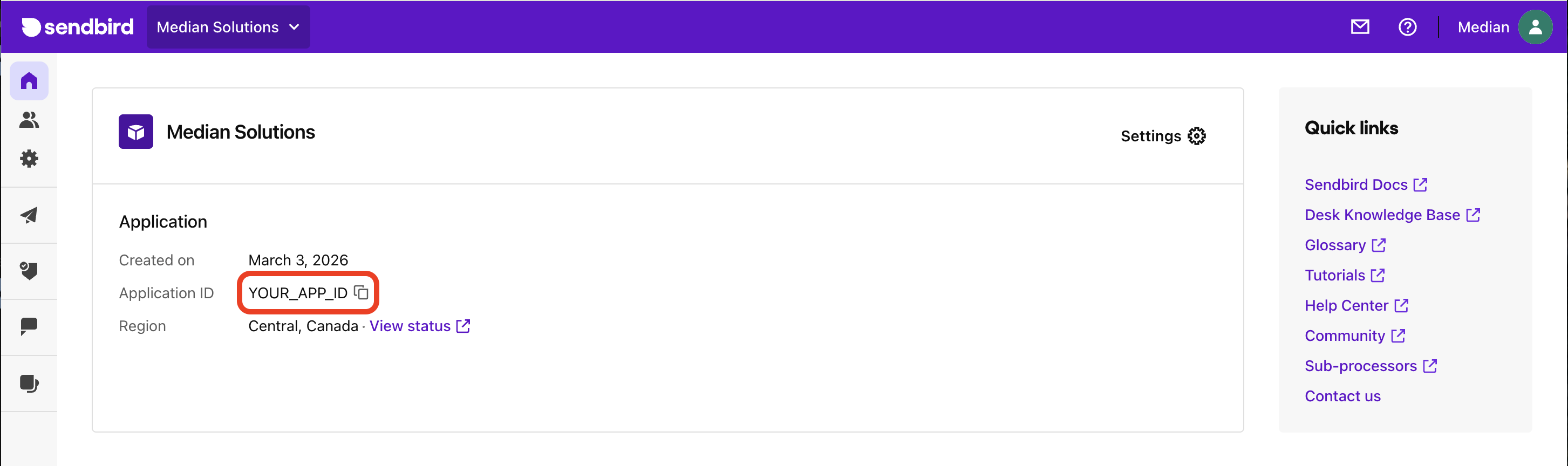
Sendbird- Find Application ID
Setup Sendbird push notifications (APNs and FCM)
To deliver Sendbird push notifications to an app, you need the following credentials.
For Apple Push Notification service (iOS):
- App Bundle ID: Median iOS Bundle ID
.p8or.p12authentication token — Register iOS app with APNs- Key ID
- Team ID
- SSL certificate type
For Firebase Cloud Messaging (Android):
- Service account key (HTTP v1) — you can generate a new private key under Project settings → Service accounts on your Firebase console
Please reach out to Median support for help with finding these values.
Sendbird dashboard — Enable push and add credentials
In the dashboard of your Sendbird app:
- Navigate to Settings → Push Notifications.
- Enable push notifications.
- Add your push notification credentials.
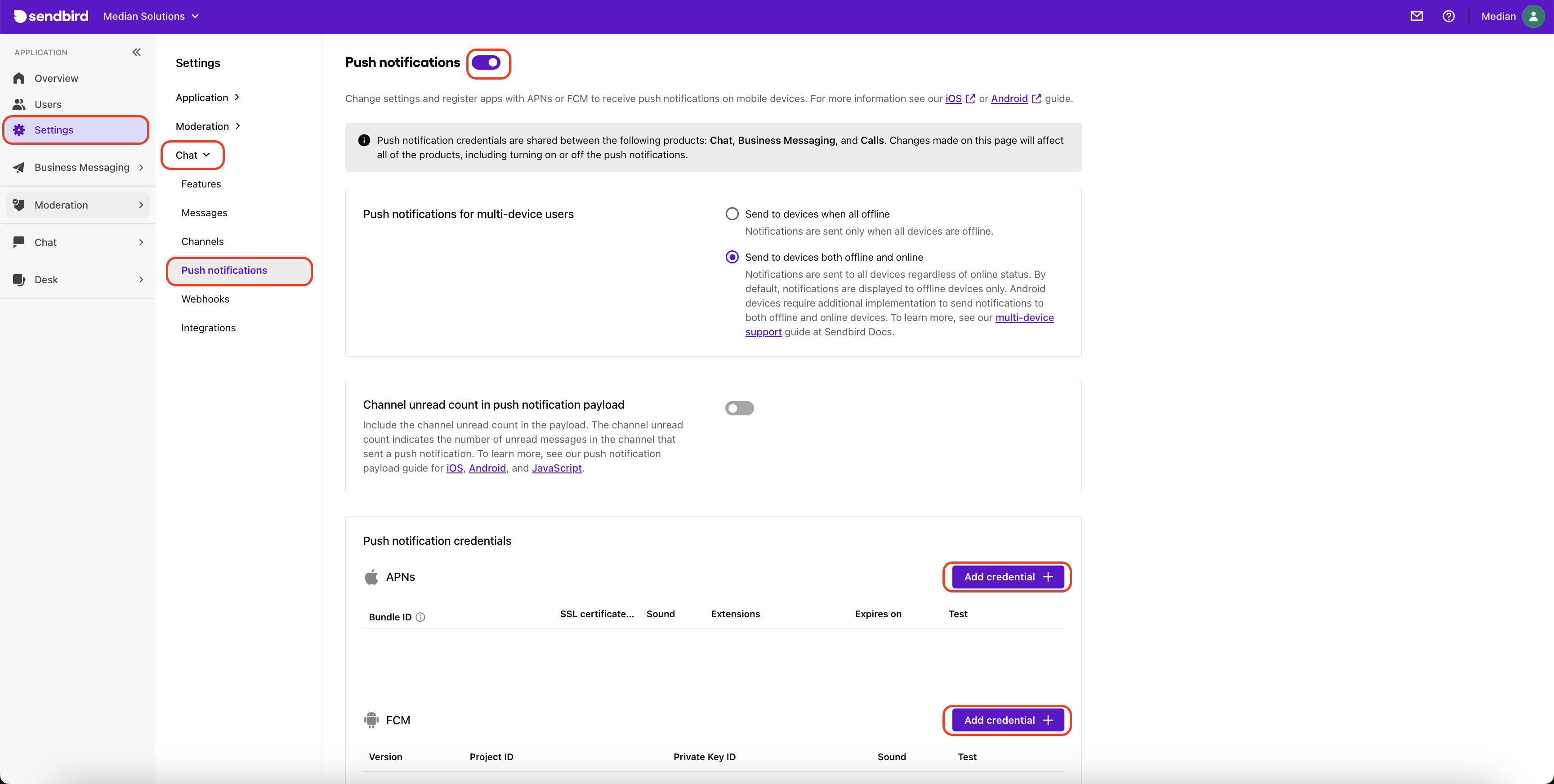
Sendbird- Push Notification Settings
Median App Studio Configuration
Enable the Plugin
- In App Studio, open the Native Plugins tab and enable the Sendbird plugin.
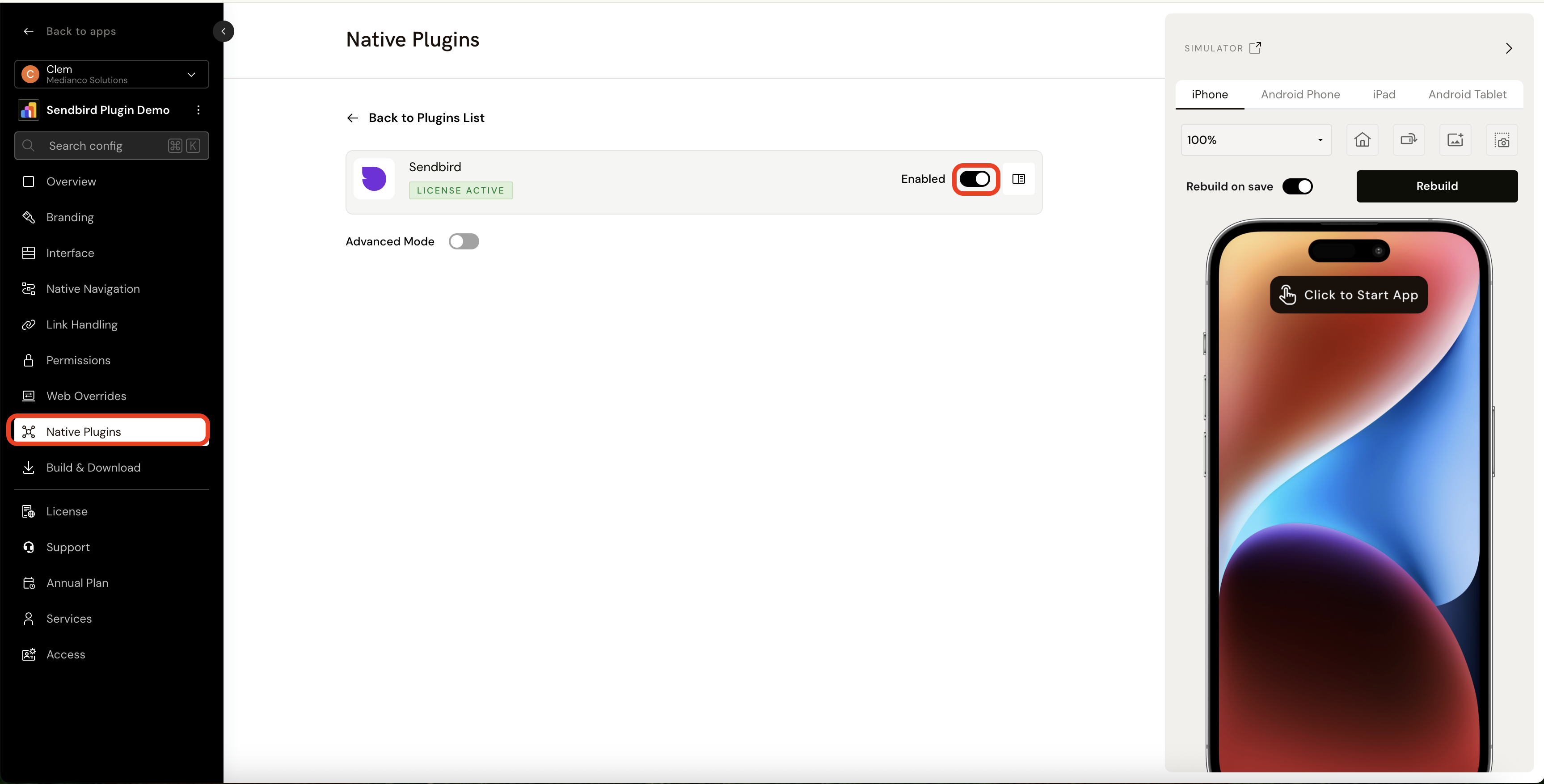
Sendbird Plugin Enablement
Configuration Options
For advanced configuration, add the parameters below to the Advanced Configuration field (optional):
{
"active": true | false,
"autoRegister": true | false,
// if true push permission will be requested automatically
"appId": STRING  // optional - if defined the Sendbird SDK will be initialized automatically
}| Setting | Description |
|---|---|
active | true or false. |
autoRegister | true or false — if true, push permission is requested automatically. |
appId | Optional string — if defined, the Sendbird SDK is initialized automatically. |
Android — google-services.json
google-services.jsonFirebase Cloud Messaging (FCM) requires embedding a google-services.json file in the app to send Android push notifications. Upload this file in the Build & Deploy tab of App Studio.
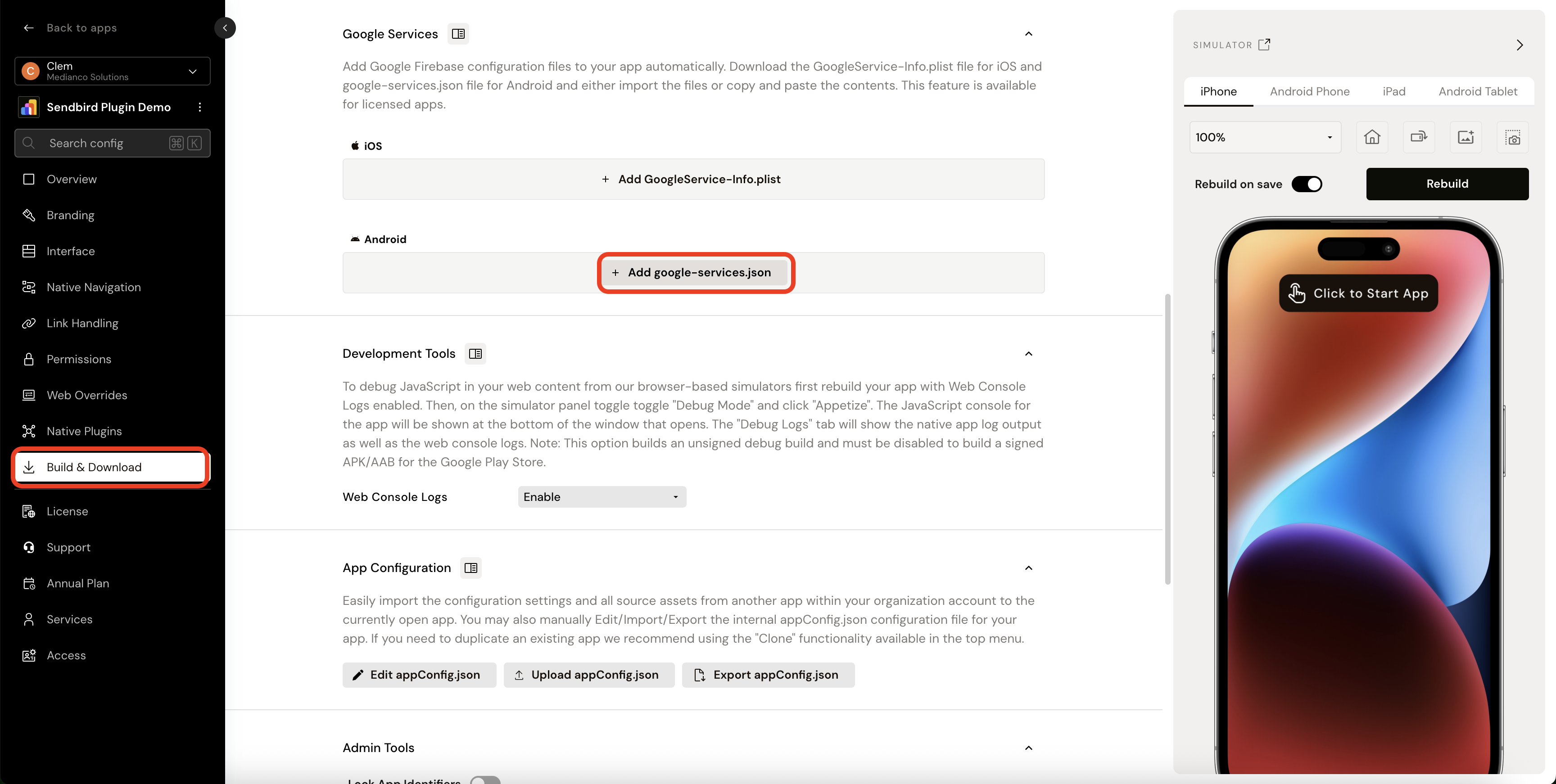
Adding google-services.json in the median app studio
Push notifications must also be configured in your Sendbird dashboard by adding the FCM server key. Refer to the Sendbird push setup steps above.
Website Configuration (JavaScript Bridge)
Unless noted, you may provide a callback or use the promise returned by the call.
initialize
initializeInitialize the Sendbird SDK using the appId of your Sendbird application. Once initialized, the appId is saved and the SDK initializes automatically on the next app start. The appId lets you reference users and channels for that Sendbird application. See the Sendbird dashboard screenshot in setup for locating appId.
median.sendbird.initialize(STRING);Parameters: appId (string) — Sendbird Application ID.
Verify SDK Initialization
median.sendbird.isInitialized({callback: function})
// Return value if initialized:
{
  "initialized": true,
  "appId": STRING
}
// Return value if not initialized (appId not provided or is invalid):
{
  "initialized": false
}
Request Push Notification permission
Request push notification permission. On iOS and Android 13+, a system dialog is shown. On Android 12 and below, permission is granted without user input.
median.sendbird.promptNotification({'callback': function})

// Return value:
{
  "granted": true | false
}
Check Push Notification permission status
Check whether push notification permission has been granted or denied.
median.sendbird.notificationEnabled({'callback':  function})

// Return value:
{
  "granted": true | false
}
Login/Register Users
Log in a user on the Sendbird application using userId. If the user is not logged out, they stay logged in on future app starts. If userId does not exist, a new user is registered.
median.sendbird.setUserId("USER_ID");Parameters: userId (string).
Get User ID
Returns the userId of the logged-in user.
median.sendbird.getUserId({callback:  function})
// Return value:
{
 "userId":  STRING
}
Check User Connection
Check whether the user is connected to the Sendbird server after logging in.
median.sendbird.isConnected({callback:  function})
// Return value:
{
 "connected":  BOOLEAN
}
Update User Profile
Update the nickname and profile image URL of the logged-in user.
median.sendbird.updateUserInfo({
 nickname:  STRING,  // optional
 profileImageUrl:  STRING,  // optional
 callback:  function
 })
// Return value:
{
 "success":  BOOLEAN
 }
Parameters: nickname (optional string), profileImageUrl (optional string), callback (function).
Logout User
Log out the current user: disconnects from Sendbird, removes user details from the app, and unregisters push notifications.
median.sendbird.logout({callback:  function})

// Return value
{
 "success":  BOOLEAN
 }
Disconnect User Session
Disconnect the current session. The user remains logged in and details stay saved; the app continues to receive push notifications.
median.sendbird.disconnect({callback:  function})

// Return value
{
 "success":  BOOLEAN
 }
Create Group Channel
Creates a group channel. Returns success and the channel URL.
median.sendbird.createGroupChannel({
  name:  STRING,
  coverImageUrl:  STRING,  // optional
  userIds:  [STRING],  // at least 1 userId is required
  isDistinct:  BOOLEAN,  // default is false, set to true to
  ensure if a channel exists, it is utilized
  customType:  STRING,  // optional channel type for grouping
  callback: function
  })

  // Return value:
  {
    "success": BOOLEAN,
    "channelUrl": STRING
     }
Parameters:
| Parameter | Notes |
|---|---|
name | Channel name (string). |
coverImageUrl | Optional. |
userIds | Array of strings; at least one userId required. |
isDistinct | Default false; set true to reuse an existing channel when applicable. |
customType | Optional; for grouping channel types. |
callback | Optional if using promises. |
Show Channels UI
Displays Sendbird’s messaging UI with the user’s group channels. Users can enter channels, create channels, and leave the UI.
median.sendbird.showUI();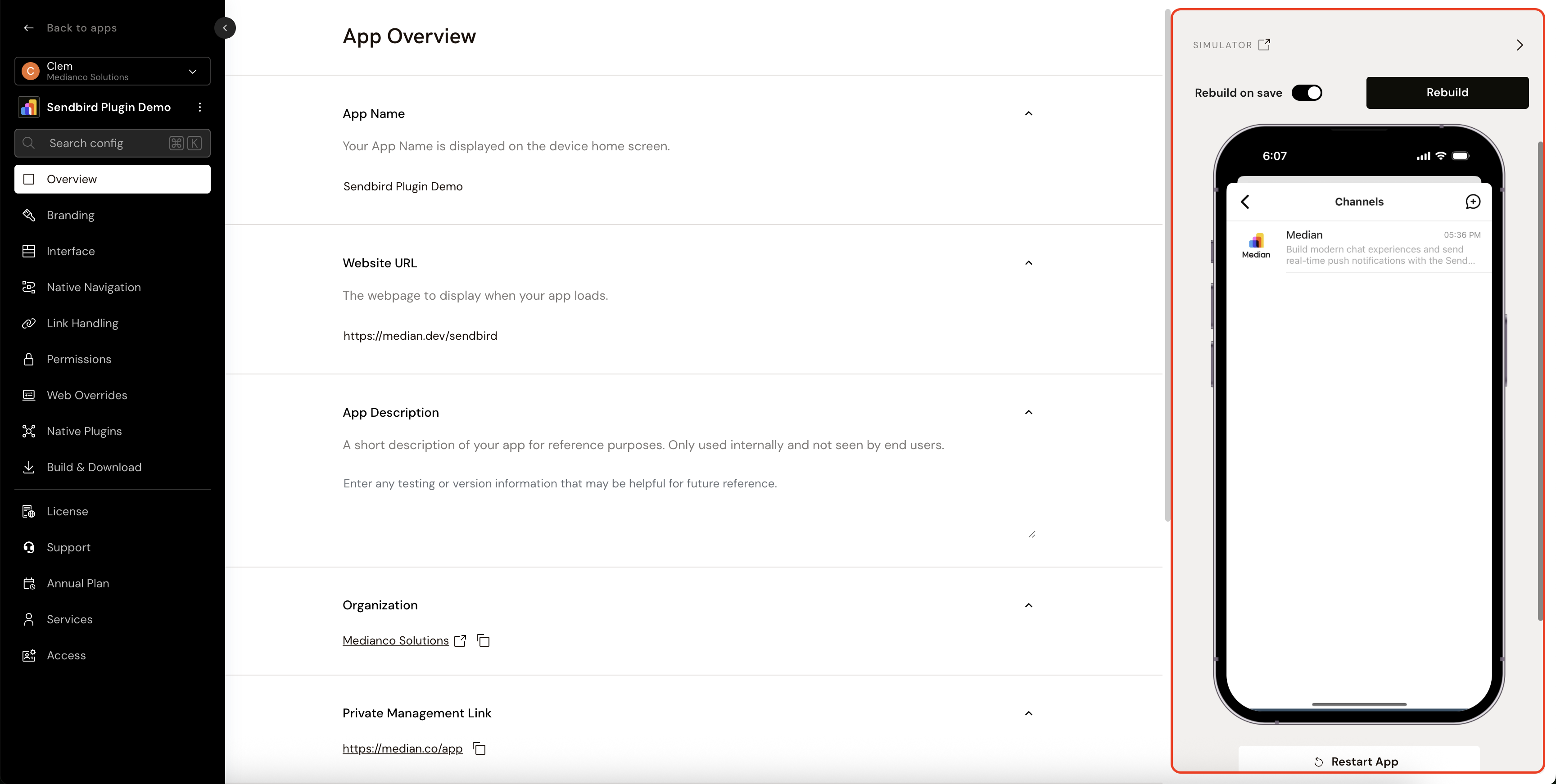
Sendbird Demo App- Show Channels UI
Show Channels UI and Enter Channel
Opens Sendbird’s UI and enters a channel by URL.
median.sendbird.showChannelUI({ url: STRING });Parameters: url (string) — channel URL.
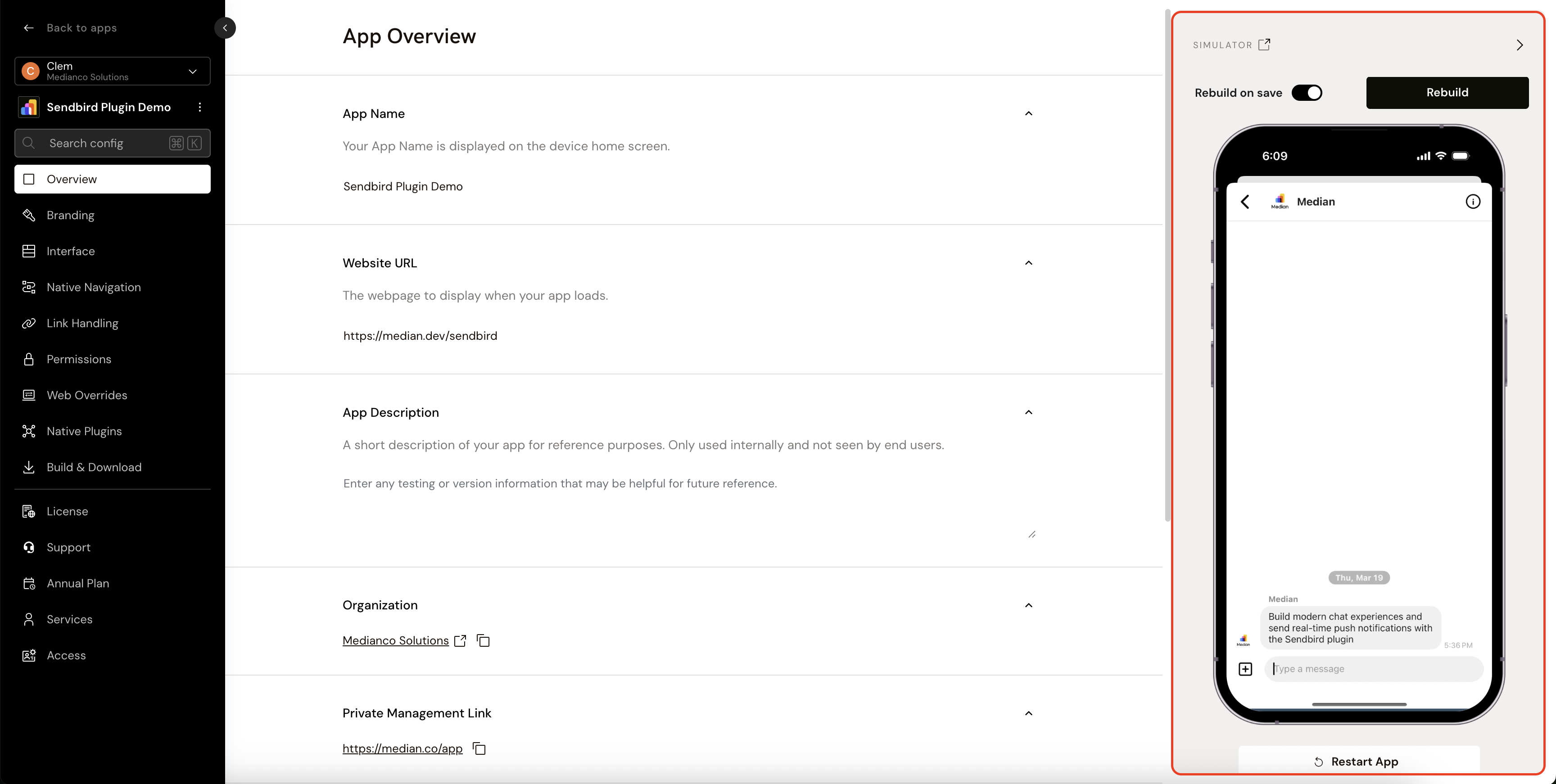
Sendbird Demo App- Show Channels UI and Enter Channel
Close UI callback
Define this function on your webpage to run when the user closes the Sendbird UI:
function median_sendbird_uiclosed() {
  alert("UI Closed");
}
Testing
Use this checklist to ensure Sendbird is working correctly in your app:
Basic Functionality
Basic Functionality
- Sendbird plugin is enabled in Median App Studio and a new build has been generated
-
median.sendbird.initialize(appId)completes andisInitializedreturnsinitialized: truewith the expectedappId -
setUserIdlogs in (or registers) the expected user;getUserIdreturns the same id -
showUIopens Sendbird’s channel list UI without JavaScript errors
Push and Permissions
Push and Permissions
-
promptNotificationshows a permission dialog on iOS and Android 13+ where applicable -
notificationEnabledreflects the system permission state after the user responds - Sendbird dashboard push settings include the correct APNs and/or FCM credentials
- Android:
google-services.jsonis present via App Studio Build & Deploy
Channels and UI
Channels and UI
-
createGroupChannelreturnssuccessand achannelUrlwhen inputs are valid -
showChannelUIopens the intended channel using thatchannelUrl - Closing the Sendbird UI triggers
median_sendbird_uiclosedwhen defined
Session Behavior
Session Behavior
-
isConnectedreflects connection after login -
logoutclears the session and unregister behavior matches expectations -
disconnectends the session while user details remain and push can still apply (per documentation)
Troubleshooting
Where do I get APNs or Firebase / FCM values?
Where do I get APNs or Firebase / FCM values?
The source documentation directs you to Apple’s APNs registration guide, Firebase Project settings → Service accounts, and Median support if you need help finding values.
Push notifications are not arriving
Push notifications are not arriving
Confirm push is enabled in the Sendbird dashboard (Settings → Push Notifications), credentials are added, and for Android that google-services.json is uploaded in App Studio and the FCM server key is set in Sendbird (as described in this guide).
Android build or FCM issues
Android build or FCM issues
Verify google-services.json is uploaded under Build & Deploy and that FCM is configured in Sendbird, not only in Firebase alone.
Still having trouble?For issues related to Sendbird's own configuration, permissions, or platform-specific behavior outside of Median.co, refer to Sendbird's integration documentation.
Updated about 1 month ago