
Tutorial: Build a fitness tracker app with Lovable and Median
Build the web app with Lovable and convert it to a mobile app with Median.
The app displays the user’s activity data from their iOS and Android devices (steps, average heart rate, and active energy). It also receives push notifications with OneSignal and provides haptic feedback.
This guide includes an optional Lovable prompt you can copy or modify.
Lovable creditsBuilding apps in Lovable costs credits. The prompt in this guide uses between 10–15 credits.
On Lovable’s Free plan you get 5 daily build credits, which reset every day at 00:00 UTC, capped at 30 build credits per calendar month. See Lovable credits and usage for more information on usage.
Build the app in Lovable
Prompt Lovable
- Go to lovable.dev.
- Create an account or log in.
- In Plan mode, enter a prompt or paste this one:
Build a mobile-first health app named "Daily Health".

Add email/password signup and sign-in only. Use a Supabase backend to store user profiles and daily step totals (user_id, local_date, steps). Protect Dashboard and Profile pages so only signed-in users can access them.

UI: Use a minimal, clear mobile layout with legible text, modern UI components, and a ~420px centered column. Include Dashboard and Profile tabs.

Dashboard: Show three cards only — Today's Steps, Today's Avg Heart Rate (bpm), Today's Active Energy (kcal). Under steps, include a short informative line that estimates distance from steps using one landmark (for example, "You've walked about 5 times the length of a football field today"). Add a primary button: Connect Health / Refresh.

If not running inside Median, show: "App Only: Open this page inside your Median.co app to load real health data." and keep all metrics as "—". Do not use mock health data.

Profile: Show name/email, a push notification opt-in/opt-out toggle, and a sign-out button.

Use the Median JavaScript Bridge NPM package per https://docs.median.co/docs/npm-package.

Detect the native environment with Median.isNativeApp() ONLY. Never use the user agent.

Only when .isNativeApp() is true, on Connect Health / Refresh follow https://docs.median.co/docs/health-bridge:
  1. Call Median.healthBridge.requestPermissions(["steps", "heartRate", "activeEnergy"])
  2. Call Median.healthBridge.getData for those types from the start of the user's local today through now, with bucket "day"
  3. Map only today's local day into the three cards
  4. Add today's steps for the signed-in user in Supabase
Never call Health Bridge in the browser.

On first login in the Median app, show an informative prompt to request push notification permission. Wire the Profile toggle to opt in / opt out using Median + OneSignal consent patterns from https://docs.median.co/docs/user-consent-management.

When health data is successfully rendered after Connect Health / Refresh, trigger haptic feedback:
  Median.haptics.trigger({ style: "notificationSuccess" })
See https://docs.median.co/docs/haptics- Review the agent’s plan, suggest any changes if needed, then approve it.
- Your Lovable agent will build the app and display a preview in the browser.
Health data is app-onlyThe Lovable app will not load real health data in a normal web browser. The Health Bridge plugin only works inside your Median iOS/Android app. In the browser, exercise metrics should display as "—" do not use mock health data.
Review the Lovable app
- Create an account (check your inbox and spam for the confirmation email).
- Review the Dashboard and Profile pages. Prompt your Lovable agent to adjust design or copy if needed.
- Confirm that in a normal browser the health cards show "—" and the app-only message (no fake data).
- Publish your Lovable app and copy the public URL.
The publish setting is in the top right corner of the Lovable dashboard.
Quick check: Go to the public URL in a private/incognito window. If the app loads without being logged into Lovable’s editor, you’re ready for the next phase. If it doesn’t, retry step 4 and check for any errors in the developer console.
Create your app in the Median App Studio
- Enter your Lovable URL below and click Build Now.
- Follow the prompts to create the app.
- Follow our Quickstart guide to set up and customize your app.
You can preview your app in the App Studio simulators to see your customizations.
Configure the Median JavaScript Bridge and enable app plugins
The Median Javascript Bridge is an API that connects your website (Lovable app) to your mobile app. In this guide, the Lovable app uses it to receive push notifications, retrieve health data from the device and trigger haptic feedback.
Update the JavaScript Frameworks and NPM setting
- In App Studio, head over to Web Overrides.
- Under JavaScript Frameworks and NPM, select Use NPM Package.
- Save your changes.
See NPM Package for details.
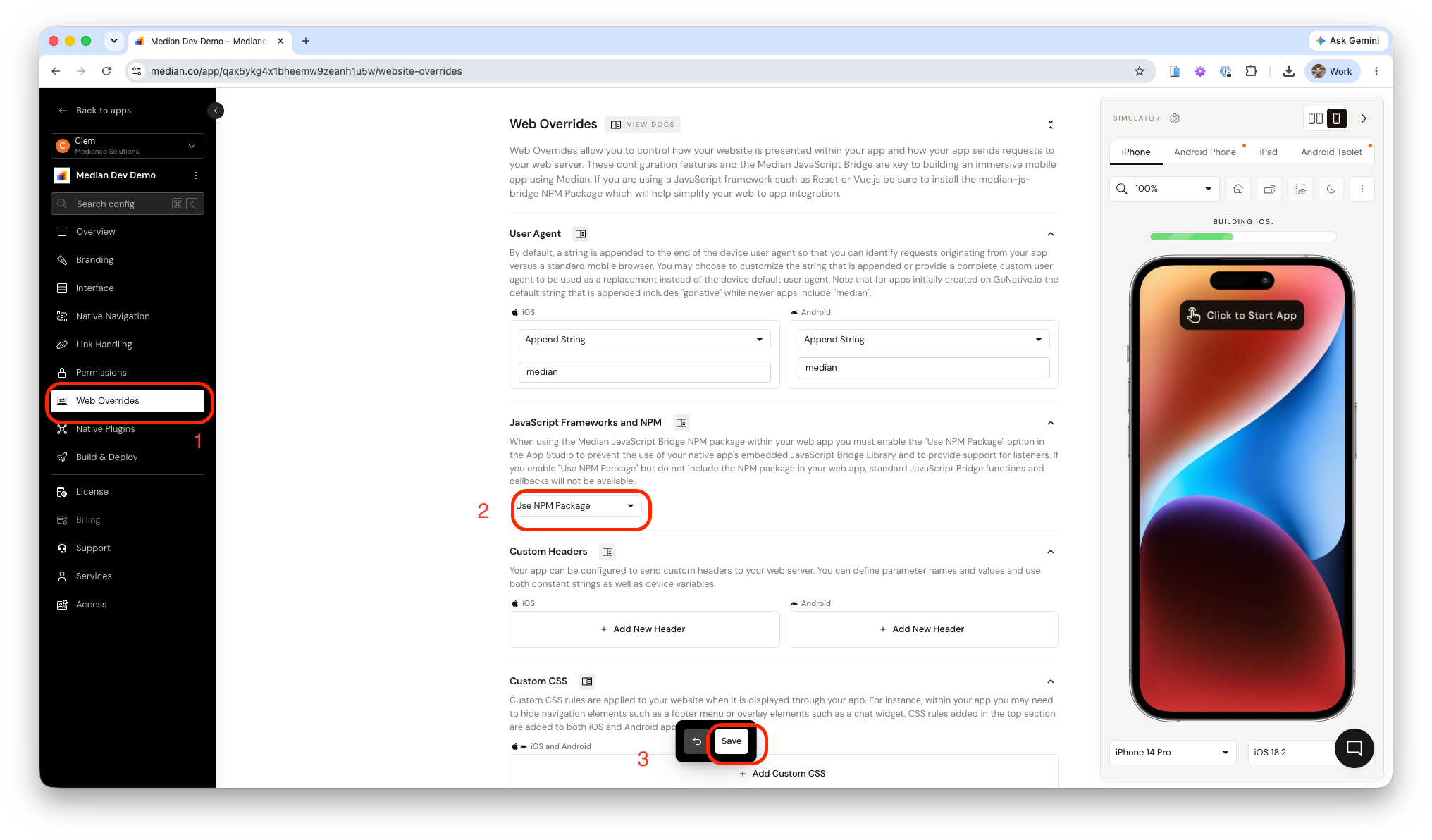
App Studio- JavaScript Frameworks and NPM
Enable app plugins
Go to the Native Plugins page, then add and enable these plugins:
- Health Bridge
- OneSignal
- Haptic Feedback
Then go to the Build & Deploy page and click Build all so the new plugins and NPM setting are included in the app.
Set up OneSignal push notifications
This guide uses OneSignal to send push notifications to the app. To set this up you’ll need:
- A OneSignal account (free to create)
- Your OneSignal App ID (OneSignal dashboard → Settings → Keys & IDs)
- An Apple Developer account (iOS / APNs) and/or a Google Firebase project (Android / FCM)
In Median App Studio
- Go to Native Plugins → OneSignal and enter your OneSignal App ID.
- Review the configuration settings and update as needed. Click the documentation chips for more information on the settings.
- Save and rebuild the app.
Follow our OneSignal documentation to set up OneSignal, generate and upload the necessary credentials, and learn how to send a test push notification. For best results, send test push notifications while testing on a physical device.
Build and test on a device
Testing requirementsDue to callouts to Apple services, the Health Bridge integration cannot be tested in the App Studio virtual simulator. We recommend testing on a physical device.
Follow the relevant documentation below to install the mobile app on a physical device and test the native features. For iOS, you can upload your app directly to your apple development account and register a test device in the App Studio.
iOS
Android
How to test?
- Sign up / log in inside the Median app
- Tap Connect Health / Refresh prompts for health permissions and accept
- Confirm the user's step count is saved to the database (Supabase)
- Confirm you receive Haptic feedback when the health data gets updated; after tapping the Refresh button
- Confirm you can subscribe to push notifications by accepting the device prompts
- In a normal browser, heath data metrics show up as "—" and there are attempts to execute commands on the Median JavaScript Bridge
When you’re ready for the stores, use Prepare your Lovable app for publishing.
Development checklist
App creation
- You’ve created the web app in Lovable
- You’ve created a Median app using your Lovable public URL
App configuration
-
In App Studio, Web Overrides → JavaScript Frameworks and NPM is set to Enable
-
The Lovable app imports
median-js-bridge -
Health Bridge, Haptic Feedback, and OneSignal plugins are enabled
-
OneSignal App ID is added in App Studio → Native Plugins → OneSignal
-
The Median app has been rebuilt after enabling the plugins and uses the latest build version
Mobile app testing
- You can install the mobile app on a physical device
- You can log in to the Lovable app inside the mobile app
- Health cards load real device data after Connect Health / Refresh.
- The app provides haptic feedback on successful health refresh
- The app can receive push notifications (after OneSignal credentials are configured)
- Profile push opt-in / opt-out works as expected
Troubleshooting
Health cards still show "—" inside the Median app
Health cards still show "—" inside the Median app
Confirm you are testing on a physical device, not the App Studio virtual simulator. Verify Health Bridge is enabled, then go to Build & Deploy and click Build all. In the app, tap Connect Health / Refresh, grant permissions when prompted, and confirm .isNativeApp()` is true. For more information on the Health Bridge plugin see this article.
Health permission prompt never appears
Health permission prompt never appears
Make sure the Connect Health flow only runs when Median.isNativeApp() is true and calls Median.healthBridge.requestPermissions(["steps", "heartRate", "activeEnergy"]) before getData. On iOS, the system may not report grant status from requestPermissions; the OS can prompt when data is first requested. If the user previously denied access, they must enable Health permissions in iOS Settings → Health / Android Health Connect settings.
Median JS Bridge functions are undefined or not working
Median JS Bridge functions are undefined or not working
Confirm the Lovable project installed median-js-bridge, and in App Studio go to Web Overrides → JavaScript Frameworks and NPM and set it to Use NPM package, then rebuild. Calling Health Bridge, OneSignal, or Haptics in a normal browser will fail; those APIs only work inside the Median app. For more information on the library, see NPM Package.
Haptic feedback does not trigger
Haptic feedback does not trigger
Verify the Haptic Feedback plugin is enabled in the App Studio and your app build is up to date. Haptics after the health data renders, using Median.haptics.trigger({ style: "notificationSuccess" }), and only when Median.isNativeApp() is true. Tap the refresh button to trigger another render. Haptics cannot be tested reliably in a desktop browser. See Haptics.
Push notifications are not arriving
Push notifications are not arriving
Confirm the OneSignal App ID is set under Native Plugins → OneSignal, APNs (iOS) and/or FCM (Android) credentials are configured in OneSignal, and the app has been rebuilt after. Test on a physical device. Check that the user opted in (first-login prompt and Profile toggle) per User consent management. For more information on OneSignal, see this article.
Lovable public URL does not load outside the editor
Lovable public URL does not load outside the editor
Publish the Lovable app again and copy the public URL from the publish settings (top right of the Lovable dashboard). Go to the URL in a private/incognito window. If it still fails, check Lovable’s publish status and any build/deploy errors before building the app in the App Studio.
App Studio preview looks fine but native features fail
App Studio preview looks fine but native features fail
The App won't display health data in the app studio simulator, only on a physical device or in an Xcode simulator using mock data. Reference these articles to Install a device build: Install Android APK, or Build iOS Binary) and retest Connect Health, haptics, and push on hardware.
What's the difference between median. and Median.?
What's the difference between median. and Median.?
These are the two ways reach the Median JavaScript Bridge from your website.
median. commands use the library injected into the app. Median. commands use the median-js-bridge NPM package. This guide uses the NPM package.
Updated about 1 month ago
Next Steps
After building and customizing your app, check out our resources on how to improve and publish your app.