
QR / Barcode Scanner
Easily integrate QR code and barcode scanning into your mobile app using the device camera. Ideal for use cases such as:
- In-store retail shopping
- Warehouse and inventory management
- Data center asset tracking
The Median QR/Barcode Scanner Native Plugin is built on top of customized, open-source libraries and offers full functionality without licensing fees or usage limits.
Developer DemoDisplay our demo page in your app to test during development https://median.dev/qr-barcode/
Underlying Open-Source Technologies
Android: Zebra Crossing library at https://github.com/zxing/zxing
iOS: hyperoslo library at https://github.com/hyperoslo/BarcodeScanner
UI Example
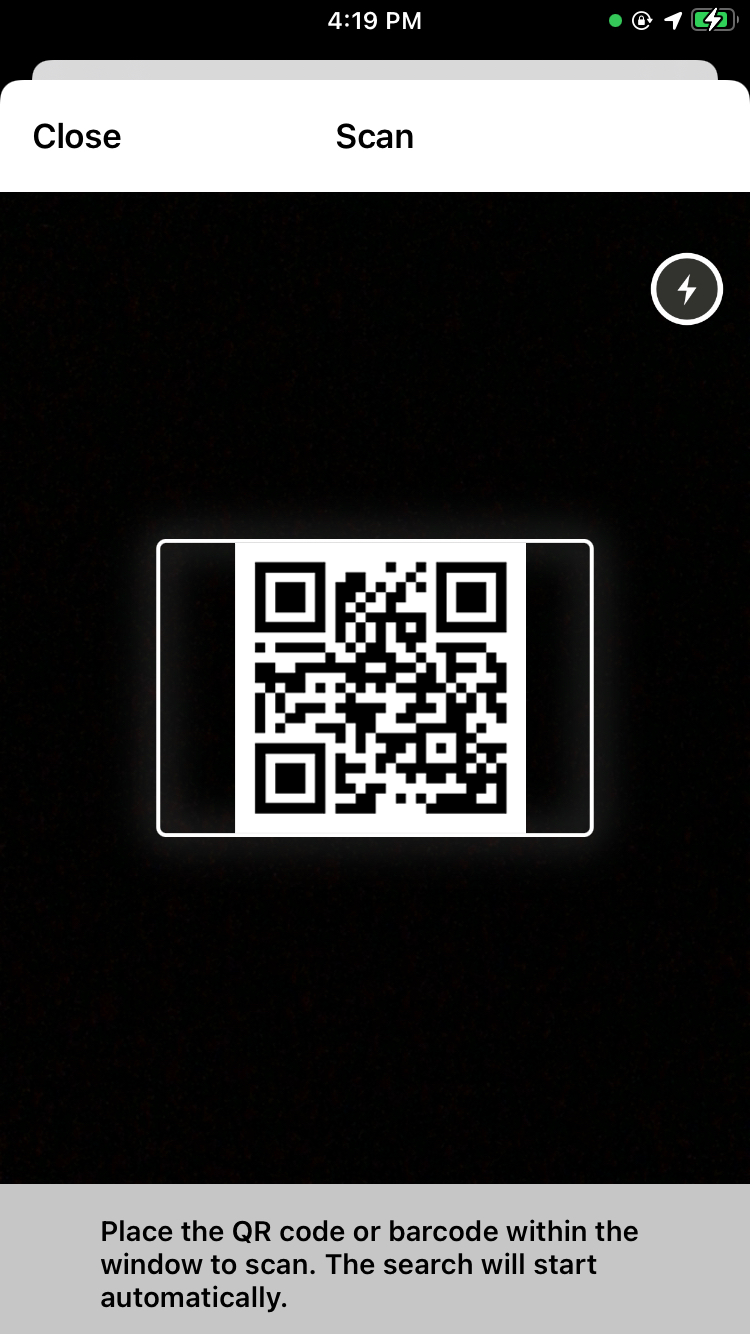
|
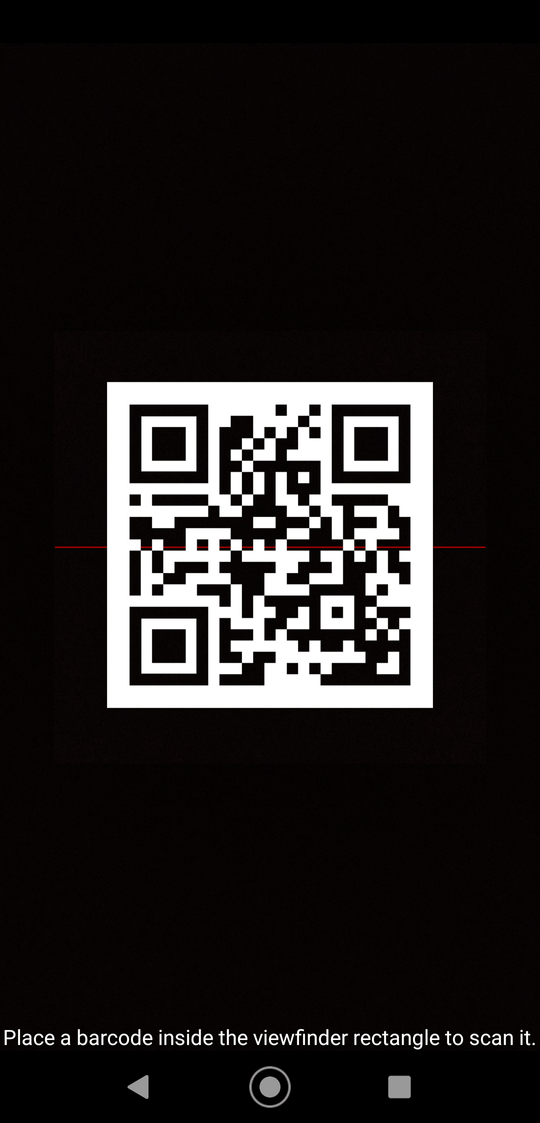
|
| iOS | Android |
Implementation Guide
Once the QR/Barcode Scanner Native Plugin has been added to your app, you may use the following Median JavaScript Bridge commands to access its functionality.
Start a QR/Barcode Scan
Use median.barcode.scan() to trigger the native scanner. By default, all supported formats trigger a scan. You can pass a formats array to restrict which code types can trigger a scan. If formats is omitted or empty, all supported types are scanned.
The method supports both callback and Promise-based approaches:
// Callback example
median.barcode.scan({
  formats: ['QR_CODE', 'EAN_13'],
  callback: process_barcode
});

function process_barcode(data) {
  if (data.success) {
    alert('Got barcode: ' + data.code);
  }
}

// Promise example
median.barcode.scan({ formats: ['QR_CODE'] }).then(function (data) {
  if (data.success) {
    alert('Got barcode: ' + data.code);
  }
});

// Scan all supported formats (default)
median.barcode.scan().then(function (data) {
  if (data.success) {
    alert('Got barcode: ' + data.code);
  }
});
The native scanner UI will launch within your app. Upon scan completion, focus will return to the webview where an object in the format below will be returned.
{
  success: true,      // boolean — true if a code was scanned
  type: "STRING",     // Symbology (e.g. 'qr', 'code128')
  code: "STRING",     // The actual scanned value
  error: "STRING"     // Error message if unsuccessful
}
Learn more about using promises and the Median JavaScript Bridge.
Supported formats
- QR Codes (2D): QR_CODE, DATA_MATRIX, AZTEC, PDF_417
- Barcodes (1D): EAN_13, EAN_8, UPC_A, UPC_E, CODE_39, CODE_93, CODE_128, ITF, CODABAR
Customizing the Scanner Prompt
You can customize the message shown to users during scanning by setting a prompt in the plugin settings. To do this, go to Native Plugins > QR / Barcode Scanner, as shown below.
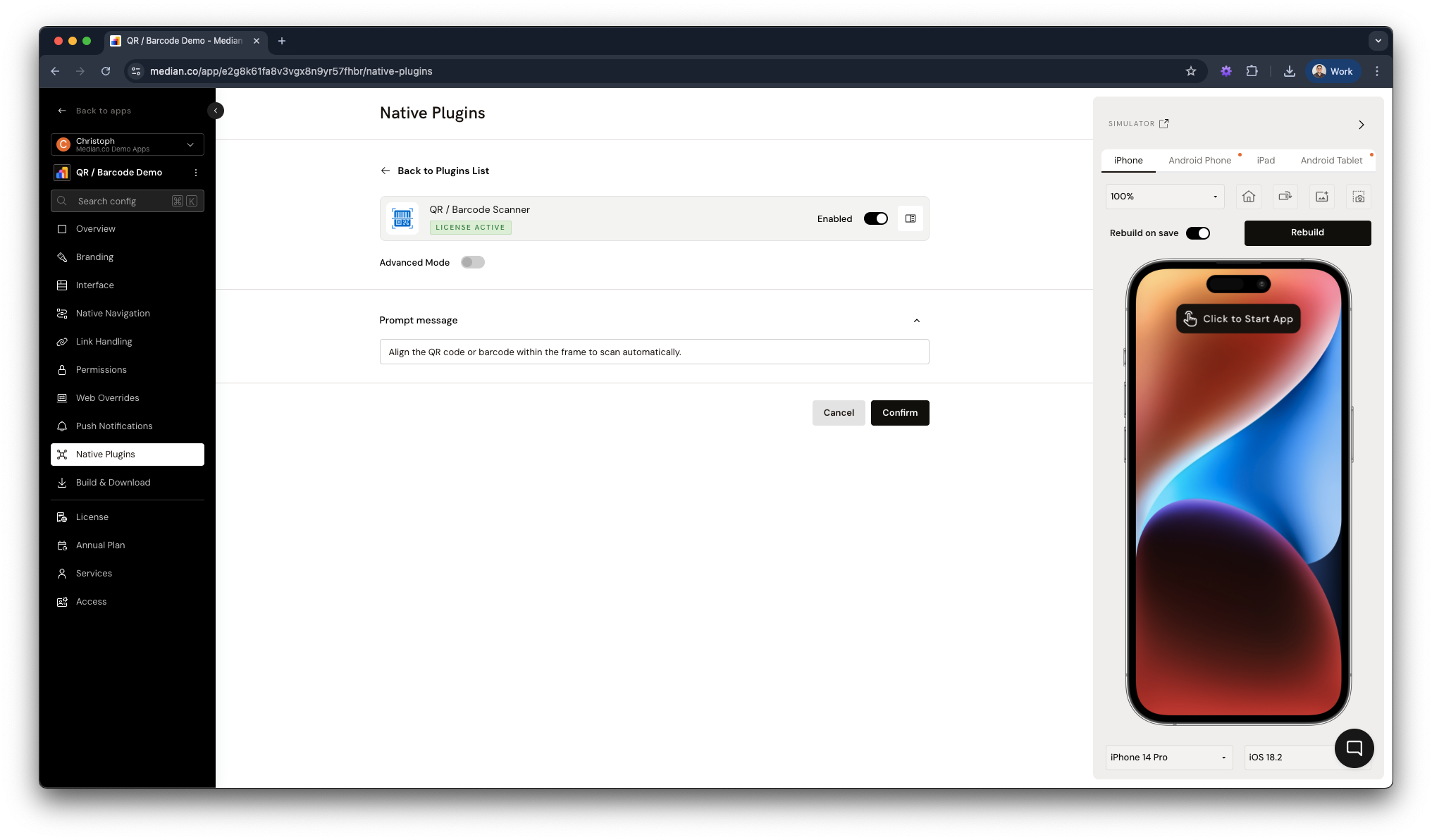
Set custom prompt message on runtime
You can also dynamically set the prompt message in-app using the setPrompt() method:
median.barcode.setPrompt('Align the QR code or barcode within the frame to scan automatically');Updated about 1 month ago