
Sending Push Notifications
Learn about the different options for sending push notifications.
Once OneSignal is connected to your app, you have two ways to send notifications: the OneSignal dashboard for manual delivery, and the REST API for automated or programmatic delivery. This guide covers how the two options relate and configurations such as deep-linking, custom sounds, and where to find your keys.
For server-side and event-triggered notifications, see Programmatic notifications.
Dashboard vs. REST API
| Use the dashboard when... | Use the REST API when... |
|---|---|
| Sending a one-time campaign or announcement | Notifications are triggered by user actions or events |
| Testing that push delivery is working | You're sending transactional messages (order updates, alerts) |
| Delivering notifications to a segment | Delivering notifications at scale, automatically |
| You don't have a backend set up yet | Your backend already handles messaging logic |
Most teams use both the dashboard for broadcasts and campaigns, and the API for transactional and behavioral messages.
Finding your App ID and API key
You'll need these for both App Studio setup and any server-side API calls.
| Key | Where it's used in Median |
|---|---|
| App ID | App Studio plugin configuration, REST API requests |
| REST API Key | Server-side requests to the OneSignal API — keep this private |
In the OneSignal dashboard, go to Settings > Keys & IDs for your app. For more details on where these appear in the OneSignal UI, see OneSignal: Keys & IDs.
Sending from the dashboard
You can create and send push messages from the OneSignal dashboard. For step-by-step instructions on creating a message, setting the audience, and configuring delivery or scheduling, see OneSignal: Send push notifications – Dashboard.
The rest of this page focuses on what works specifically in Median.co apps when sending from the dashboard or API.
Deep-linking to a specific page
By default, tapping a notification opens your app's home screen. To send users to a specific page, use the targetUrl field in the Additional Data section, not the Launch URL field.
This is an important distinction. The two URL fields behave very differently in Median.co apps:
| Field | Behavior |
|---|---|
targetUrl (in Additional Data) | Opens the URL inside your app with full Median JavaScript Bridge support |
| Launch URL field | Opens the URL in a pop-up browser window inside the app. This does not support full in-app functionality |
To add targetUrl:
- In the notification composer of the OneSignal Dashboard, scroll to Additional Data.
- Add a key of
targetUrland set the value to the URL you want to open.
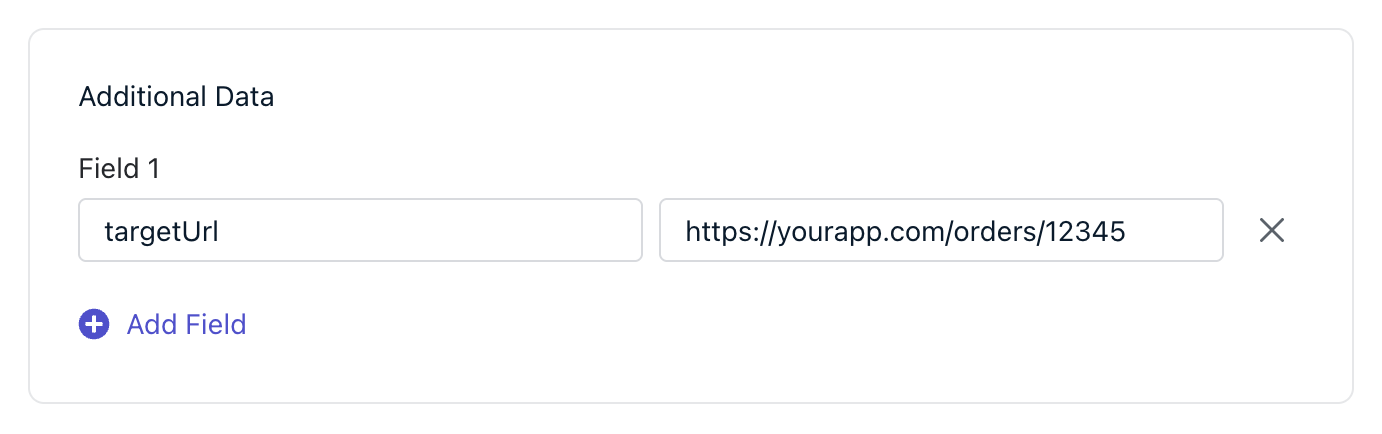
The app will navigate to that URL when the user taps the notification, just as if they had navigated there directly inside the app.
Building more complex tap behavior?You can pass additional data fields alongside
targetUrlto trigger custom JavaScript logic when the notification is opened. See Handling notification taps for the full pattern.
Learn more about opening URLs via push notifications in the OneSignal Documentation{/_<i class="fa fa-external-link" style="paddingLeft: 5px"></i>_/}.
Adding custom sounds and notification channels
You can attach a custom sound to any notification you send from the dashboard. Custom sounds must be uploaded through App Studio first, they're automatically named custom_sound_1, custom_sound_2, and so on in the order they're uploaded. You then select or reference those names in the OneSignal dashboard or API.
For full details on uploading sounds and the platform-specific file format requirements, see Notification customization.
Android noteOn Android, custom sounds are tied to notification channels (categories). You'll need to configure a notification channel with the desired sound before it can be selected in the dashboard. OneSignal's notification categories guide walks through this setup.
Updated about 1 month ago