
Quickstart Guide
Turn your website into an app
Follow these steps to create a fully functional native iOS and Android app from your existing website.
Turn your website into an app in seconds
Before You Start
You'll need two things to build your app: a Median App Studio account and a website that's publicly accessible online.
Don't have an account yet?
- Visit median.co
- Click "Get Started" or "Build for Free"
- Sign up with your email or Google account
- Verify your email address
Is your website live?
Your app loads your website from its URL, so the site must be reachable over the internet. URLs such as localhost, 127.0.0.1, or local network addresses (e.g. 192.168.x.x) won't load in the App Studio simulators or on your users' devices.
If you're building with an AI app builder such as Lovable, Replit, or Base44, your project already has a public URL once it's published. Use that URL and continue to Step 1.
If you're still developing locally, deploy your site to a hosting provider first. Many offer free tiers and one-click deploys from GitHub:
- Vercel - Next.js, React, and static sites
- Netlify - Static sites and single-page apps
- Cloudflare Pages - Static sites and edge functions
- Render Pages or Railway - Full-stack apps with a backend or database
To deploy your site:
- Push your project to a Git repository such as GitHub.
- Create an account with a hosting provider and import your repository.
- Confirm the build settings (most providers detect these automatically).
- Click "Deploy" and copy your public URL (e.g.
https://your-app.vercel.app).
Testing a local siteFor quick testing only, a tunneling tool such as ngrok or Cloudflare Tunnel can give your local server a temporary public URL. Tunnel URLs may change between sessions and require your computer to stay online, so always use a permanently hosted URL for apps you distribute or publish. If you're testing with Android Studio, see Connect Android Studio Simulators to Localhost Websites.
Step 1: Create your app
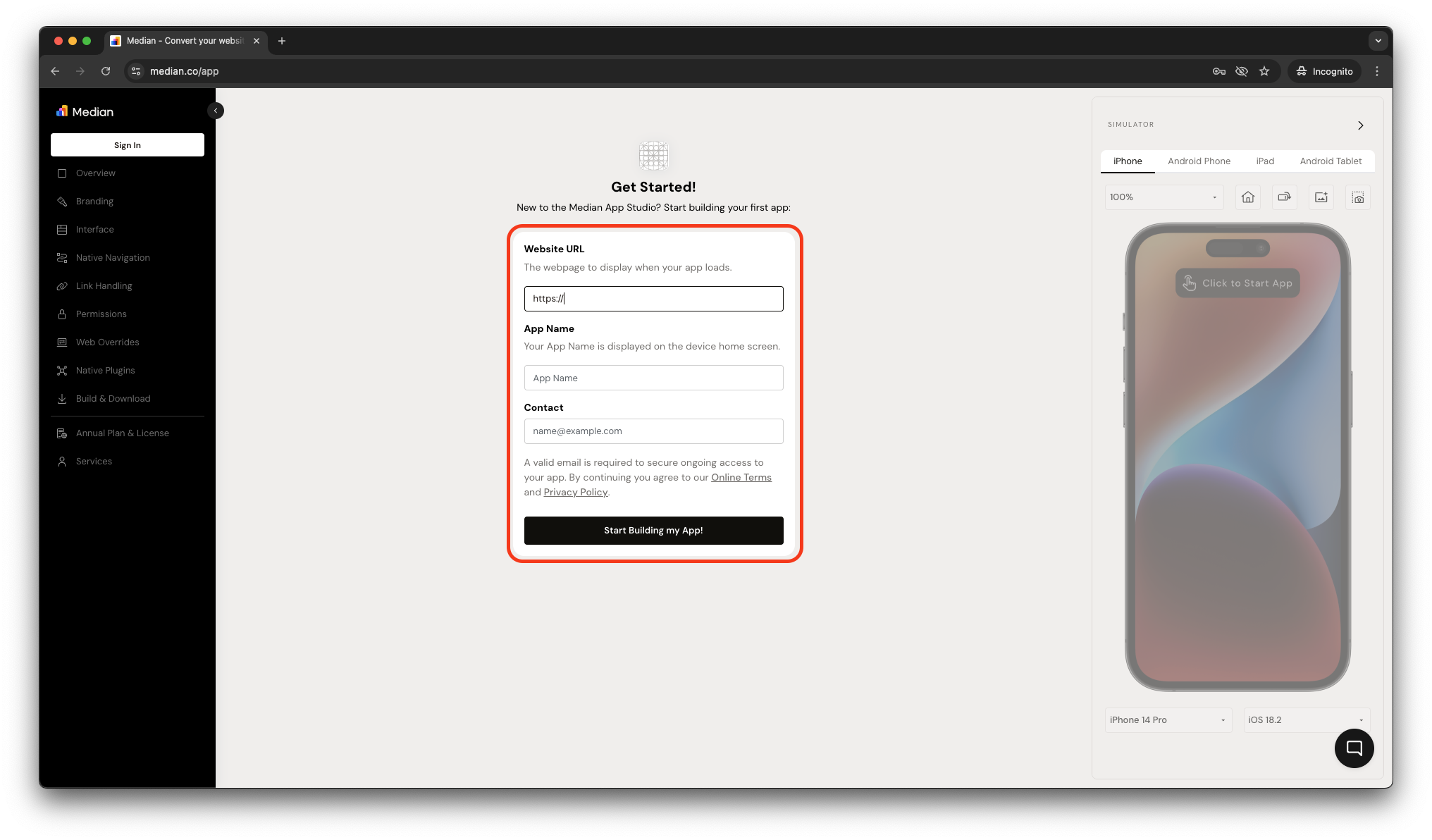
To create your app, provide the following details:
Website URL - This will be the initial URL loaded when the app starts. Ensure your website is mobile-optimized for the best user experience. The URL can be updated at any time.
App Name - A default name will be suggested based on your website's title, but you can update it at any time.
Contact Email - A valid email is required to manage your app and team access.
Once you've confirmed the details above, click "Start Building My App!" to generate your app preview. You'll receive an email with your private management link so you can return to your app anytime.
<Anchor target=
Step 2: Preview your app
Once your app is created, test it using our online simulators.
Verify your app:
- Select iPhone or Android simulator.
- Confirm your website loads correctly.
- Test the navigation and core functionality.
The simulators let you experience your app exactly as users will see it on their devices.
Step 3: Make it feel native
Your app works, but let's add your brand on the home screen and at launch, then add a native gesture so it feels like a real mobile app.
Upload your app icon
Your app icon is your app’s identity on the device home screen and in places such as settings (App Icon).
- Navigate to Interface → Branding.
- Under App Icon, upload a square PNG or JPG.
- Use 1024×1024 pixels so the icon stays sharp on all devices.
On iOS and Android, transparent areas are filled with a white background, and the system applies subtle corner rounding. For platform guidance, see Apple’s app icon guidelines and Google’s Android icon guidance.
Configure the splash screen
The splash screen appears when users open your app from the home screen or return to it from the background. It stays visible while your web content loads and until the page fires DOMContentLoaded, so the handoff to your site feels smooth (Splash Screen).
- In Interface → Branding, open the Splash Screen settings.
- Choose a style: App Icon (your icon centered) or Custom Image (upload a dedicated splash image).
- Set background colors for Light Mode and Dark Mode as needed.
- Use Match iOS & Android to share one configuration, or adjust iOS and Android separately.
- Preview the splash for iOS and Android in light and dark modes in App Studio.
Platform notes: On iOS, App Studio can auto-generate the launch storyboard from your app icon, or you can use a custom image. On Android 12 and later, the system shows a circular cropped image in the center—use a simple, low-detail graphic (similar to your app icon) rather than dense text. To test slow loads during development, you can point your app at Median’s demo page: median.dev/splash-screen-transition.
Enable Pull-to-Refresh
- Navigate to Interface → Gestures.
- Toggle on Pull-to-Refresh.
- Return to the simulator and pull down from the top of the screen.
Your app now shows your branding at launch and refreshes content with a native gesture that mobile browsers don’t provide. That’s part of what separates a website from a native app.
Step 4: Build your app
You now have a fully functional native app.
- Navigate to Build & Deploy.
- Click "Build All".
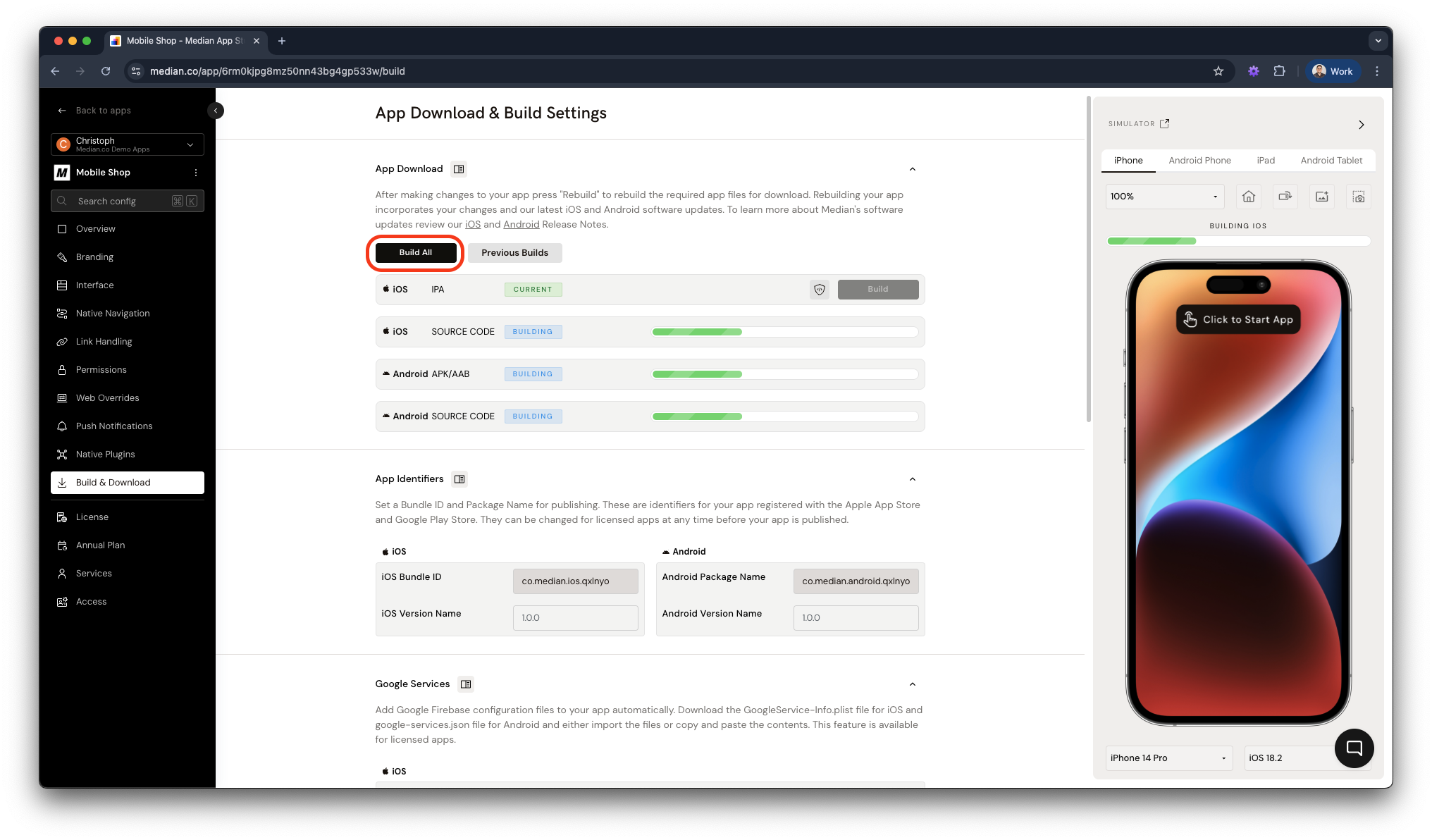
Median App Studio - App Build
Median.co will generate native iOS and Android builds of your app. You'll receive an email when the builds are ready to download.
For an iOS App Store launch, connect your Apple Developer account through the App Store Connect API in App Studio and set Upload to App Store Connect to Automatic. Median can upload your distribution build directly to App Store Connect for TestFlight testing and App Review submission without requiring a Mac, Xcode, or Apple Transporter.
🏁 Your app is ready
Congratulations! You've built your first native mobile app.
Next, explore our recommended resources to add more native features and optimize your app for mobile users.
Next Steps
Customize your app
Want to add your brand identity? Configure app icons, splash screens, theme colors, and more in the Branding section.
Add Native Features
Push notifications
Re-engage users even when they're not using your app. Our Push Notification Overview covers setup with OneSignal, which offers Median customers unlimited free push notifications.
JavaScript bridge
Access native device functionality from your website using the Median JavaScript Bridge. Add biometric authentication, camera access, device sensors, and more - all with JavaScript.
Native navigation
Replace your web navigation with Native Navigation Menus that follow Apple and Google design guidelines. Support for tab bars, side drawers, and custom icons.
Native plugins
Browse our Native Plugin Library to add third-party services and device features. Access analytics, authentication, payment processing, and more.
Optimize for mobile
Detect app usage
Serve different content to app users vs. web users. Our Detecting App Usage guide shows you how to identify when your website is running inside your native app.
Mobile optimization
Learn best practices for mobile-responsive design, touch interactions, and performance optimization in our documentation.
Build & Test
Ready to test on a real device? Review our Build & Test Overview for advanced testing options and configuration.
Publish your app
When you're ready to launch, our Publishing Guide walks you through Apple App Store and Google Play Store requirements. For iOS self-publishing, set Upload to App Store Connect to Automatic, test the processed build with TestFlight, then submit the build for App Review. Or use our Publishing Service and let our team handle it for you with a 100% approval guarantee.
Updated 21 days ago