
Handling Notifications Taps
Learn about configuring notification taps
When a user taps a notification you can route them to a specific page, pass custom data to trigger JavaScript logic, or combine both. This guide covers the two main patterns and the key distinction that trips most developers up.
How it works
Notifications can include additional data. If you've included a targetUrl in the notification data, the app navigates to that URL. If you've included custom key-value pairs, it calls your JavaScript handler function with that data.
You configure both of these in the Additional Data section of any notification, whether you're sending from the OneSignal dashboard or the REST API.
Diagram: Notification tap decision flow
Diagram: Notification tap decision flow
flowchart TD
    A[User taps notification] --> B[App opens]
    B --> C{Payload contains targetUrl?}
    C -->|Yes| D[Navigate to targetUrl inside app]
    C -->|No| E{Payload contains custom data?}
    D --> F{Also has custom data?}
    F -->|Yes| G[Call JS handler with data]
    F -->|No| H[Done]
    E -->|Yes| G
    E -->|No| I[Open app home screen]
    G --> H
Handling notification taps (deep linking)
To deep-link a user to a specific page when they tap a notification, add targetUrl to the Additional Data section of your notification:
Key:   targetUrl
Value: https://yourapp.com/inbox/thread/482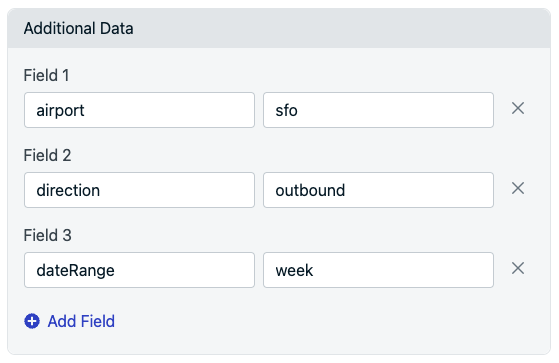
Add Additional Data to send to your app
Note: targetUrl is a reserved key. As soon as Median sees it in the payload, it navigates the app to that URL automatically.
targetUrl vs. Launch URL
OneSignal has two different URL fields, and they behave very differently:
| Field | Where to set it | Behavior |
|---|---|---|
targetUrl | Additional Data section | Opens the URL inside your app with full Median JavaScript Bridge support; the correct choice for in-app navigation |
| Launch URL | Launch URL field in the composer | Opens the URL in a popup browser window inside the app; limited functionality, no JavaScript Bridge access |
Always use targetUrl in Additional Data for deep-linking. The Launch URL field is designed for opening external web pages in a browser-like pop-up; it doesn't support in-app navigation features, JavaScript Bridge calls, or native plugin interactions.
Sending custom data to JavaScript
Separately from navigation, you can attach any custom key-value pairs to Additional Data and read them in JavaScript once the notification is tapped and the app opens. This is the mechanism to use when the tap needs to trigger app logic rather than (or in addition to) a page change — for example, updating app state, firing an analytics event, or pre-filling a search based on the notification content.
Define a handler function on your page. Median calls it automatically when a notification is opened:
// Define this function on your page — Median calls it automatically when the app >opens from a tap
function median_onesignal_push_opened(data) {
 console.log(JSON.stringify(data));
}

// Example payload passed to the handler
{
 "airport": "sfo",
 "direction": "outbound",
 "dateRange": "week"
}
Combining navigation and data
A single notification tap can both navigate and trigger your handler. Include targetUrl alongside your custom keys in Additional Data:
targetUrl:   https://yourapp.com/inbox/thread/482
airport:     sfo
direction:   outbound
Median navigates to targetUrl first, then calls median_onesignal_push_opened with the full data payload so your page can react after the navigation completes.
Frequently Asked Questions
Do I need to write code to make targetUrl work?
Do I need to write code to make targetUrl work?
No - targetUrl is handled natively by Median and the app navigates automatically.
Can I use targetUrl and custom data in the same notification?
Can I use targetUrl and custom data in the same notification?
Median navigates to targetUrl and then calls median_onesignal_push_opened with the complete payload.
Why isn't my Launch URL opening inside my app the way I expect?
Why isn't my Launch URL opening inside my app the way I expect?
Launch URL opens in a separate popup browser window without JavaScript Bridge or native plugin access. For in-app navigation, use targetUrl in Additional Data instead.
What happens if I use
What happens if I use
targetUrlis a reserved key in Additional Data; including it automatically triggers in-app URL navigation when the notification is tapped. If you want to conditionally navigate to a URL based on your own JavaScript logic instead, use a different key name (e.g.,openUrl, deepLink) and handle the navigation yourself inside median_onesignal_push_opened.
Updated 30 days ago