
Google Firebase Analytics
Unlock real-time insights, user behavior tracking, and integration with other Firebase services.
Google Firebase Analytics provides powerful insights into user behavior within your app, helping you understand how users engage and interact. It offers essential app metrics such as average revenue per user (ARPU), active users, retention reports, and event counts, along with detailed user properties like device type, app version, and OS version. By combining these data points, Firebase Analytics enables data-driven decision-making to optimize app performance and user experience.
Why use Google Firebase Analytics?
- Real-time insights: User behavior tracking and integration with other Firebase services.
- Essential metrics: ARPU, active users, retention, event counts, device type, app version, OS version.
- Consent management: Configure ad storage, analytics storage, ad user data, and ad personalization at runtime.
- JavaScript Bridge: Enable/disable logging, set user ID and properties, log custom events and screen views, and use eCommerce events.
Prerequisites
- A Median.co app with JavaScript Bridge enabled
- A Google Firebase project (Firebase Console)
- Android Package Name (from Median App Studio > Build & Deploy > App Identifiers) for Android
- Apple Bundle ID (from App Studio > Build & Deploy > App Identifiers) for iOS
-
google-services.json(Android) andGoogleService-Info.plist(iOS) from Firebase after app registration - Plugin enabled in App Studio (Native Plugins > Google Firebase Analytics)
Developer DemoDisplay our demo page in your app to test during development https://median.dev/firebase-analytics/
When to use this plugin
Firebase Analytics is essential for apps that need to:
| Use Case | Example |
|---|---|
| User behavior | Understand how users engage and interact with the app |
| Metrics | ARPU, active users, retention, event counts |
| Consent | Comply with EU User Consent Policy (deny/allow for ad and analytics storage) |
| Custom events | Log custom events and screen views via the JavaScript Bridge |
| eCommerce | Log add to cart, remove from cart, wishlist, view item (Firebase eCommerce events) |
What you'll do
- Firebase project: Create or open a project and register Android and iOS apps (Google Firebase Project Setup).
- Upload configs: Add
GoogleService-Info.plistandgoogle-services.jsonin App Studio (Build & Deploy > Google Services), set consent defaults, enable the plugin, and rebuild (Plugin setup). - Runtime APIs: Use
median.firebaseAnalytics.event.*for consent, collection, user, events, screens, and eCommerce (JavaScript bridge functions). - Verify: Use Testing Checklist and the Firebase / Google Analytics consoles.
Implementation Guide
Google Firebase Project Setup
If you do not have an active Google Firebase project, you may need to create a new project after signing into your Google Firebase Account.
Once your project is setup you can start the integration by choosing either the iOS or Android logo in your Project Overview screen.
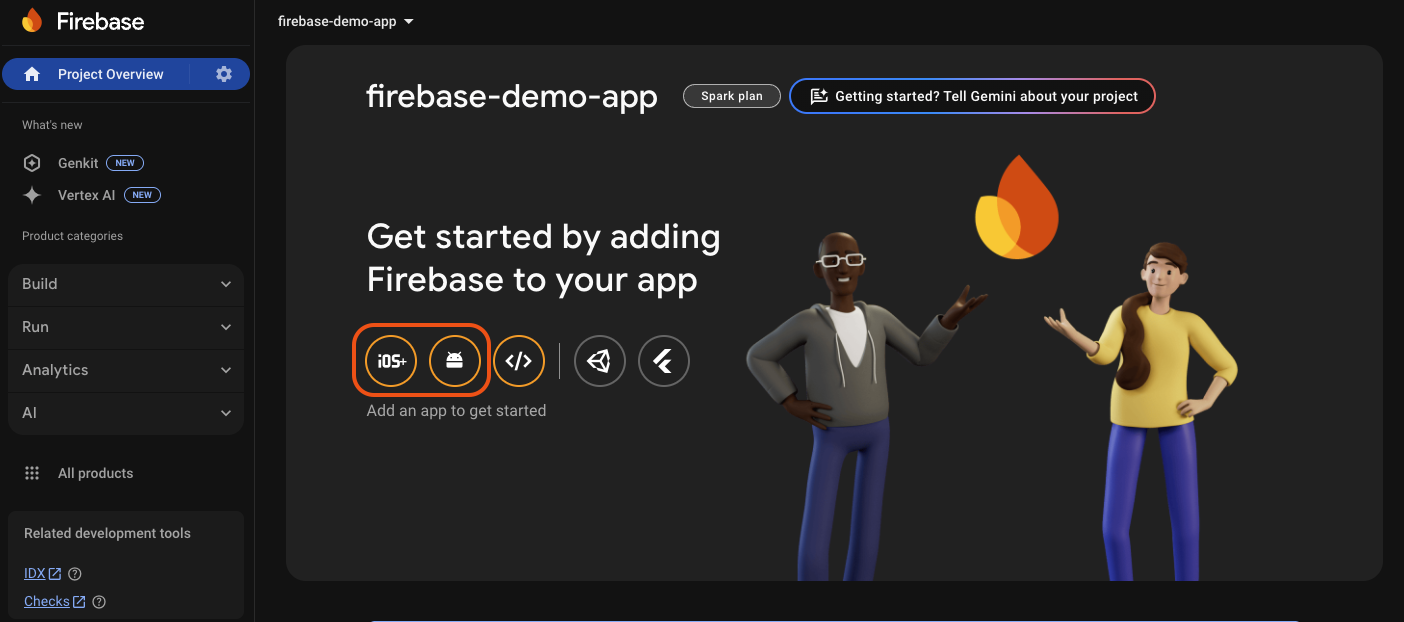
Google Firebase - Project Overview
Register your app in Firebase
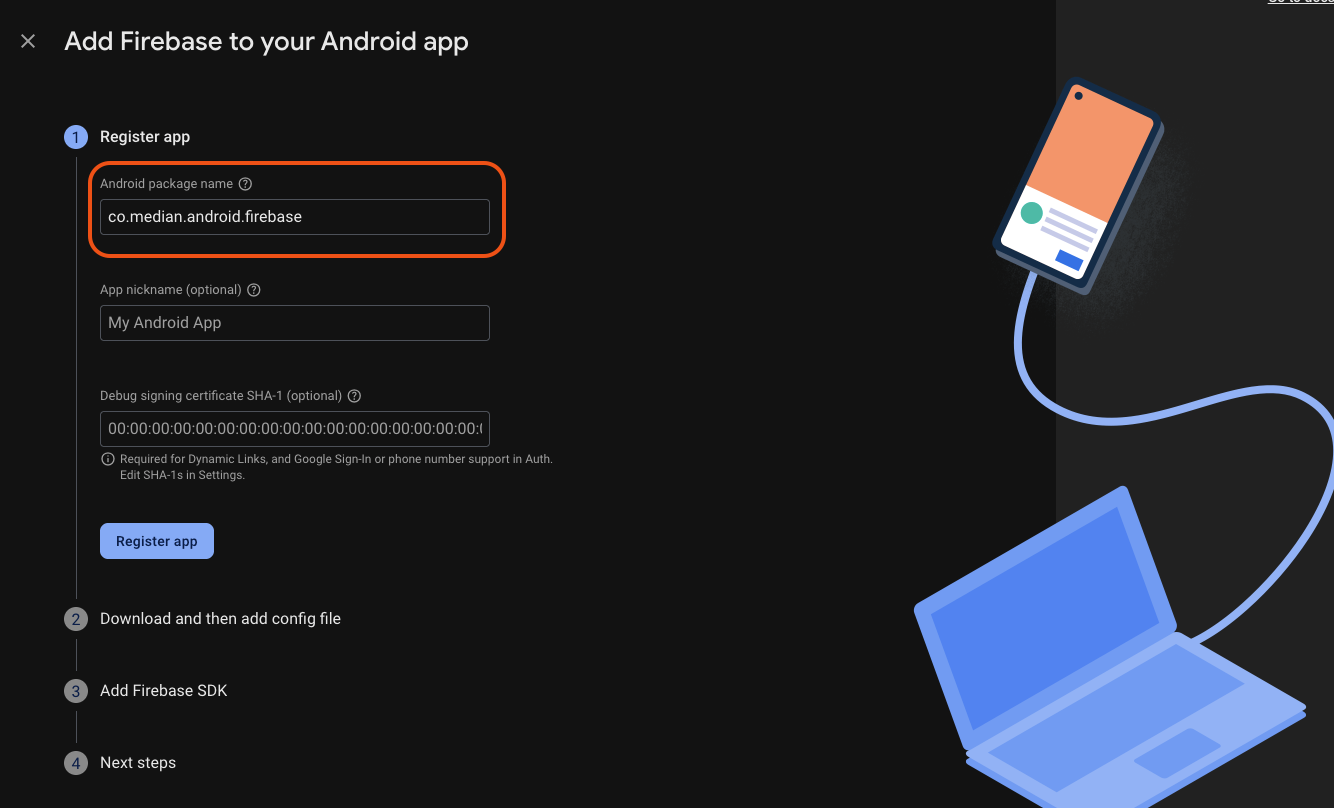
Provide the Android Package Name (found in Median App Studio under Build & Deploy > App Identifiers). See App Identifiers.
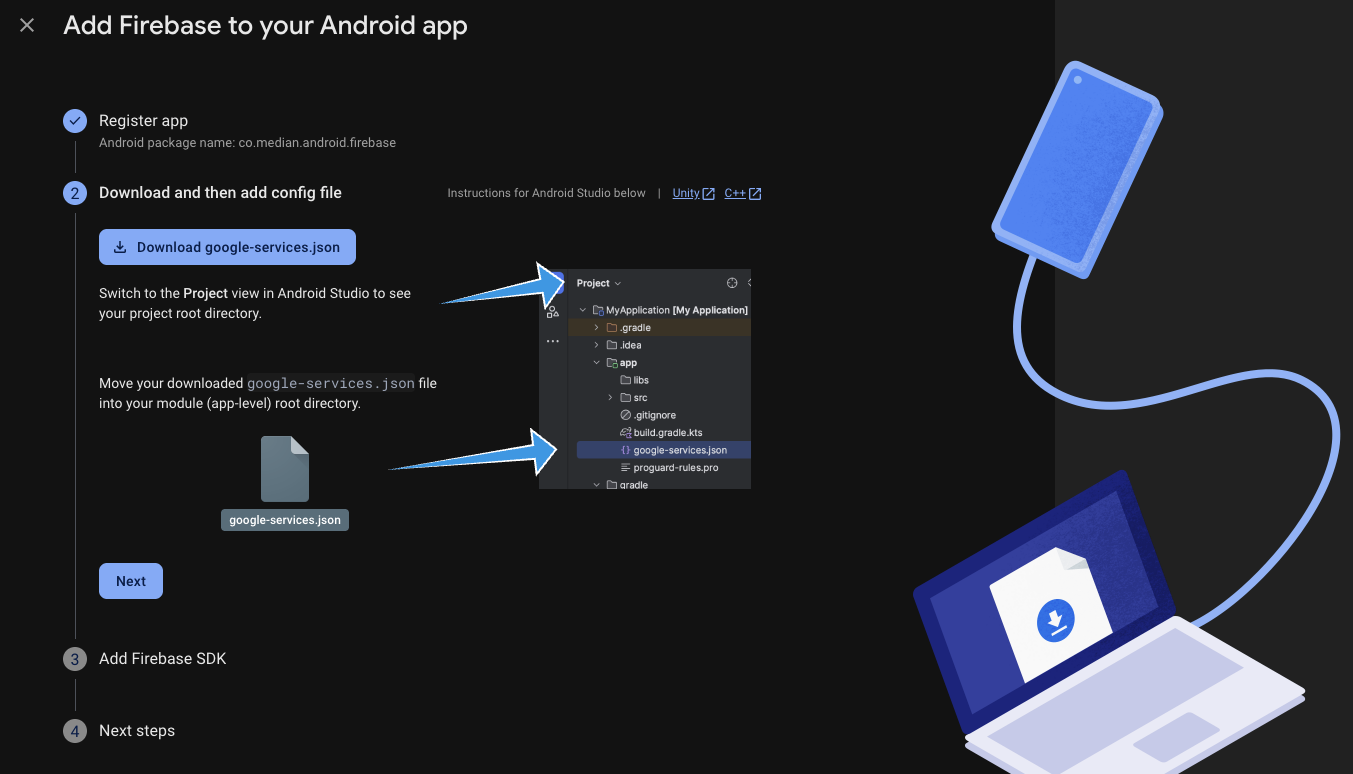
Once registered, download google-services.json for the App Configuration step. You do not need to add the Firebase SDK manually; the plugin performs that step.
Register your app in Firebase
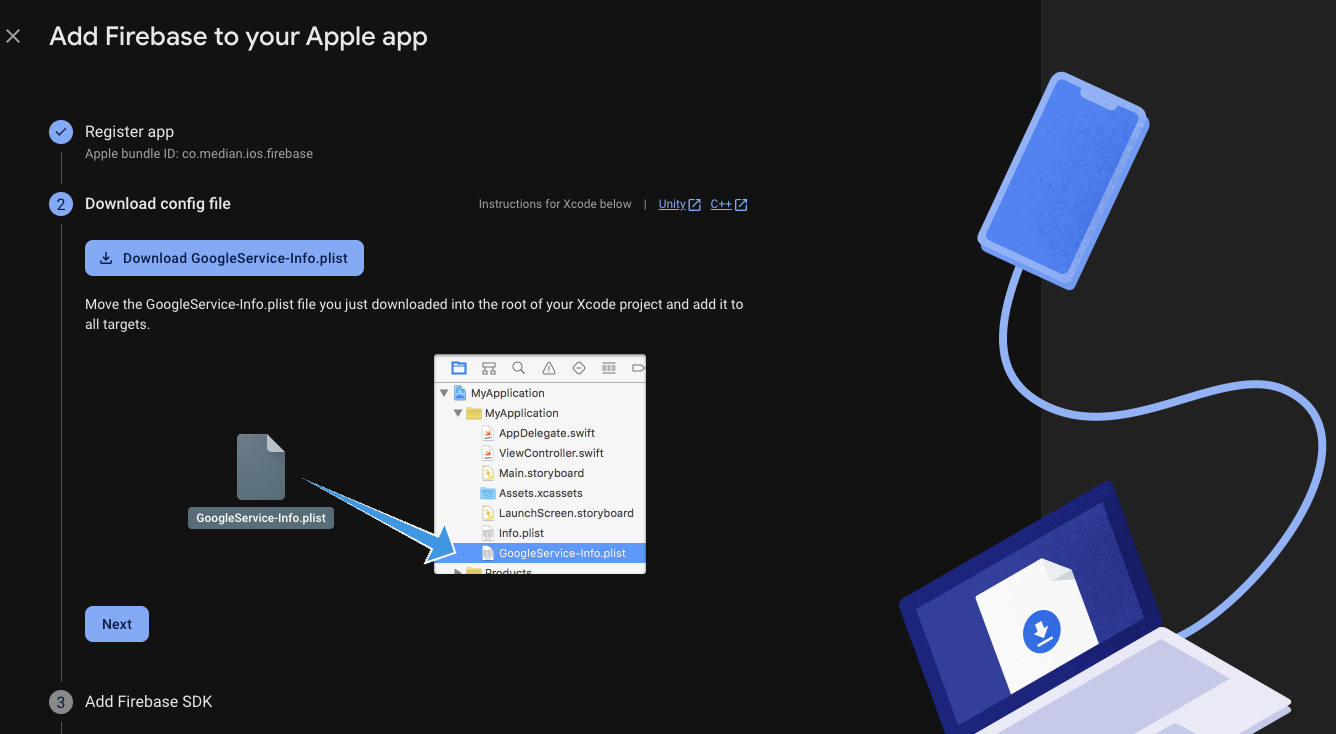
Provide the Apple Bundle ID (found in App Studio under Build & Deploy > App Identifiers). See App Identifiers.
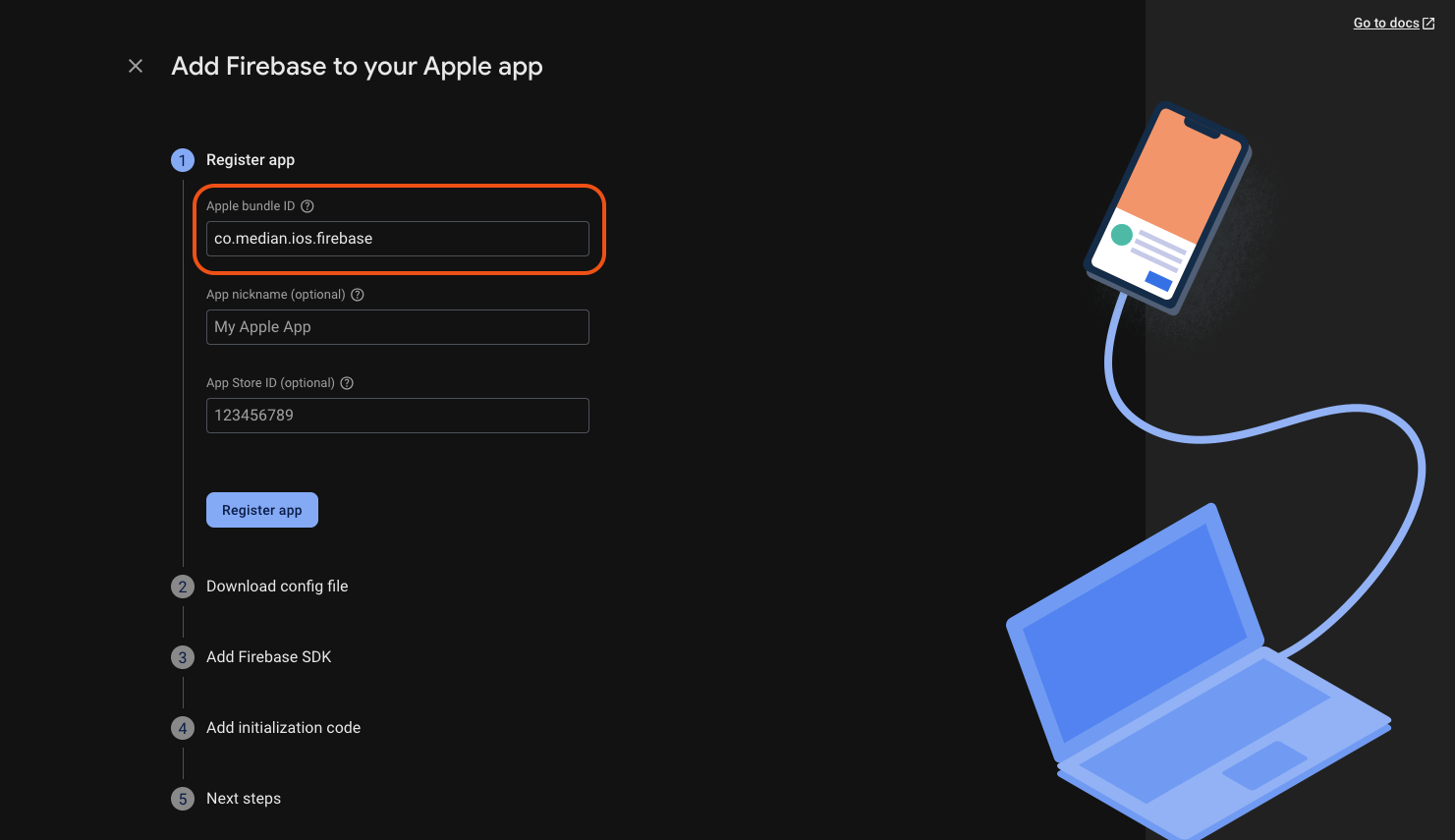
Once registered, download GoogleService-Info.plist for the App Configuration step. You do not need to add the Firebase SDK or initialization code; the plugin performs those steps.
Enable the Plugin
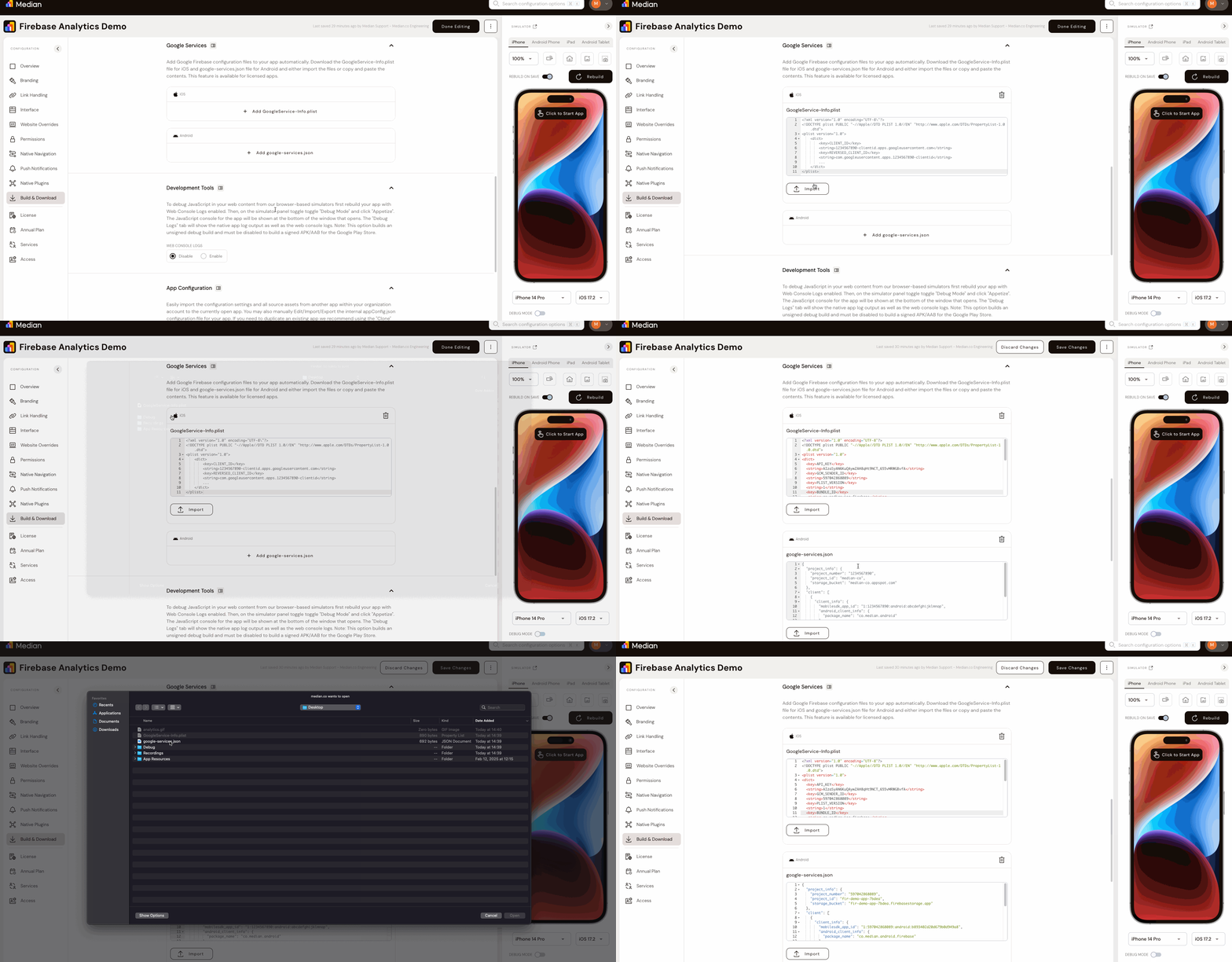
- Google Services Configuration: Upload GoogleService-Info.plist (iOS) and google-services.json (Android) in Build & Deploy > Google Services in App Studio. You can upload files from Firebase or copy and paste their contents.
- Consent Configuration: In Plugin Settings, set your default consent value: Follow EU Consent Policy (deny for users in regions subject to the EU User Consent Policy), Deny (deny consent), or Allow (grant consent).
- Plugin Activation: Enable the plugin in App Studio via Native Plugins > Google Firebase Analytics > Settings.
Finalizing the App Build
Once you upload the configuration files, save the changes and rebuild your app.
JavaScript Bridge Functions
Consent Management
Configure consent for ad storage, analytics storage, ad user data, and ad personalization at runtime.
median.firebaseAnalytics.event.setConsent({
  adStorage: true | false,
  analyticsStorage: true | false,
  adUserData: true | false,
  adPersonalization: true | false,
});
Parameters:
| Parameter | Type | Required | Description |
|---|---|---|---|
| Consent object | object | Yes | Boolean keys: adStorage, analyticsStorage, adUserData, adPersonalization |
Analytics Management
Enable or disable all event logging (including automatic app events). Logging is enabled by default. Effect is persistent; once disabled, re-enable by calling again with true.
median.firebaseAnalytics.event.collection({ enabled: BOOLEAN });Parameters:
| Parameter | Type | Required | Description |
|---|---|---|---|
enabled | boolean | Yes | Wrapped in { enabled: ... } |
User Management
Set a custom user ID (e.g. after login when the user is no longer anonymous).
median.firebaseAnalytics.event.setUser({ ID: STRING });Parameters:
| Parameter | Type | Required | Description |
|---|---|---|---|
ID | string | Yes | Passed as 'ID' on the object |
Set User Property
Associate additional properties with the user.
median.firebaseAnalytics.event.setUserProperty({ key: STRING, value: STRING });Parameters:
| Parameter | Type | Required | Description |
|---|---|---|---|
key / value | string | Yes | Property name and value |
Event Logging
Set default event parameters logged alongside other information for log event.
median.firebaseAnalytics.event.defaultEventParameters(data);
//data is an object of key-value pairs converted into bundle params
Parameters:
| Parameter | Type | Required | Description |
|---|---|---|---|
data | object | Yes | Key-value pairs |
Log Event
Log a custom event. The data object is flexible.
median.firebaseAnalytics.event.logEvent({ event: STRING, data: OBJECT });Parameters:
| Parameter | Type | Required | Description |
|---|---|---|---|
event | string | Yes | Event name |
data | object | No | Arbitrary event payload |
Log Screen
Log a customized screen view event (in addition to default logging).
median.firebaseAnalytics.event.logScreen({ screen: STRING });Parameters:
| Parameter | Type | Required | Description |
|---|---|---|---|
screen | string | Yes | Screen name |
eCommerce Events
Firebase offers a special command set that is tailored for ecommerce integrations. You can learn more about the commands in the Firebase Measure ecommerce documentation.
Log item views
median.firebaseAnalytics.event.viewItem({
  data: JsonProductItem,
  currency: STRING,
  price: FLOAT,
});
// JsonProductItem is an encoded map of ProductItem*
// currency is the 3-letter currency code in upper-case
// price is the cost per item in the given Currency
Log wishlist additions
median.firebaseAnalytics.event.addToWishlist({
  data: JsonProductItem,
  currency: STRING,
  price: FLOAT,
  quantity: INTEGER,
});
// JsonProductItem is an encoded map of ProductItem*
// currency is the 3-letter currency code in upper-case
// price is the cost per item in the given Currency
// quantity is the count of the product. It multiplies the price for the total amount.
Log add to cart events
median.firebaseAnalytics.event.addToCart({
  data: JsonProductItem,
  currency: STRING,
  price: FLOAT,
  quantity: INTEGER,
});
// JsonProductItem is an encoded map of ProductItem*
// currency is the 3-letter currency code in upper-case
// price is the cost per item in the given Currency
// quantity is the count of the product. It multiplies the price for the total amount.
Log remove from cart events
median.firebaseAnalytics.event.removeFromCart({
  data: JsonProductItem,
  currency: STRING,
  price: FLOAT,
  quantity: INTEGER,
});
// JsonProductItem is an encoded map of ProductItem*
// currency is the 3-letter currency code in upper-case
// price is the cost per item in the given Currency
// quantity is the count of the product. It multiplies the price for the total amount.
*Note:
ProductItemmay include the following fields. All fields are optional though it is recommended to provide at least anitem_idoritem_name.
String item_id
String item_name
String item_category
String item_variant
String item_brand
String item_list_name
String item_list_id
double price
Default Event Logging
By default, Firebase Analytics automatically logs key events such as screen_view, session_start, first_open_time. For a complete list of automatic events, see Google Analytics documentation.
Testing Checklist
Basic Functionality
Basic Functionality
- Plugin is enabled in App Studio (
Native Plugins > Google Firebase Analytics > Settings) -
google-services.json(Android) andGoogleService-Info.plist(iOS) are uploaded inBuild & Deploy > Google Services - App rebuilt after configuration changes
- Firebase Analytics initializes without JavaScript Bridge errors
Platform Testing
Platform Testing
-
median.firebaseAnalytics.event.setConsent(...)behaves as expected for your test scenario -
median.firebaseAnalytics.event.collection({'enabled': false})thentruechanges logging behavior
Configuration Testing
Configuration Testing
- Default consent option in Plugin Settings matches your policy (
Follow EU Consent Policy,Deny, orAllow) -
setUser,setUserProperty,logEvent,logScreen, and eCommerce calls appear in Firebase Analytics as expected
User Experience
User Experience
- Consent and analytics behavior align with your privacy disclosures
- Custom events and screen views do not block core web flows
Troubleshooting
Firebase Analytics functions are undefined or not working
Firebase Analytics functions are undefined or not working
Enable the JavaScript Bridge in your Median dashboard, then call Firebase methods after the deviceready event. In App Studio (Native Plugins > Google Firebase Analytics), confirm the plugin is enabled and that GoogleService-Info.plist (iOS) and google-services.json (Android) are uploaded under Build & Deploy > Google Services. Save and rebuild after configuration changes.
Custom events are not appearing in Firebase Analytics
Custom events are not appearing in Firebase Analytics
Verify event collection is enabled with median.firebaseAnalytics.event.collection({'enabled': true}). Then trigger a known test event, for example median.firebaseAnalytics.event.logEvent({'event': 'test_event', 'data': {...}}), and confirm your app build includes the latest plugin and Google Services configuration files.
Consent behavior does not match the selected policy
Consent behavior does not match the selected policy
Check the default consent option in Plugin Settings (Follow EU Consent Policy, Deny, or Allow) and confirm you are not overriding it unexpectedly at runtime. If you call setConsent, verify each key (adStorage, analyticsStorage, adUserData, adPersonalization) is set to the intended boolean value.
User ID or user properties are missing from analytics data
User ID or user properties are missing from analytics data
Set the user ID only after the user is authenticated using median.firebaseAnalytics.event.setUser({'ID': 'your_user_id'}), then apply properties with setUserProperty. Trigger a follow-up event after those calls so the updated identity and properties are attached to event data.
eCommerce events are incomplete or rejected
eCommerce events are incomplete or rejected
Confirm your eCommerce payload includes valid currency (3-letter uppercase code), numeric price, and quantity where required. For data, include a valid ProductItem map and provide at least item_id or item_name to improve event quality and reporting reliability.
Still having trouble?For Firebase Analytics behavior outside Median’s bridge, refer to Google Firebase Analytics documentation.
Updated about 1 month ago