
Klaviyo
Engage your users by enabling Klaviyo push notifications
The Klaviyo plugin enables mobile push notifications to increase engagement and audience insight. It integrates the official Klaviyo Swift SDK on iOS and the Klaviyo Kotlin SDK on Android. This guide covers Klaviyo account setup, Median App Studio configuration, and Median JavaScript Bridge APIs for permissions and profiles.
Why use Klaviyo
- Native push on both platforms: Reach users with iOS and Android push using Klaviyo’s SDKs inside the Median shell.
- Segmentation and profiles: Tie
externalId, email, and phone to Klaviyo profiles for targeting and personalization. - Deep linking: When deep linking is configured, notification taps can open the right screen in-app instead of the device browser.
Prerequisites
- A Median.co app with the JavaScript Bridge enabled
- Klaviyo account with iOS and Android mobile apps configured for push
- Klaviyo Public API Key (mobile SDK initialization)
GoogleService-Info.plistandgoogle-services.jsonuploaded in your Median app configuration (required for Firebase-backed delivery on Android and proper SDK initialization—see Google Services)- Familiarity with Klaviyo push setup and, as needed, your App Identifiers, Apple Developer account, and Google Cloud / Firebase project
Developer DemoDisplay our demo page in your app to test during development: https://median.dev/klaviyo/
Key terms
Public API Key: The non-secret key from Klaviyo (Settings → Account → API Keys) used to initialize the mobile SDKs in your Median build. It is required in the Klaviyo plugin configuration.
Automatic Registration: When Enabled, Median requests push permission (and related registration) around app startup. When Disabled, you request permission later via median.klaviyo.promptNotification (or rely on system behavior where applicable).
Deep linking: Median configuration that maps URLs or URI schemes so a notification’s open action can load a specific in-app destination instead of Safari or Chrome.
Important considerations
- Klaviyo’s Android path depends on Google Services (Firebase). Missing
GoogleService-Info.plist/google-services.jsoncommonly causes SDK initialization failures—see Error handling. - On Android 13+, users must explicitly grant notification permission; on older Android versions, behavior may differ. iOS always uses an explicit permission prompt when you request authorization.
- Align Bundle ID (iOS) and package name (Android) between Klaviyo, your app identifiers in Median, and store listings to avoid token or delivery mismatches.
Implementation Guide
Klaviyo Setup
Before configuring the plugin in Median, complete the following setup steps in your Klaviyo account:
- Add your iOS and Android apps to Klaviyo
- Retrieve your Klaviyo Public API Key
Add your iOS and Android apps
In Klaviyo, you will need to add and configure both (iOS and Android) mobile apps for push. Follow Klaviyo’s official setup guides for each platform:
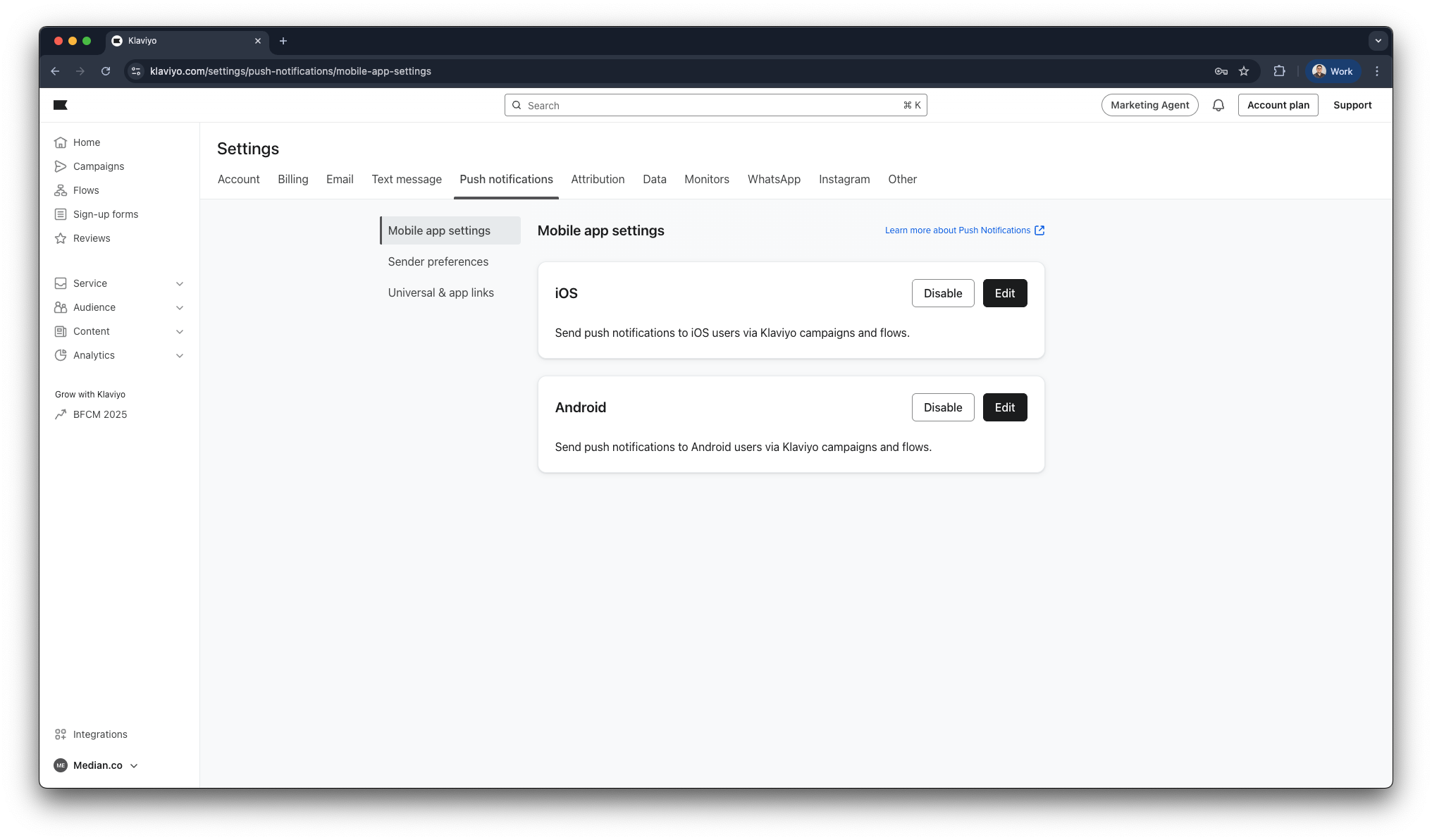
Klaviyo - Mobile app settings
Retrieve your Public API Key
- In Klaviyo, go to Settings → Account → API Keys.
- Copy the Public API Key (not private keys). You will paste it into the Klaviyo plugin field in Median App Studio.
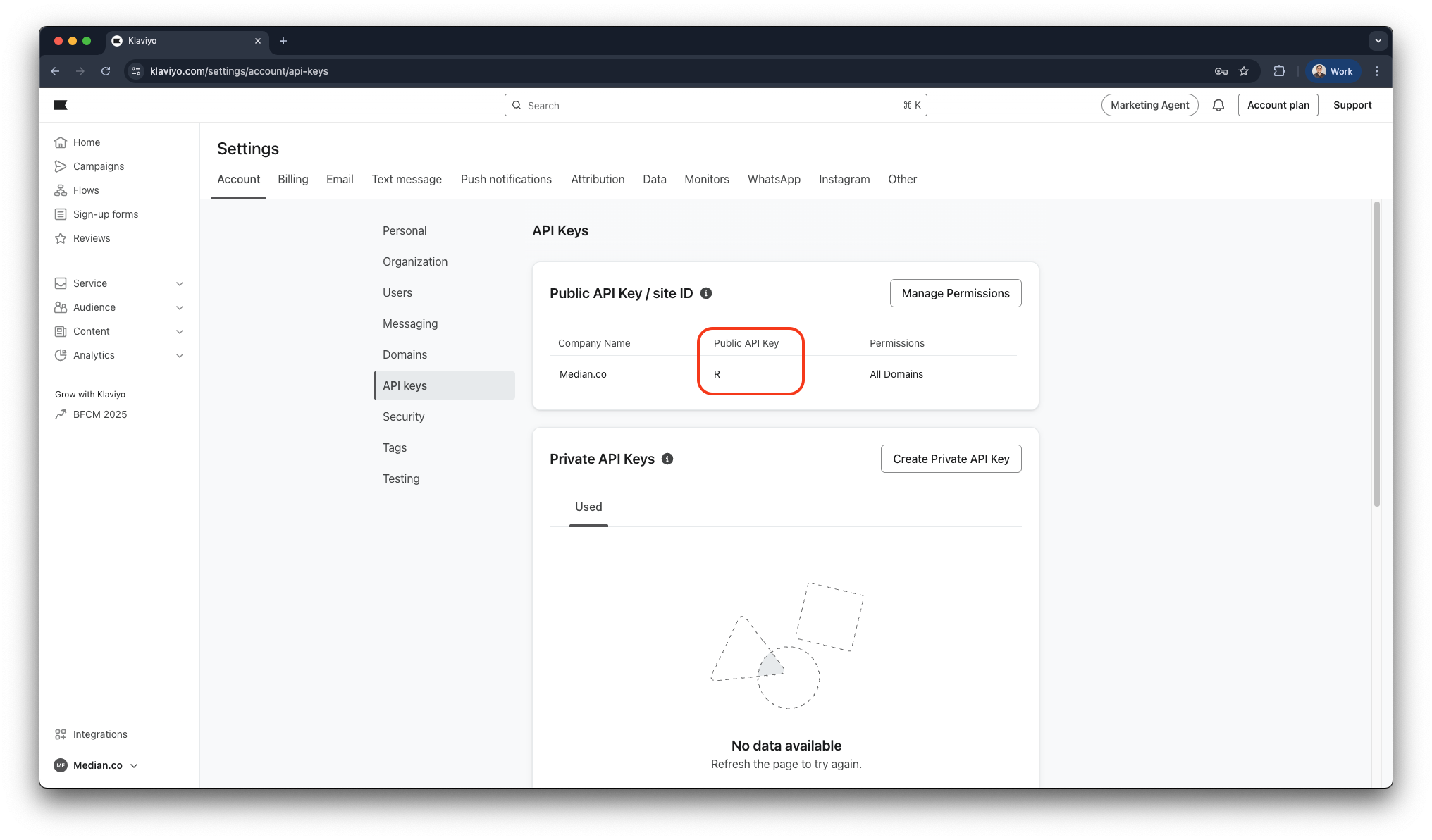
Klaviyo - Public API Key
App Configuration
Klaviyo’s stack expects Firebase / Google Services files in the native mobile app build.
- Follow Median’s Google Services guide to obtain
GoogleService-Info.plist(iOS) andgoogle-services.json(Android). - Upload both files in your Median app configuration / build settings as documented for your project so they ship inside the binary.
Without these files, the SDK may fail to initialize; see the Firebase error in Troubleshooting.
Plugin setup
Enable the plugin
- Open Median App Studio for your app.
- Enable the Klaviyo native plugin.
- Enter your Klaviyo Public API Key.
- Set Automatic Registration to match your product flow (Enabled for startup permission, Disabled to drive prompts from JavaScript).
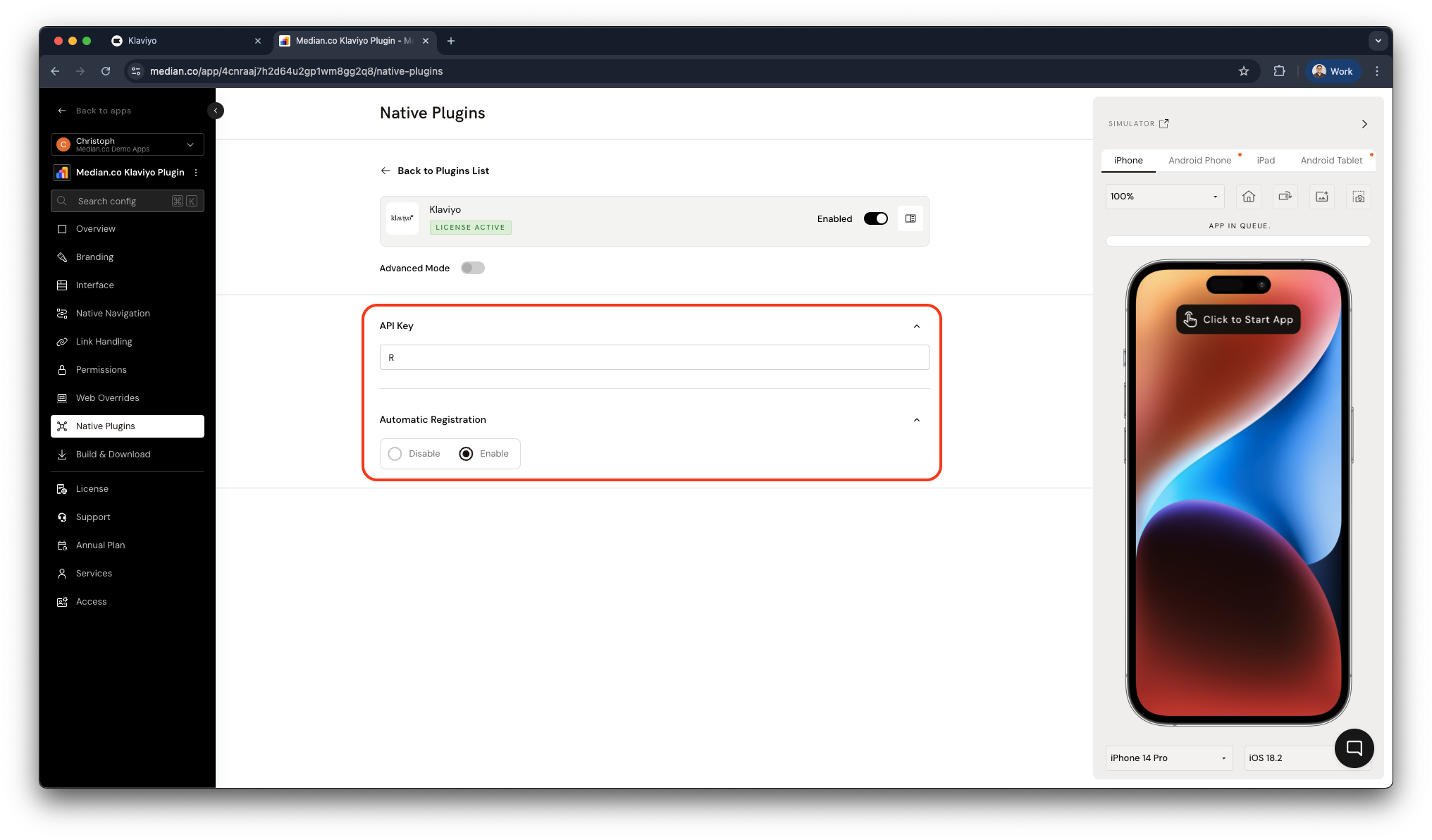
Klaviyo Plugin Configuration
Configuration options
| Setting | Description | Default | Recommended |
|---|---|---|---|
| API Key | Klaviyo Public API Key used to initialize the Klaviyo SDKs. | None | Required—copy from Klaviyo Settings → Account → API Keys. |
| Automatic Registration | Enabled: requests push permissions on app startup. Disabled: you request later with median.klaviyo.promptNotification. | Enabled | Use Disabled for contextual prompts; Enabled only if you want an immediate startup prompt. |
Note: Plugin settings take effect in new builds. After changing keys or Google Services files, create a fresh build and test on a device or simulator.
Deep linking
The Klaviyo plugin works with Median deep linking. When deep links are configured, tapping a push can open the corresponding in-app destination instead of the mobile browser. Configure URL schemes, universal links, and app links in App Studio to match the URLs your Klaviyo campaigns use.
JavaScript bridge functions
Call these after the deviceready event (or equivalent) with the JavaScript Bridge loaded. The official Median examples use callbacks; use the same shape in production unless your integration layer wraps them in promises.
Request push notification permission
Displays the system dialog to enable push notifications. On Android 13 and above, explicit permission is required; on Android 12 and below, behavior may be automatic depending on OS version and policy.
median.klaviyo.promptNotification({
  callback: function (result) {
    console.log(result.granted); // true or false
  },
});
Parameters:
| Parameter | Type | Required | Description |
|---|---|---|---|
callback | function | No | Called with { granted: boolean } (or equivalent) when the permission result is known. |
Return value:
Delivered to callback as an object with:
| Field | Type | Description |
|---|---|---|
granted | boolean | Whether push notification permission is granted. |
Check push notification permission status
Returns whether notifications are currently allowed for your app.
median.klaviyo.notificationEnabled({
  callback: function (result) {
    console.log(result.granted); // true or false
  },
});
Parameters:
| Parameter | Type | Required | Description |
|---|---|---|---|
callback | function | No | Called with the current permission state. |
Return value:
| Field | Type | Description |
|---|---|---|
granted | boolean | Current permission status. |
User profile management
Identify users and attach fields Klaviyo uses for segmentation and personalization.
// Get the current user profile
median.klaviyo.getProfile();

// Set user profile attributes
median.klaviyo.setProfile({
  externalId: "USER_ID",
  email: "[email protected]",
  phoneNumber: "+1234567890",
});

// Clear the stored user profile
median.klaviyo.resetProfile();
setProfile parameters:
| Parameter | Type | Required | Description |
|---|---|---|---|
externalId | string | No | Your primary user ID in your backend or auth system. |
email | string | No | User email for Klaviyo profiles. |
phoneNumber | string | No | E.164 or format accepted by your Klaviyo setup. |
Return value:
Profile getters/setters follow the bridge’s usual pattern (callbacks or synchronous return may vary by Median build—test in your app alongside median.dev/klaviyo).
Testing checklist
Use this checklist to ensure Klaviyo is working correctly in your app:
Basic Functionality
- Klaviyo Public API Key is set in the plugin configuration.
-
median.klaviyo.promptNotificationruns without errors and reflects user choice inresult.granted. -
median.klaviyo.notificationEnabledreports expected state after allow/deny. -
getProfile,setProfile, andresetProfilerun without JavaScript errors.
Platform Testing
- iOS: permission prompt and token path behave as expected on a physical device.
- Android: behavior verified on Android 13+ (runtime permission) and a representative older version if you support it.
- Deep link targets from Klaviyo open in app when configured (not only in the browser).
Configuration and Delivery
-
GoogleService-Info.plistandgoogle-services.jsonare present in the shipped build (per Median Google Services). - Klaviyo app entries use the same bundle ID / package name as the Median build.
- Test sends from Klaviyo reach the device when profiles and consent allow.
User Experience
- Permission prompts appear at an appropriate moment (startup vs contextual) per Automatic Registration choice.
- Logout calls
resetProfileif you require a clean SDK identity for the next user.
Troubleshooting
Klaviyo bridge functions are undefined or not working
Klaviyo bridge functions are undefined or not working
Ensure the JavaScript Bridge is enabled, the Klaviyo plugin is enabled, and your code runs after the deviceready event. Confirm you are testing on a Median build that includes the plugin, not a plain mobile browser tab.
IllegalStateException: Default FirebaseApp is not initialized in this process
IllegalStateException: Default FirebaseApp is not initialized in this process
Upload GoogleService-Info.plist and google-services.json through your Median app configuration following Google Services. Rebuild and reinstall; Klaviyo requires Firebase initialization for notification delivery on Android and for a valid native setup.
Push permission returns denied even though I expect it to work
Push permission returns denied even though I expect it to work
On iOS, check that the user has not disabled notifications for the app in Settings. On Android 13+, ensure you triggered a runtime permission request (promptNotification or startup flow). If Automatic Registration is Disabled, you must prompt explicitly before expecting tokens.
Deep links open in the browser instead of the app
Deep links open in the browser instead of the app
Configure Median deep linking (URL scheme, Universal Links, App Links) so the URL Klaviyo uses matches routes handled inside the app. Test with Klaviyo’s open action set to that URL.
Profile or campaign data looks wrong in Klaviyo
Profile or campaign data looks wrong in Klaviyo
Verify setProfile is called with correct externalId / email / phone after login, and that you call resetProfile on logout if multiple accounts share one device. Confirm the same Klaviyo account and app keys are used in App Studio as in your Klaviyo push configuration.
Still having trouble?For issues related to Klaviyo's own configuration, permissions, or platform-specific behavior outside of Median.co, refer to Klaviyo's integration documentation.
Updated about 1 month ago