
Managing Permissions and Consent
Learn how to manage permissions and consent.
Getting permission right matters — both for your users and for compliance. This guide covers everything you need to control when and how your app asks for push notification permission, how to handle privacy consent for regulations like GDPR, and how to use a soft prompt (an in-app message before the system dialog) to maximize opt-in rates on iOS and Android.
The default behavior
The first time a user opens your app, OneSignal initializes automatically and triggers the native push permission prompt. On iOS, a dialog appears asking "Allow notifications?". Android 13+, uses a system-level prompt.
Platform scope
Delaying the push permission prompt applies to iOS and Android 13+ only. On Android 12 and below, push permission is granted automatically at install time, there's no prompt.
This diagram shows the three permission strategies and how they relate to each other.
View diagram
flowchart TD
    A[App Launches] --> B{Permission strategy?}
    B -->|Default| C[OneSignal initializes and prompts immediately]
    B -->|Option 1: Delay| D[OneSignal initializes silently]
    B -->|Option 2: Privacy consent| E[OneSignal does NOT initialize]
    D --> F[You call register when ready]
    F --> G[Native permission prompt shown]
    E --> H[User accepts privacy policy]
    H --> I[You call grant consent]
    I --> D
    C --> J{User responds}
    G --> J
    J -->|Allow| K[Push notifications enabled]
    J -->|Deny| L[No push delivery]
Option 1: Delay the permission prompt
This is the most common customization. You disable the automatic prompt so you can trigger it at a more intentional moment such as after sign-up, after a user completes a key action, or when they navigate to a settings screen.
Step 1: Disable automatic registration
In App Studio, go to Plugins > Push Notifications > OneSignal and disable Auto-register for push notifications.
This prevents OneSignal from showing the permission prompt on first launch. OneSignal still initializes in the background, and generates a oneSignalUserId, but the permission prompt doesn't appear until it is triggered.
Step 2: Trigger the prompt from JavaScript
When you're ready to prompt the user, call:
median.onesignal.register();A common trigger pattern is a button/link click in your app's settings or onboarding flow:
<a onclick="median.onesignal.register()">Enable push notifications</a>Call this only once per session; repeated calls after a user has already responded to the prompt won't re-show it.
Important distinction:
Delaying registration is not the same as preventing OneSignal from initializing. Even with auto-register disabled, OneSignal still runs in the background and generates a
oneSignalUserId. If you need to prevent all data transmission to OneSignal until the user explicitly consents, for GDPR compliance, for example, use Option 2 instead.
Option 2: Require privacy consent before initializing OneSignal
By default, your app transmits device data to OneSignal as soon as it launches. For apps subject to GDPR or other privacy regulations, you may need to prevent that until the user has explicitly agreed to your privacy policy.
This is a stricter setting than delayed registration. With privacy consent required, OneSignal doesn't initialize at all/ This doesn't generate a oneSignalUserId or send any data until you call the grant method below.
Step 1: Enable the privacy consent requirement
In App Studio, go to Plugins > Push Notifications > OneSignal and enable Require user privacy consent before transmitting data.
Step 2: Grant consent from JavaScript
Once your user has accepted your privacy policy or consent flow, call:
median.onesignal.userPrivacyConsent.grant();This initializes OneSignal and allows data to be transmitted. You can also revoke consent if a user later withdraws it:
median.onesignal.userPrivacyConsent.revoke();Important Note
Revoking consent stops data transmission to OneSignal, but it does not prevent push notifications from being delivered to a device that's already opted in. To stop a user from receiving notifications, use Data Tags to manage their notification preferences, or call
median.onesignal.logout()to disassociate them from their OneSignal user record. See Identifying & Targeting Users for details.
Option 3: Soft prompt (in-app message before the native dialog)
On both iOS and Android 13+, the system shows a native dialog when you request push permission. A soft prompt is an in-app message you control — shown before that dialog — that explains why notifications are useful and lets the user decide whether to proceed. If they choose "Maybe later," you skip the system prompt and can try again when context is better.
Why use it on every platform: OneSignal recommends priming users before the native ask. That improves opt-in whether the user is on iPhone or Android.
Platform difference (iOS): On iOS, if the user already tapped "Don't Allow" on the system dialog, Apple does not let your app show that dialog again — they must change the setting in Settings. The soft prompt matters because it avoids burning that one chance before the user understands the value.
Platform difference (Android): Android 13+ does not use Apple's single-shot rule for the notification permission prompt; recovery paths differ by OS version and manufacturer. A soft prompt is still useful to explain value before the system dialog appears — especially on Android 13+, where permission is not granted at install time.
How it works
sequenceDiagram
    participant App as Your App
    participant IAM as Soft Prompt (In-App Message)
    participant SDK as OneSignal SDK
    participant OS as Native system dialog

    App->>IAM: Show soft prompt at high-intent moment
    IAM->>IAM: User reads explanation
    alt User taps "Allow"
        IAM->>SDK: median.onesignal.register()
        SDK->>OS: Trigger native prompt
        OS-->>SDK: User allows or denies
    else User taps "Not now"
        IAM->>App: Dismiss — no native prompt shown
        Note over App: Can show soft prompt again later
    end
- Your app shows a custom in-app message (the soft prompt) — designed and controlled by you
- If the user taps "Allow," your app then triggers
median.onesignal.register()to show the native iOS prompt - If the user taps "Not now," you skip the native prompt entirely and can surface the soft prompt again later
This approach, recommended by OneSignal, consistently improves opt-in rates because users arrive at the native prompt already primed to say yes.
When to show it
The soft prompt works best at moments of high intent, such as when a user has just done something that makes notification value obvious:
- After sign-up or account creation — "Get notified when your order ships"
- After a purchase or booking — "We'll send you updates on your order"
- After a user completes onboarding — when they've invested enough to care about updates
- On a dedicated notification settings screen — where the context is already clear
Avoid showing it on first launch before a user has experienced your app. They haven't yet seen the value yet so the ask feels premature.
Building the soft prompt
The soft prompt is an In-App Message configured in OneSignal's dashboard using their HTML Composer, or via API. You control the design, copy, and button actions entirely.
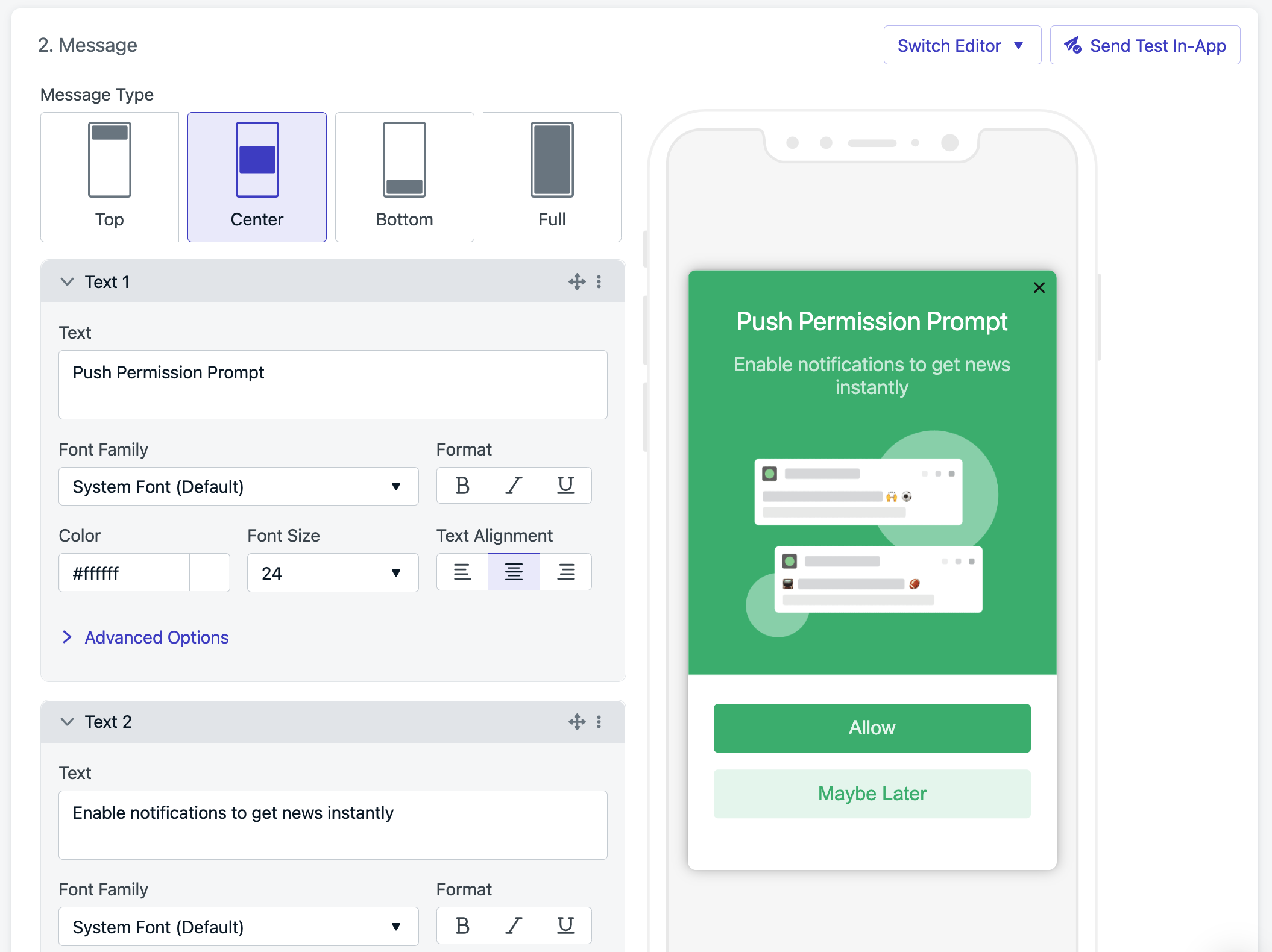
Example in-app message message in OneSignal portal
Button configuration:
- "Allow" button — triggers
median.onesignal.register()to show the native permission prompt - "Maybe later" button — closes the in-app message without triggering the native prompt
You can use OneSignal's trigger system to control exactly when the soft prompt appears, such as after a delay, on a specific page, or after a user action. See the In-App Messages guide for the full trigger API reference.
Android note:
Android doesn't have the "one prompt only" restriction that iOS does, so a soft prompt is less critical there. It can still improve opt-in rates if you want to explain the value of notifications before the system prompt appears on Android 13+.
Choosing the right approach
Not sure which option fits your app? Here's a quick guide:
| Situation | Recommended approach |
|---|---|
| You want to prompt users immediately on first launch | Default behavior — no changes needed |
| You want to prompt at a specific moment (post sign-up, settings screen) | Option 1: Delay the permission prompt |
| Your app is subject to GDPR or requires explicit consent before any data collection | Option 2: Require privacy consent |
| You want to maximize opt-in with an in-app primer before the system dialog | Option 3: Soft prompt (combine with Option 1; use on iOS and Android 13+) |
| You need both GDPR compliance and a soft prompt | Options 2 + 3 combined |
Updated about 3 hours ago