

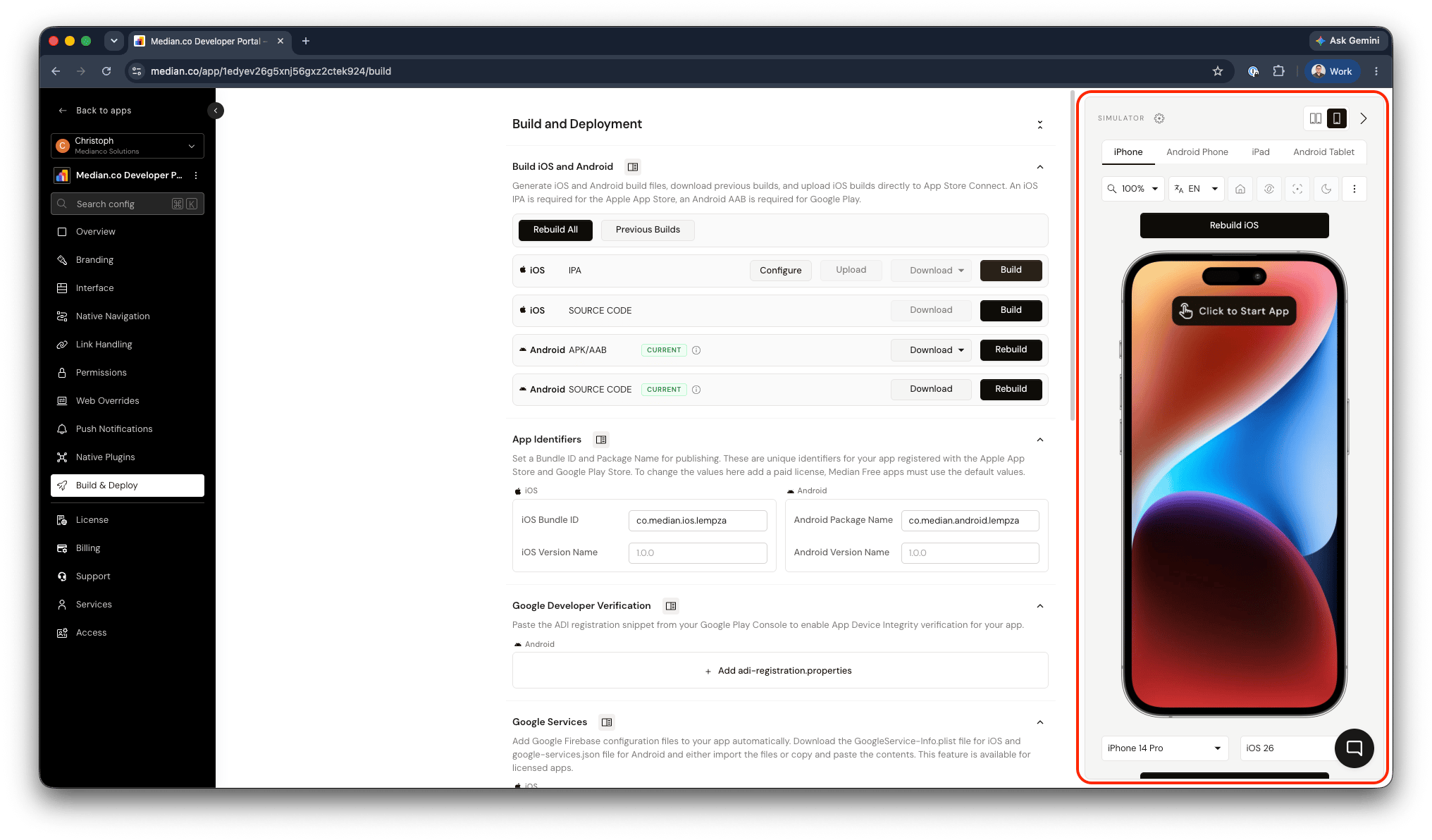
The simulator panel in the App Studio
Starting the simulator
1
Choose a platform
Select iPhone, Android Phone, iPad or Android Tablet from
the tabs at the top of the simulator panel.
2
Pick a device and OS version
Use the dropdowns below the device to choose a specific model (for example,
iPhone 14 Pro or Pixel 8) and operating system version (for example, iOS 26
or Android 14).
3
Wait for the build
The progress bar above the device shows the build status (for example,
Building iOS…). Building takes a short while the first time and after
configuration changes.
4
Click to Start App
Once the build is ready, click Click to Start App on the device screen
to launch a simulator session with your app.
Simulator settings
Click the gear icon next to Simulator to open the simulator settings.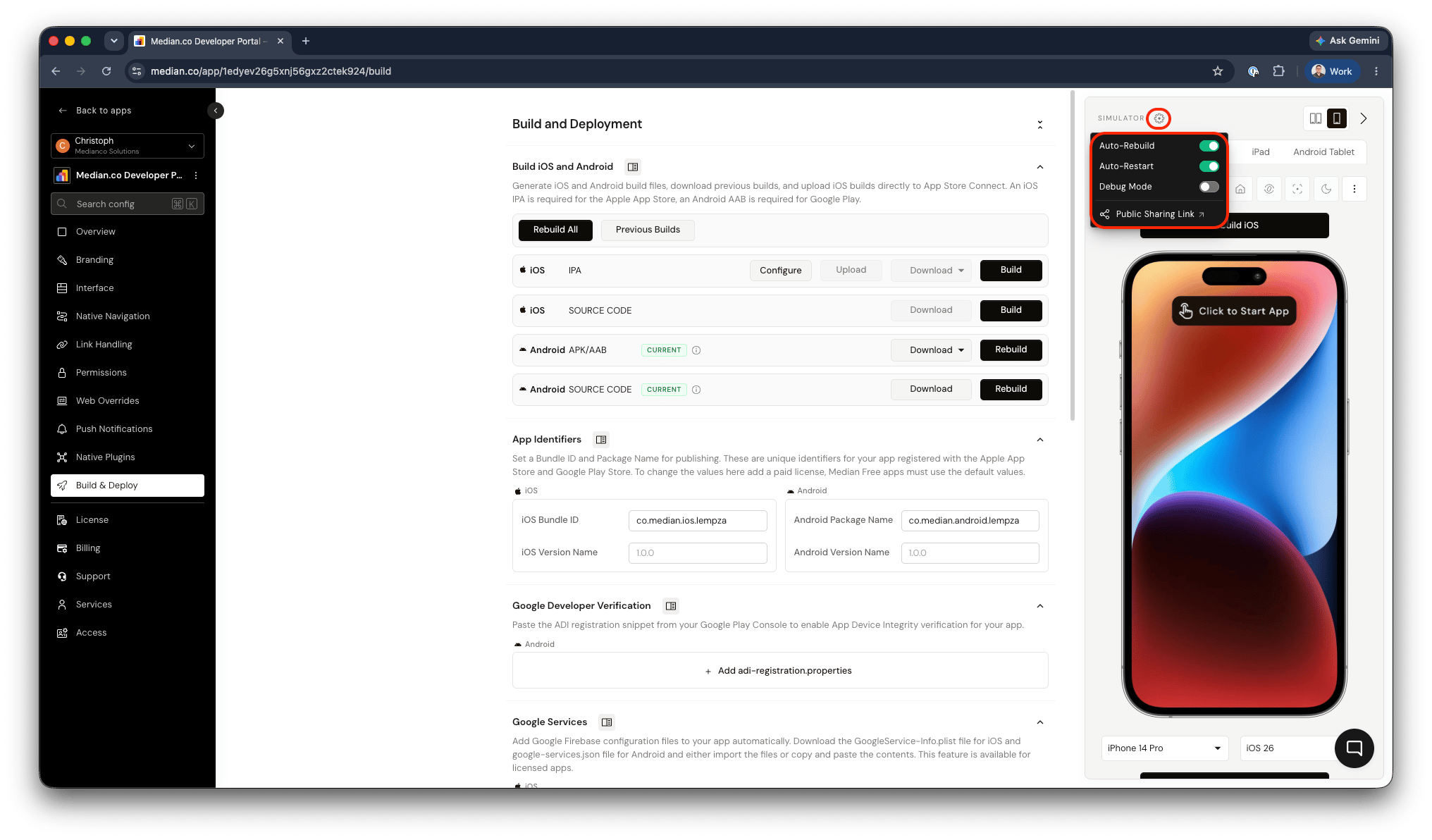
Simulator settings
If you’re making a series of changes and don’t want the simulator to rebuild
after each one, turn off Auto-Rebuild and rebuild manually when you’re
ready.
Toolbar controls
The toolbar above the device gives you quick access to common device actions.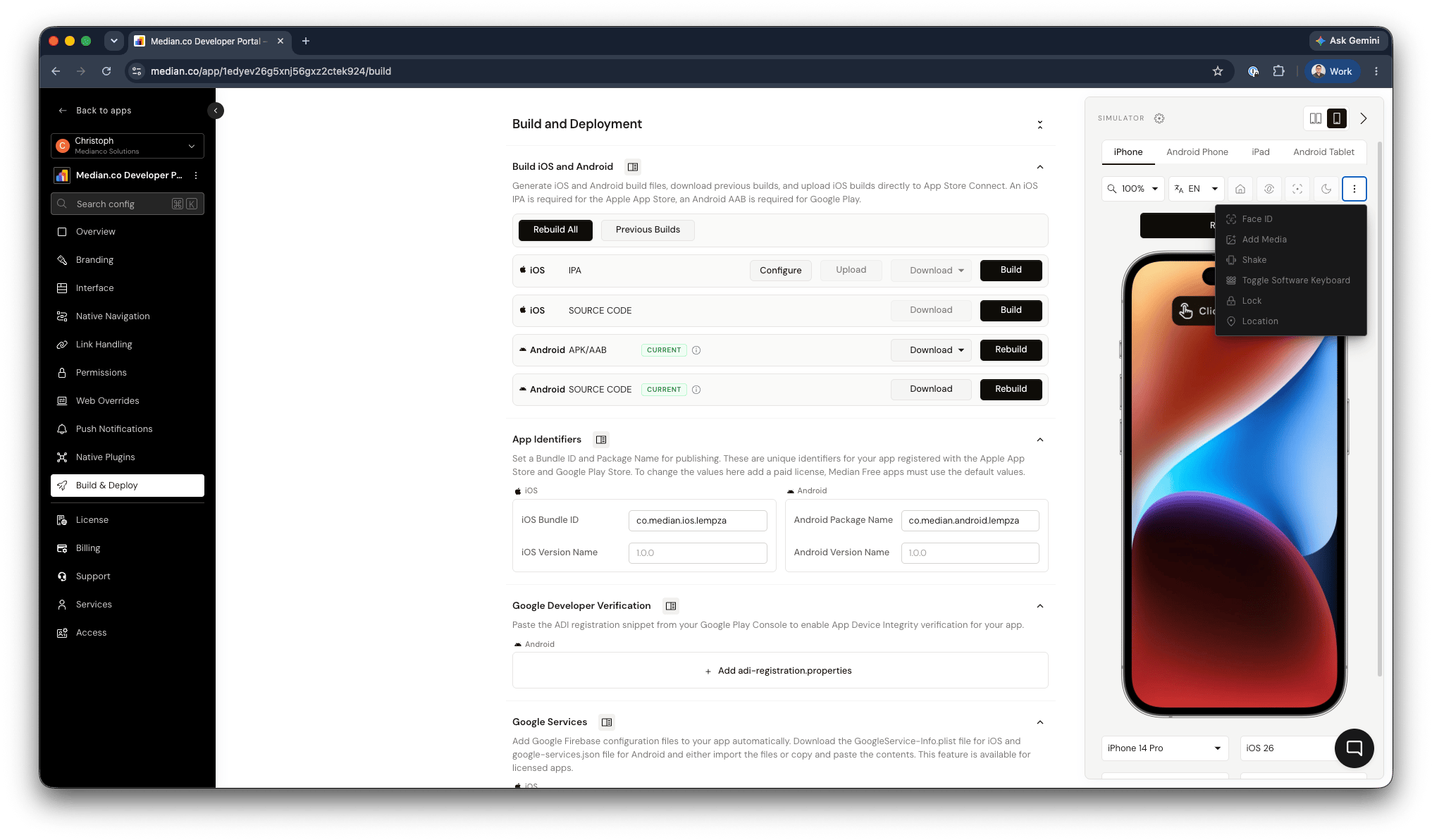
Device actions
More device actions
Click the ⋮ menu at the end of the toolbar for additional device actions. These become available once a session is running.Layout options
Use the toggle in the top-right of the simulator panel to switch the panel layout to compare two devices side-by-side. This is useful for checking how your app looks on different screen sizes, orientations and platforms.What the simulators can and can’t test
The simulators run a real build of your app, so most configuration and native features behave as they will on a device. A few things need a physical device:- Some third-party SDK integrations can’t run in a simulator. Plugin documentation notes when this is the case.
- Push notification delivery, in-app purchases, camera capture, NFC, Bluetooth and similar hardware-dependent features should be verified on a real device.
- Performance on a simulator doesn’t reflect real device performance as the simulator runs in a data center with optimized connection speeds.
Session limits
Simulator sessions have a limited runtime and number of sessions depending on your plan. Enterprise customers receive extended runtime and unlimited simulator sessions. You can find the latest session limits on our public Pricing page.Frequently asked questions
My website blocks the simulator. Which IP addresses should I allow?
My website blocks the simulator. Which IP addresses should I allow?
The simulators run in data centers across several regions. If your website
or API restricts access by IP, allowlist the IP blocks listed at
median.co/ip-blocks.
My changes aren't showing in the simulator
My changes aren't showing in the simulator
Check that Auto-Rebuild and Auto-Restart are turned on in the
simulator settings, or rebuild and restart manually. Website content changes
appear on reload, but App Studio configuration changes require a rebuild.