
Replit Draft NA
Follow this guide to build a mobile password vault with Replit and Median.co. The app stores passwords on the device, unlocks with a 4-digit code or Face ID / Touch ID, and supports clipboard copy and haptic feedback.
This guide includes an optional Replit Agent prompt you can paste as-is or adapt.
Demo app onlyMedian Vault is a demo locker for showing Median native plugins. It is not a production password manager. Do not store real credentials, and do not claim bank-grade security in the app or in your own docs.
Build Median Vault in Replit
Follow these steps to build a vault that unlocks with a 4-digit code or biometrics, then lets users add, reveal, copy, and delete password entries.
Prompt Replit Agent
- Go to replit.com and create an account.
- Create a new Repl and start Replit Agent.
- Paste this prompt (or adapt it):
Build a mobile-first password vault demo named "Median Vault" with React, Vite, Tailwind CSS, and shadcn/ui.

This is a Median.co native-plugin demo (Face ID / Touch ID, Clipboard, Haptics, Native Datastore). Do not claim production-grade password security. Do not add Sign up / Sign in, email, social login, or recovery email. User-facing word is "code" (not PIN).

## First session
1. Two onboarding pages (no kickers):
   - Title: Welcome to Median Vault. Body: Securely store and access your passwords.
   - Title: Secure access, kept simple. Body: Unlock the vault with your 4-digit code or Face ID/Touch ID/Biometrics (from biometryType). Your code and passwords are securely stored on this device.
2. Enter your code: 4-digit number pad; confirm title "One more time". No Continue button — advance on the 4th digit. Code must exist before biometric enrolment. Use the official Median logomark.
3. Biometrics page — Enable and Not now only (no Open my vault):
   - Title: Unlock with [Face ID|Touch ID|Biometrics] from biometryType. Body: You can set this up later in the vault settings.
   - Enable: auth.status + auth.save({ secret: code }) then enter the empty vault (no Face ID sheet on save).
   - Not now: enter the empty vault with code-only unlock.
4. Land on an empty vault list. User can enable biometrics later in Settings. Do not nag again.

## Return visits
- Lock screen: brand in the header only. If biometrics are enabled, primary button Unlock with [Face ID|Touch ID|Biometrics]; secondary Unlock with code. Do NOT auto-prompt on load.
- Code pad appears after Unlock with code (or biometric failure). Submit on the 4th digit.
- Forgot code → Settings → Reset demo.

## Vault list
- Header: Lock + Settings (gear). No marketing hero.
- Empty state: "Add your first password" CTA only.
- Each row: site, username, masked password, Reveal, Copy.
- Reveal toggles the mask with NO re-auth. Copy uses Median clipboard + haptic + toast, NO re-auth.

## Add / Edit
- Full-page single-column form (no nested card): site, username, password, notes (optional, max 200). Confirm before delete.

## Settings
- Enable / disable biometrics (label from biometryType)
- Change code (verify current code, then set a new 4-digit code)
- Theme: System / Light / Dark
- Reset demo: confirm, wipe vault data + biometric secret, go to onboarding page 1

## Browser (not inside Median)
- Top banner: open in the Median app for Face ID, clipboard, and on-device vault.
- Disable native actions. Show three read-only samples: GitHub / [email protected], Wi-Fi / home-network, Bank / ****1234.
- Do not fake successful Face ID.

## Median JavaScript Bridge (required)
- Install median-js-bridge and import: import Median from 'median-js-bridge'.
- Detect native with Median.isNativeApp() ONLY. Never use the user agent. Poll isNativeApp() (or Median.onReady) up to ~3 seconds before the first native call.
- Fire-and-forget (return undefined): clipboard.set, haptics.trigger, storage.app.set, storage.app.delete. A resolved await is not success.
- Callback-backed (return a promise that never rejects): auth.status, auth.save, auth.get, auth.delete, storage.app.get. Timeout them (~5s; ~60s for auth.get).
- Auth status: available iff result.hasTouchId === true. Use result.biometryType for labels (faceId / touchId / else Biometrics).
- Auth save: await Median.auth.save({ secret: String }) — no biometric UI.
- Auth get (button tap only): await Median.auth.get({ prompt: 'Unlock Median Vault', callbackOnCancel: 1 }). Success iff result.success && result.secret.
- Auth delete on disable Face ID or Reset demo.
- Clipboard: Median.clipboard.set({ data: passwordString }).
- Haptics: Median.haptics.trigger({ style: 'notificationSuccess' }) on unlock and copy only.
- Storage: set { key, value: jsonString }; get payload is result.data (not .value). Keys: medivault-profile-v1, medivault-entries-v1.
- If the Median shell is present but isNativeApp() never becomes true, show: "Median JavaScript Bridge not detected — enable JavaScript Bridge / NPM in App Studio, then rebuild."- Review the agent’s plan, suggest any changes if needed, then approve it.
- Replit will build the app and show it in the preview.
Native features are app-onlyFace ID, clipboard write, haptics, and Native Datastore only work inside your Median iOS/Android app. In a normal browser the vault should show a banner and three sample entries — do not fake a successful Face ID unlock.
In the Replit app
- Walk through onboarding and create a 4-digit code. Choose Enable or Not now on the biometrics page.
- Confirm you land on an empty vault with Add your first password. Prompt the agent to adjust design or copy if needed.
- In a normal browser, confirm the top banner and the three sample entries (GitHub, Wi‑Fi, Bank). Native actions stay disabled.
- Publish or deploy the Replit app and copy the public URL (typically
https://….replit.app).
Quick check: Go to the public URL in a private/incognito window. If the app loads without being logged into Replit’s editor, you’re ready for the next phase. If it doesn’t, republish and check for deploy errors. Replit apps can sleep when inactive — wake the Repl or use a deployment if the URL does not load.
Create your app in the Median App Studio
- Enter your Replit URL below and click Build Now.
- Follow the prompts to create the app.
- Follow our Quickstart guide to set up and customize your app.
You can preview your app in the App Studio simulators to see your customizations.
Configure the JavaScript Bridge and native plugins
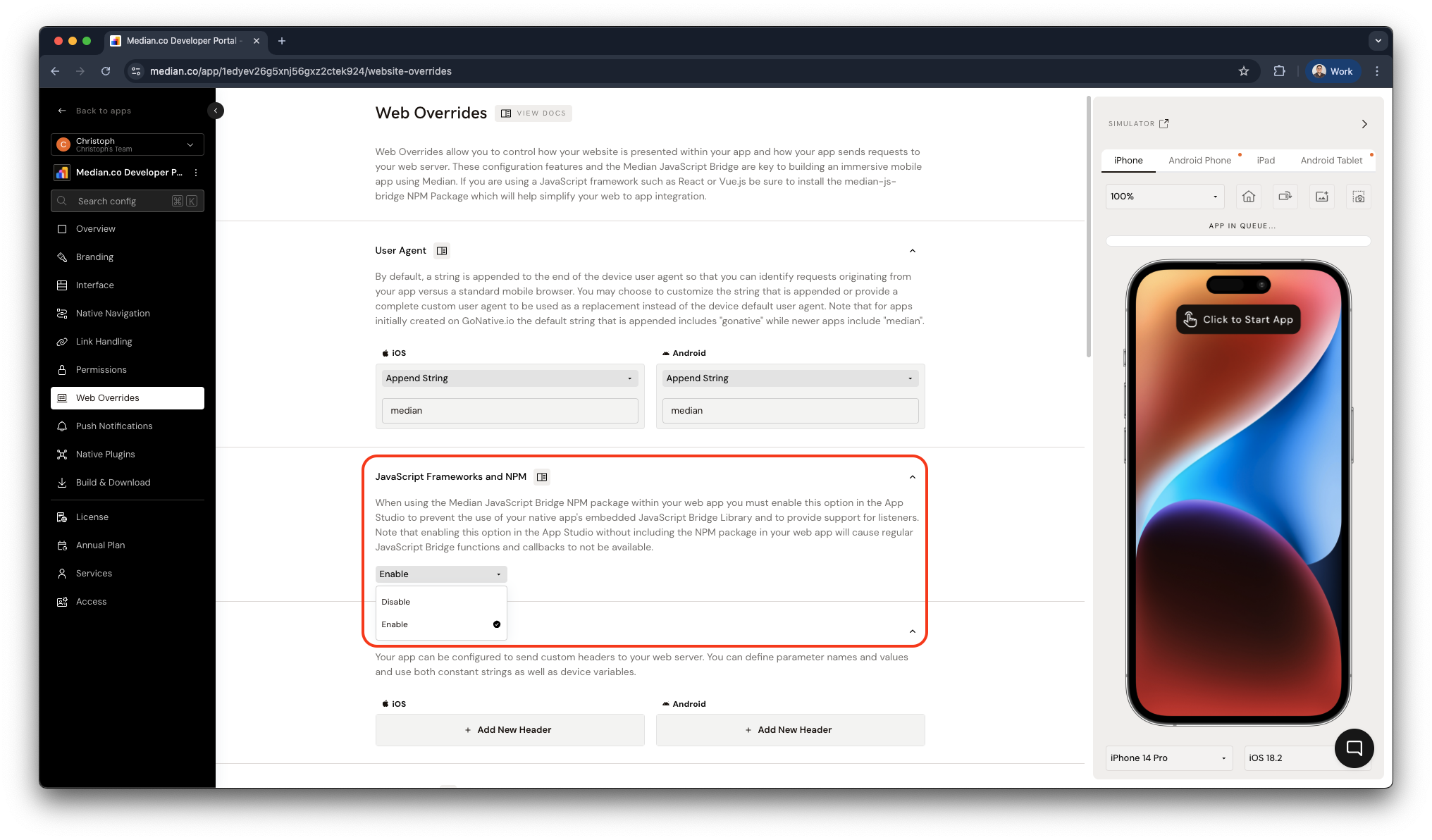
Enable the NPM package setting
Your Replit app should already include the median-js-bridge NPM package from the prompt. Update the App Studio configuration so Median uses that package instead of injecting a second bridge.
- In App Studio, head over to Web Overrides.
- Under JavaScript Frameworks and NPM, click Enable.
- Save your changes.
See NPM Package for details.
Enable native plugins
Go to the Native Plugins page, then add and enable these plugins:
- Face ID / Touch ID (iOS)
- Android Biometrics
- Clipboard
- Haptic Feedback
- Native Datastore
Then go to the Build & Deploy page and click Build all so the new plugins and NPM setting are included in the app.
Simulator vs deviceApp Studio simulators are great for checking layout and basic navigation.
However, Face ID, clipboard, haptics, and Native Datastore cannot be validated in the App Studio virtual simulator. Testing on a physical device is covered later in this guide.
Optional: to keep unlock and the vault list available when the device is offline, set a custom offline page URL to {your-published-app}/offline.html. That file should read Native Datastore only — do not link median-js-bridge in the HTML; the native app injects the bridge.
Build and test on a device
Follow the relevant documentation below to install the mobile app on a physical device and test the native features.
What success looks like
- You can create a 4-digit code and reach an empty vault
- Enable enrols biometrics with no Face ID sheet; Not now still opens the vault
- Return visits unlock with Face ID / Touch ID (button tap) or the code pad
- Reveal toggles the mask with no re-auth; Copy writes to the clipboard and plays a haptic
- Lock in the header requires Face ID or code on the next open
- Reset demo wipes data and returns to onboarding
- In a normal browser, you still see the banner and sample entries — no fake Face ID
Testing checklist
Use this checklist to confirm Median Vault is working end to end:
App creation
- You’ve created a Replit Median Vault app
- You’ve created a Median app using your Replit public URL
App configuration
- In App Studio, Web Overrides → JavaScript Frameworks and NPM is set to Enable
- The Replit app imports
median-js-bridge - Face ID / Touch ID, Android Biometrics, Clipboard, Haptic Feedback, and Native Datastore are enabled
- The Median app has been rebuilt and uses the latest version
Mobile app testing
- You can install the mobile app on a physical device with biometrics enrolled
- First session: onboarding → code → Enable or Not now → empty vault
- You can add, edit, and delete an entry (confirm before delete)
- Reveal works with no re-auth
- Copy writes to the clipboard and triggers a haptic
- Unlock with Face ID / Touch ID works on a button tap (no auto-prompt)
- Failed or declined biometrics fall back to the code pad
- Wrong code does not unlock
- Change code in Settings works
- Reset demo wipes data and returns to onboarding
- In a browser, native actions stay disabled and the three sample entries show
Troubleshooting
Face ID is unavailable or never prompts
Face ID is unavailable or never prompts
Confirm Face ID / Touch ID (iOS) or Android Biometrics is enabled, then go to Build & Deploy and click Build all. Test on a physical device with biometrics enrolled, not the App Studio virtual simulator. Availability is result.hasTouchId === true from Median.auth.status({}) — not available or enabled. Median.auth.save does not show a Face ID sheet; the scan runs only on Median.auth.get when the user taps Unlock. See Face ID / Touch ID.
Unlock or cancel hangs forever
Unlock or cancel hangs forever
Call Median.auth.get({ prompt: 'Unlock Median Vault', callbackOnCancel: 1 }). Without callbackOnCancel, a cancelled prompt never fires the callback and the promise never resolves. Callback-backed bridge calls (auth.*, storage.app.get) never reject — wrap them in a timeout (~60s for auth.get, ~5s for status/storage) and show an error if they expire.
Median JavaScript Bridge is not detected or not working
Median JavaScript Bridge is not detected or not working
Detect native with Median.isNativeApp() only — do not use the user agent. The bridge handler attaches after first paint, so poll isNativeApp() (or Median.onReady) for up to about 3 seconds. Confirm the Replit project installed median-js-bridge, then in App Studio go to Web Overrides → JavaScript Frameworks and NPM and click Enable, then rebuild. If the app is running in the Median shell but isNativeApp() stays false, show a diagnostic that the bridge is missing. See NPM Package.
Clipboard or haptics do not work
Clipboard or haptics do not work
Verify the Clipboard and Haptic Feedback plugins are enabled and the app was rebuilt. clipboard.set and haptics.trigger are fire-and-forget — they return undefined, so a resolved await does not mean success. Use Median.clipboard.set({ data: passwordString }) (not text) and Median.haptics.trigger({ style: 'notificationSuccess' }) only after a successful unlock or copy, and only when Median.isNativeApp() is true. These cannot be validated reliably in a desktop browser. See Clipboard and Haptics.
Vault entries do not persist after relaunch
Vault entries do not persist after relaunch
Confirm Native Datastore is enabled and the app was rebuilt. Read the get payload from result.data (not .value) and JSON.parse as needed. Persist the profile and entries under medivault-profile-v1 and medivault-entries-v1. storage.app.set / delete are fire-and-forget. See Native Datastore.
Replit public URL does not load outside the editor
Replit public URL does not load outside the editor
Publish or deploy the Replit app again and copy the public URL (typically https://….replit.app). Go to the URL in a private/incognito window. Replit apps can sleep when inactive — wake the Repl or use a paid/always-on deployment if Median cannot reach the site.
App Studio preview looks fine but native features fail
App Studio preview looks fine but native features fail
Layout and navigation can look correct in App Studio simulators while Face ID, clipboard, haptics, and Native Datastore still fail there. Install a device build (Build iOS from source, Install Android APK, or Build Android from source) and retest on hardware.