---
updatedAt: 2026-09-28T13:52:21.000Z
agentTools:
projectIndex: https://docs.median.co/llms.txt
---
# Download File
Let users download files, save images, and view PDFs in your app
Your app can handle file downloads and inline viewing by following the `Content-Disposition` header set by your server. This allows you to control whether files are displayed within the app's webview or downloaded to the user's device.
## Supported Content-Disposition Headers
### `Content-Disposition: inline`
Files with this header will be displayed directly in the app's webview, similar to how HTML content is rendered.
* Ideal for PDFs and other media intended to be viewed in-app.
* You may need to use [Native Navigation](https://docs.median.co/docs/native-navigation-overview) to provide navigation options for users to return to other parts of your app.
### `Content-Disposition: attachment`
Files with this header will be automatically downloaded to the user's device:
* iOS: Triggers the native “Share” dialog, allowing the user to open the file in the Files app or compatible apps.
* Android: Prompts the user with an “Open with” dialog after download.
## Implementation Guide
If you are not able to set the `Content-Disposition` header you may use the JavaScript Bridge downloadFile function to download (and open) a file on a user's device. Should you chose to open the file, the user is presented with a the native iOS or Android 'Open with' dialog.
URLs need to be publicly available. Localhost URLs are **not supported**
> 👍 Developer Demo
>
> You can see the PDF viewer in action on our demo page
### Download File at Specified URL
Use the following command to download a file via the Median JavaScript Bridge:
> To download a file:
```javascript
median.share.downloadFile({url: 'https://yoursite.com/file.pdf', open: true|false})
// Note: 'open' is an Android-only parameter, refer to below
```
**iOS Behavior**
* The file is downloaded and passed to the native “Open with” system dialog.
**Android Behavior**
* Downloads Folder Enabled (Permissions tab): Downloads silently. If open: true is set, the "Open with" dialog is displayed.
* Private to App Enabled (Permissions tab): Always shows the "Open with" dialog after download.
On iOS, the file is downloaded and passed to the "open with" system dialog.
You can learn more about the permissions in [Downloads Directory](https://median.co/docs/downloads-directory).
### Save Image to Photos
To download and save an image to the user’s photo gallery (iOS Photos or Android Gallery), use:
```javascript
median.share.downloadImage({url: 'https://yoursite.com/file.jpg'})
```
> 👍 Developer Demo
>
> Display our demo page in your app to test during development
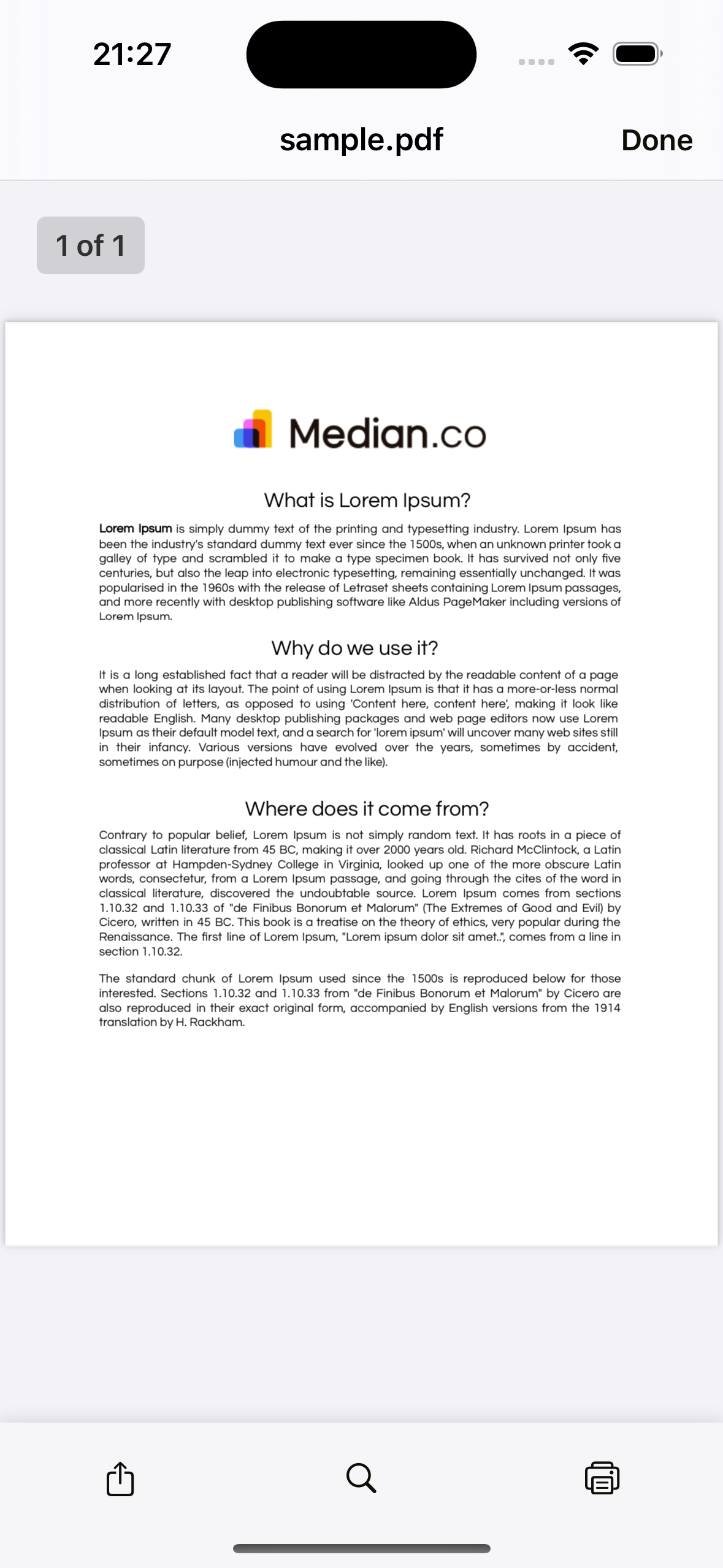
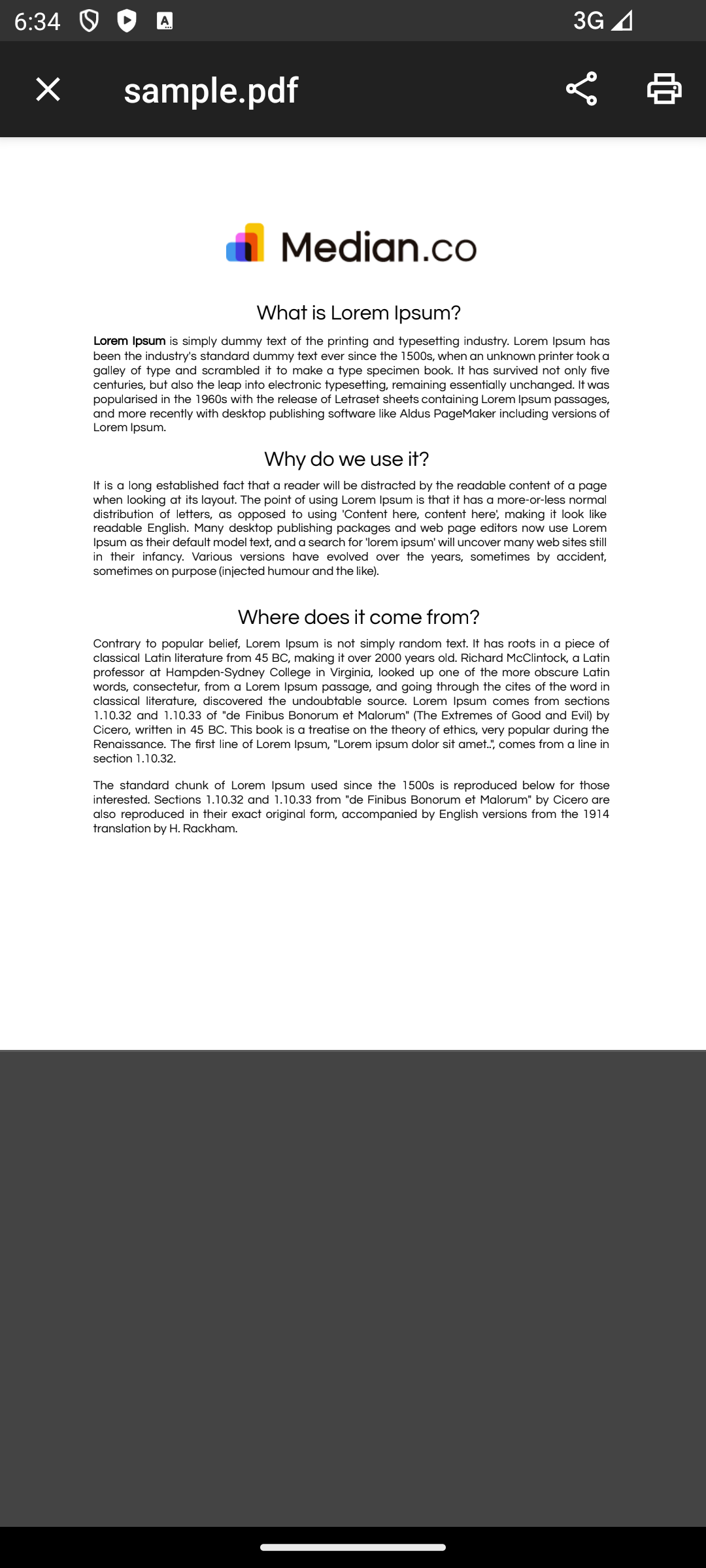
### Viewing PDF files in the app
You can view PDF files directly within your app using one of the following methods:
**Option 1: Open via URL**
```javascript
// Navigate to the PDF file's url
window.location.href = 'https://yoursite.com/file.pdf'
```
**Option 2: Use JavaScript Bridge**
```javascript
// Use the downloadFile function
median.share.downloadFile({url: 'https://yoursite.com/file.pdf', open: true})
```
For iOS, we utilize the built-in PDFKit framework provided by Apple. For Android we are using the PDFViewer library
{`
|
|
| iOS |
Android |
`}
### Printing PDF files
If the device supports printing services, users can print PDF files directly from the viewer:
* iOS: Tap the Print icon in the bottom-right corner of the PDF viewer.
* Android: Tap the Print icon in the top-right corner.